Example Application
Now that we have learned what Animations are. Let's learn how to code them in a program by building a basic Android application that uses Animations. In this example, we will be using five animations, which are: zoom in, zoom out, rotate, move, and blink.
First, we need to create a new project in Android Studio by selecting the empty activity option. Now add a text view and five buttons in the activity_main.xml file.
activity_main.xml
<?xml version="1.0" encoding="utf-8"?>
<androidx.constraintlayout.widget.ConstraintLayout xmlns:android="http://schemas.android.com/apk/res/android"
    xmlns:app="http://schemas.android.com/apk/res-auto"
    xmlns:tools="http://schemas.android.com/tools"
    android:layout_width="match_parent"
    android:layout_height="match_parent"
    tools:context=".MainActivity">

    <TextView
        android:id="@+id/textView"
        android:layout_width="326dp"
        android:layout_height="77dp"
        android:layout_marginStart="40dp"
        android:layout_marginTop="56dp"
        android:layout_marginBottom="60dp"
        android:ems="10"
        android:inputType="textPersonName"
        android:text="Coding Ninjas"
        android:textSize="50sp"
        app:layout_constraintBottom_toTopOf="@+id/zoomIn"
        app:layout_constraintStart_toStartOf="parent"
        app:layout_constraintTop_toTopOf="parent" />

    <Button
        android:id="@+id/zoomIn"
        android:layout_width="0dp"
        android:layout_height="0dp"
        android:layout_marginBottom="39dp"
        android:text="Zoom In"
        app:layout_constraintBottom_toTopOf="@+id/zoomOut"
        app:layout_constraintEnd_toEndOf="@+id/zoomOut"
        app:layout_constraintStart_toStartOf="@+id/zoomOut"
        app:layout_constraintTop_toBottomOf="@+id/textView" />

    <Button
        android:id="@+id/zoomOut"
        android:layout_width="0dp"
        android:layout_height="0dp"
        android:layout_marginStart="54dp"
        android:layout_marginEnd="54dp"
        android:layout_marginBottom="42dp"
        android:text="Zoom Out"
        app:layout_constraintBottom_toTopOf="@+id/blink"
        app:layout_constraintEnd_toEndOf="parent"
        app:layout_constraintStart_toStartOf="parent"
        app:layout_constraintTop_toBottomOf="@+id/zoomIn" />

    <Button
        android:id="@+id/rotate"
        android:layout_width="0dp"
        android:layout_height="0dp"
        android:layout_marginStart="54dp"
        android:layout_marginEnd="54dp"
        android:layout_marginBottom="49dp"
        android:text="Rotate"
        app:layout_constraintBottom_toBottomOf="parent"
        app:layout_constraintEnd_toEndOf="parent"
        app:layout_constraintStart_toStartOf="parent"
        app:layout_constraintTop_toBottomOf="@+id/move" />

    <Button
        android:id="@+id/move"
        android:layout_width="0dp"
        android:layout_height="0dp"
        android:layout_marginStart="58dp"
        android:layout_marginEnd="58dp"
        android:layout_marginBottom="27dp"
        android:text="Move"
        app:layout_constraintBottom_toTopOf="@+id/rotate"
        app:layout_constraintEnd_toEndOf="parent"
        app:layout_constraintStart_toStartOf="parent"
        app:layout_constraintTop_toBottomOf="@+id/blink"/>

    <Button
        android:id="@+id/blink"
        android:layout_width="0dp"
        android:layout_height="0dp"
        android:layout_marginStart="58dp"
        android:layout_marginEnd="58dp"
        android:layout_marginBottom="42dp"
        android:text="Blink"
        app:layout_constraintBottom_toTopOf="@+id/move"
        app:layout_constraintEnd_toEndOf="parent"
        app:layout_constraintStart_toStartOf="parent"
        app:layout_constraintTop_toBottomOf="@+id/zoomOut" />
</androidx.constraintlayout.widget.ConstraintLayout>
Now, create a new directory (anim) inside the res folder. In this folder, we will add all our animations. For each of the animations, create a new XML file and add it under the anim folder. Following is the code for all five animations.
zoom_in.xml
<?xml version="1.0" encoding="utf-8"?>
<set xmlns:android="http://schemas.android.com/apk/res/android">
    <scale
        android:duration="750"
        android:fromXScale="1"
        android:fromYScale="1"
        android:toXScale="2"
        android:toYScale="2" />
</set>
zoom_out.xml
<?xml version="1.0" encoding="utf-8"?>
<set xmlns:android="http://schemas.android.com/apk/res/android">
    <scale
        android:duration="750"
        android:fromXScale="1"
        android:fromYScale="1"
        android:toXScale="0.25"
        android:toYScale="0.25" />
</set>
rotate.xml
<?xml version="1.0" encoding="utf-8"?>
<set xmlns:android="http://schemas.android.com/apk/res/android">
    <rotate
        android:duration="750"
        android:fromDegrees="0"
        android:toDegrees="360"
        android:repeatMode = "reverse"
        android:repeatCount="5" />
</set>
move.xml
<?xml version="1.0" encoding="utf-8"?>
<set xmlns:android="http://schemas.android.com/apk/res/android">
    <translate
        android:duration="750"
        android:fromXDelta="0%p"
        android:toXDelta="50%p"/>
</set>
blink.xml
<?xml version="1.0" encoding="utf-8"?>
<set xmlns:android="http://schemas.android.com/apk/res/android">
    <alpha
        android:fromAlpha="0"
        android:toAlpha="1"
        android:duration = "750"
        android:interpolator="@android:anim/accelerate_interpolator"
        android:repeatMode = "reverse"
        android:repeatCount="5" />
</set>
Bind the buttons to the text view and with their respective animations in the MainActivity.kt file.
package com.example.androidanimations

import androidx.appcompat.app.AppCompatActivity
import android.os.Bundle
import android.view.View
import android.view.animation.Animation
import android.view.animation.AnimationUtils
import android.widget.Button
import android.widget.TextView

class MainActivity : AppCompatActivity() {
    private lateinit var text_view: TextView

    // late initializing button for zoom in functionality
    private lateinit var btnZoomIn: Button
    // late initializing animation for zoom in functionality
    private lateinit var animZoomIn: Animation

    // late initializing button for zoom out functionality
    private lateinit var btnZoomOut: Button
    // late initializing animation for zoom out functionality
    private lateinit var animZoomOut: Animation

    // late initializing button for rotate functionality
    private lateinit var btnRotate: Button
    // late initializing animation for rotate functionality
    private lateinit var animRotate: Animation

    // late initializing button for blink functionality
    private lateinit var btnBlink: Button
    // late initializing animation for blink functionality
    private lateinit var animBlink: Animation

    // late initializing button for move functionality
    private lateinit var btnMove: Button
    // late initializing animation for move functionality
    private lateinit var animMove: Animation


    override fun onCreate(savedInstanceState: Bundle?) {
        super.onCreate(savedInstanceState)
        setContentView(R.layout.activity_main)

        text_view = findViewById<TextView>(R.id.textView) // text to apply animation on

        // Zoom In Animation
        btnZoomIn = findViewById<Button>(R.id.zoomIn) // zoom in button
        animZoomIn = AnimationUtils.loadAnimation(getApplicationContext(), R.anim.zoom_in) // animation zoom in
        btnZoomIn.setOnClickListener(object : View.OnClickListener { //binding the listener
            override fun onClick(v: View?) {
                text_view.setVisibility(View.VISIBLE)
                text_view.startAnimation(animZoomIn) // start animation
            }
        })

        // Zoom Out Animation
        btnZoomOut = findViewById<Button>(R.id.zoomOut) // zoom out button
        animZoomOut = AnimationUtils.loadAnimation(getApplicationContext(), R.anim.zoom_out) // animation zoom out
        btnZoomOut.setOnClickListener(object : View.OnClickListener { //binding the listener
            override fun onClick(v: View?) {
                text_view.setVisibility(View.VISIBLE)
                text_view.startAnimation(animZoomOut) // start animation
            }
        })

        // Rotate Animation
        btnRotate = findViewById<Button>(R.id.rotate) // rotate button
        animRotate = AnimationUtils.loadAnimation(getApplicationContext(), R.anim.rotate) // animation rotate
        btnRotate.setOnClickListener(object : View.OnClickListener { //binding the listener
            override fun onClick(v: View?) {
                text_view.setVisibility(View.VISIBLE)
                text_view.startAnimation(animRotate) // start animation
            }
        })

        // Blink Animation
        btnBlink = findViewById<Button>(R.id.blink) // Blink button
        animBlink = AnimationUtils.loadAnimation(getApplicationContext(), R.anim.blink) // animation Blink
        btnBlink.setOnClickListener(object : View.OnClickListener { //binding the listener
            override fun onClick(v: View?) {
                text_view.setVisibility(View.VISIBLE)
                text_view.startAnimation(animBlink) // start animation
            }
        })

        // Move Animation
        btnMove = findViewById<Button>(R.id.move) // move button
        animMove= AnimationUtils.loadAnimation(getApplicationContext(), R.anim.move) // animation move
        btnMove.setOnClickListener(object : View.OnClickListener { //binding the listener
            override fun onClick(v: View?) {
                text_view.setVisibility(View.VISIBLE)
                text_view.startAnimation(animMove) // start animation
            }
        })
    }
}
Output:
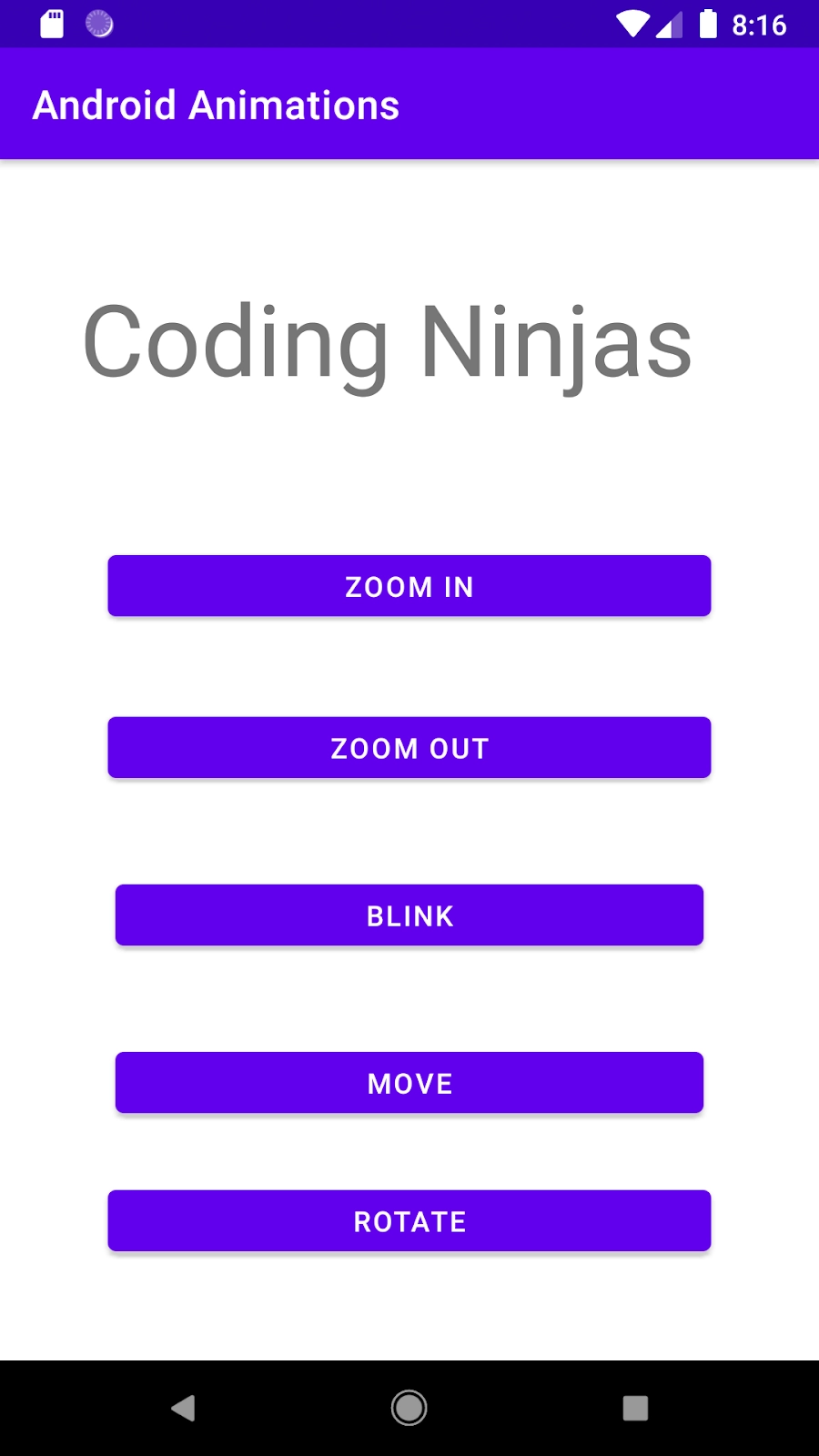
Following are the outputs obtained upon using the corresponding animation on the "Coding Ninjas" text.

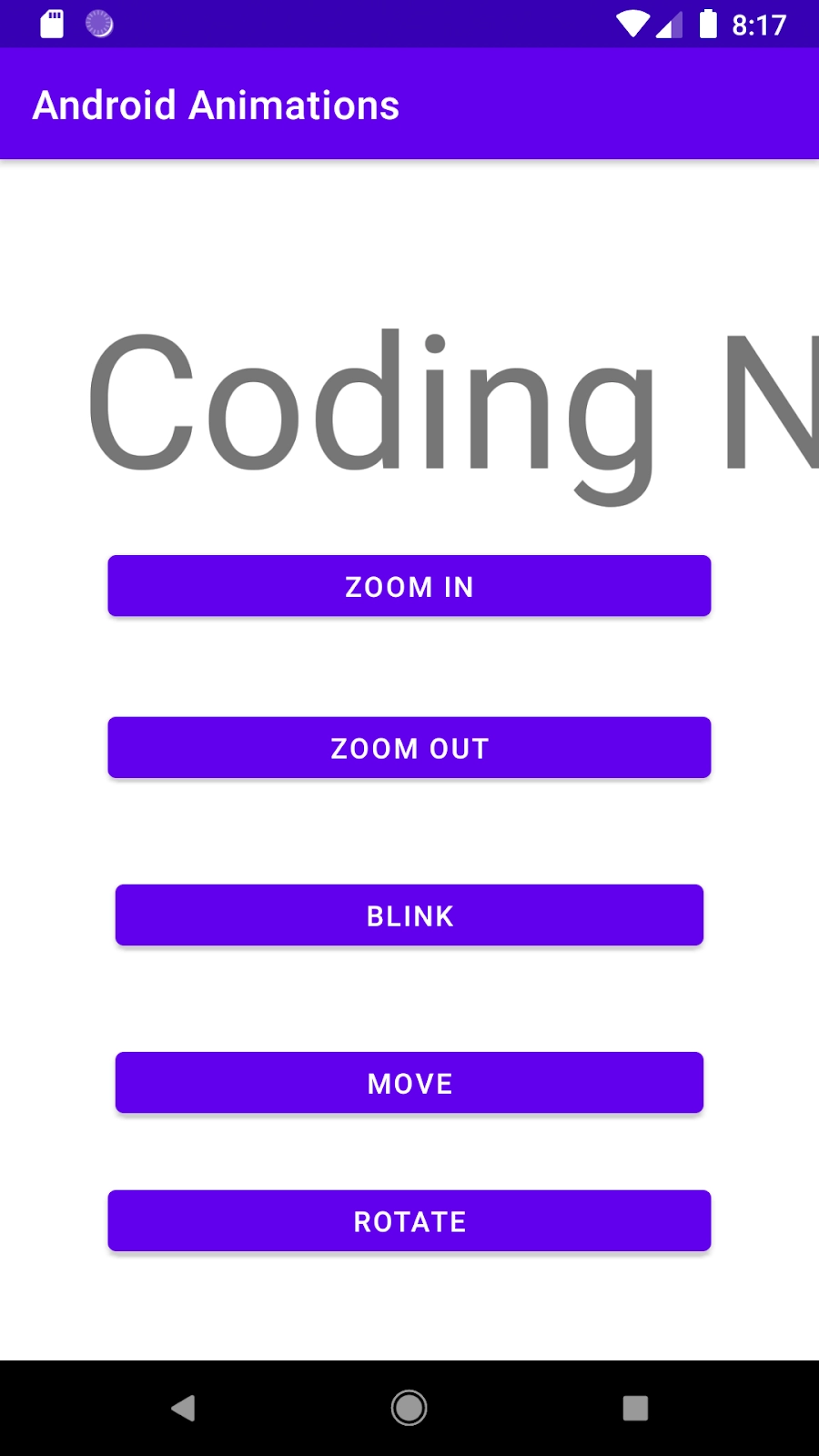
No animation Zoom in Animation

Zoom Out Animation Blink


Move Animation Rotate Animation
FAQs
How can we specify the duration of an animation?
The duration of an animation can be specified using the property "android: duration."
What are the different ways of adding animations?
Animations in android can be added by two methods: XML files and Android code.
What is the use of android:interpolator?
It specifies the rate of animation. For example, Accelerate Interpolator is a type of interpolator where the rate of change starts out slowly and then accelerates rapidly.
Conclusion
In this article, we have extensively discussed Animation in Android and its implementation in Android Studio. We discussed how Animations could be created and registered in an android application.
We hope that this blog has helped you enhance your knowledge regarding Animation. All the widgets are enclosed inside a UI layout and if you would like to learn more about layouts, check out our article on Android UI layouts. And to learn in-depth about android development, check out our Android Development course on the Coding Ninjas website. Do upvote our blog to help other ninjas grow. Happy Coding!





 1+ registered

