Methods of Audio Manager
Apart from the getRingerMode method, the AudioManager class has various methods for controlling volume and other modes. The following is a list of them.
- adjustVolume(int direction, int flags): The loudness of the most relevant stream is adjusted using this method.
- getMode(): The current audio mode is returned by this method.
- getStreamMaxVolume(int stream type): The maximum volume index for a stream is returned by this method.
- getStreamVolume(int stream type): The current volume index for a stream is returned by this method.
- isMusicActive(): This technique determines if any music is playing.
- startBluetoothSco(): This procedure connects the SCO audio connection with Bluetooth.
- stopBluetoothSco(): This procedure disconnects the SCO audio connection from Bluetooth.
Now, Let's see the use of these discussed methods and attributes with a working example given below.
Example Application
Open Android Studio, start an empty activity, give a name to your app( Audio Manager CN in our case), and let Android do the Gradle syncing.
Now, start working on the studio by editing the activity_main.xml file.
activity_main.xml:
<?xml version="1.0" encoding="utf-8"?>
<androidx.constraintlayout.widget.ConstraintLayout xmlns:android="http://schemas.android.com/apk/res/android"
    xmlns:app="http://schemas.android.com/apk/res-auto"
    xmlns:tools="http://schemas.android.com/tools"
    android:layout_width="match_parent"
    android:layout_height="match_parent"
    tools:context=".MainActivity">

    <RelativeLayout
        android:layout_width="match_parent"
        android:layout_height="match_parent"
        tools:context=".MainActivity">

        <TextView
            android:id="@+id/tv_heading"
            android:layout_width="match_parent"
            android:layout_height="wrap_content"
            android:gravity="center_horizontal"
            android:text="@string/android_audio_manager"
            android:textColor="#FFA828"
            android:textSize="35sp" />

        <TextView
            android:id="@+id/tv_heading2"
            android:layout_width="match_parent"
            android:layout_height="wrap_content"
            android:gravity="end"
            android:layout_marginEnd="10dp"
            android:layout_below="@+id/tv_heading"
            android:layout_centerHorizontal="true"
            android:text="@string/code_studio_presents"
            android:textColor="#FA4C15"
            android:textSize="25sp" />

        <ImageView
            android:id="@+id/iv_mainImg"
            android:layout_width="wrap_content"
            android:layout_height="wrap_content"
            android:layout_below="@+id/tv_heading2"
            android:src="@drawable/abc"
            android:contentDescription="@string/todo" />

        <Button
            android:id="@+id/bttn_mode"
            android:layout_width="wrap_content"
            android:layout_height="wrap_content"
            android:layout_below="@+id/iv_mainImg"
            android:layout_alignParentStart="true"
            android:layout_marginStart="50dp"
            android:layout_marginTop="50dp"
            android:padding="5dp"
            android:text="@string/check_mode" />

        <Button
            android:id="@+id/bttn_ring"
            android:layout_width="wrap_content"
            android:layout_height="wrap_content"
            android:layout_alignTop="@+id/bttn_mode"
            android:layout_alignParentStart="true"
            android:padding="5dp"
            android:layout_marginStart="50dp"
            android:layout_marginTop="100dp"
            android:text="@string/ring_mode" />

        <Button
            android:id="@+id/bttn_vibrate"
            android:layout_width="wrap_content"
            android:layout_height="wrap_content"
            android:layout_below="@+id/iv_mainImg"
            android:layout_alignParentEnd="true"
            android:padding="5dp"
            android:layout_marginEnd="50dp"
            android:layout_marginTop="50dp"
            android:text="@string/vibrate_mode" />

        <Button
            android:id="@+id/bttn_silent"
            android:layout_width="wrap_content"
            android:layout_height="wrap_content"
            android:layout_below="@+id/bttn_vibrate"
            android:layout_alignParentEnd="true"
            android:padding="5dp"
            android:layout_marginEnd="50dp"
            android:layout_marginTop="50dp"
            android:text="@string/silent_mode" />
    </RelativeLayout>

</androidx.constraintlayout.widget.ConstraintLayout>
In this step, we have added the layout code for displaying an Audio Manager work so that we can use its methods and attributes. This XML code will result in Textviews with an image and four main Buttons: for checking current mode, for changing current mode to Silent, for changing current mode to Ring, and for changing current mode to Vibrate, respectively.
MainActivity.kt:
package com.codingninjas.audiomanagercn

import androidx.appcompat.app.AppCompatActivity
import android.media.AudioManager
import android.os.Bundle
import android.view.View
import android.widget.Button
import com.akshitpant.audiomanagercn.R
import android.widget.Toast

class MainActivity : AppCompatActivity() {
    // global declaration of obj. audioManager................
    private var audioManager: AudioManager? = null

    override fun onCreate(savedInstanceState: Bundle?) {
        super.onCreate(savedInstanceState)
        setContentView(R.layout.activity_main)

        var bttn_mode: Button? = null
        var bttn_ring: Button? = null
        var bttn_vibrate: Button? = null
        var bttn_silent: Button? = null


        bttn_vibrate = findViewById(R.id.bttn_vibrate)
        bttn_ring = findViewById(R.id.bttn_ring)
        bttn_mode = findViewById(R.id.bttn_mode)
        bttn_silent = findViewById(R.id.bttn_silent)
        audioManager = getSystemService(AUDIO_SERVICE) as AudioManager
        bttn_vibrate.setOnClickListener(View.OnClickListener { v: View? ->
            audioManager!!.ringerMode = AudioManager.RINGER_MODE_VIBRATE
            Toast.makeText(this@MainActivity, "Device is set in Vibrate Mode", Toast.LENGTH_SHORT)
                .show()
        })
        bttn_ring.setOnClickListener(View.OnClickListener { v: View? ->
            audioManager!!.ringerMode = AudioManager.RINGER_MODE_NORMAL
            Toast.makeText(this@MainActivity, "Device is set in Ringing Mode", Toast.LENGTH_SHORT)
                .show()
        })
        bttn_silent.setOnClickListener(View.OnClickListener { v: View? ->
            audioManager!!.ringerMode = AudioManager.RINGER_MODE_SILENT
            Toast.makeText(this@MainActivity, "Device is set in silent Mode", Toast.LENGTH_SHORT)
                .show()
        })
        bttn_mode.setOnClickListener(View.OnClickListener { v: View? ->
            val mod = audioManager!!.ringerMode
            if (mod == AudioManager.RINGER_MODE_VIBRATE) {
                Toast.makeText(
                    this@MainActivity,
                    "Device is Currently in Vibrate Mode",
                    Toast.LENGTH_SHORT
                ).show()
            } else if (mod == AudioManager.RINGER_MODE_NORMAL) {
                Toast.makeText(
                    this@MainActivity,
                    "Device is Currently in Ringing Mode",
                    Toast.LENGTH_SHORT
                ).show()
            } else {
                Toast.makeText(
                    this@MainActivity,
                    "Device is Currently in Silent Mode",
                    Toast.LENGTH_SHORT
                ).show()
            }
        })
    }
}
In this step, first, we created the Audio Manager object audioManager, then called four buttons with their respective ids from the XML file. And finally created the onClick property to these four buttons using Audio Manager methods.
Output:
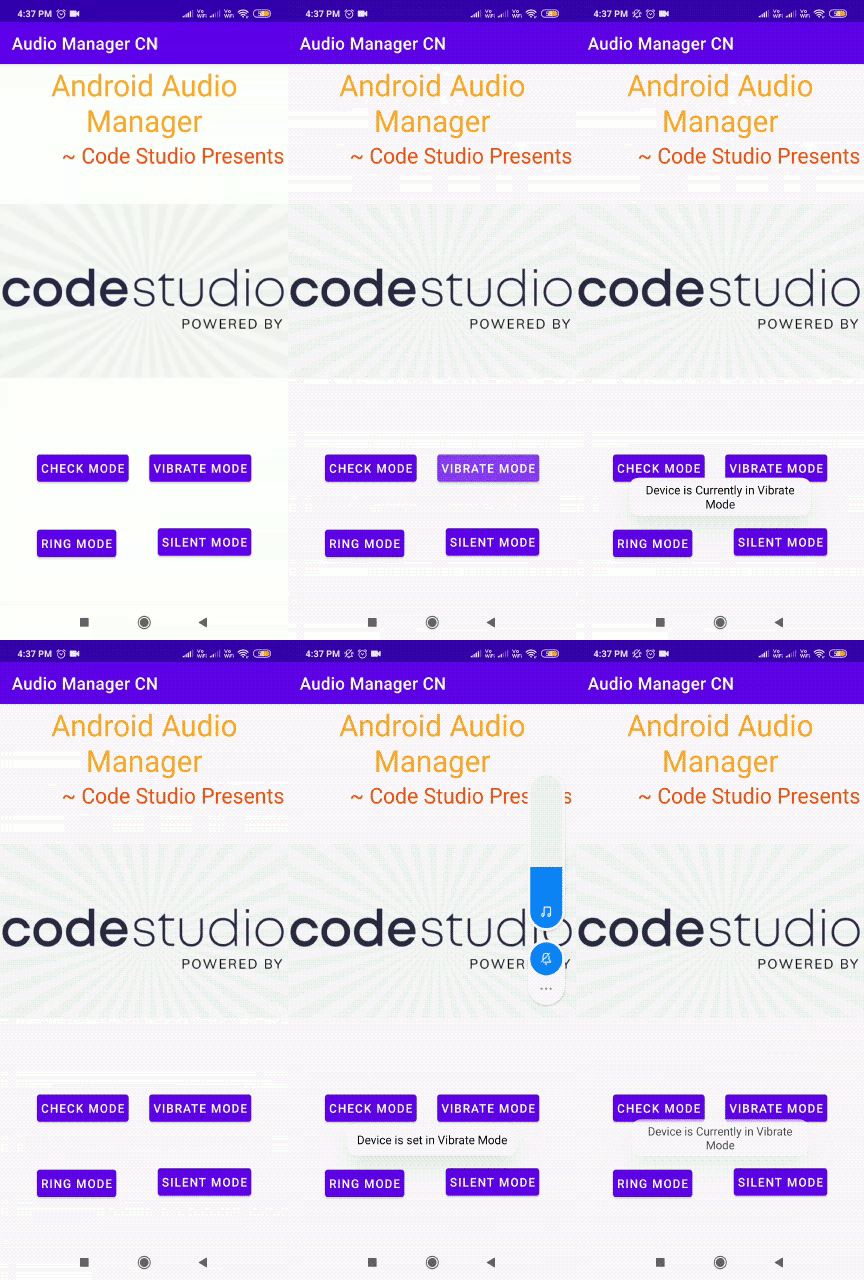
When you launch the app, you'll notice a button with “CHECK MODE” text. Clicking on this button will help us to determine the current android mode of our device using AudioManager.RINGER_MODE_(VIBRATE/NORMAL/SILENT). And using the Audio Manager object with the VIBRATE MODE button, RING MODE button, and SILENT MODE button, we can change the current device mode.
Frequently Asked Questions
-
What is Android's ringer mode?
Sound can be muted, vibrations can be stopped, and visual disturbances can be blocked with this mode. So, we have complete control over what we accept and what we block.
-
What is the use of OnAudioFocusChangeListener in Audio Manager?
The focusChange value specifies whether the focus was gained, or lost and whether the loss was temporary or if the new focus holder will have it for an indeterminate amount of time. So that listeners can utilize the attention change information to determine what behavior to use when they lose focus.
-
What is a silent mode in Android?
When the silent mode is activated, it disables ringtones and vibrating alerts or alarms (in some cases). Silent mode, unlike airplane mode, allows the device to receive and transmit calls and texts.
Conclusion
In this article, we learned about Android Audio Manager and its implementation.
You can head over to our Android Development Course on the Coding Ninjas Website to dive deep into Android Development and build future applications.
We hope this article has helped you enhance your knowledge of the Android UI Sliding drawer. If you want to learn more, check out our Android UI and Competitive Programming articles. Do upvote this article to help other ninjas grow.
Happy Coding!





 1+ registered

