




Introduction
Vue is a JavaScript library for building web interfaces combining with other tools it also becomes a “framework”.

Vue is popular because it has it all to make development smooth and easy. Its gentle learning curve is the first significant factor. Vue is also lightweight, flexible, modular and highly performant. CSS frameworks are great for many reasons; code is more universally understood, web applications are easier to maintain, and prototyping becomes less of an extra step and more part of the development process. Generally speaking, integrating each framework is generally the same so the installation process will work with Bulma.
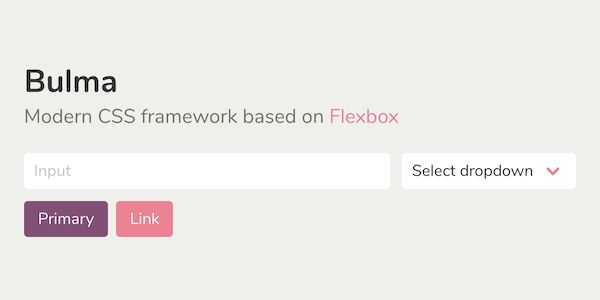
Bulma is a great CSS framework which can be used to make UI design very better. Bulma is used worldwide by UI developers. It is a free, open-source CSS framework based on Flexbox and used by more than 200,000 developers.
Recommended Topic, Difference Between CSS and SCSS
Let’s throw some light on vue.js
Vue.js is an excellent choice for your first framework and is one of the easiest ones to start out with. Despite the fact that VueJS is easy to learn, it is an incredibly powerful framework that can be used to build large web applications as well as small ones. Unlike many other frameworks, Vue.
Bulma.css is the main driver right now to make responsive designs and it’s very customisable and modular as they say, You can easily integrate it into VueJS workflow. It’s not like just using the cdnjs version, you can customise the SaSS variables to give Bulma your own theme or almost control everything from the border’s colour to the table header’s padding with Bulma SaSS variables.
Adding a framework to vue.js. Before you begin downloading a CSS framework, be sure to install and create a new project with the Vue CLI and follow the prompts:
$ npm install vue-cli
$ vue init webpack project-name
Installing Bulma
If you haven’t heard of Bulma, you should look into it. It’s a lightweight and flexible CSS framework that’s based on Flexbox. It’s created by Jeremy Thomas and has over 25k stars on GitHub at the time of this writing! Unlike Bootstrap, Bulma only contains CSS so there are no jQuery or JavaScript dependencies.
$ npm install Bulma: After Bulma is downloaded, open up your main.js and import it. Inside main.js file, we can import bulma.css file.
import ‘./../node_modules/Bulma/CSS/bulma.css’; No extra steps. Bulma is ready to use in your Vue.js application! The Bulma Docs is a great resource to get you started.
Vue.js has better practices while using Bulma together. Down to their core, these three frameworks are very similar: they all work with rows and columns. These rows and columns create a “grid” that you can leverage to create your user interfaces. This grid lets you easily change the width of your columns by device width just by adding or changing the classes that are appended to an element.
As stated before, the examples below are using Bootstrap 4. However, these best practices with row-column based frameworks apply to all. It’s considered best practice to utilise the framework’s classes whenever possible. Each of these frameworks has been carefully crafted for ease-of-use, scalability and customisation. Instead of creating your own button with its own classes, just create a button using Bootstrap and Bulma.
<!–Bulma–>
<button class=”button is-primary is-large”> I’m a large Bulma button</button>
You can configure each of these so that is-primary (Bulma) references your brand’s colours instead of the default blue/green colour that gets shipped with Bulma. If you need to create your own theme with your own brand, you can create a global stylesheet that overrides the framework’s global styles; you do not want to modify the framework directly.
Let’s how we can add it to a project:
It’s super opinionated to import Bulma to the project, but this way works best for me:
Step1: Create a main.scss in the /assets folder. In this main.scss file paste this code:
//Bulma import
@import ‘~bulma’;
You need to add main.scss file in main.js of your project like below:
require(‘@/assets/main.scss’);
Now you’re good to start. So, just start the local development server and check Bulma is working on your website.
After this the next step is to use the jsDeliver CDN to link to the bulma stylesheet:
This is the easiest way to integrate Bulma into your project (Vue or HTML/CSS) but you’ll not able to customise anything in this way. You’ll get a complete build of Bulma So here is how you can add through CDN, Copy this, or retrieve the latest version of Bulma from JSDelivr:


 1+ registered

