
 Basics
Basics
How to Post
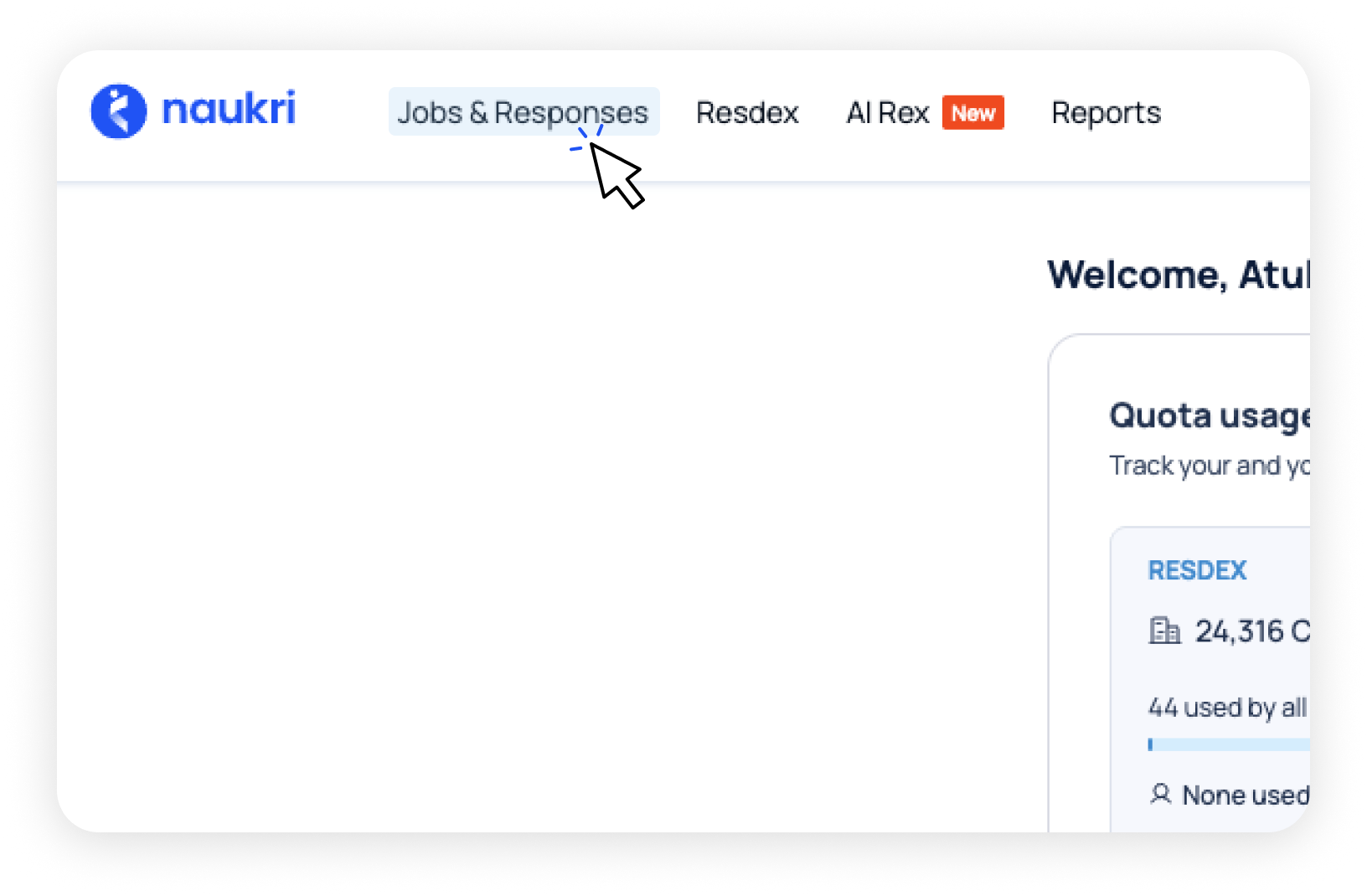
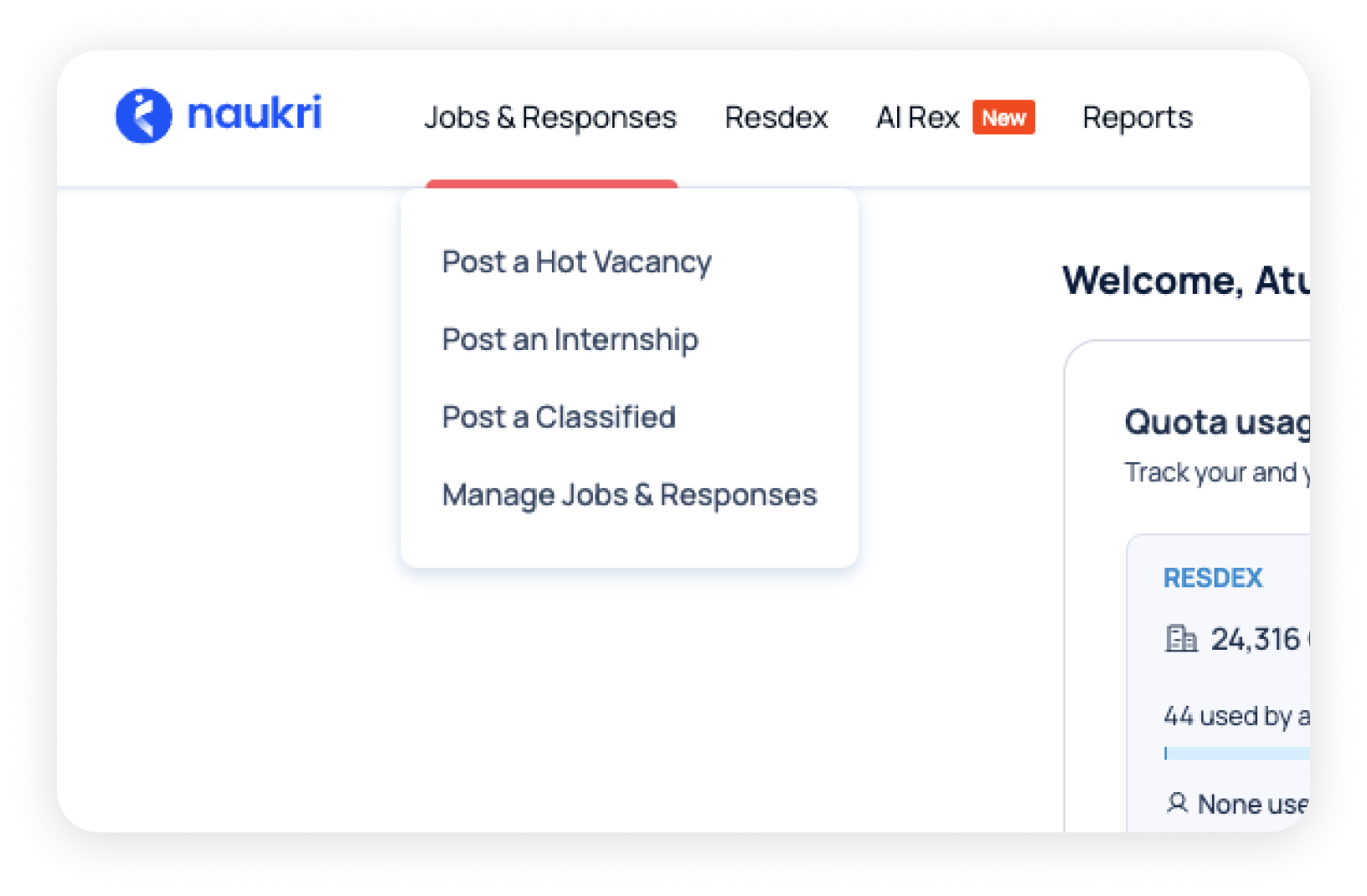
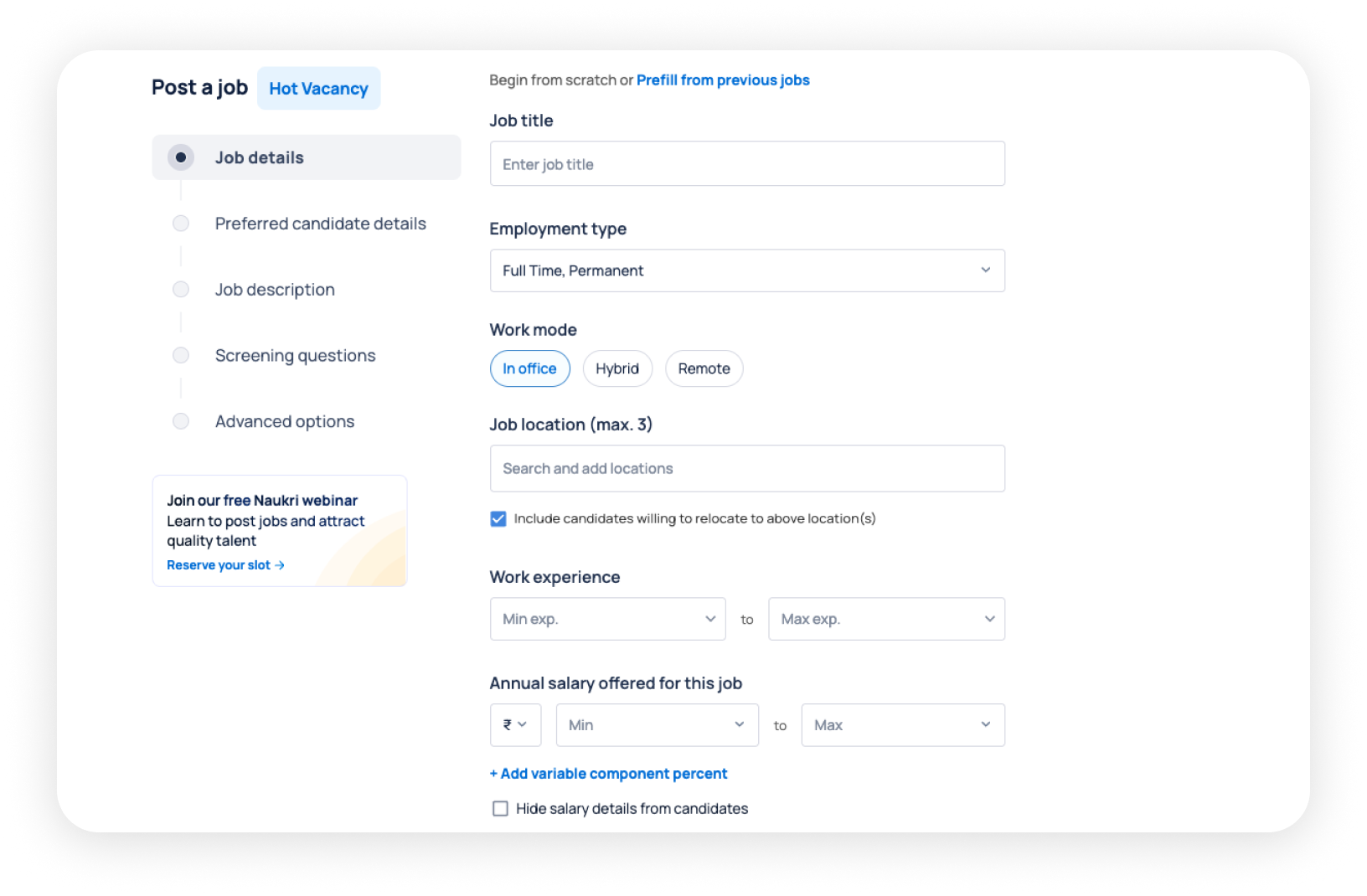
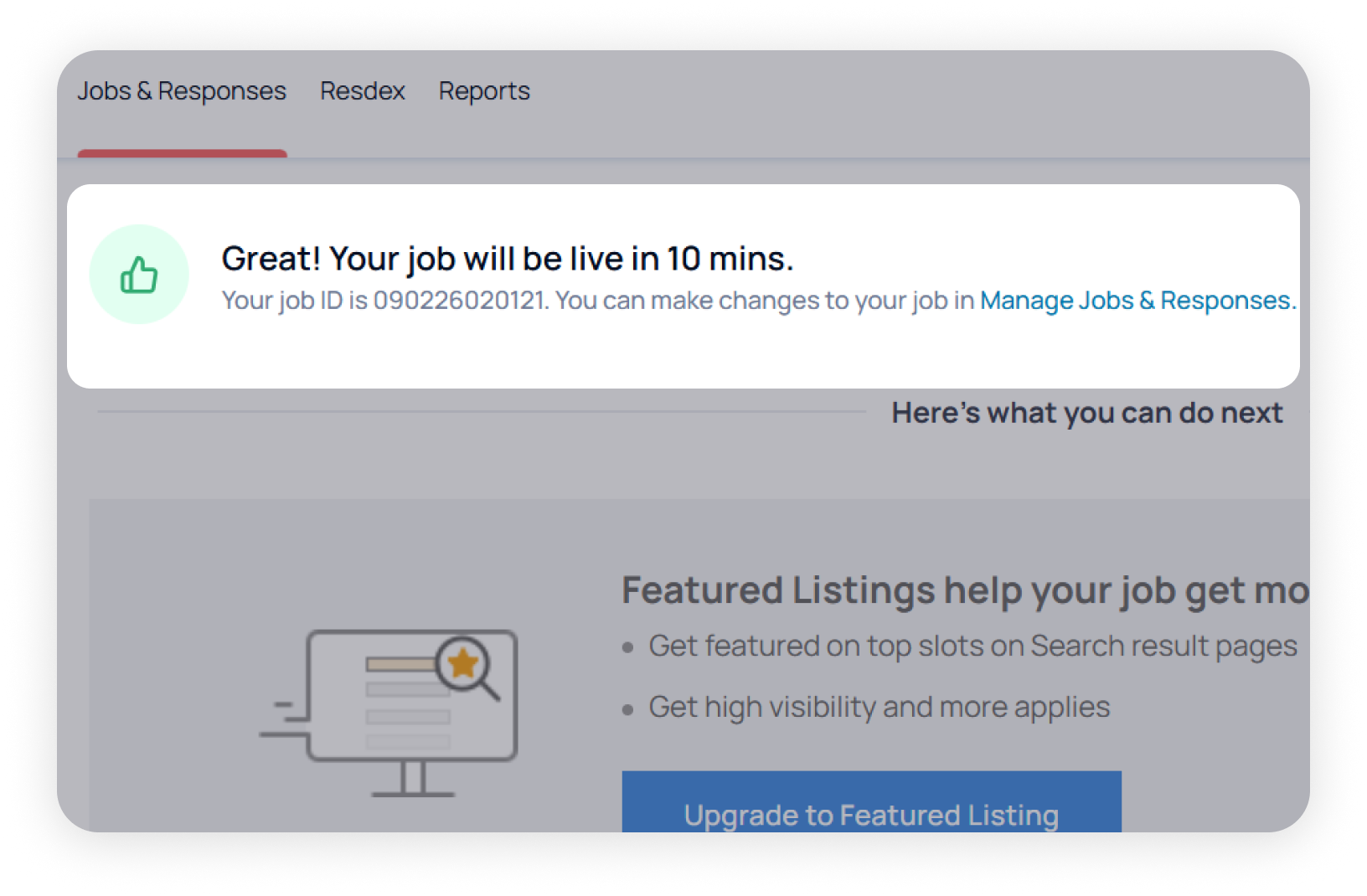
Sections of job posting form

Job Details
These are shown to the candidates on job listing like
- Job title
- Job location
- Work experience
- Salary, etc

Preferred candidate details
Contains details of an ideal candidate for the role like
- Skills
- Educational qualification
- Certification

Job Description
Details out the day-to-day responsibilities for the role like
- Role & responsibilities
- Preferred candidate profile
- About your company

Screening Questions
Questions candidates will answer while applying like
- Current CTC
- Expected CTC
- Notice period

Advanced Options
Additional features like
- Marking the job for walk-in interview
- Collaborate on the job
- Automatic refresh
Section 1: Job details
Department & role
Department and role help categorize your job posting correctly. This ensures that candidates can easily find your job, and Naukri.com shows it to the right candidates.
How it works:

Example
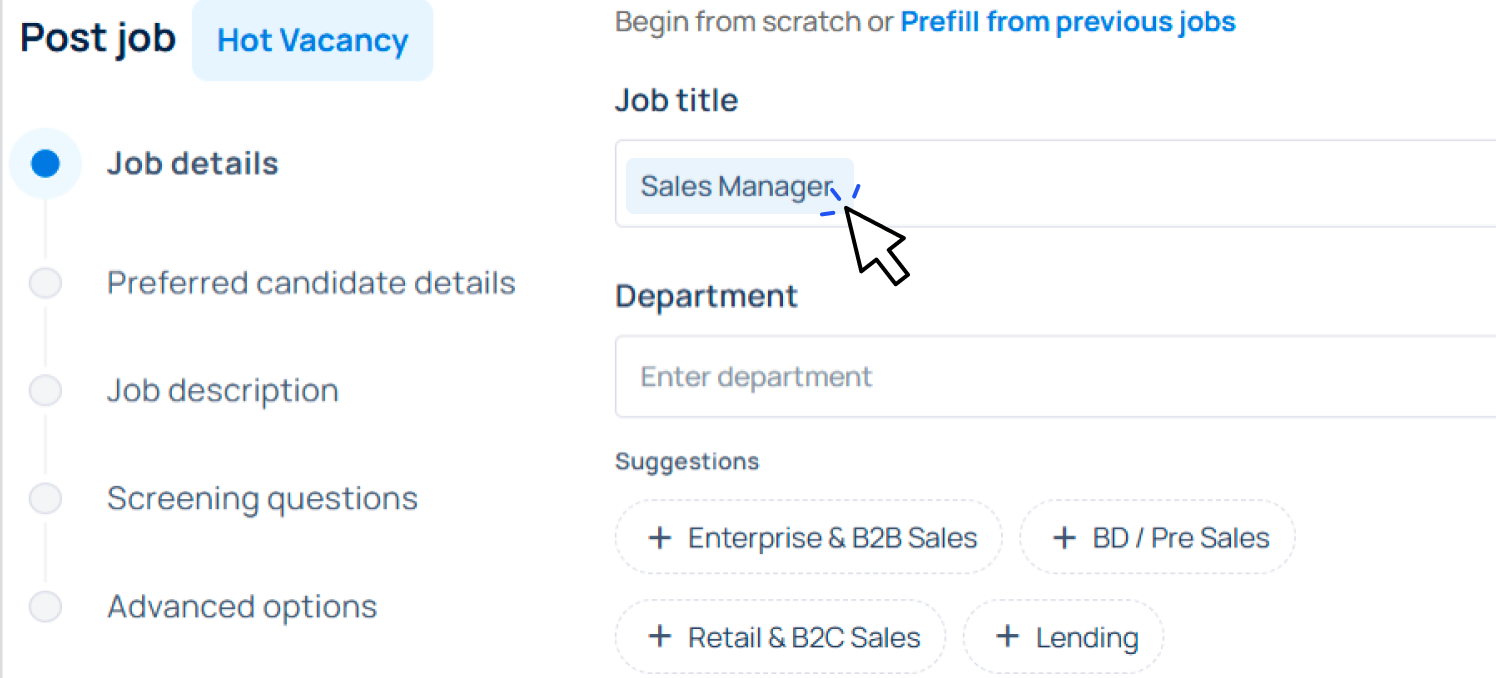
If you enter "Sales Manager", Naukri will suggest Department: B2B or B2C and subsequently the role like Area Sales Manager or Regional Sales Manager.
Salary
Our data shows that job posts with salary details get more views and applications.
Salary transparency also helps build trust and attract candidates who are genuinely interested. We recommend adding salary details to your job post.
Prefer to hide salary from candidates? No problem.
How it works:

Important:
Even if hidden, use market-aligned salary ranges to reach the right talent
Section 2: Preferred candidate details
Skills
Skills are the abilities or knowledge areas a candidate should have to do the job well.
Choosing key skills
For example,
Choosing the right key skills for your job

- Tools & software (e.g., Salesforce, Zoho CRM, Excel)
- Skill set (e.g., Territory management, Lead generation, Client relationship)
- Industry terms which candidates often use to search jobs (e.g., B2B sales, Channel sales, Retail sales)
- Specific experience (e.g., FMCG sales, Pharma sales, Insurance sales)

- Repeating the job title (don't write "Sales Manager" as a skill)
- Generic phrases like "Good communication" or "Team player"
- Sentences - use specific words rather than phrases to mention the key skills
Preferred skills
Preferred skills are the most important skills you want in candidates. Marking them helps Naukri's system show your job to the right candidates.
You can mark a skill as “preferred skills” by clicking on the star icon in the “Add skills” field.

How it works:
Important:
Candidates can still apply even if they don't have the preferred skills listed in their profile. It doesn't block anyone from applying.
Section 3: Job description
Best practices
An effective job description covers responsibilities, daily tasks, required certifications, and the ideal candidate profile.
Follow these best practices to make it more engaging.

Keep it clear and structured
Use short sections instead of long paragraphs

Start with key requirements
Highlight must-haves like travel, certifications, or targets

Use bullet points
List responsibilities and skills for easy scanning

Highlight perks
Mention bonuses, flexibility, or key benefits

Define the ideal candidate
Help applicants quickly assess fit

Quick tip:
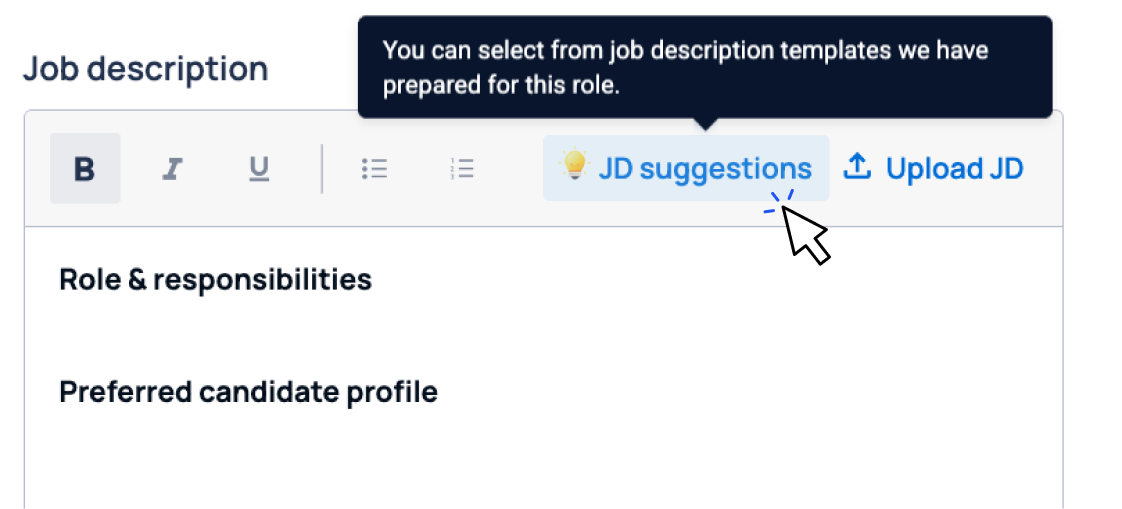
AI-generated JD suggestions help you create a JD using your job title and skills. (Available with Hot Vacancy or Standard Job subscriptions.)
Adding media
You can upload photos, video URLs, or presentations only with Hot Vacancy Job Postings.
-
Step 1
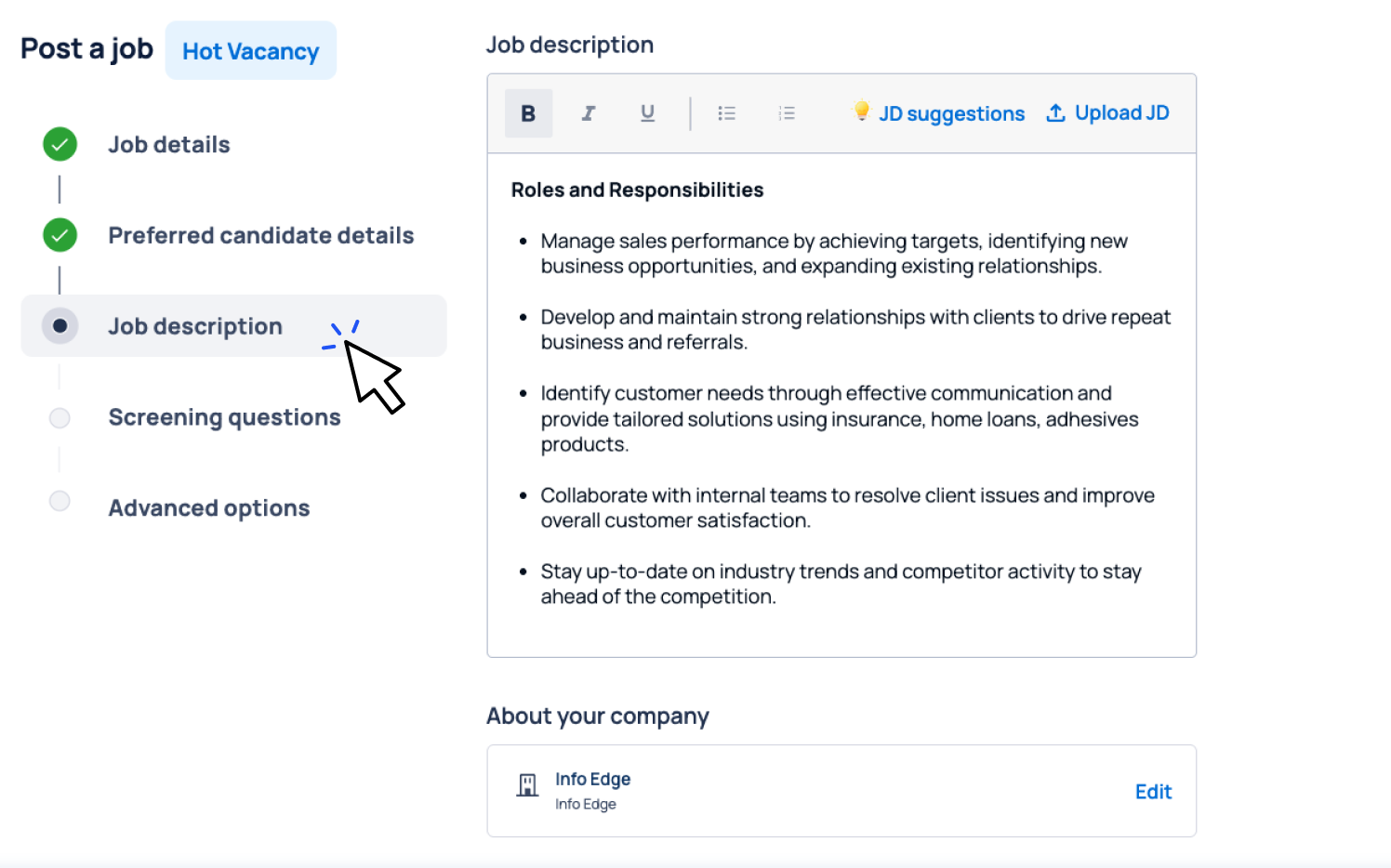
Go to the ‘Job description’ section
-
Step 2
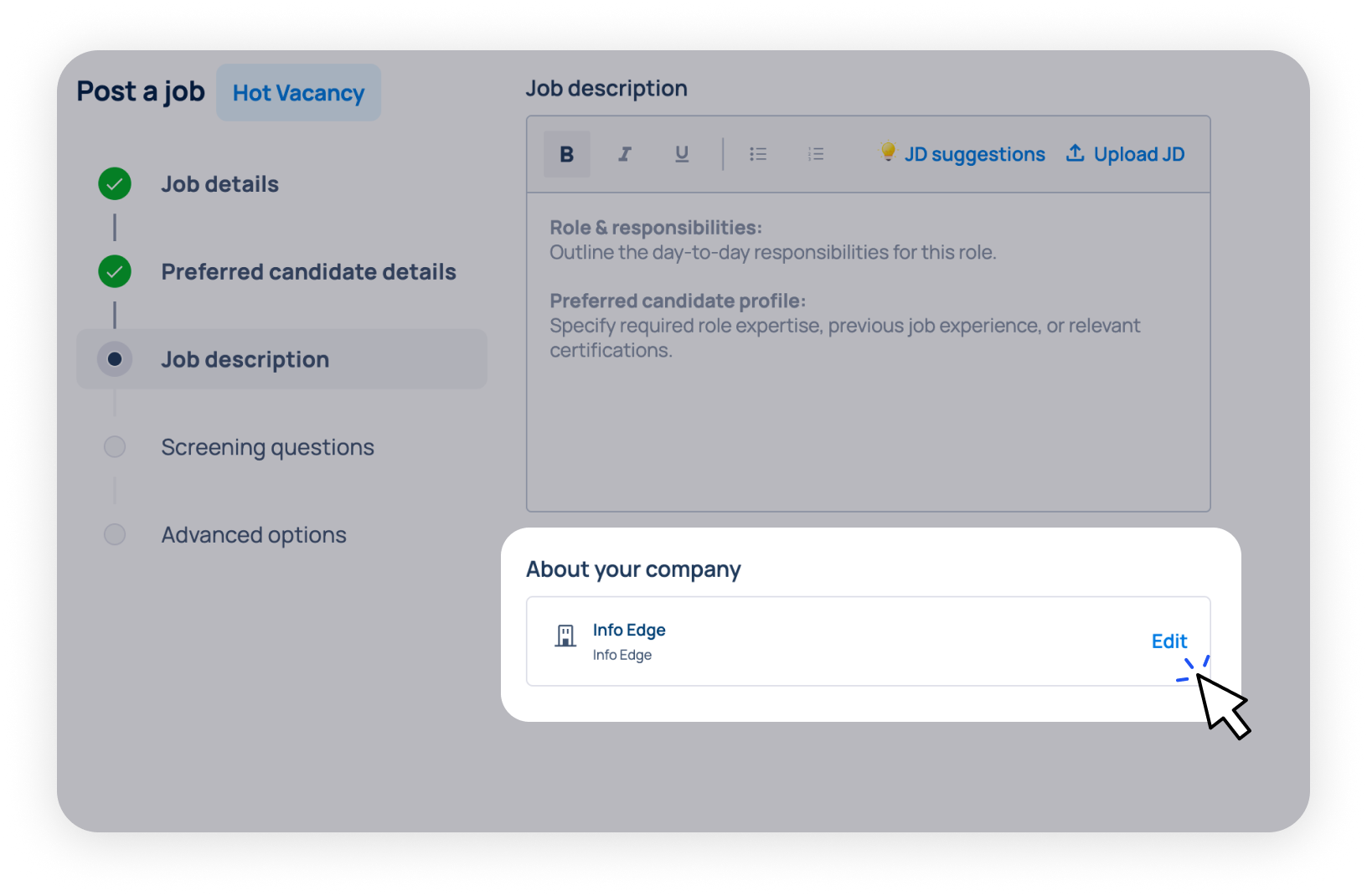
Click on ‘Edit’ under 'About your company' section
-
Step 3
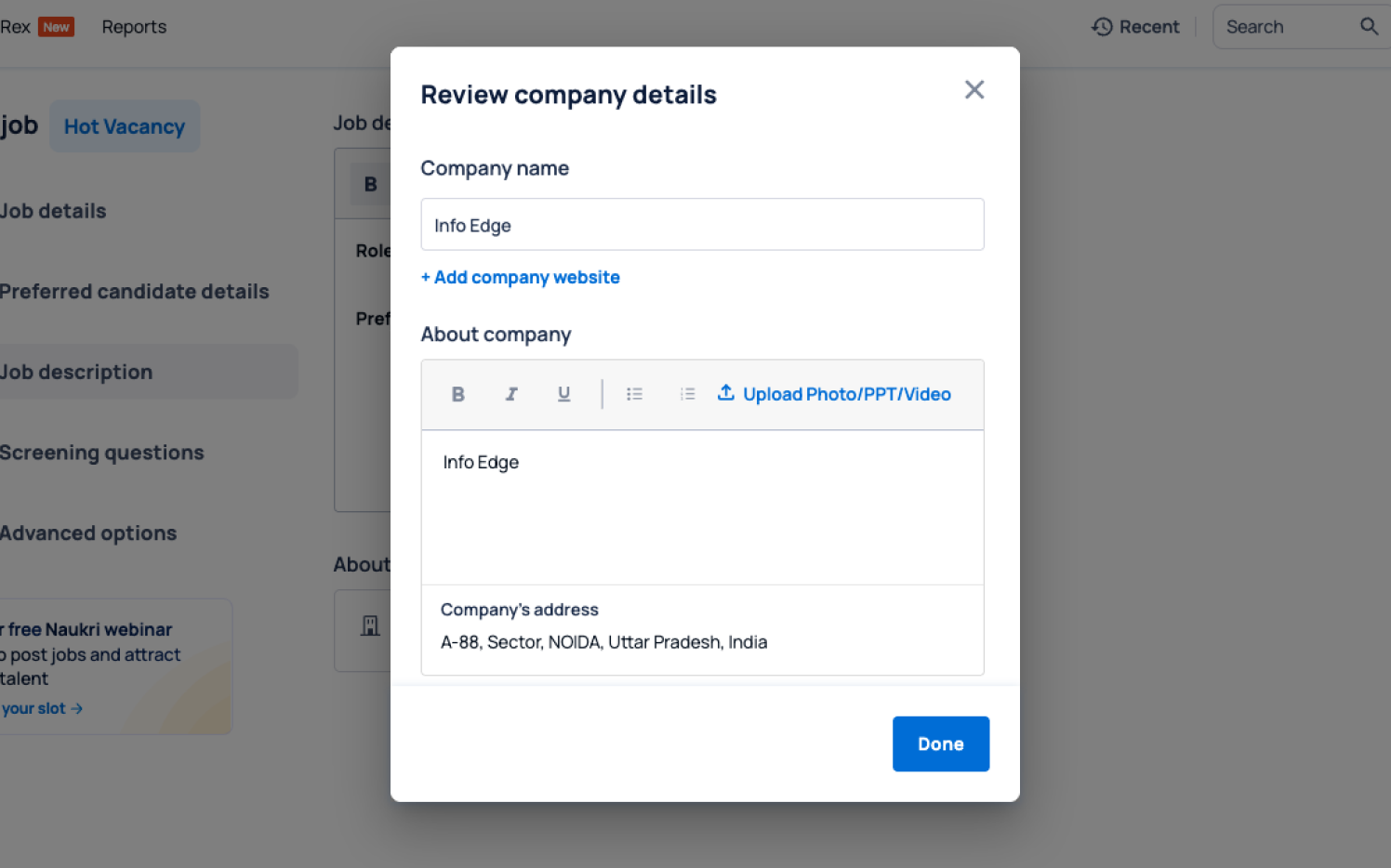
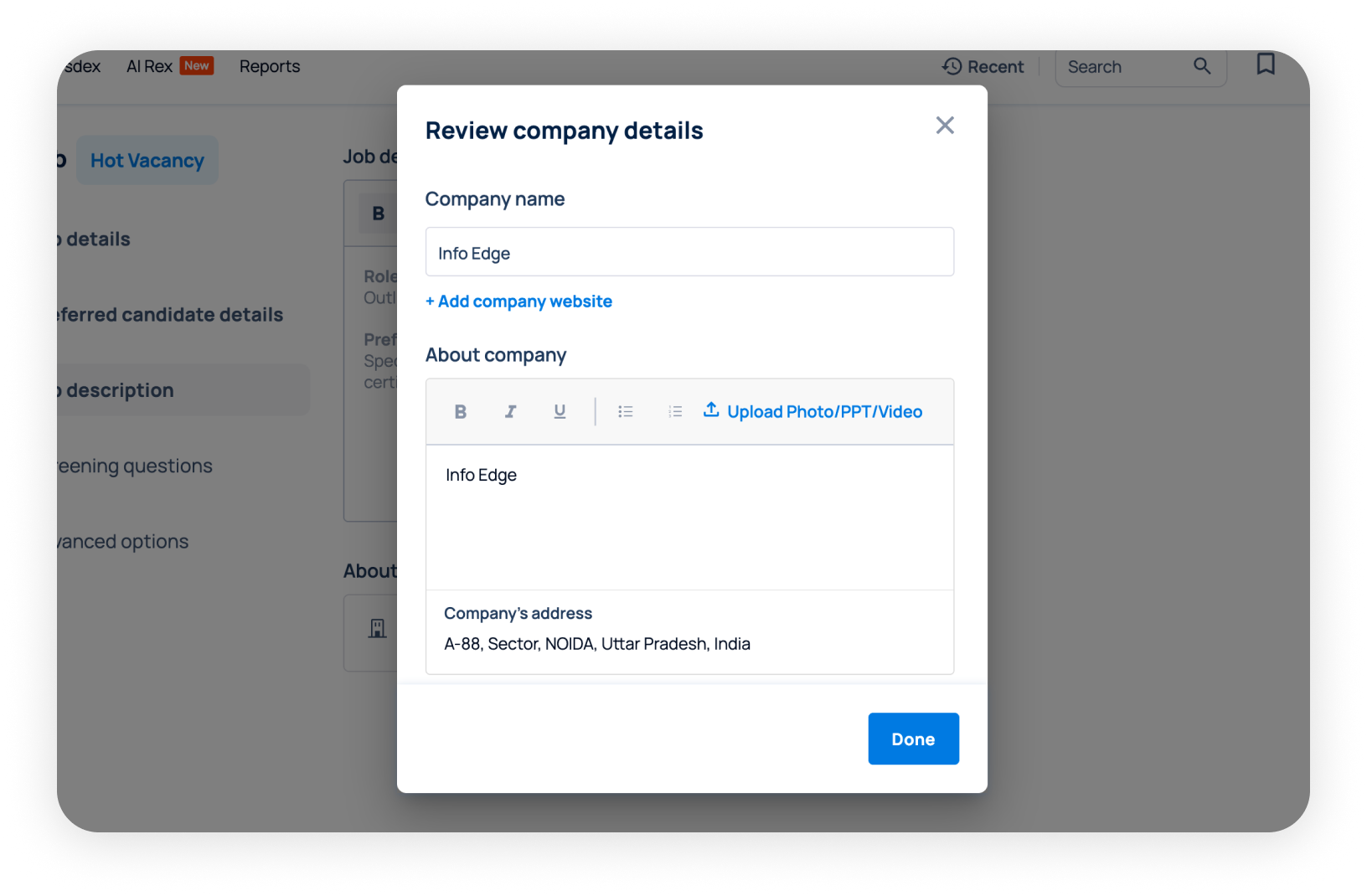
This will open ‘Review company details’ layer
-
Step 4
Click 'Upload Photo/PPT/Video url'
-
Step 5
Upload your files (check size limits)
-
Step 6
Select which file to attach
-
Step 7
Click 'Attach on Company Details'
Section 4: Screening questions
Basics
These are questions you add to a job post to quickly check if candidates meet your key requirements - such as skills, experience, location, availability, or targets, before you review their full profile.

Writing tips
1. Keep questions short and specific to avoid drop-offs during application
2. Limit to 2-4 questions, focused on the job’s must-haves
What to focus on
Quick tip:
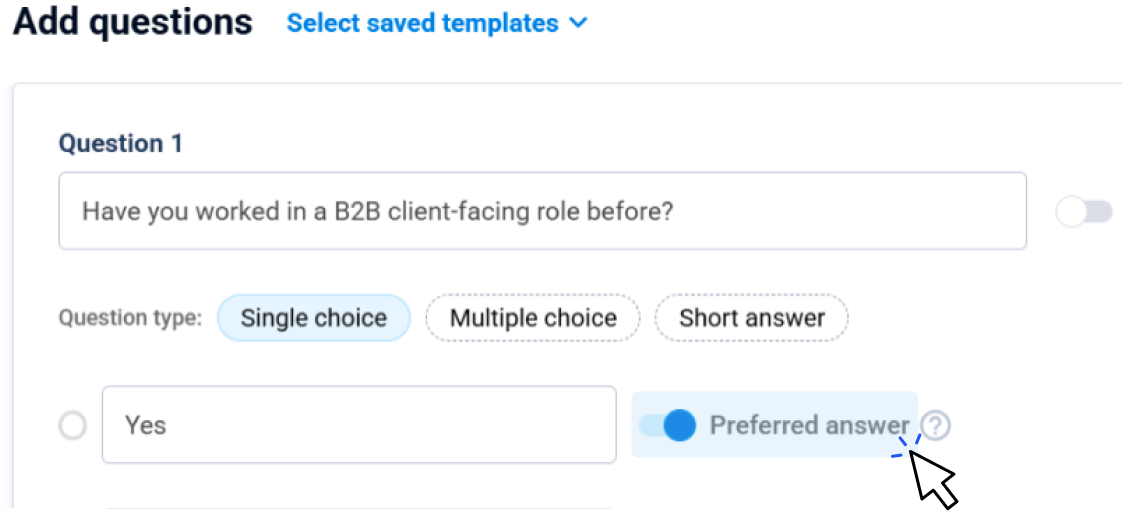
When creating option-based questions, you can mark a preferred answer. This helps you filter applications later in the “Response Manager”.
Section 5: Advanced options
Once you’ve filled in the core job details, Advanced options let you control how you manage applications and who manages them with you.
Features

Job post management
Editing a job
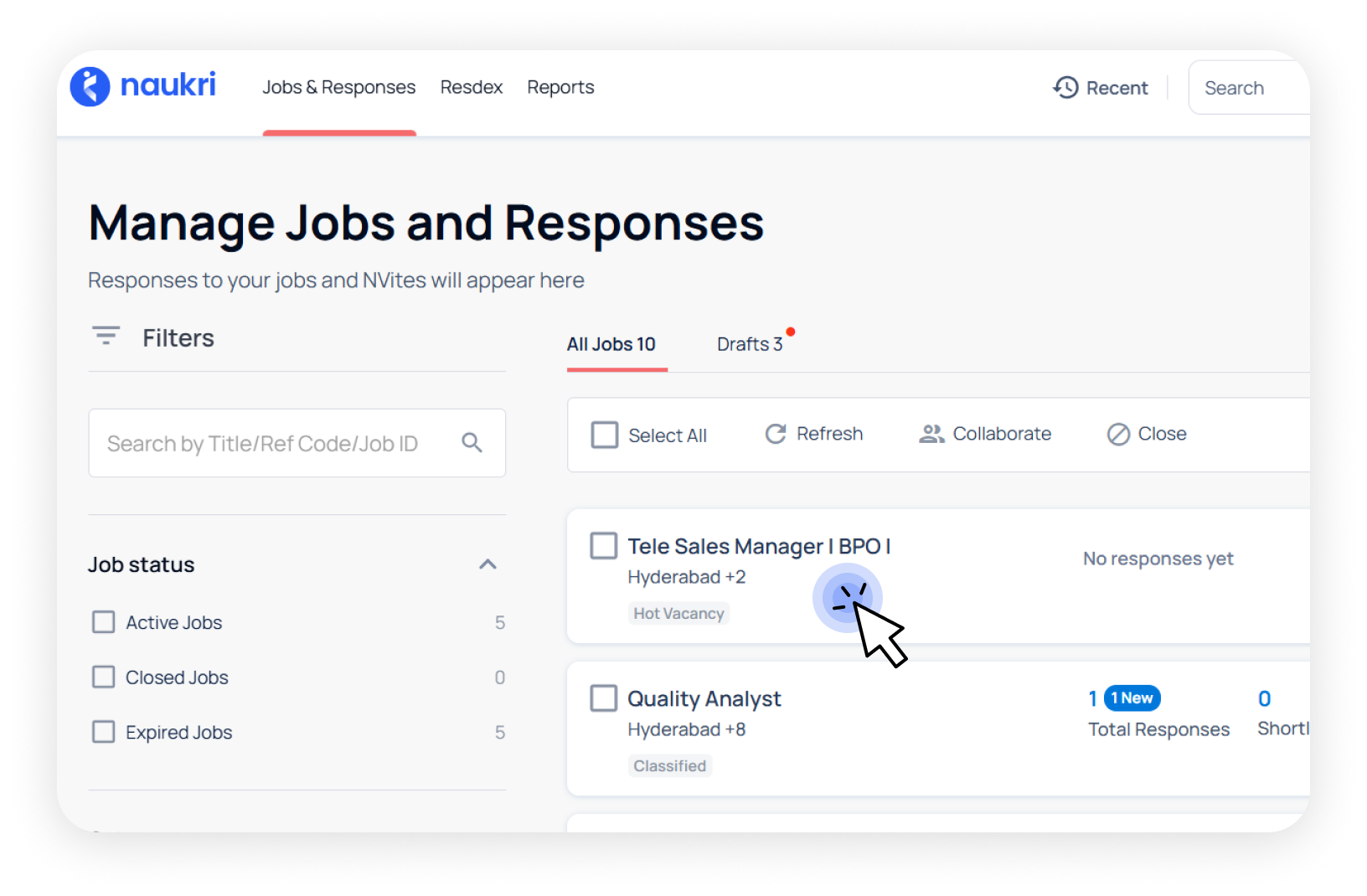
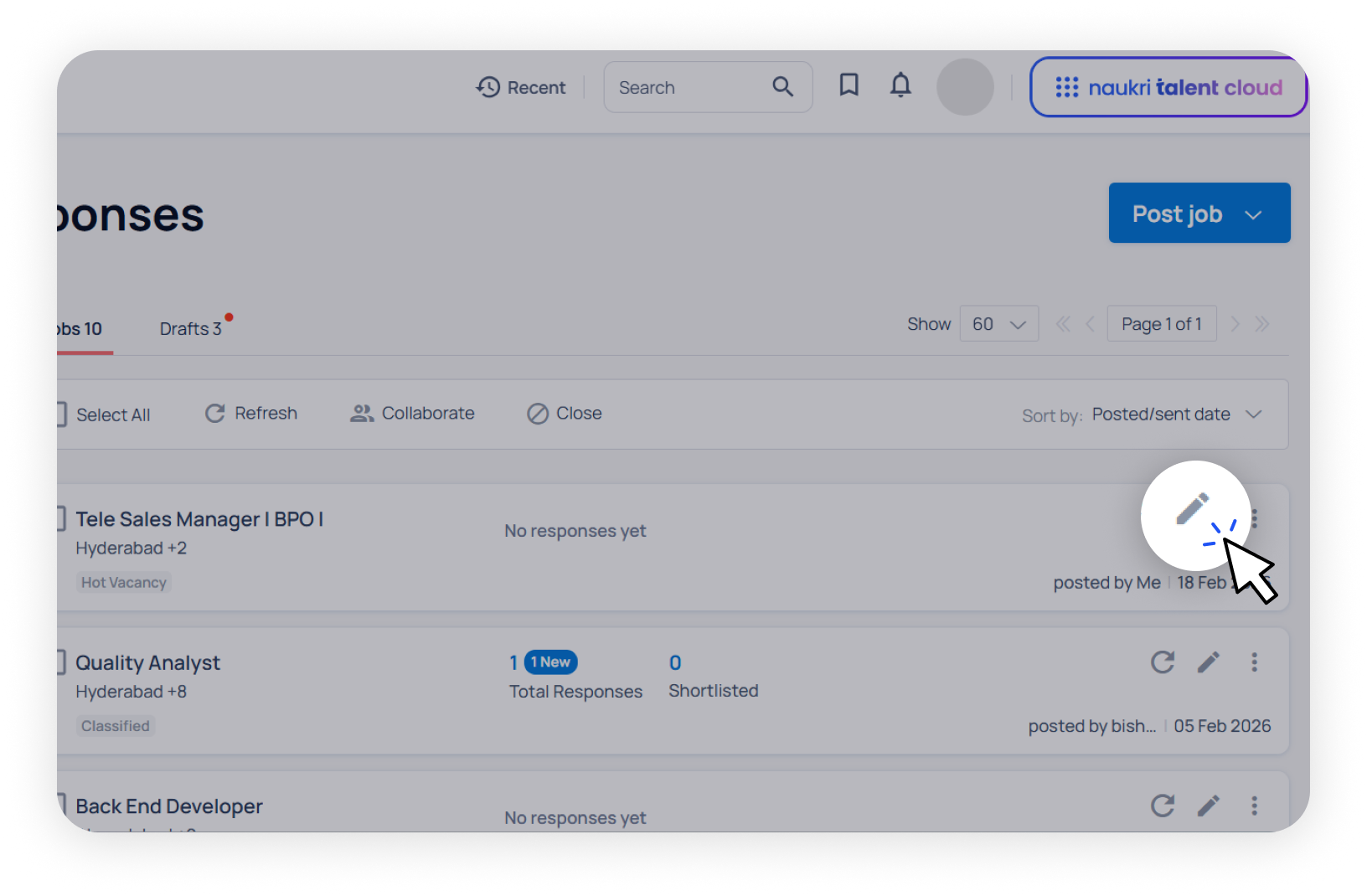
You can edit the job after you post it. Here’s how you can do it:
Pre-filling from previous jobs
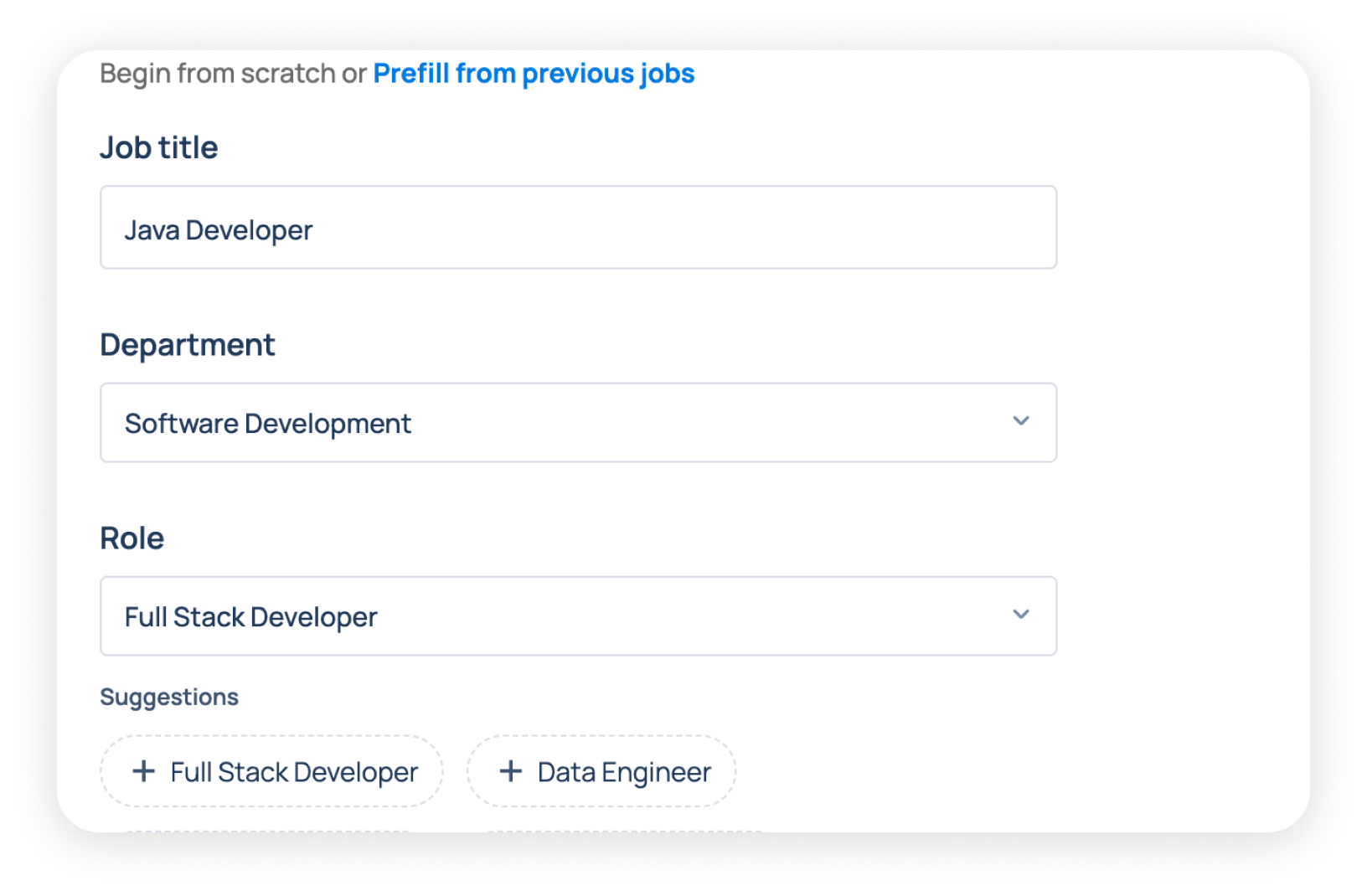
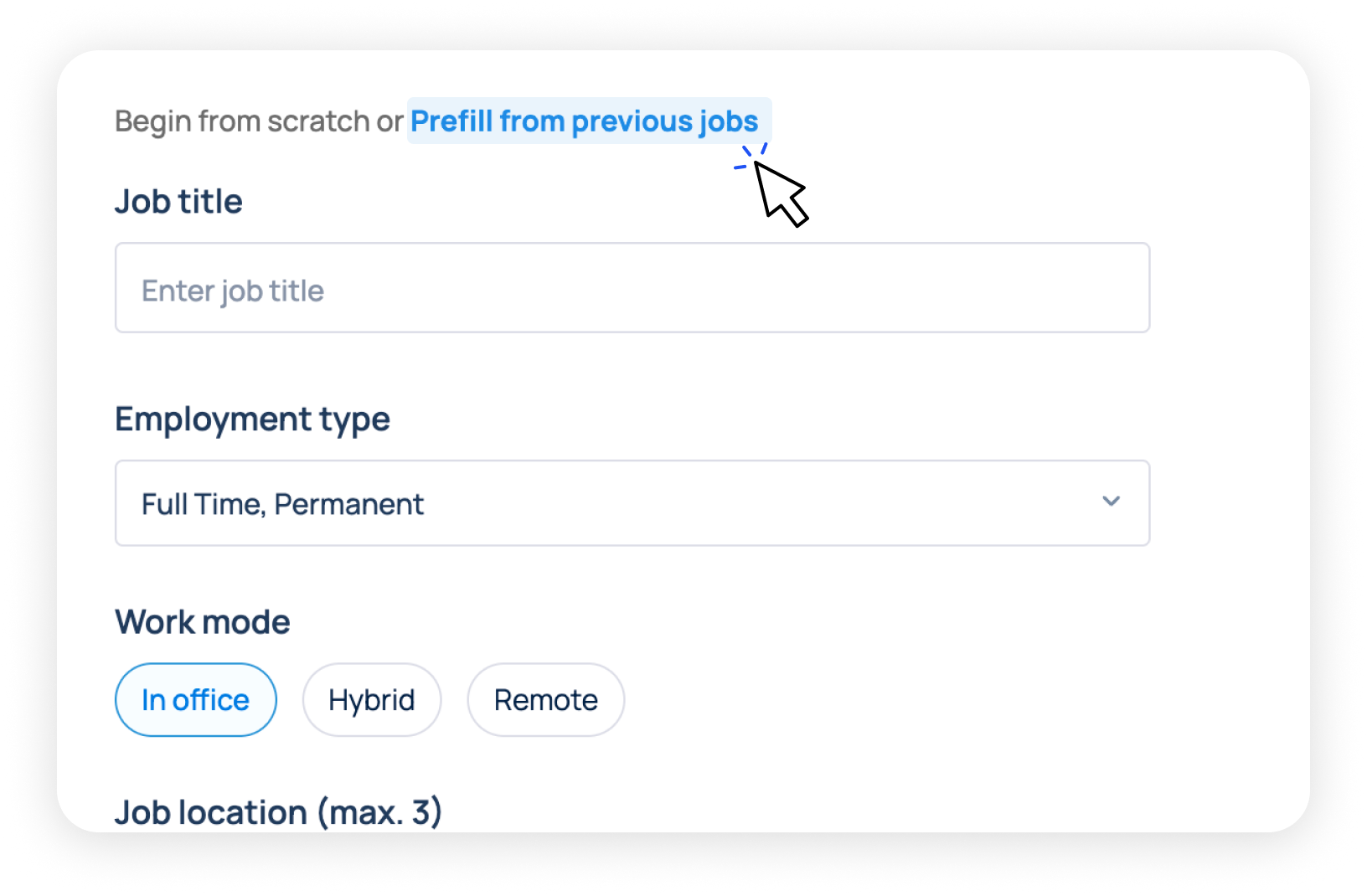
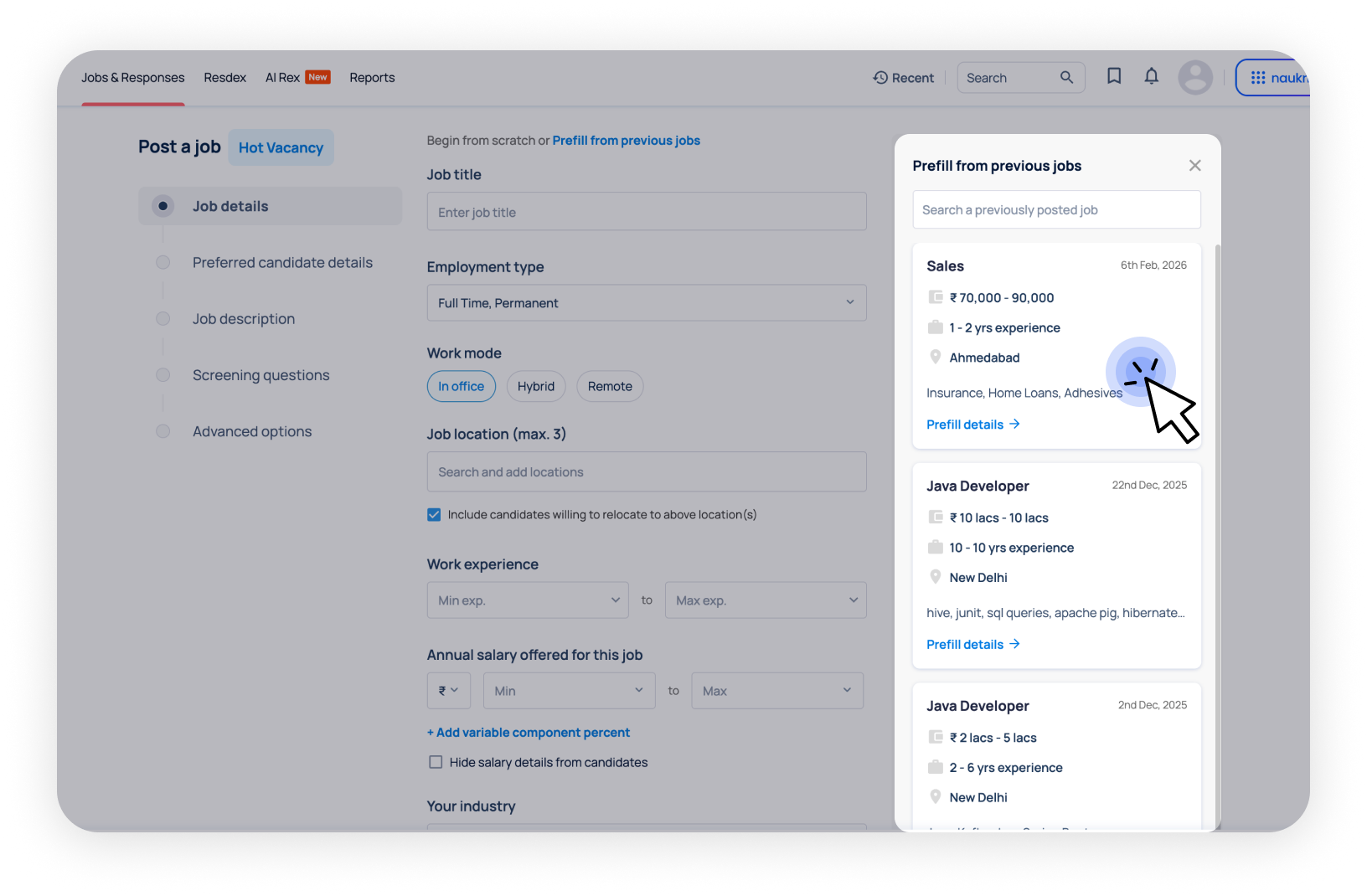
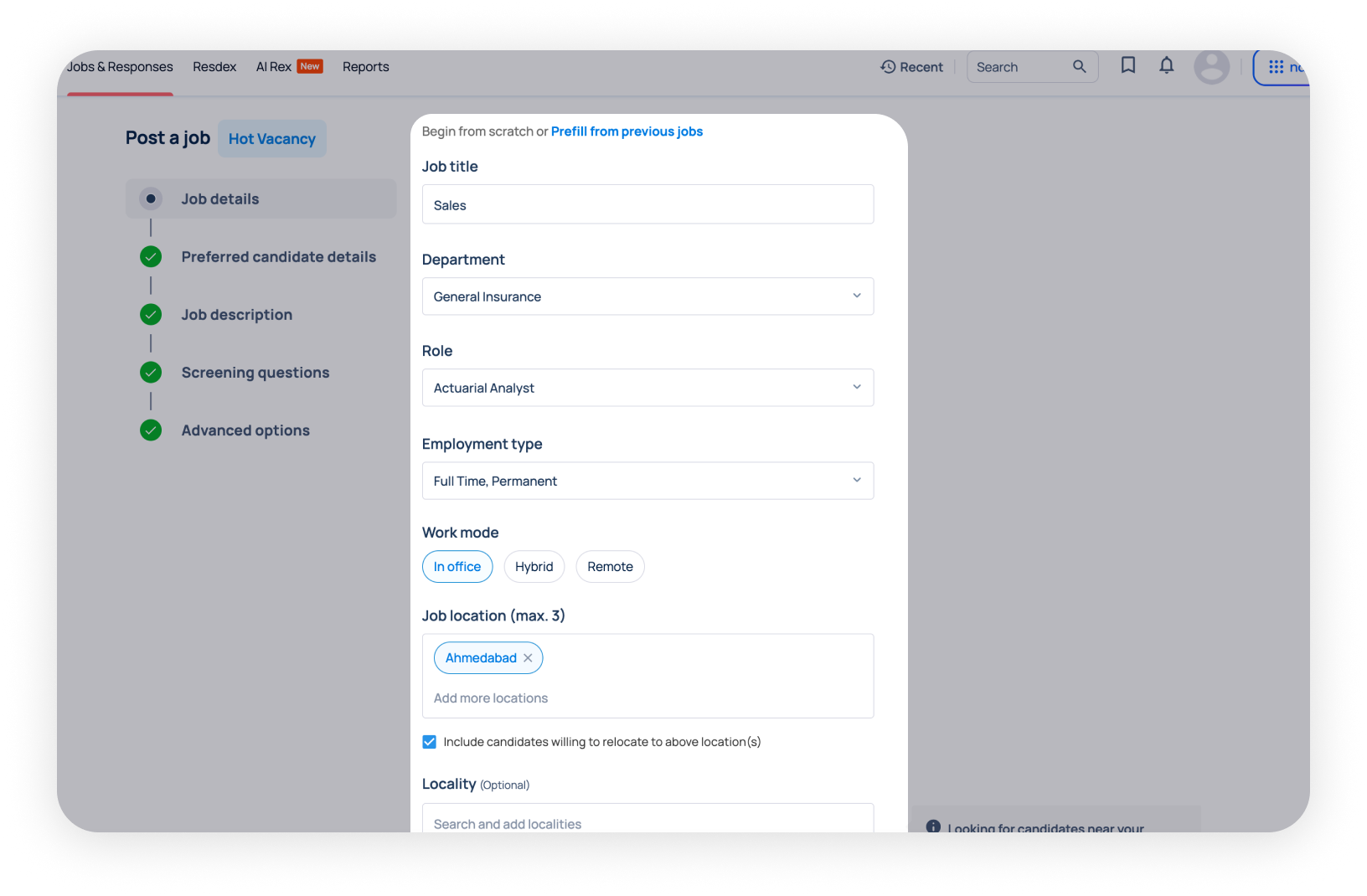
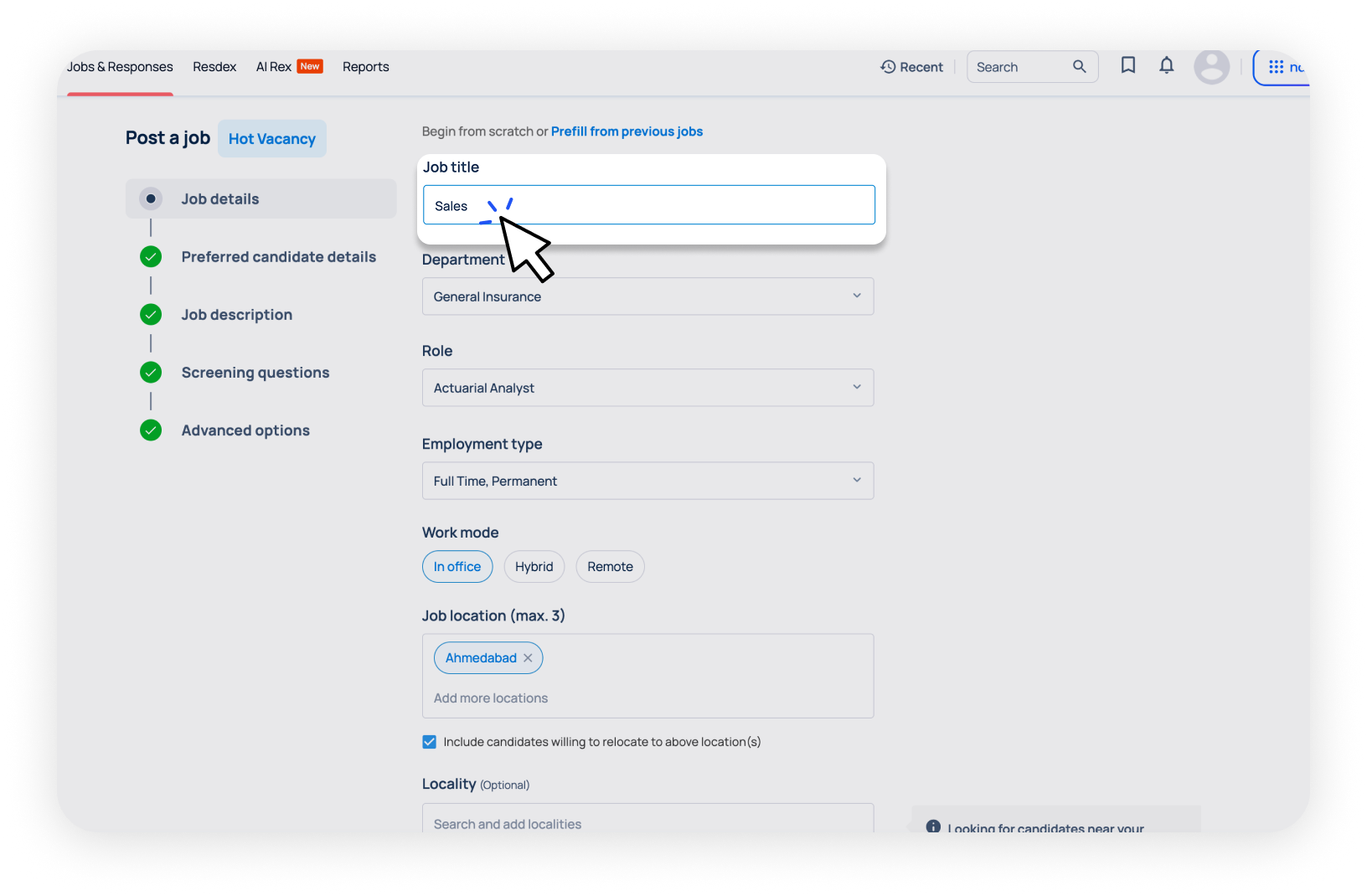
If you've posted jobs before, you can use the 'Pre-fill' option. Here's how you can do it:
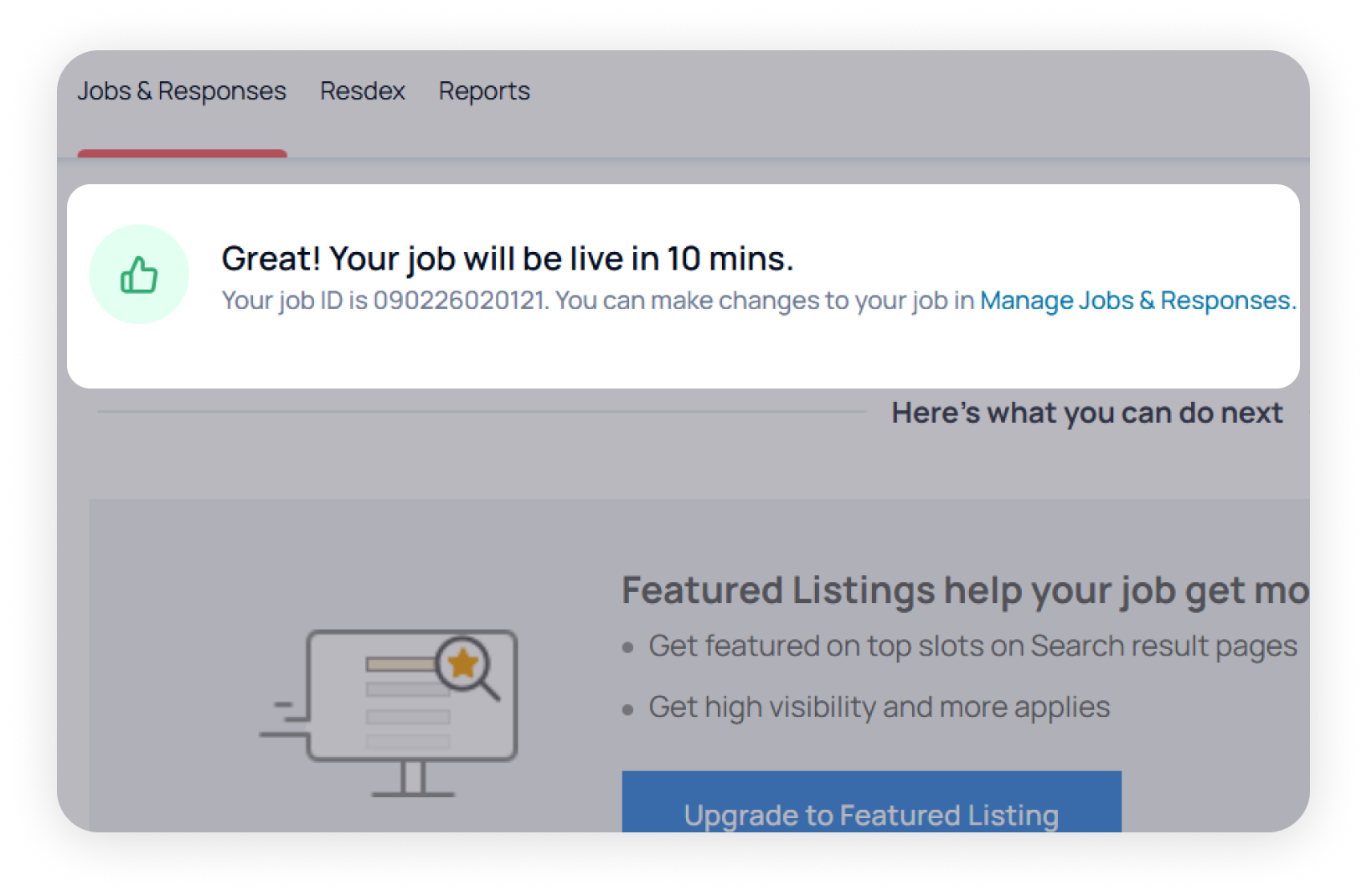
Quick tip:
“Pre-fill” helps when hiring for the same position again or posting similar roles across different locations.
Job Validity & credit usage
Job duration
The validity of your job post depends on the type of Job Posting in your subscription:
You’ll get reminders before they expire, and you’ll have the option to refresh them to extend the validity.
Important:
You’ll get reminders before your job expires, and you’ll have the option to refresh them to extend the validity.
Refresh & credits
You can extend the job duration by refreshing it. Here’s how you can do it:
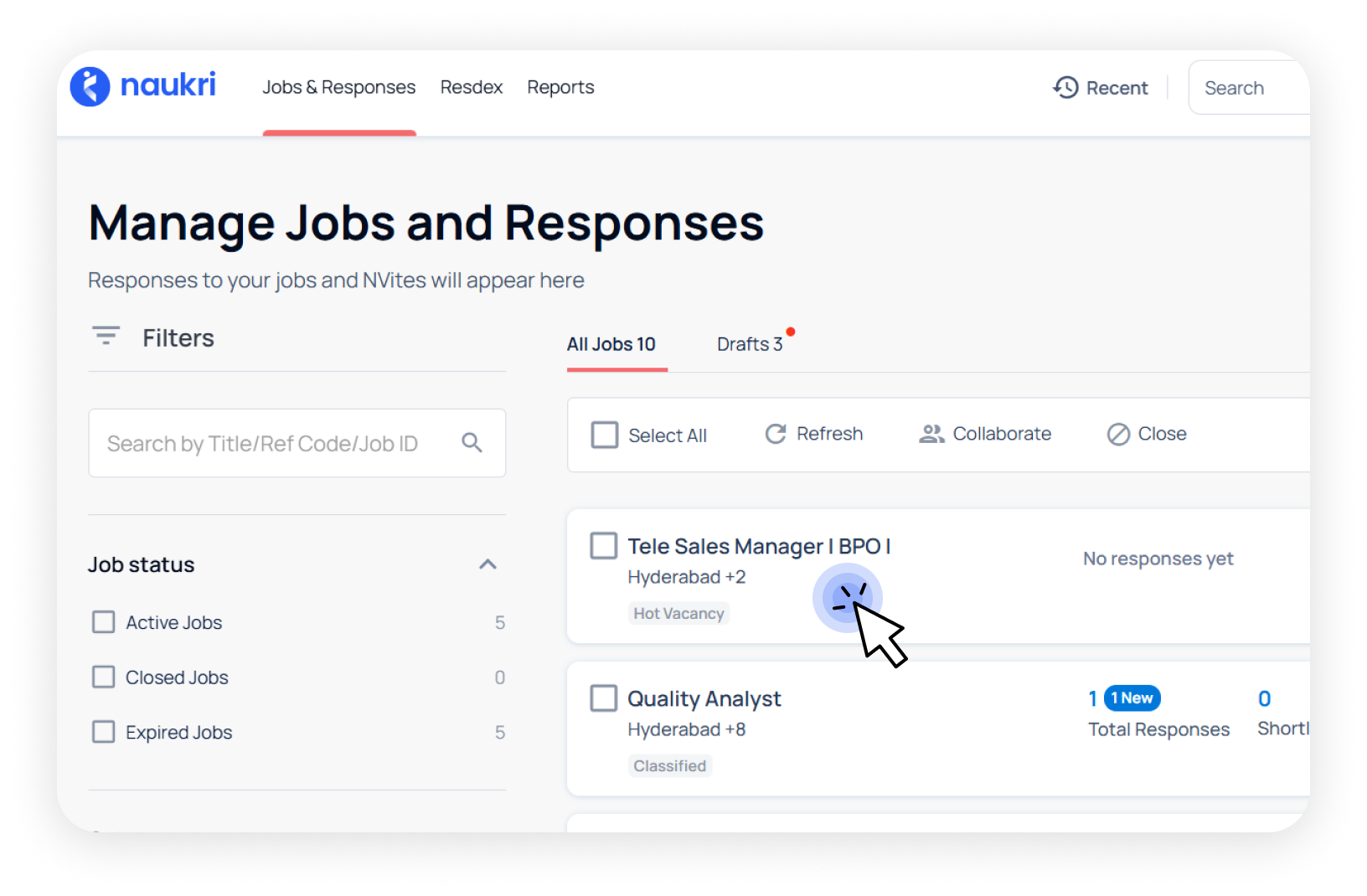
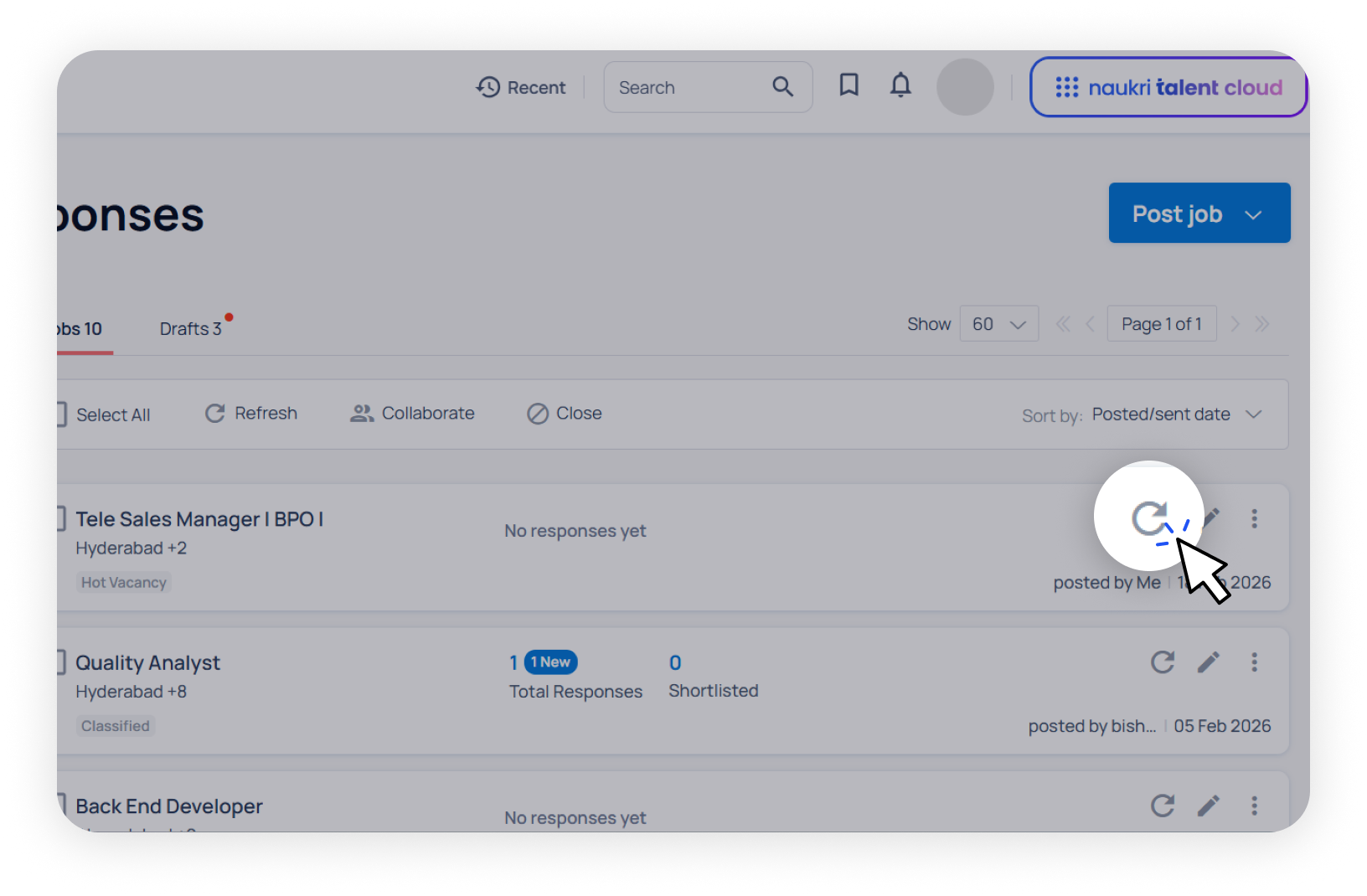
Important Notes:
Refreshing a job counts as a fresh post, thus it costs one job credit each time the job is refreshed.
Quick tip:
Make sure to plan your refresh strategy for optimizing credit usage
Delete jobs
If you no longer want the job to appear on the Naukri website, you can close it from your recruiter account Here's how:
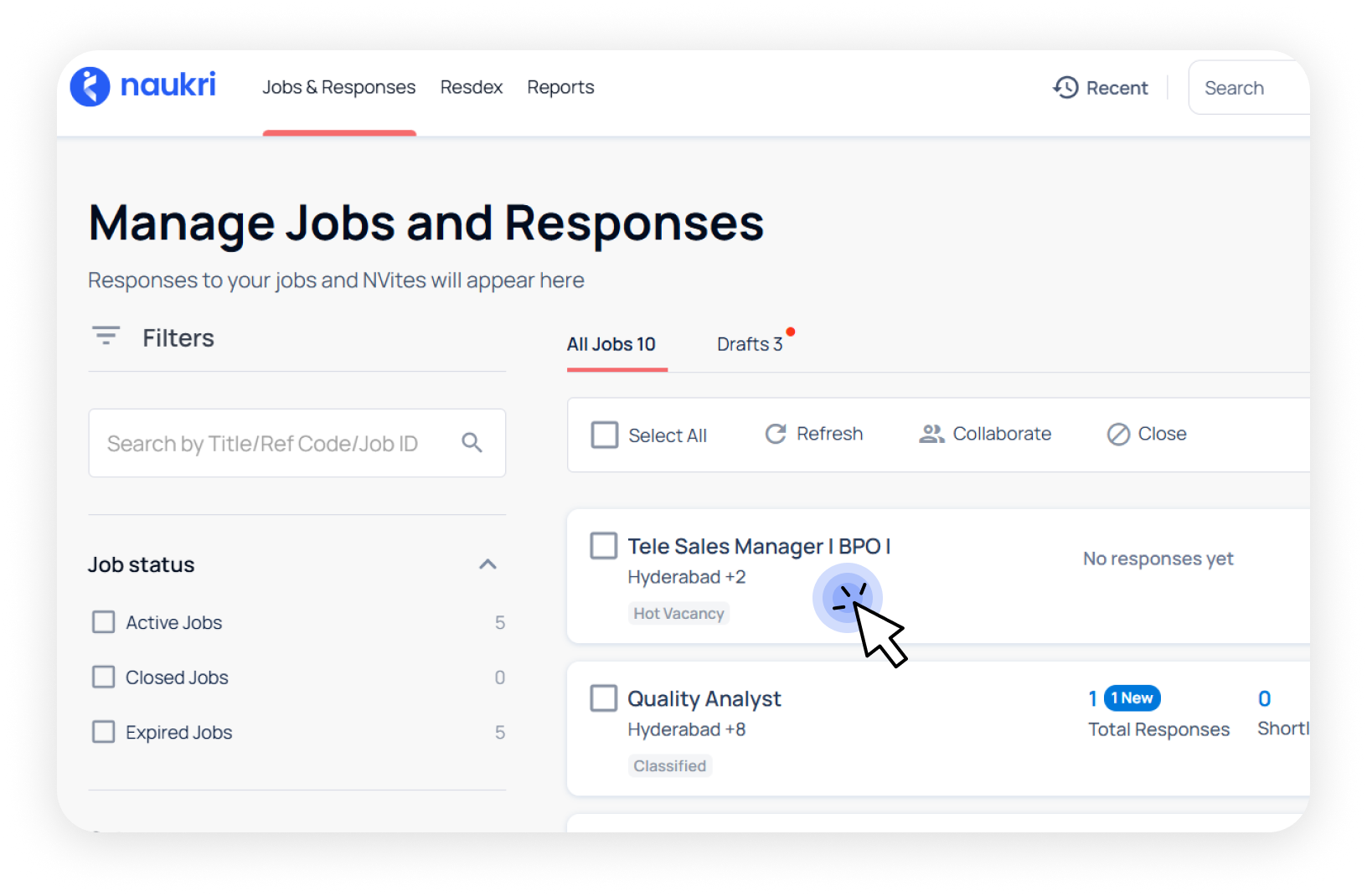
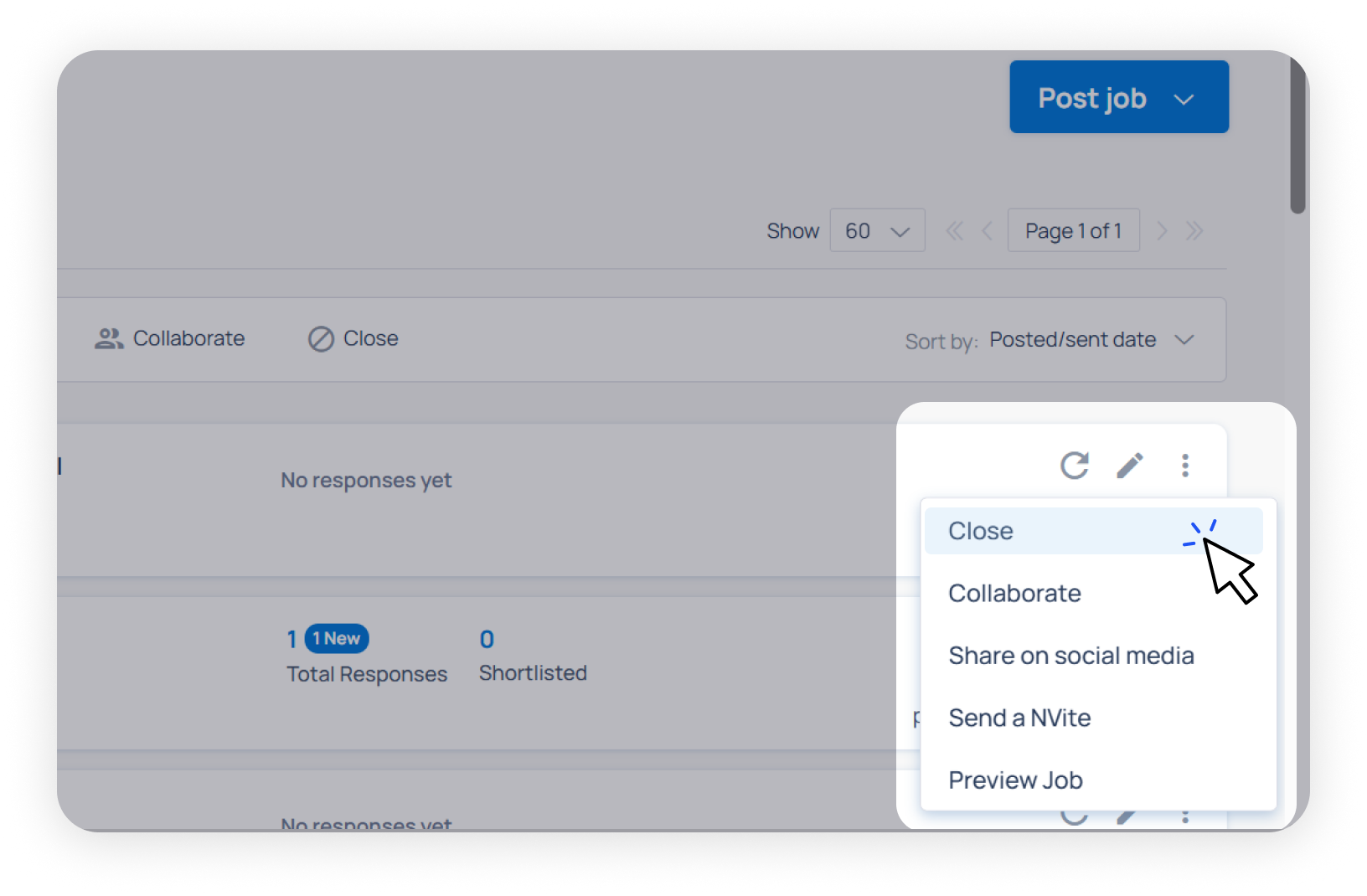
Close job
Closing a job post removes it from Naukri’s website. This option is useful when the position has been filled or is no longer open, and you don’t want jobseekers to apply to it anymore.
Important Notes:
Reposting a job after already closing it costs one credit per job posting
Repost job
You can repost an already expired or closed job. Here’s how you can do it:
-
Step 1
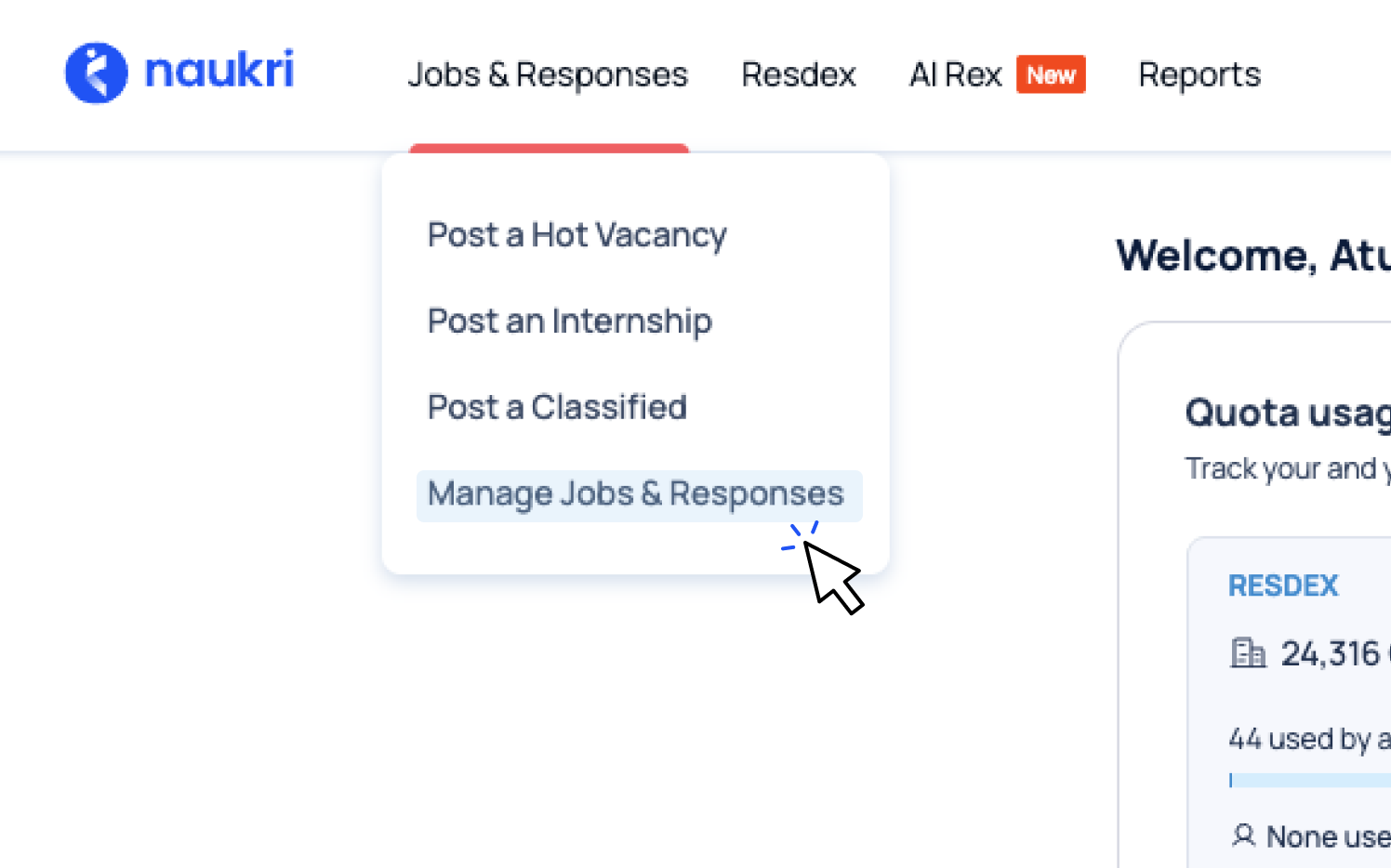
Go to the “Jobs & Responses” section.
-
Step 2
Click on “Manage Jobs & Responses.”
-
Step 3
Locate the expired job you wish to repost.
-
Step 4
Click on the “Repost” option next to it.
-
Step 5
You’ll be redirected to the job posting form.
-
Step 6
Review the details and click “Repost” to publish it again.
Company Info on job posts
Company display
Your company name, details, and address registered on Naukri will automatically show up on all your job postings.
What appears:
Important Notes:
These details are pulled from your company profile, so any changes to your registered information will reflect across all job postings.
Company logo
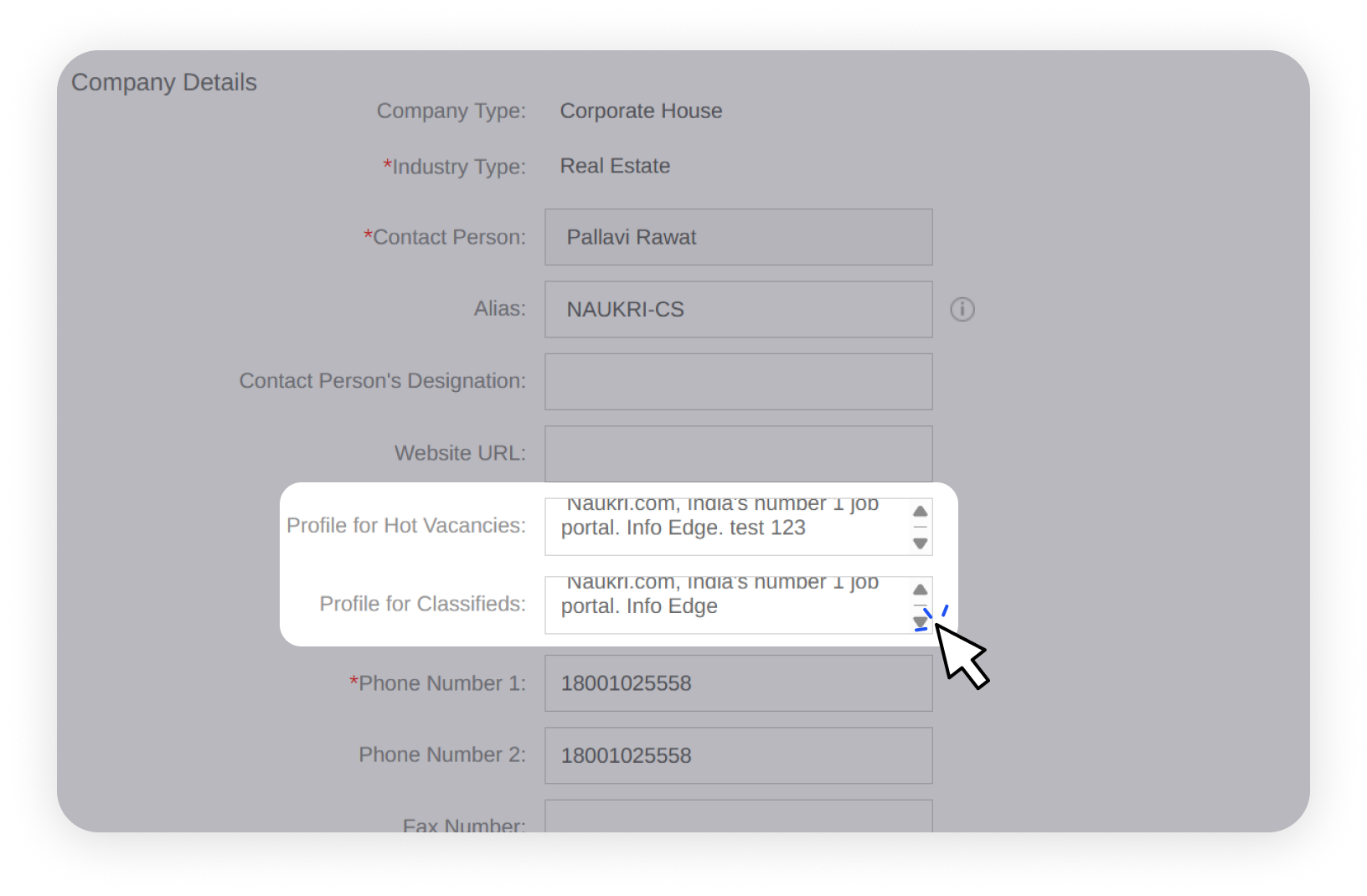
To upload or change your company logo,
Once updated, your logo will appear on all job postings and company profile.
Company details
Write an email to us with the supporting documents at support@naukri.com and we will get it updated.
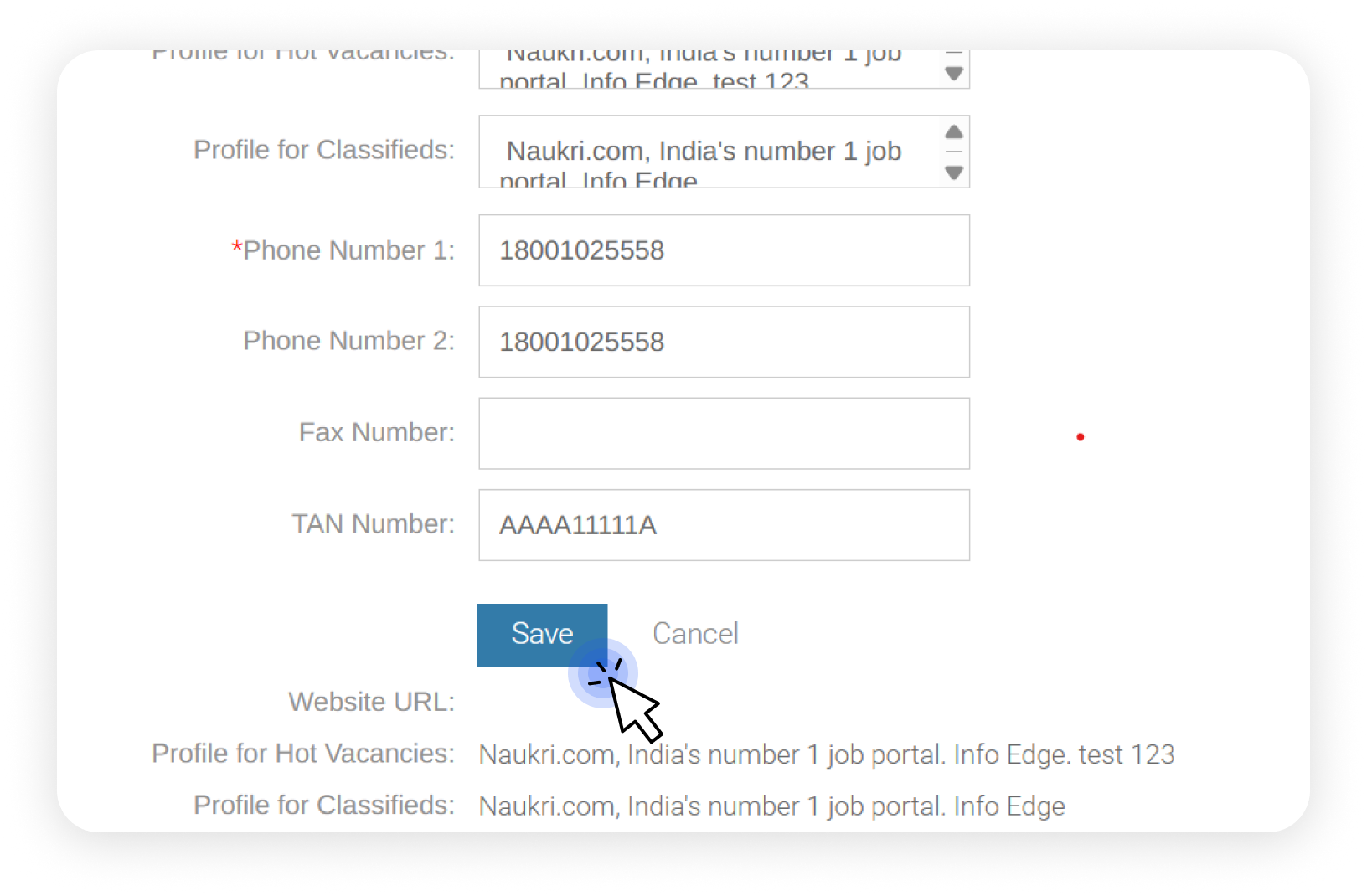
Company description
Option 1: For one specific job posting only
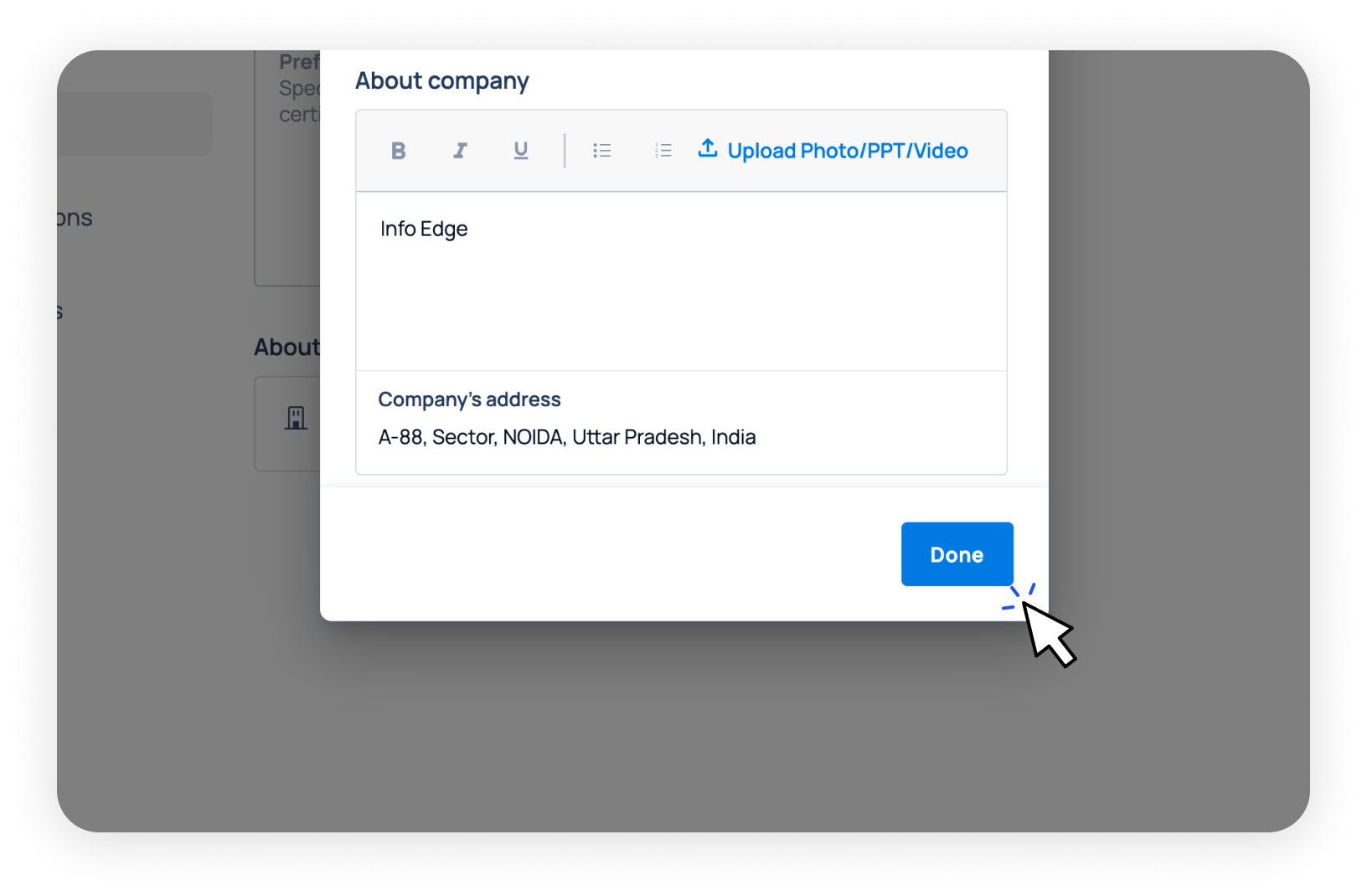
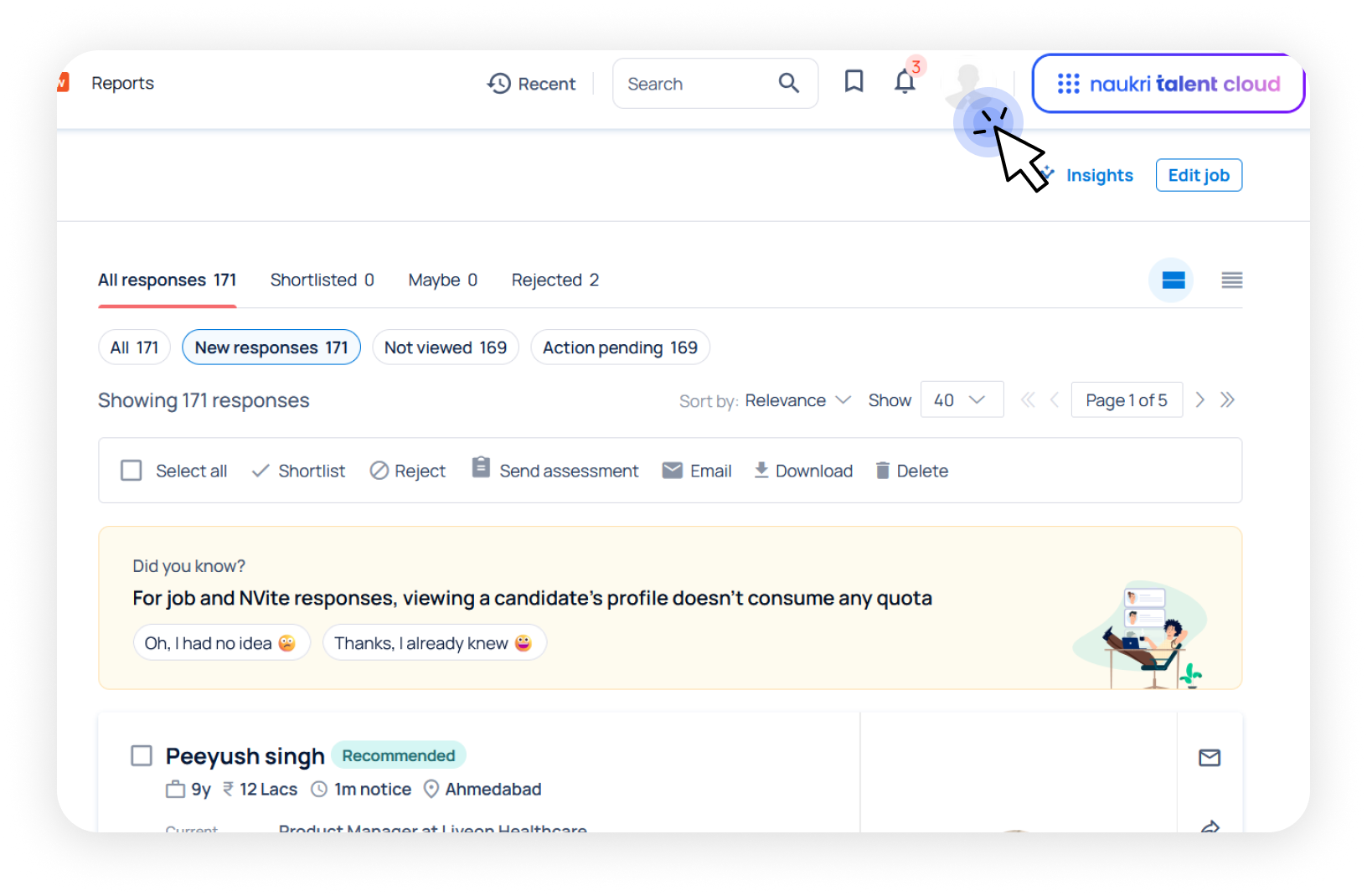
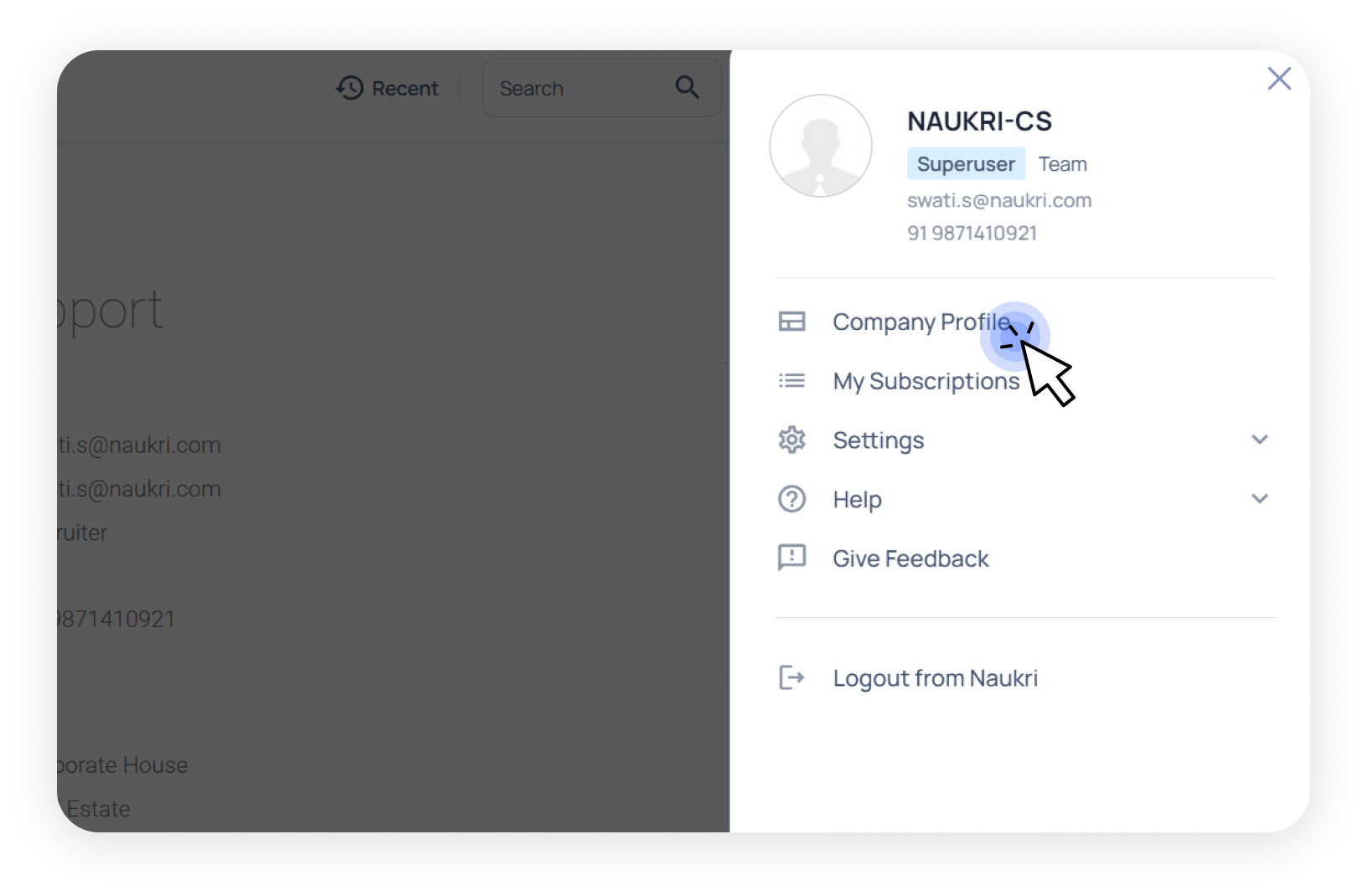
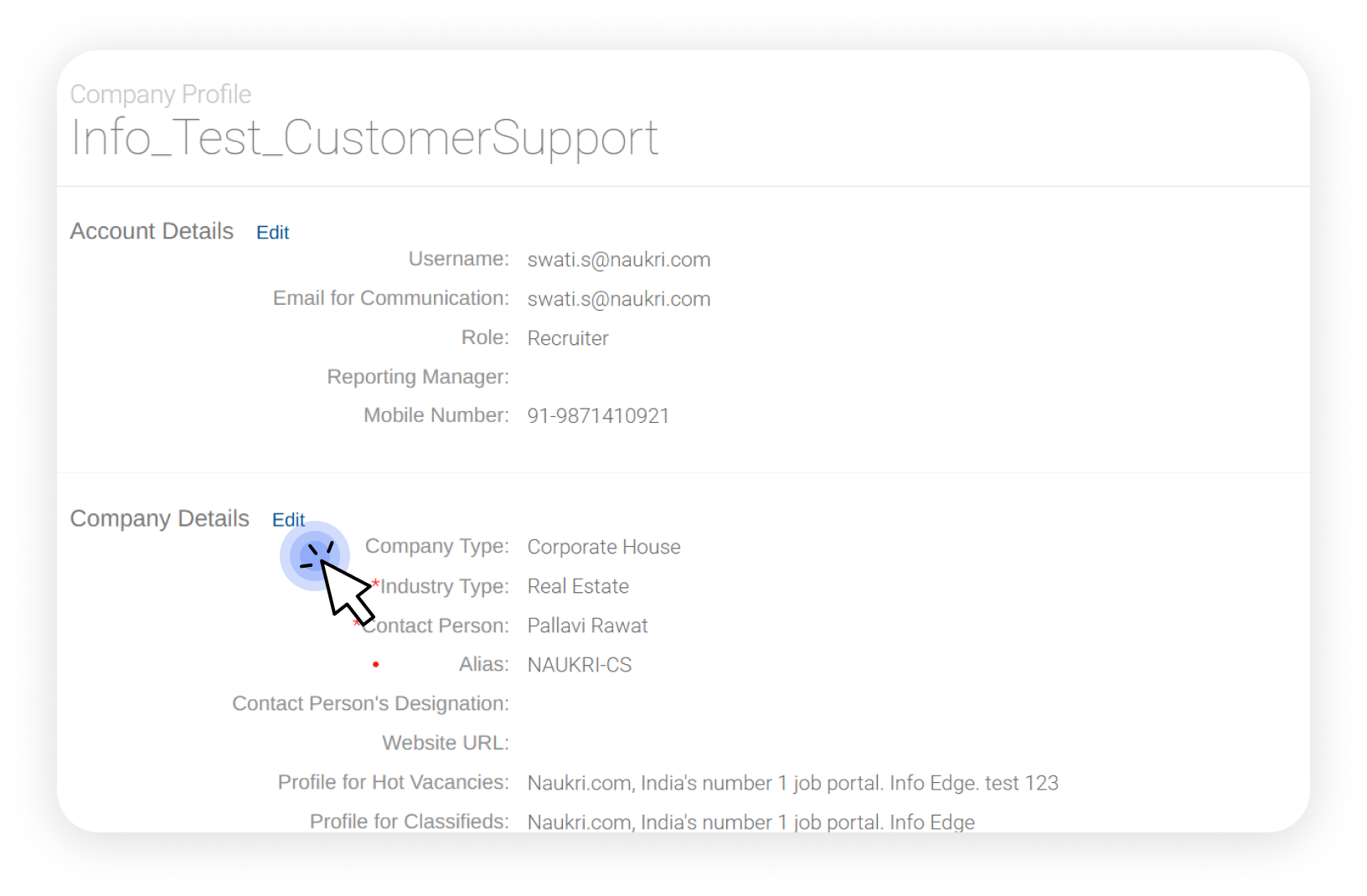
Option 2: For all job postings (default description)
Superuser can define the description under ‘Company Profile’
Description tips
Keep it short, clear, and attractive to job seekers. Include essential information, such as
Example
Manufacturing Company: "ABC Industries - Leading manufacturer of automotive parts since 2010. 200+ employees, supplying to major automobile companies in India . Employee-friendly work environment with growth opportunities."
IT Services: "TechSoft Solutions - 5-year-old software development company specializing in web and mobile apps. Team of 25+ developers. Flexible work hours, modern office in Gurgaon."
Retail Business: "Fashion Hub - Multi-brand clothing retailer with 15 stores across Delhi-NCR. Growing rapidly, looking for energetic team members. Performance-based incentives."

Application access
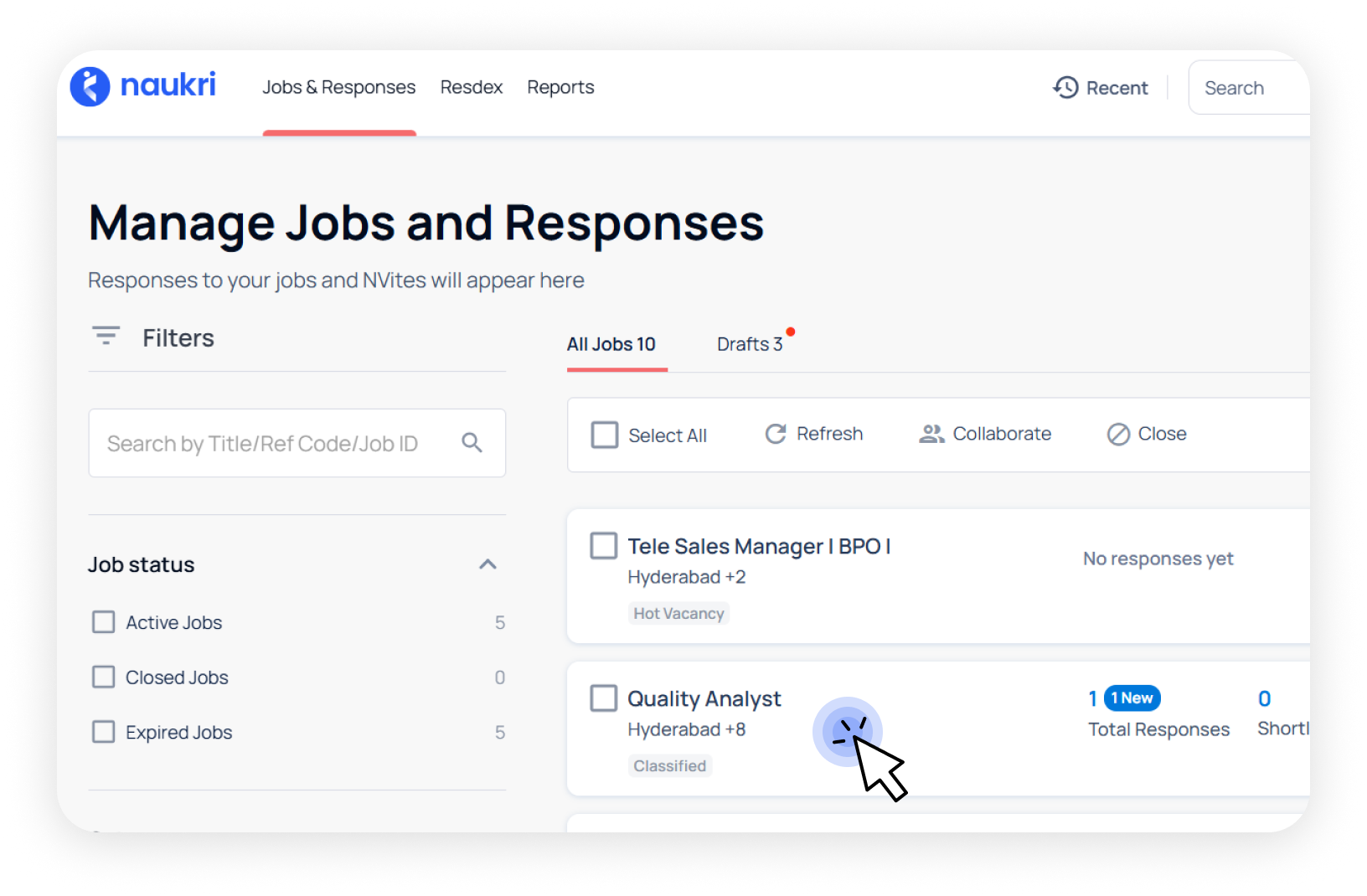
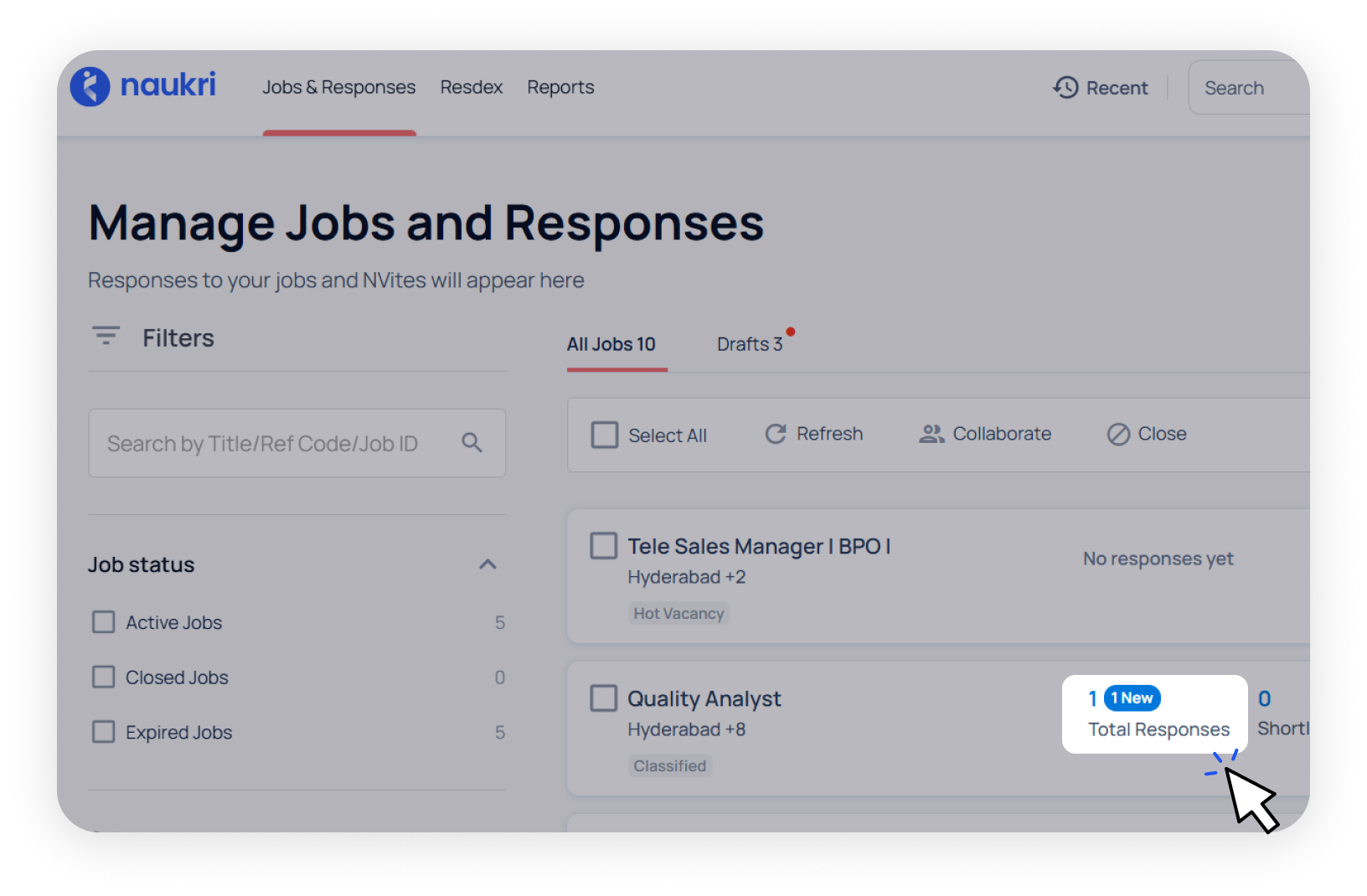
Viewing
To view the application received for your job posting, follow these steps:
Pricing
Once you have already paid for your job posting subscription, there is no extra cost for viewing or downloading the responses.
Response notification
Settings
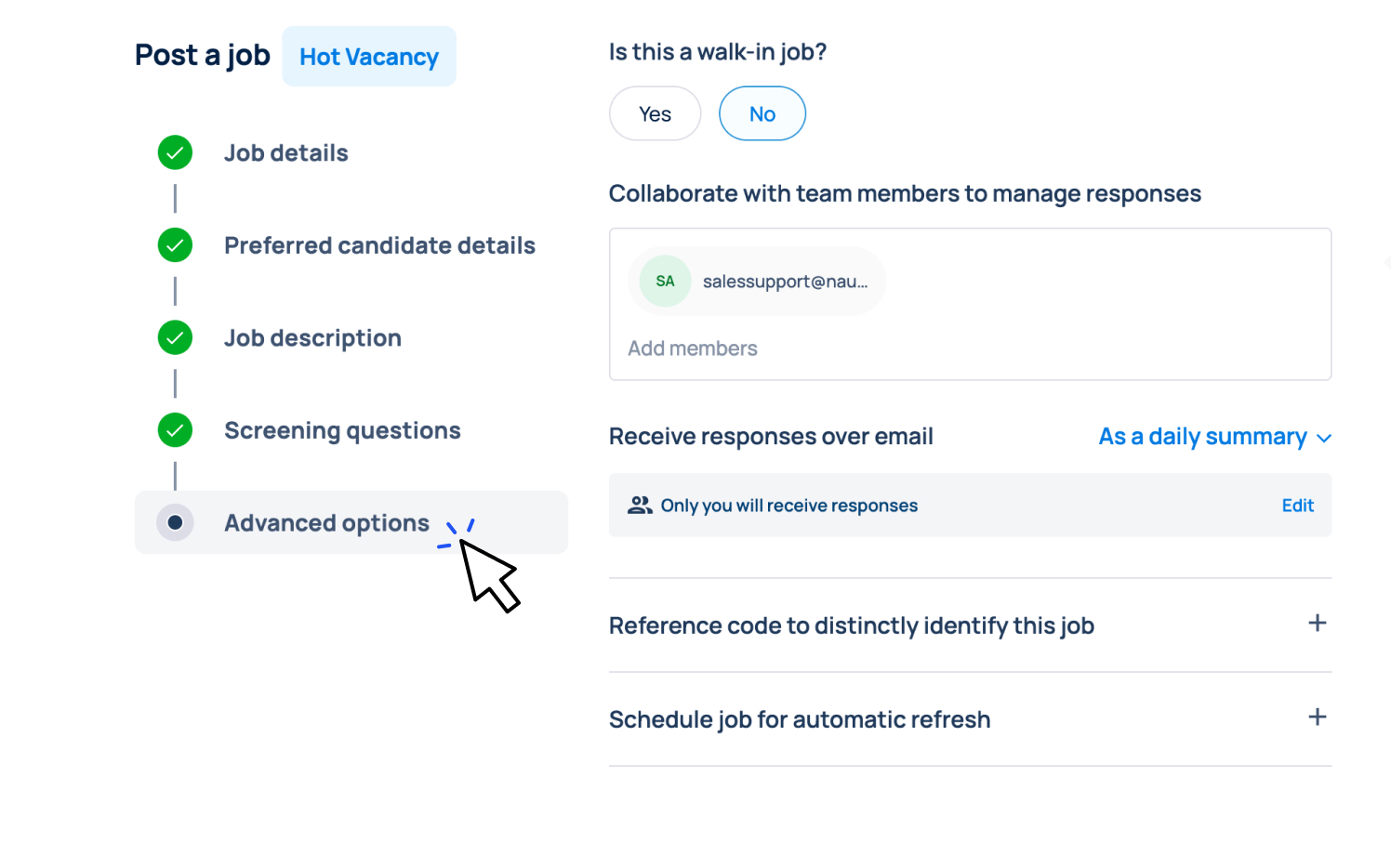
You can get notifications of the responses received on your email. Here’s how:
-
Step 1
In the job posting form, go to the ‘Advanced Options’.
-
Step 2
Locate ‘Receive responses over email’ and choose the option to either receive daily summary or every new response.
-
Step 3
Next click ‘Edit’ to add (max 2) or remove the required email ids
-
Step 4
You can save this setting for AI-recommended applications or all responses. You can also edit the subject line of the email.
Important:
You'll receive notifications when the candidates apply. Click the link in the email to view candidate profiles in your Naukri recruiter account.
Organising responses
Application status
Marking statuses helps you organize and manage responses more efficiently. In the Response Manager, you can mark candidates as Shortlisted, Maybe, or Rejected.
This helps you:
Filters
Use these filters in the Response Manager to streamline hiring and focus on the best matches:

Keyword Filter
Search for specific skills in candidate profiles (e.g., Housekeeping Management).

Salary and Experience Range
Filter candidates by salary and total experience to match your role’s requirements.

Industry Filter
Narrow results to candidates from relevant sectors like Facility Management or Hospitality.

AI-Recommendations
Naukri’s AI highlights the most relevant candidates based on skills, experience, and industry.
Contacting candidates
Contact methods
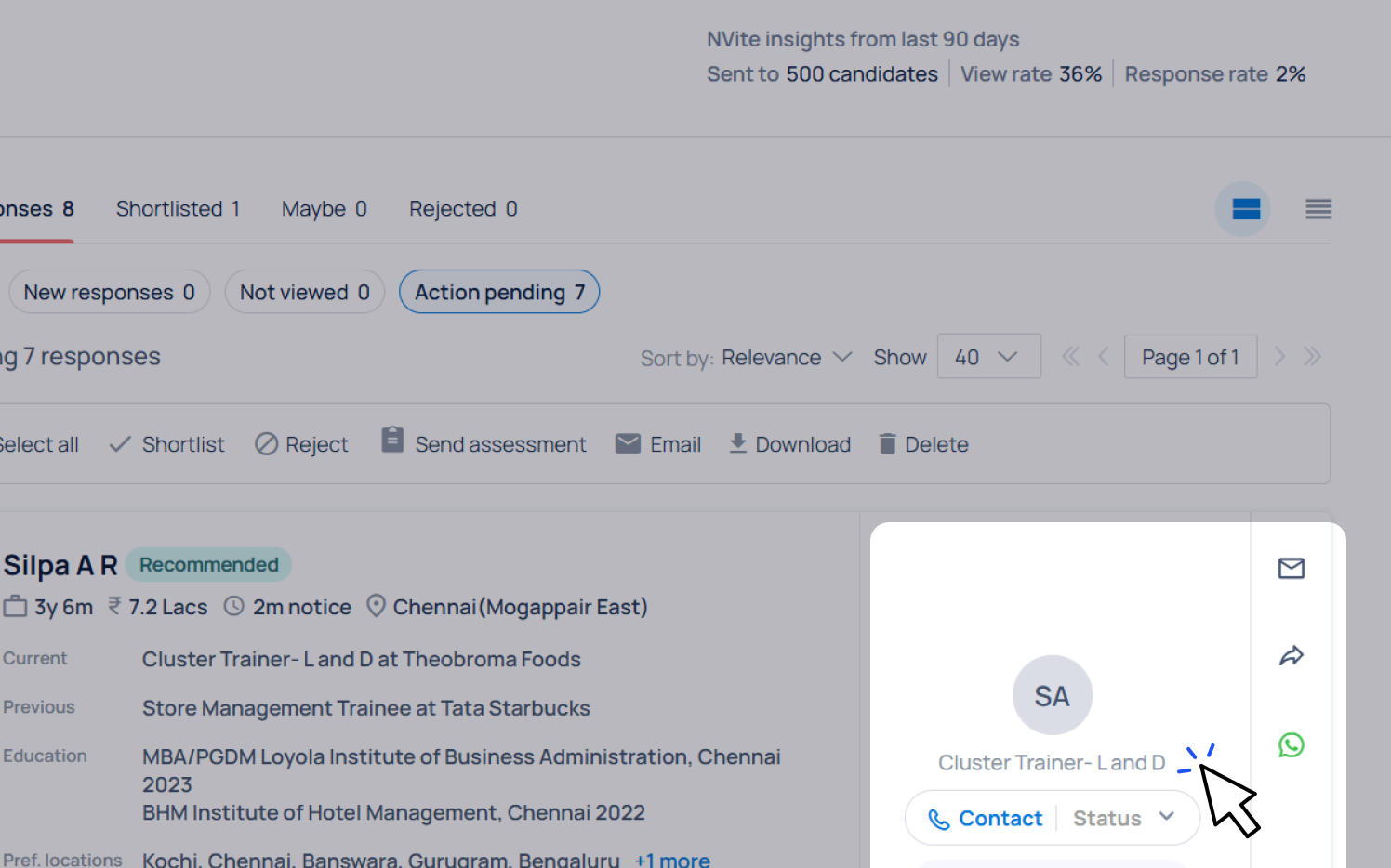
The Response Manager offers multiple ways to reach candidates quickly:

Click the email icon to draft and send messages. You can customize the subject and message, and email multiple candidates at once by selecting them together.

Click the WhatsApp icon to open WhatsApp Web and start a chat—no need to save the candidate’s number. Just scan the QR code to connect your account.

Call via Naukri Recruiter App
Use the Call from App option to dial candidates directly from your phone via the Naukri Recruiter App.
Hidden details
If you have posted a Standard Job Posting, the candidate’s contact details are hidden. However, you can still call them using Naukri Recruiter app.
Click on the "Call from App" button on the candidate’s profile. This will open your phone’s dialer to can call them directly.
Important:
Make sure you're calling from the same mobile number registered with your Naukri account.
AI-assistance
AI-recommended applications
Naukri’s smart system compares your job details such as title, skills, experience, location, industry, and education with applicant profiles to highlight the best matches. This helps you find the right candidates faster and saves time.
Response insights
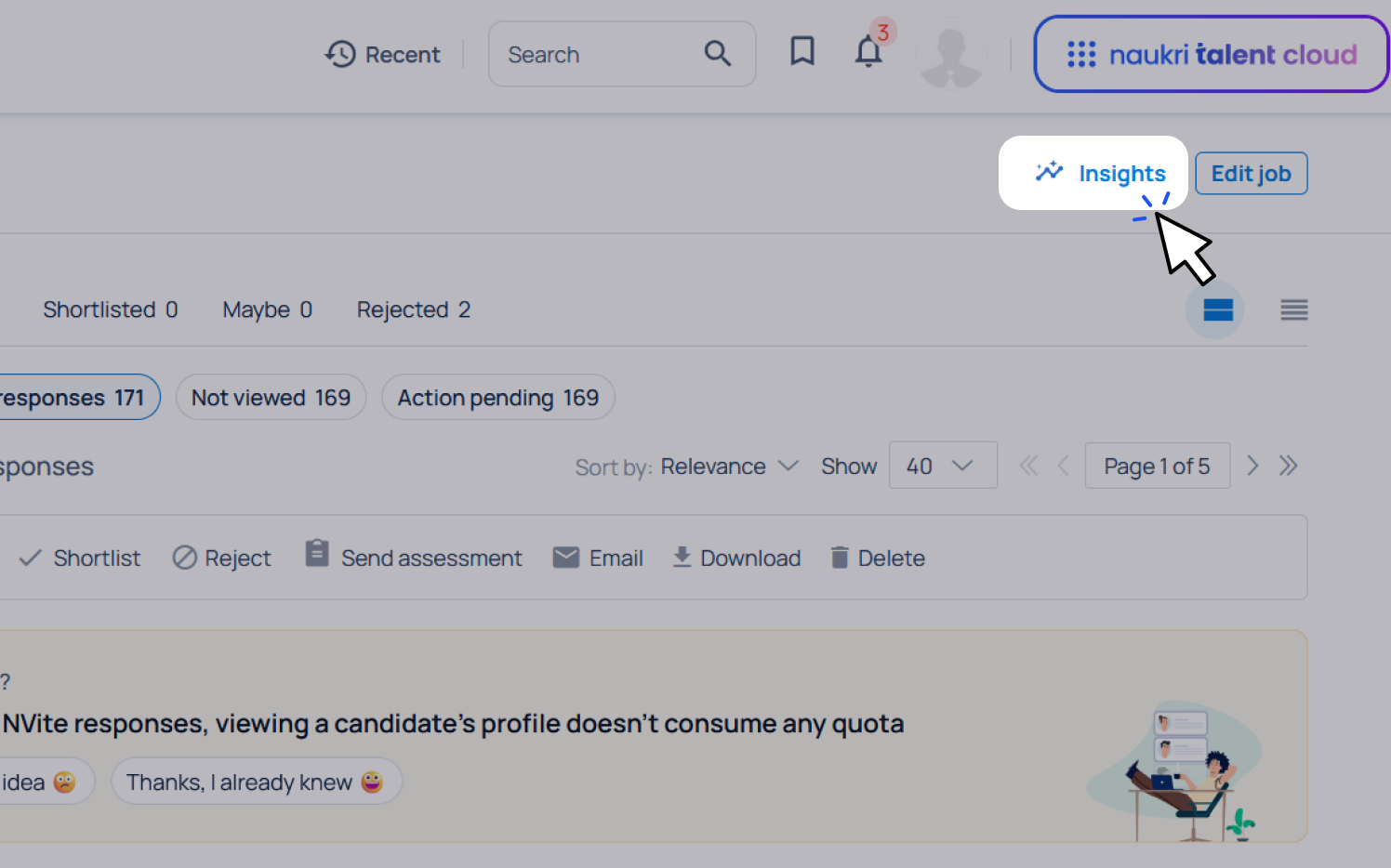
When your job receives 50+ responses, Naukri’s AI automatically generates insights to help you understand candidate distribution by CTC, experience, current company, key skills, and more.
You can view insights for:
Find them in the Response Manager under Response Insights, once the minimum response threshold is met.
Tracking Usages
Job Posting analytics
You can track job usage and performance by generating a Job Posting Report from the Analytics section.
How to do it:
-
Step 1
Go to the Analytics tab and select “Job Posting” from the dropdown.

-
Step 2
On the dashboard, choose between:
- One-click reports for quick, pre-configured summaries
- Customized reports where you can specify:
- a. A date range (up to 12 months from the date of generation)
- b. Report type (user-wise or job-wise)
-
Step 3
After setting your preferences, click “Generate Report”