
 Search using keywords
Resdex is Naukri’s resume database that helps recruiters find and connect with the right candidates faster. It gives recruiters access to millions of profiles across roles, industries, and experience levels.
With powerful filters, keyword search, and AI-driven recommendations, recruiters can quickly narrow down the most relevant candidates.
From discovery to outreach, Resdex helps streamline entire sourcing process.
Search using keywords
Getting started
What to include vs avoid
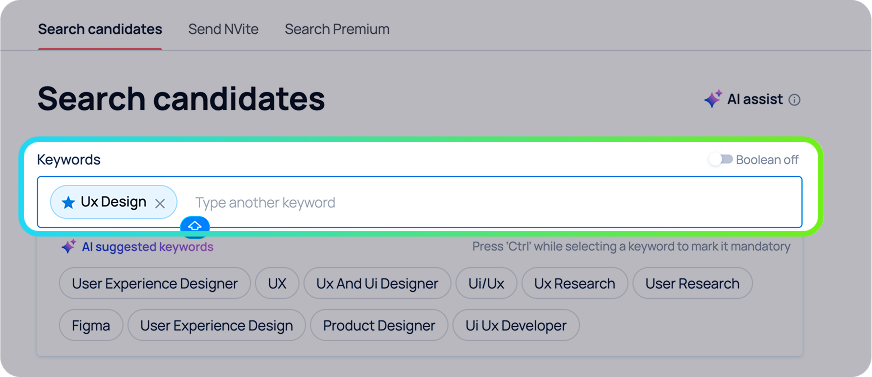
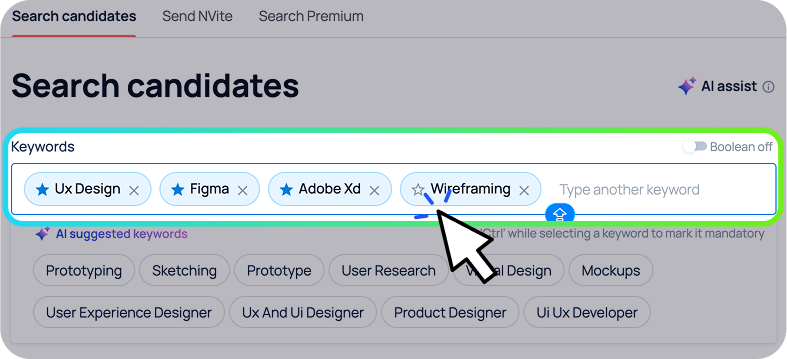
Choosing the right keywords is the foundation of an effective search. Your keywords should reflect how candidates describe themselves in their resumes.

- Core skills: Java, Sales, Recruitment
- Tools & technologies: Excel, Salesforce, Python
- Role-specific terms: B2B Sales, Talent Acquisition
- Relevant variations: Developer, Engineer, Backend Developer

- Generic terms like hardworking, dynamic, team player
- Full sentences or long phrases
- Overly niche or uncommon terms that candidates may not use
Mandatory & exclude fields
Resdex allows you to structure your search using different types of keywords to control both relevance and reach.

Mandatory keywords
Only profiles containing these skills will appear in your results. Use this for non-negotiable requirements (e.g., “Java”, “ICU”, “Chartered Accountant”).

Exclude keywords
These remove unwanted profiles from your results. Use this to eliminate irrelevant skills, different career tracks, or unrelated domains.

Using boolean search
Boolean logic helps you control how keywords are combined, making your search more precise.


Upcoming webinars Live demo + Q&A


Looking for higher-quality candidates with PremiumX?
Learn advanced filters and premium data


Important search fields
Once you add keywords, use search fields to narrow down and find the right candidates faster. These fields help you move from a broad search to a more targeted and relevant candidate pool
Experience, location & salary

Experience
Set minimum–maximum experience range

Location
Filter by current location and relocation preference

Salary
Target candidates within your budget
How this helps:

Tip:
Apply 2–3 key filters first, then refine further based on results.

Employment details
Narrow down candidates based on their work background and career progression.
Includes:

Department & Role
Select relevant functions

Industry
Focus on specific domains

Designation
Target job titles

Notice Period
Identify immediate joiners or active movers
How this helps:

Educational details
Filter candidates based on their academic qualifications.
Includes:

Tip:
Apply this only when educational qualifications are critical for the role
Diversity hiring
Use diversity filters to align your hiring with your organization’s inclusion goals, while still maintaining role fit.
Includes:

Gender diversity
Improve representation across roles

Women returning to work
Tap into experienced talent re-entering the workforce

Differently-abled candidates
Build inclusive and accessible teams

Defence background professionals
Hire disciplined, high-integrity talent

Understanding search results
Candidate overview card
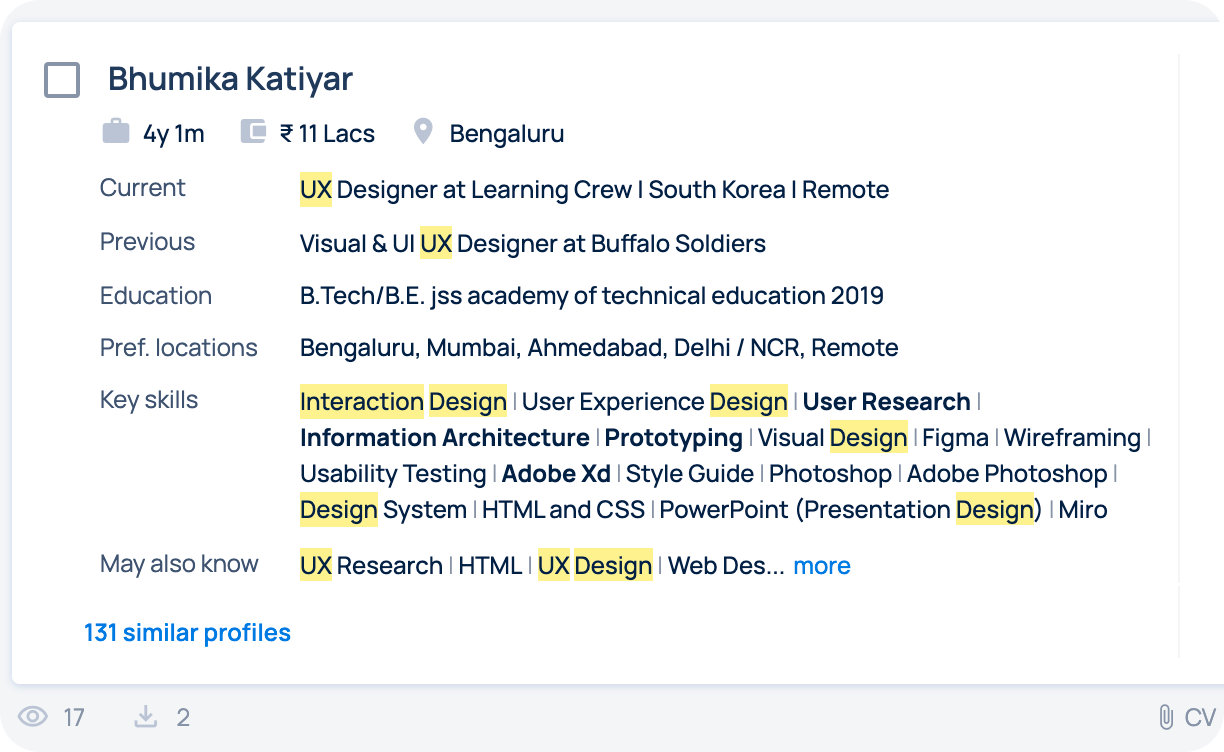
The results page gives you a quick snapshot of each candidate to help you evaluate fit at a glance.
What you see:
Quick actions on profiles
You can take immediate actions directly from the candidate card:

View phone number

Call candidate

Save or comment on profiles
This helps you move faster without opening every profile.

Filters on result page
The left panel on the result page lets you adjust and narrow results without restarting your search.
You can refine by:

Keywords
Add or tweak skills
Location
Adjust preferred or current location
Experience
Modify experience range

Additional filters
Designation, Company, Notice Period

Tip:
Make small adjustments instead of big changes. This helps you quickly find better matches without losing momentum.
Similar profile recommendations
Each profile shows similar candidates based on:
This helps you expand your search without applying new filters. This is one of the quickest ways to discover high-quality candidates without starting from scratch.

You can reach out to candidates in two ways, depending on your hiring need:
1:1 outreach
Calling candidates
Use this when you want to quickly speak with a few shortlisted candidates.

Bulk outreach (NVite)
NVite is best for reaching multiple candidates at once. Use NVite when you have a pool of candidates and want to engage them at scale.

Sending NVites
-
Step 1
Go to “Resdex Search”, enter your criteria, and click “Search”. You can even directly start from "Send NVite" tab near the "Search Candidate" tab of Resdex
-
Step 2
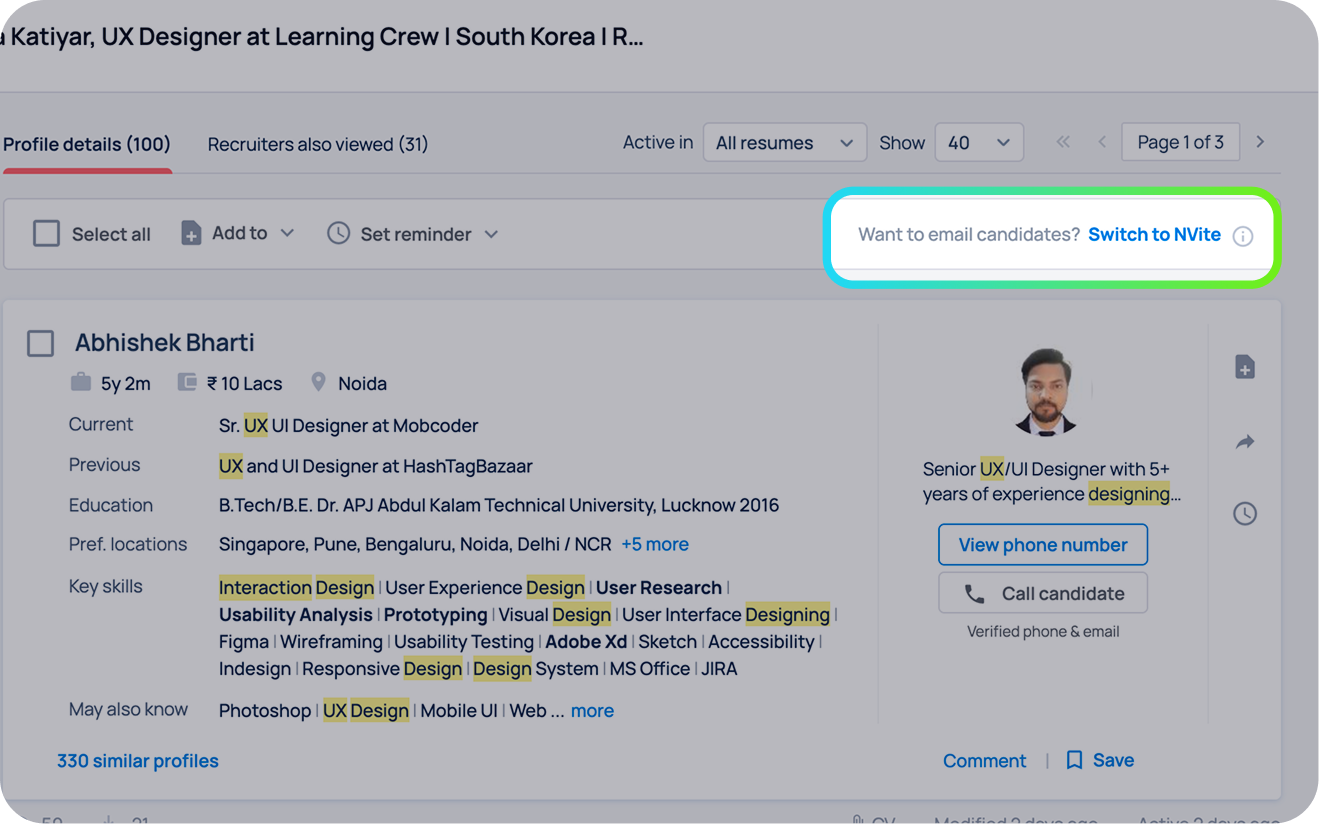
On the results page, click “Switch to NVite”

-
Step 3
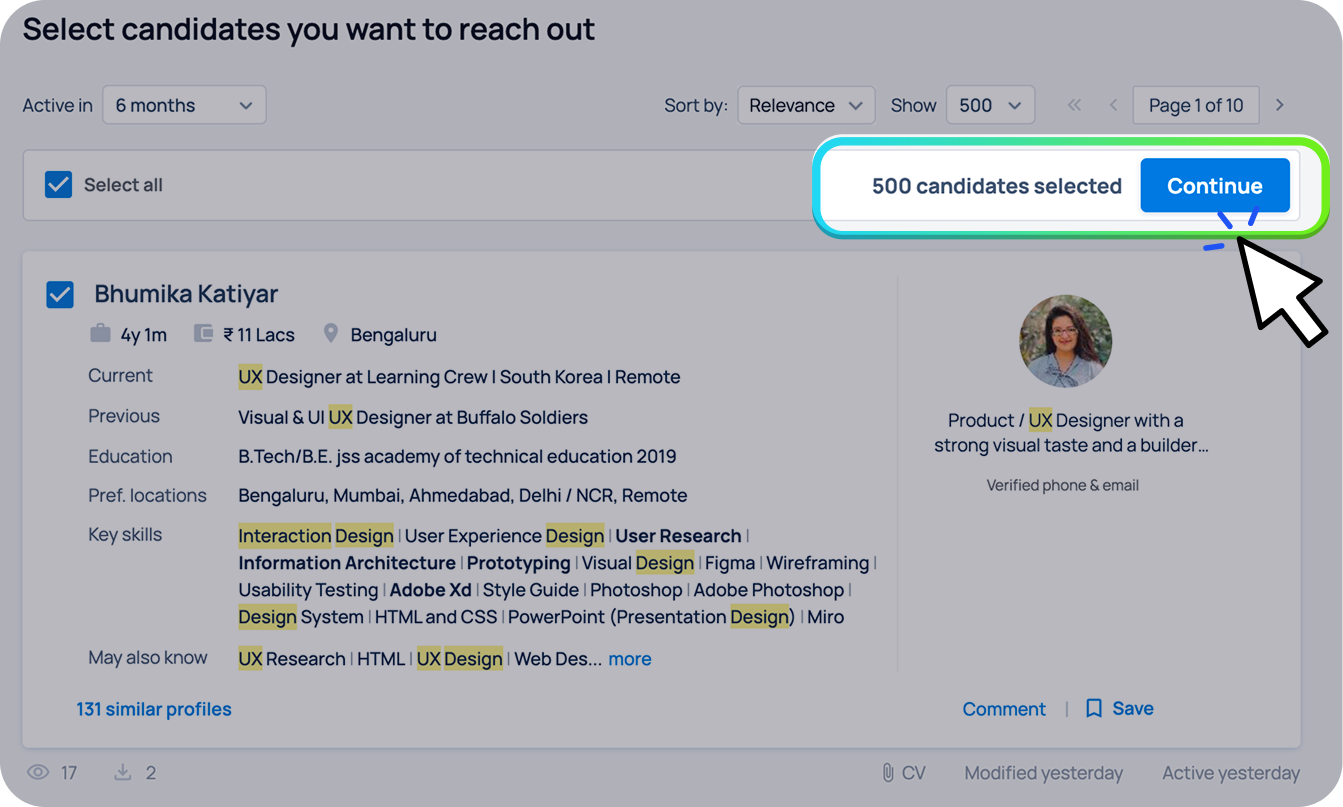
Select the relevant candidate profiles, click “Continue”
-
Step 4
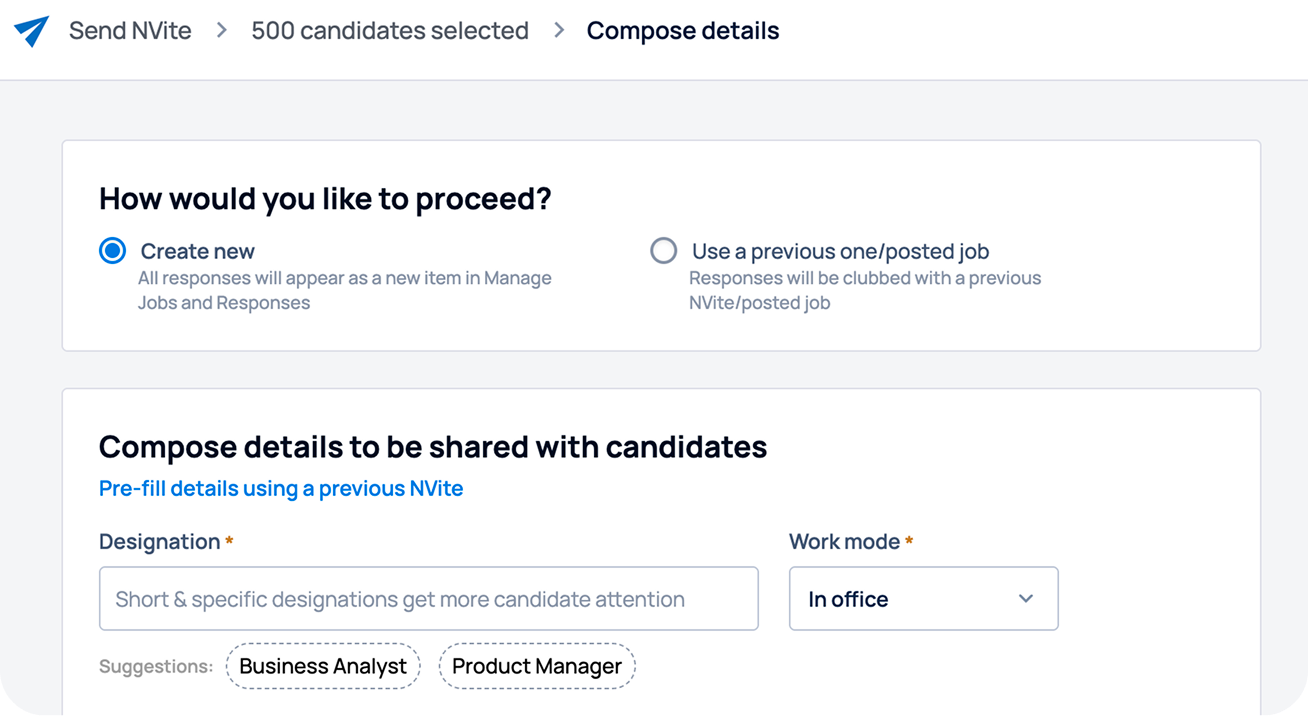
Choose whether you want to create a new NVite or use a previously posted job
-
Step 5
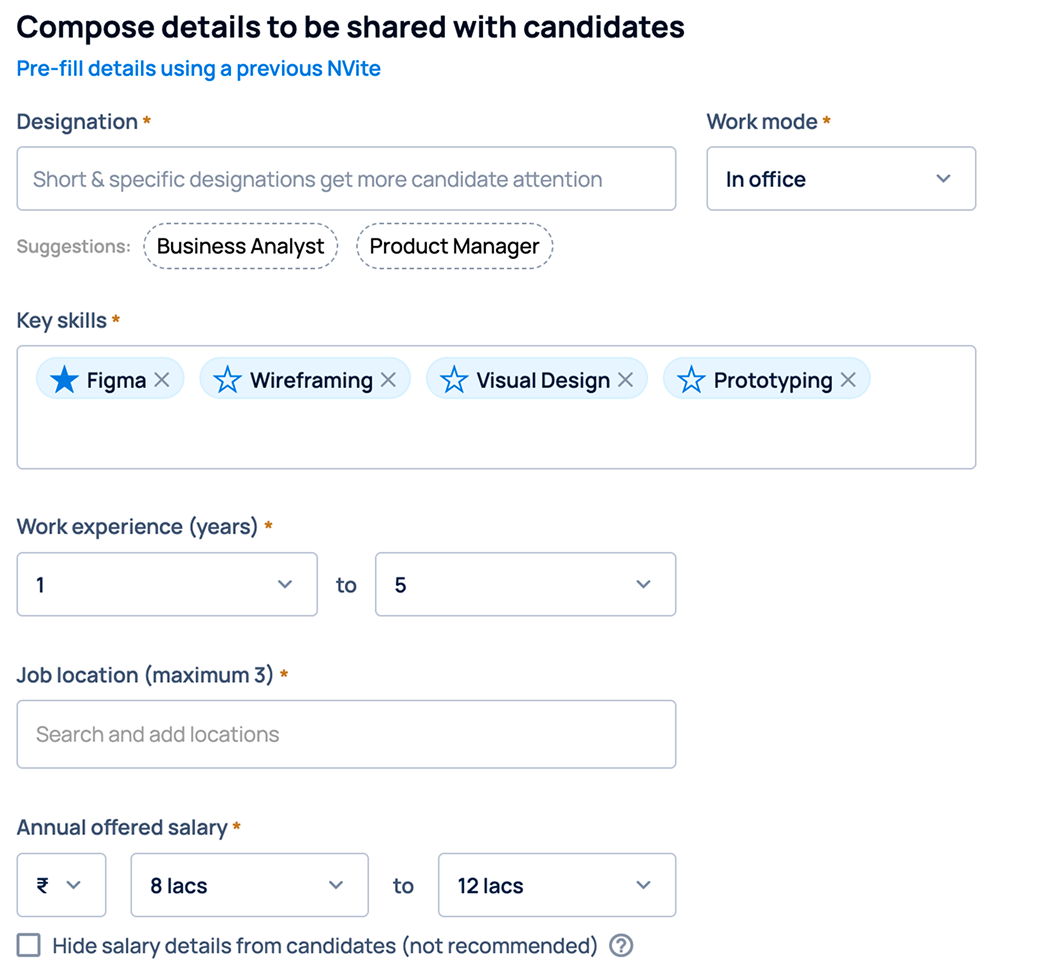
Add NVite details like Designation, Key skills, Experience, Location, Salary, Job Description
-
Step 6
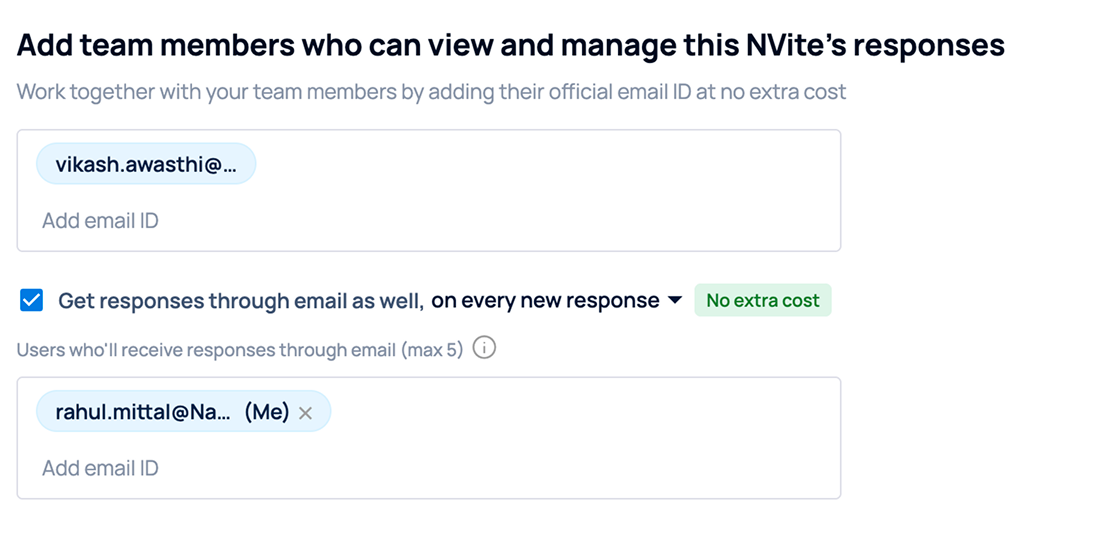
Add team members (Optional who would manage responses. You can add up to 5 team members)
-
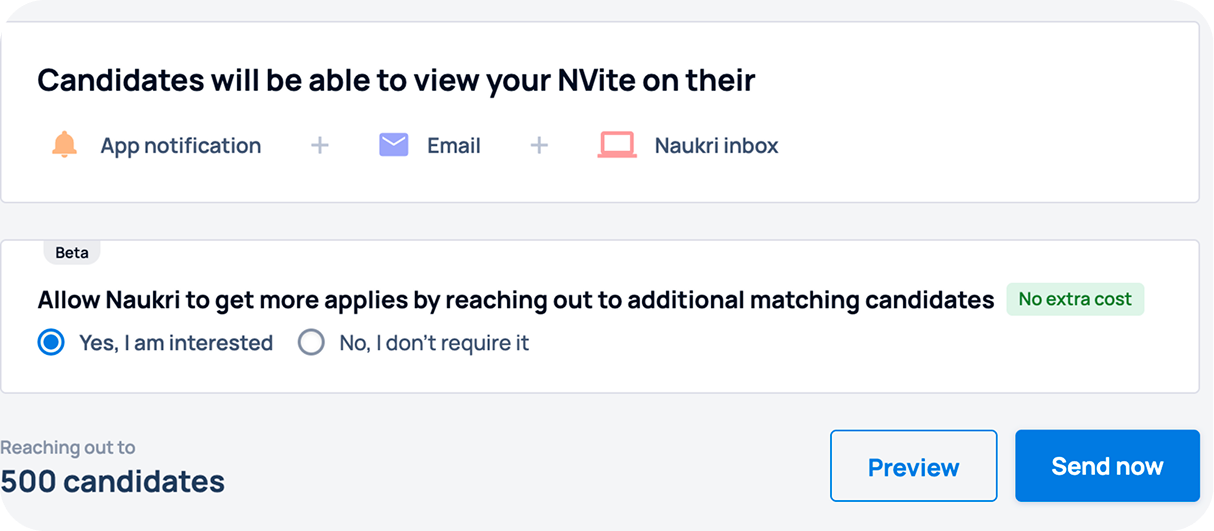
Step 7
Click “Send” to reach out to selected candidates
Tip:
Select candidates who match most of your requirements for better response rates.
Managing NVites responses
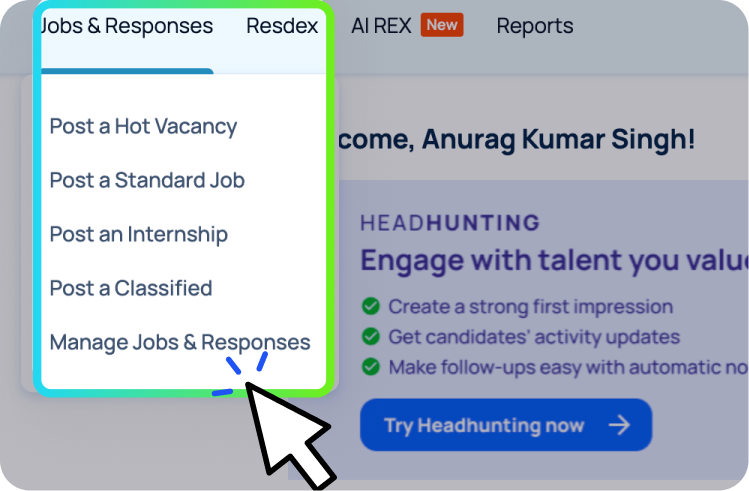
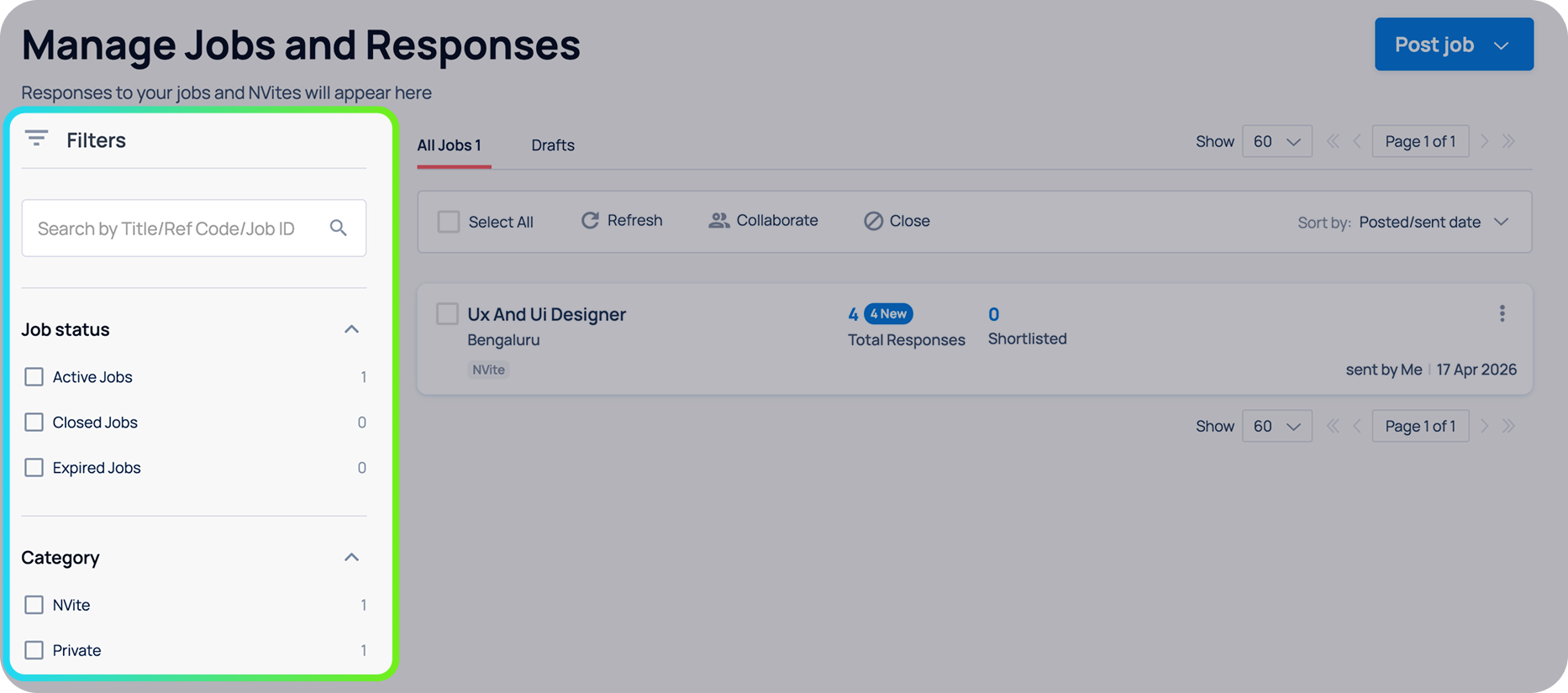
All responses can be tracked in Jobs & Responses.
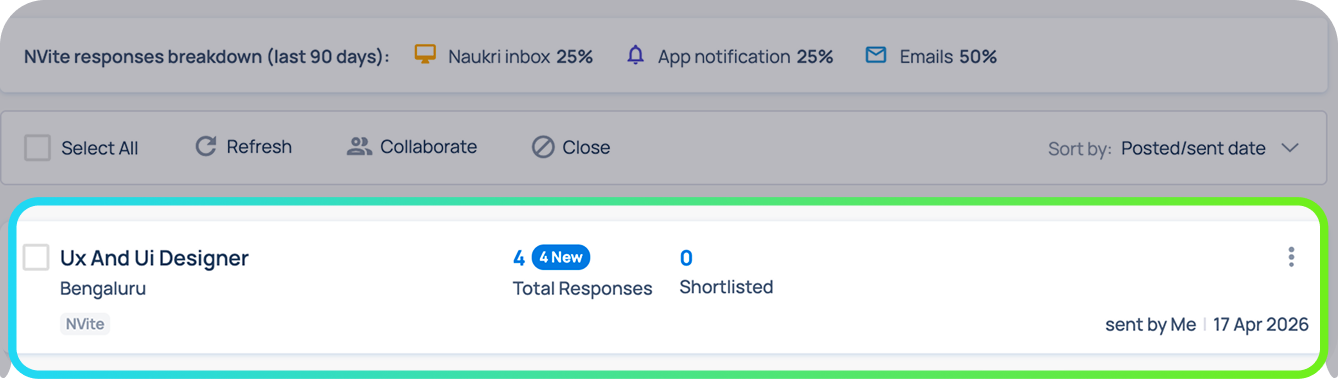
Sharing NVite responses with your team
You can collaborate with your team by giving them access to candidate responses, enabling faster evaluation and follow-ups.
Method 1: While creating an NVite
Add collaborators during NVite creation:

Method 2: After sending an NVite
Add collaborators anytime after sending:

Important:
Controlling who receives responses
You can manage who gets access to NVite responses:
Limit: Up to 5 subusers per NVite
Accessing searches
Where to find
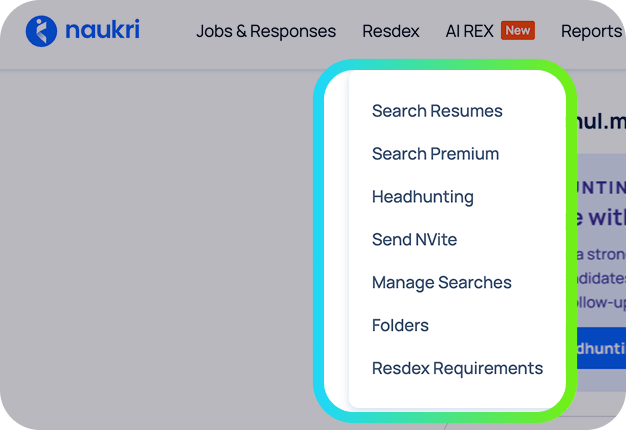
Go to Resdex from the top navigation, click on “Manage Searches”
This is your central place to track, reuse, and organise all your searches.
You can use filter the searches based their creation date using the left filter panel.

Types of searches
Saved searches
Saved searches let you quickly rerun frequently used search criteria.
Use cases:

Recent searches
Revisit your latest searches without saving them.
Best for:

Shared searches
View and use searches shared by your team members to collaborate better.
What you can do:

Your CV quota is consumed when you interact with candidate profiles. Knowing how it works helps you avoid unnecessary usage and maximise value.
Quota consumption policy
General Rules
1 CV quota is used the first time you perform any of these actions on a profile (valid for 90 days):
2 CV quota is consumed when a profile is downloaded in Excel format
How quota is calculated:
Important:

Track usage
Stay on top of your quota with real-time tracking.
Accessing reports
Stay on top of your quota with real-time tracking.
Go to “Reports” on the top navigation bar and select “Resdex”
What you can do:

Types of reports
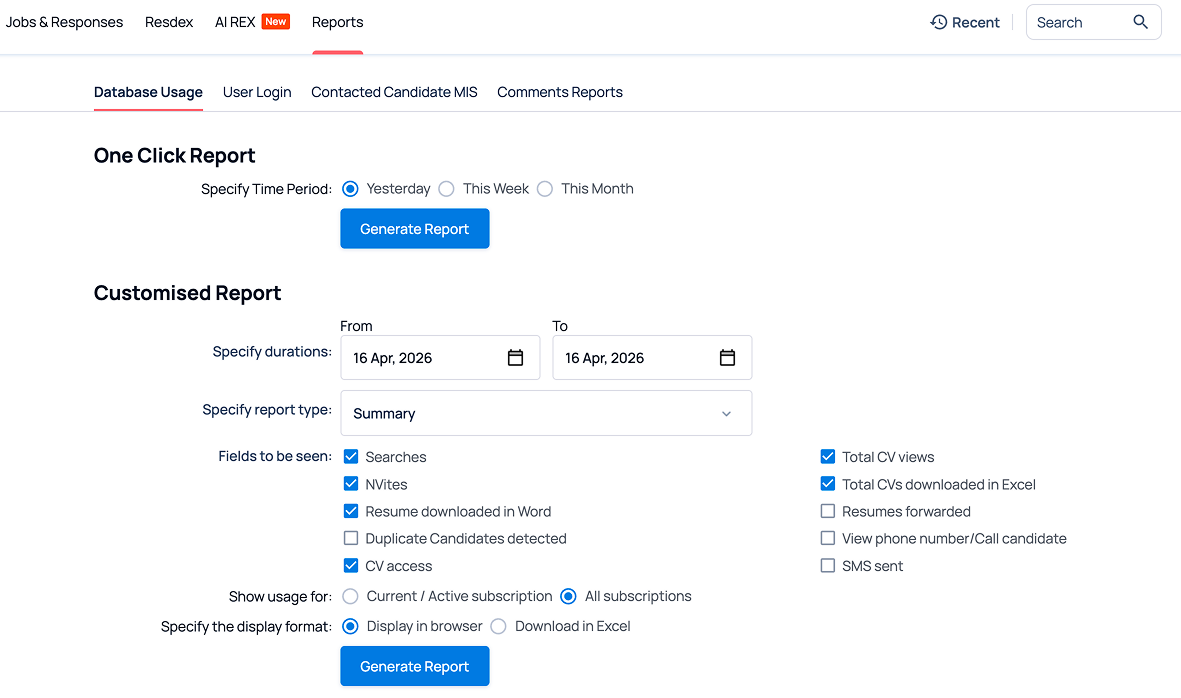
You can generate reports in two ways:
One click report
Quickly generate reports for predefined durations:
Customised report
Create detailed reports based on your specific needs:
Other reports
In addition to Resdex database usage, you can access other reports to track activity in your account.
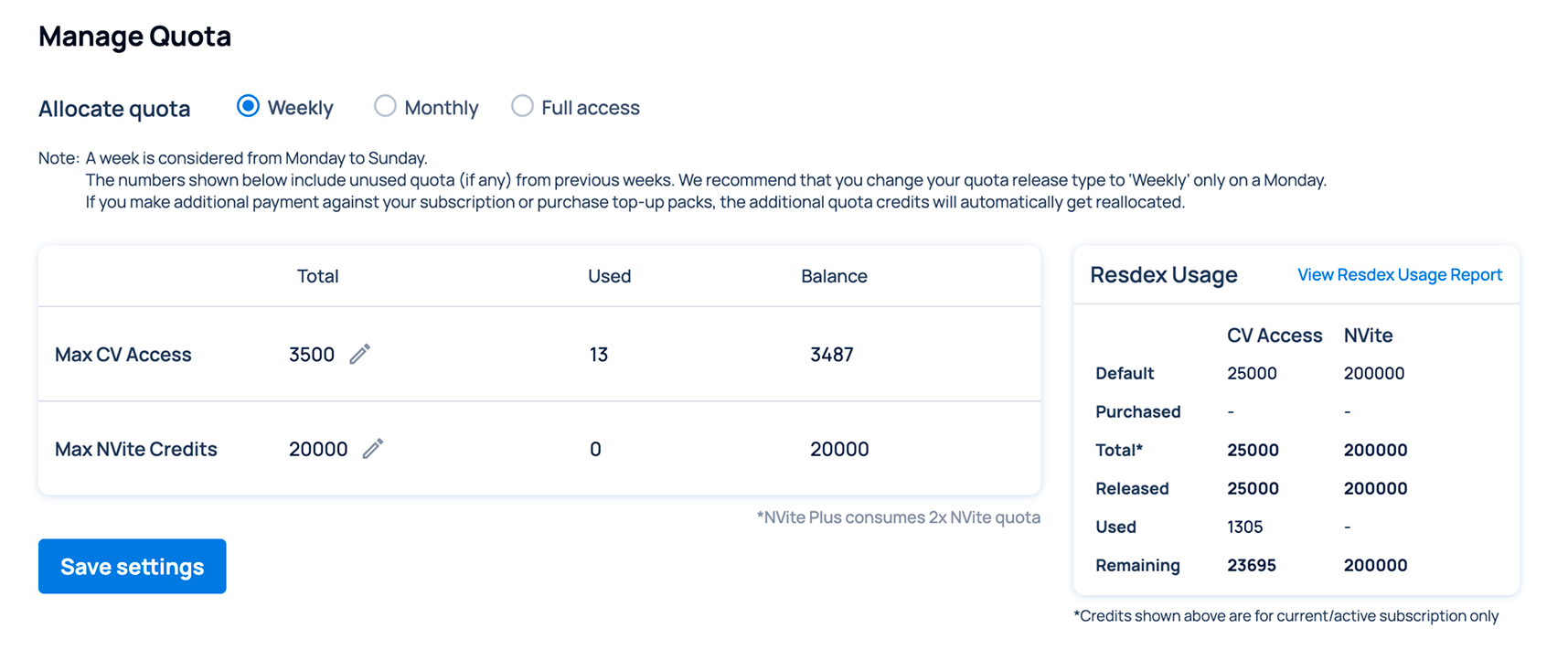
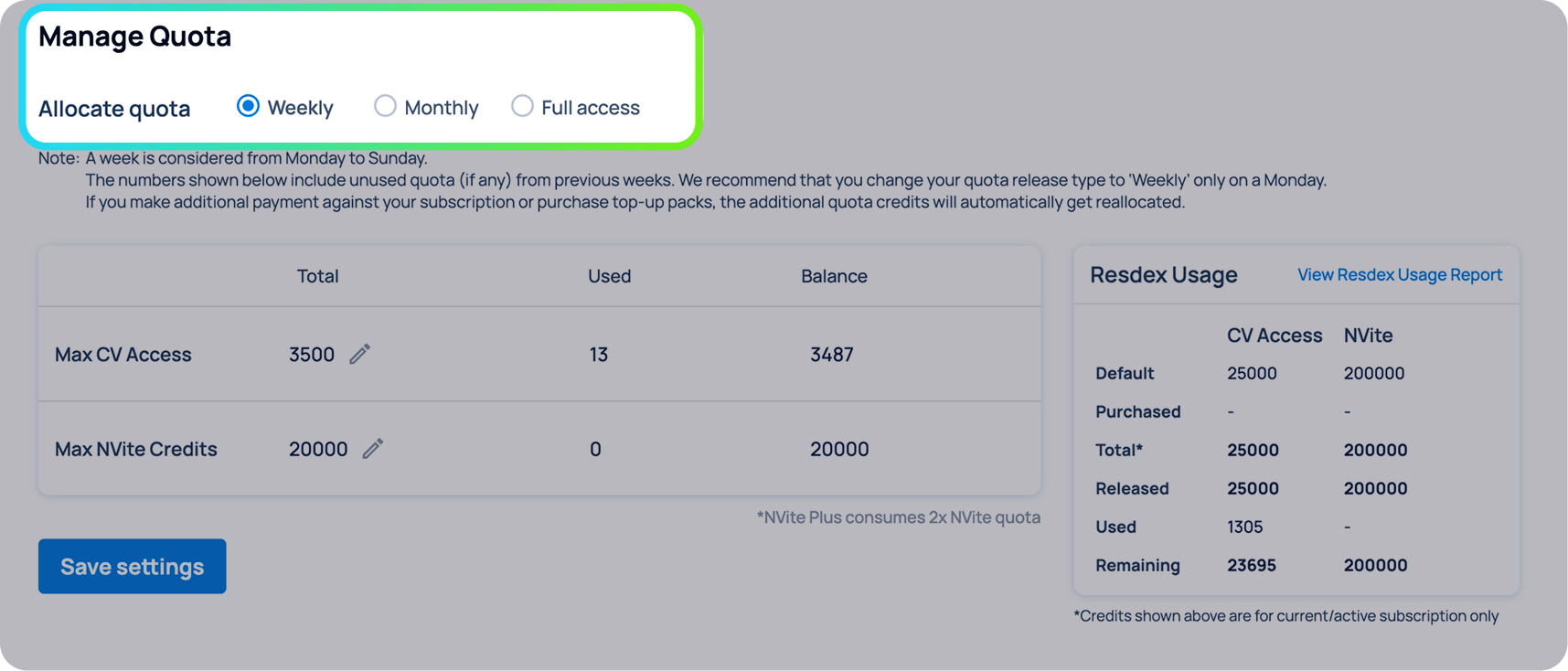
Quota allocation (for super-users)
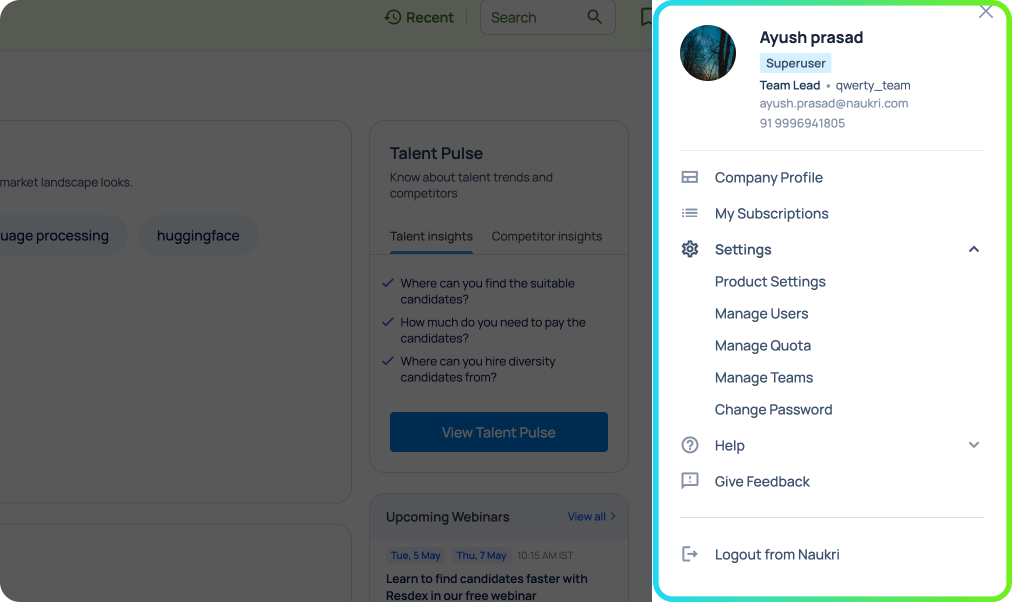
Settings
CV quota can be managed by the Super-user only. They can
Premium X is a subscription-based upgrade designed for hiring mid to senior roles, helping you focus on quality candidates faster.
Features

Dedicated Premium View
Access a curated pool of premium candidates with less noise

Checked Profiles
View profiles with verified details (company, CTC, notice period)

Premium Filters
Target candidates using Top Institutes, Similar Companies, and more
Resdex Enterprise is a subscription-based solution that unlocks advanced AI, productivity, and control features for large hiring teams.
AI features
Personalized ranking
Surfaces candidates based on how closely they match your search criteria based on considering skills, experience, role relevance, and past interactions. This ensures you see the most relevant profiles first, reducing time spent scrolling through mismatches.
AI-generated candidate highlights
Key information from profiles is automatically summarised, such as role fit, experience relevance, and notable skills. This helps you evaluate candidates faster without reading the entire profile.
Productivity tags (Hidden Gems, Trending)
AI identifies and labels candidates based on hiring signals like:
Enables you to prioritise profiles with higher chances of conversion.
Advanced productivity features

Advanced filtering & targeting
Go beyond basic filters with deeper controls:
- Company-level filters: Target or exclude specific companies
- Education filters: Refine based on institutes, degrees, or qualifications

Additional company type filters
Filter candidates based on organisation type:
- Indian MNC
- Foreign MNC
- Govt / PSU
- Startups / Corporates

Custom candidate view
Personalise how candidate card appears on the search results page with highlighted details:
- Skills
- Company
- Notice period
Enterprise-grade control
Advanced Usage Pulse Reports
Get deeper insights into how your team is using Resdex:
Enables better tracking, optimisation, and quota management.
Secure login through your organisation’s authentication system. Insures data security, controlled access, and seamless login for teams.
Learn more