Creating a resume in Microsoft Word remains a standard industry practice, especially for college students or fresh graduates entering the job market. Most companies accept Word documents, and they are fully compatible with Applicant Tracking Systems (ATS) when formatted correctly. In this guide, we will show you how to create a resume in MS Word or Microsoft Word using two practical methods:
- Method 1: Using ready-made Microsoft Word free resume templates for freshers
- Method 2: Creating a resume from scratch in MS Word for complete customization
We will also share the right resume format for freshers in Word, along with free downloadable templates that you can customise and use for internships and campus placements.
Why Use Microsoft Word for Your Resume?
MS Word is a versatile and widely used word processing tool that offers a variety of templates and features to help you create a professional-looking resume. Here are some reasons why you should consider using Microsoft Word:
- Accessibility: Most employers and recruiters are familiar with Word documents. This makes MS Word resume format for fresh graduates easy to review and share.
- Templates: Word offers a range of resume templates that can give your resume a polished and professional look.
- Customization: You can easily customize your resume to fit your personal style and the requirements of the job you’re applying for.
- ATS compatibility: A resume for freshers in Word format is compatible with Applicant Tracking Systems (ATS), which many companies use to screen applications.
- Free and easy to use: Many resume templates in Word are available at no additional cost. You can edit and save your resume without paying for design software.
How to Create a Fresher Resume in MS Word – Step-by-Step Guide
Creating a Fresher Resume in MS Word is simple when you follow a clear approach. You can choose between two practical methods depending on what works best for you. The first option is to use a ready-made Microsoft Word template, which helps you get started quickly with a structured layout. The second option is to create your resume from scratch in MS Word, giving you full control over formatting and overall design.
Both methods work well for freshers and college students, so you can select the one that matches your comfort level and begin building a professional resume step by step.

Method 1: Using a Microsoft Word Template (Fastest Method)
If you want to create your resume quickly, using a built-in template in Microsoft Word is the easiest option. Many freshers prefer this method because it gives you a structured layout without starting from scratch. You can find a resume template for freshers directly inside MS Word and customize it within minutes. Follow these steps:
- Open Microsoft Word: Launch MS Word on your computer or laptop.
- Go to File > New: Click on File, then select New to open the template gallery.
- Search for Resume Templates: In the search bar, type “Resume” or “Cover Letter”. Word will display multiple free resume templates for freshers. Browse through them and select a clean and professional design. Make sure you choose the best resume format for freshers in Word and avoid the ones with heavy graphics.
- Select and Open the Template: Double-click on the free resume template in Word you want to use. The document will open with placeholder text.
- Replace Placeholder Content: Edit each section by replacing the sample text with your own information. Add your contact details, education, internships, skills, projects, and certifications carefully. You only need to adjust the content to match your profile.
- Adjust Formatting If Needed: You can modify fonts, spacing, and headings to match your style. If the free resume template in Word uses tables, you can add rows under the Table Layout tab. For a cleaner appearance, remove table borders from the Table Design menu. Keep the layout simple if you want a simple resume format for freshers in Word that works well with ATS systems.
- Save Your Resume Properly: Before saving, rename your file professionally using a format like LastName_FirstName_Resume. Save it in .docx format and also export a PDF copy for job applications.
Using a free resume template in Word saves time and helps you create a structured and professional resume without worrying about layout from scratch. However, keep in mind that some templates include complex design elements, tables, or formatting styles that can take extra time to adjust. If you prefer a cleaner and more flexible approach, creating your resume from scratch in MS Word may be a better option.

Method 2: Creating a Resume from Scratch in MS Word (Custom Method)
If you prefer full control over layout and formatting, you can create your resume from the beginning in MS Word. This approach works well if you want a clean and flexible resume format for freshers in Word without relying on pre-designed templates. When you build your resume manually, you control every section, font, and spacing choice. Follow these steps to create a resume for freshers in Word format:
Step 1: Set Up the Document
Open a blank Word document. Set your margins to normal (1 inch on all sides). Choose a professional font like Calibri, Arial, or Times New Roman and keep the font size between 10 and 12 for body text. Use font size 14 to 16 for headings. This helps you create a clean resume for freshers in Word format that looks professional and easy to read.
Step 2: Add a Header
Your resume’s headline or header is the first thing a recruiter will see. It should include your name, contact information, and any relevant links (such as your LinkedIn profile or personal website).
- Name and Contact Information: At the top of your resume, include your full name, phone number, email address, and LinkedIn profile.
- Professional Title: If applicable, include a professional title that aligns with the job you’re applying for, such as “Software Developer” or “Marketing Specialist.”

Step 3: Write a Compelling Summary
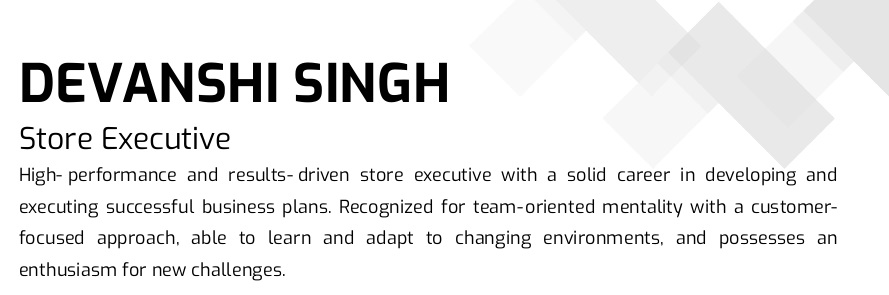
Your resume summary should provide a brief overview of your skills, experience, and career goals. This section is your chance to make a strong first impression.
- Keep It Short: Aim for 3-4 sentences that highlight your key qualifications.
- Tailor It to the Job: Customize your summary to match the job description, emphasizing skills and experiences that are most relevant to the position.
- Showcase Your Value: Use action words and quantify your achievements where possible.
Example:
Detail-oriented computer science graduate with a strong background in software development and project management. Proven ability to design and implement innovative solutions, leading to increased efficiency and productivity. Seeking a Software Development Engineer position to leverage my skills in a dynamic startup environment.
Step 4: List Your Education
As a college student or fresh graduate, your education is one of your strongest assets. List your educational background prominently on your resume.
- Start with Your Most Recent Degree: Include the name of the institution, degree obtained, and graduation date.
- Include Relevant Coursework: If applicable, list coursework that is relevant to the job you’re applying for.
- Highlight Honors and Awards: Mention any academic honors, scholarships, or awards you have received.
Example:
Bachelor of Science in Computer Science
National Institute of Technology, Agartala, Tripura
Graduated: May 2023
Relevant Coursework: Data Structures, Algorithms, Software Engineering, Database Management
Honors: Dean’s List, RISE Worldwide Scholarship Recipient
Step 5: Detail Your Work Experience
Your work experience section should highlight your relevant professional experience. Even if you have limited work experience, include internships, part-time jobs, and volunteer work.
- List Jobs in Reverse Chronological Order: Start with your most recent job and work backward.
- Include Key Details: For each job, include the job title, company name, location, and dates of employment.
- Use Bullet Points: Use bullet points to describe your responsibilities and achievements. Focus on quantifiable results and use action verbs.
Example:
Software Development Intern [June 2022 – August 2022]
Xion Tech Solutions, Gurugram, Haryana
– Developed a web application that streamlined the client onboarding process, reducing onboarding time by 20%.
– Collaborated with a team of developers to design and implement new features.
– Conducted code reviews and provided feedback to improve code quality and maintainability.
Step 6: Highlight Your Skills
The skills section of your resume should showcase your relevant technical and soft skills. Tailor this section to match the job description.
- Technical Skills: List specific technical skills relevant to the job, such as programming languages, software, and tools.
- Soft Skills: Include soft skills that are important for the job, such as communication skills, teamwork, and problem-solving.
Step 7: Add Additional Sections (Optional)
Depending on your background and the job you’re applying for, you may want to include additional sections on your resume.
- Projects: Highlight relevant projects you have worked on, especially those that demonstrate your technical skills and problem-solving abilities.
- Certifications: List any certifications that are relevant to the job.
- Volunteer Experience: Include any volunteer work that showcases your skills and dedication.
Example:
Projects:
– Online Portfolio: Developed a personal portfolio website using HTML, CSS, and JavaScript to showcase my projects and skills.
– Capstone Project: Led a team of four to design and implement a mobile app that tracks and analyzes users’ fitness activities.
Certifications:
– Certified Java Programmer (Oracle)
– AWS Certified Solutions Architect
Volunteer Experience:
– Volunteer Tutor, South Delhi Community Center: Provided after-school tutoring in math and science for middle school students.
Tips for Using MS Word to Create Your Resume
Tips for Using MS Word to Create Your Resume
- Use Formatting Tools: Utilize Word’s formatting tools to ensure your resume is easy to read. Use bold and italic text to highlight important information, and use bullet points for lists.
- Keep It to One Page: For college students and fresh graduates, a one-page resume template is often sufficient. Focus on the most relevant information and avoid including unnecessary details.
- Use Professional Fonts: Stick to clean fonts like Calibri, Arial, or Times New Roman. Avoid decorative fonts that make your resume hard to read.
- Maintain Consistent Alignment and Spacing: Make sure the margins, line spacing, and section gaps are uniform. A well-aligned resume looks more professional and easier to scan.
- Avoid Heavy Graphics and Tables: While Word templates may include design elements, keep them minimal to guarantee ATS compatibility.
- Proofread: Before sending out your resume, proofread it carefully to eliminate any spelling or grammatical errors. Consider asking a friend or mentor to review it as well.
- Save in Multiple Formats: Save your resume in both Word and PDF formats. PDF is preferred by many employers as it preserves your formatting.
Free Resume Format in Word
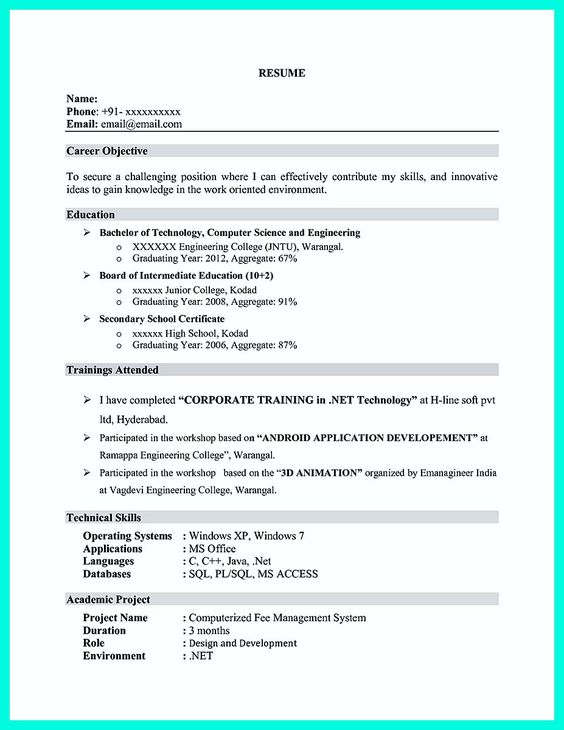
Here’s a free resume format in Word that you can use as a template:
[Your Name]
[Your Address] | [Your Phone Number] | [Your Email Address] | [LinkedIn Profile URL]
Career Objective
[Write a concise statement about your career goals and how your skills align with the job you are applying for.]
Education
- [Degree Name, e.g., Bachelor of Engineering in Computer Science]
[University Name], [City]
[Year of Completion]
CGPA/Percentage: [Your Score]
Skills
- Technical Skills: [List relevant tools, software, or programming languages.]
- Soft Skills: [List personal skills like teamwork, leadership, or problem-solving.]
Internship/Work Experience
- [Job Title, e.g., Intern]
[Company Name], [City]
[Month Year – Month Year]- [Describe key responsibilities or achievements, e.g., “Developed a report automation tool that improved efficiency by 20%.”]
Certifications
- [Certification Name] – [Institution], [Year]
Projects
- [Project Title]
- [Brief description of the project, including tools used and outcomes.]
Achievements
- [Mention any relevant academic, extracurricular, or professional awards.]
Hobbies and Interests
- [List hobbies that align with your personality or career, e.g., public speaking, volunteering, or coding.]
This free resume format in Word is straightforward, ATS-friendly, and professional. You can copy and paste it into a Word document and customize it to suit your profile.
Best Resume Templates in Word for College Students and Freshers
Choosing the right resume template can make a big difference in how your resume is perceived. Here are some best resume templates in Word for college students and fresh graduates:
- Modern Chronological Template: Ideal for showcasing your education and experience in a clean and straightforward format.
- Creative Template: Perfect for students in creative fields who want to showcase their unique style and personality.
- Professional Template: A classic and polished design that highlights your skills and experience effectively.
Creating a resume in MS Word is a smart and accessible way for freshers and college students to build a professional first impression. With the right formatting, free resume template in Word, and thoughtful content, you can make an ATS-friendly resume that highlights your strengths effectively.
Whether you are applying for internships, entry-level jobs, or campus placements, Microsoft Word gives you the tools to get started quickly and confidently.
FAQs on Resume in MS Word
How do I create a resume in MS Word?
To create a resume in MS Word, open the application and select “New.” Use the search bar to find resume templates or start with a blank document. Enter your contact information, work experience, education, skills, and other relevant details.
What are the best MS Word resume templates?
The best MS Word resume templates are clean, professional, and easy to read. Popular choices include Chronological, Functional, and Combination templates. MS Word offers a variety of free templates that can be customized to fit your needs.
How do I format my resume in MS Word?
Format your resume in MS Word by using consistent fonts, headings, and bullet points. Utilize bold and italic for emphasis and keep the layout clean with ample white space. Adjust margins and spacing for a balanced look.
Can I use MS Word to create an ATS-friendly resume?
Yes, MS Word can create an ATS-friendly resume. Use standard fonts like Arial or Times New Roman, avoid graphics and tables, and clearly label each section. Ensure your resume is saved in a .doc or .docx format.
How do I add a section to my resume in MS Word?
To add a section to your resume in MS Word, use the “Insert” tab to add a new header or a blank space. Label the new section appropriately, such as “Skills” or “Certifications,” and enter the relevant information.
What font size should I use for my resume in MS Word?
For a resume in MS Word, use a font size between 10 and 12 points for the body text. Headers and section titles can be slightly larger, typically 14 to 16 points, to ensure readability and a professional appearance.
How do I save my resume in MS Word as a PDF?
To save your resume as a PDF in MS Word, go to “File,” select “Save As,” and choose “PDF” from the dropdown menu. This format ensures your resume maintains its formatting and can be easily shared with employers.
How can I customize a resume template in MS Word?
Customize a resume template in MS Word by changing fonts, colors, and layout elements. Modify sections to highlight your experience and skills. Use the “Design” and “Format” tools to personalize the template to fit your professional style.
Which is the best CV format for freshers in Word?
The best CV format in Word for freshers is a clean and reverse chronological layout that highlights education, skills, and internships. Keep it simple and ATS-friendly. In most cases, CV and resume are used interchangeably, especially for entry-level roles.
How to find resume templates in Word?
To find a resume format for freshers in Word, open Microsoft Word and go to File > New. In the search bar, type “Resume” and press Enter. Browse the available templates, choose a clean and professional layout, and double-click to start editing.
How can I get a resume format for freshers that is free to download?
You can use the free resume templates shared in this blog and download them in Word format. Simply choose a format that suits your profile, edit the content, and customize it based on your education, skills, and career goals.
How can I download a resume format for freshers in PDF?
You can convert your resume into a PDF directly in MS Word. Go to File > Save As and select PDF to download a resume format for freshers in PDF while preserving its formatting.
How can I download a fresher resume format in MS Word?
You can download a fresher resume format in MS Word by using built-in Word templates or copying a structured format into a blank document. After editing, save it in .docx format for future updates.