Do you think IIT Guwahati certified course can help you in your career?
Introduction
Heyy, Ninjas, we are back with another ACCELQ article, where we will discuss Advanced Selectors and abstract elements in ACCELQ.
ACCELQ is a cloud service platform capable of testing and managing functional and API testing needs. ACCELQ uses natural programming language and abstraction to make the testing process possible.
Let's start first with Advanced Selectors!
Advanced Selectors
There are some situations where it's impossible for you to construct the element selector visually; that is when you can opt for providing an advanced selector.
Now when you are in advanced mode, you will create the Selector manually and paste the string generated.
If you want to switch to the advanced mode, click on the 'Advanced' link at the top of the element explorer.
The three formats supported by the advanced mode are as follows:
XPath format
JQuery format
CSS format
Advanced Selector can be set up for an element available in View or for an abstract element.
Let's move on to abstract elements and their working in ACCELQ.
Working of Abstract Elements
First, let's see what is an element in ACCELQ before moving towards abstract elements.
Element in ACCELQ
Element in ACCELQ is the control present on the page. It is necessary to save an element in the repository before using the logic and automation, as you know that they are saved as a view, which enables you to analyze the elements later.
Abstract Element in ACCELQ
Abstract element is a holder for a UI element(Parts that are used to build the websites or apps) that is needed to perform some action with. In the current environment, it is possible that you may not always have access to application UI when automation test logic is under development.
As you can see below, the abstract element is indicated with an icon in the sidebar.
Source - accelq.com
It may be possible that the development team is working on UI development or the application environment still needs to be more stable to support continuous process.
Creation of Abstract Element
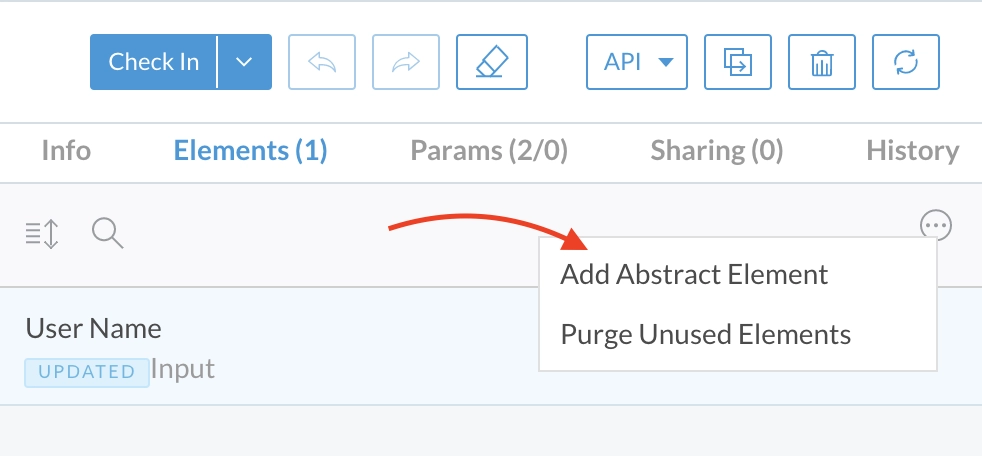
There are two ways to create an abstract element: explicitly from the element repo bar by clicking on the "add abstract element" or when you are developing action logic.
Creating from the Element Repository
In the Element Repository bar, it can be from action logic, or in the context page, click on "Add Abstract Element."
Source - accelq.com
As you can see in the picture above, you have to provide a name and the element type for the abstract element.
Note: If you are not sure about the type of element, choose "Generic Element" as the type of element, and it can be adjusted during reconciliation.
Source - accelq.com
Creating while working with a statement in action logic editor
An abstract element can be created contextually for an argument that expects the UI element to use an existing statement or when creating a new statement in action logic.
You have to provide a name and the element type for the abstract element.
If you want to mark your new element as a synch element and if it is not set up for the Context, you can do it by selecting it.
Element Reconciliation
Element Reconciliation is that feature that will allow us to perform automation and early testing in ACCELQ. It is a process where an element is mapped to a previous element in the Context's View, and its abstraction is resolved.
In ACCELQ, you can create abstract elements, and then test logic development can be under progress.
As soon as a test application is available, an element reconciliation process undergoes, which allows an abstract element to be mapped to the real element. For this, none of the test logic needs to be changed.
There are two ways element reconciliation can be performed:
It can be performed between an abstract element and an element in the View.
It can be performed from an existing element in a view to another element in the same View or might be a different view.
Steps involved in element reconciliation
There are some steps involved in element reconciliation. Let's see them!
Open the View in the Context that contains the new element.
When a new element is needed, hover it, right-click, and choose "Replace Existing Element."
The system presents a list of potential candidates for reconciliation. Choose the component that needs to be "reconciled."
Click "show all elements" to see every element in the Element Repository if it isn't already displayed in the list.
Frequently Asked Questions
What is an abstract element?
An abstract element is a holder for a UI element(Parts used to build the websites or apps) that is needed to perform some action.
Which language is used in ACCELQ?
ACCELQ uses natural language and abstraction to make the testing possible. Through natural language it delivers a complete automation solution.
What do you mean by a Selector?
A selector is basically an identification criterion that can be handled using an element explorer. It uniquely identifies each component from the configuration.
How can abstract elements be created?
There are two ways to create an abstract element: It can be done explicitly from the element repo bar or when you are developing action logic.
What do you mean by element reconciliation?
Element Reconciliation is that feature that will allow us to perform automation and early testing in ACCELQ. It is a process where an element is mapped to a previous element in the Context's View, and its abstraction is resolved.
Conclusion
Kudos on finishing the blog! We have discussed Advanced Selectors and working with abstract elements in ACCELQ. We have further discussed advanced selectors, How abstract elements are created using two methods, and, finally, Reconciling an element.
We hope this blog has helped you enhance your knowledge of Advanced Selectors and Working with Abstract elements in ACCELQ. If you want to learn more, then check out our articles:







 8+ registered

