Do you think IIT Guwahati certified course can help you in your career?
Introduction
Azure Artifacts allows developers to easily exchange code and manage all of their packages in one place. Developers can publish the packages to their feeds and share them within their teams, across organisations, and even publicly using Azure Artifacts. Developers can also use NuGet.org or npmjs.com to download packages from various feeds and public registries. NuGet, npm, Python, Maven, and Universal Packages are among the package types supported by Azure Artifacts. The article explains the details of Microsoft Azure Artifacts. Without further ado, let's get started.
Prerequisites
You must ensure the following points before getting started:
If your company uses a firewall or proxy server, allow domain URLs and IP addresses.
If you plan to utilise more than the free two hours, set up billing.
Get started with Azure Artifacts
You can publish and consume several sorts of packages using Azure Artifacts. To get started, choose your package type:
NuGet
Npm
Maven
Python
Universal Packages
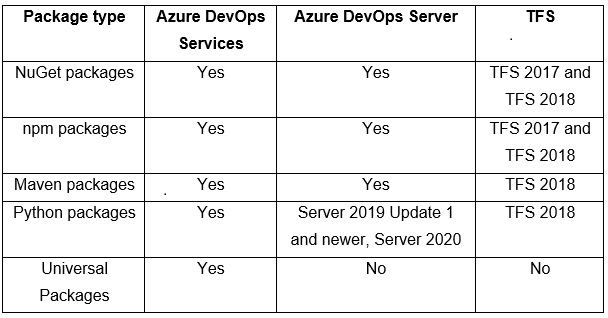
Let's look into details of the package types:
Feature Availability
The following chart lists the features offered in the various package categories.
But what will happen if you run out of storage? Let's learn about the details of the artifacts free tier.
Artifacts free tier and upgrade
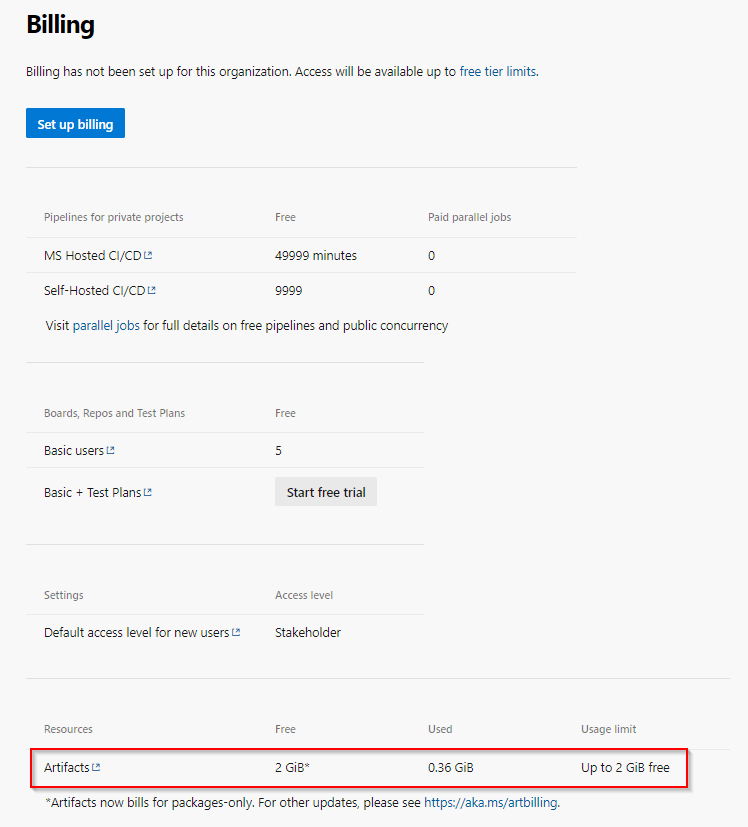
Every organisation with up to 2 GB of storage can use Azure Artifacts for free. You can no longer upload new artifacts once you hit the maximum storage limit and must either delete some of your existing artifacts or set up billing to extend your storage limit.
Let's dive into the details of organization billing settings.
Organization Billing Settings
To see your billing options for your organisation, follow the procedures listed below:
You receive two Gibibytes (GiB) of free storage with the Azure Artifacts free-tier plan to store various types of packages. When your free storage space runs out, you have the option of upgrading to a premium subscription or deleting some of your existing artifacts. You can see your storage use at both the organisation level and project level using the artifact storage UI from your organization/project settings. Storage can also be categorised by project or artifact type.
Let's look into the details of them.
Organization-level storage
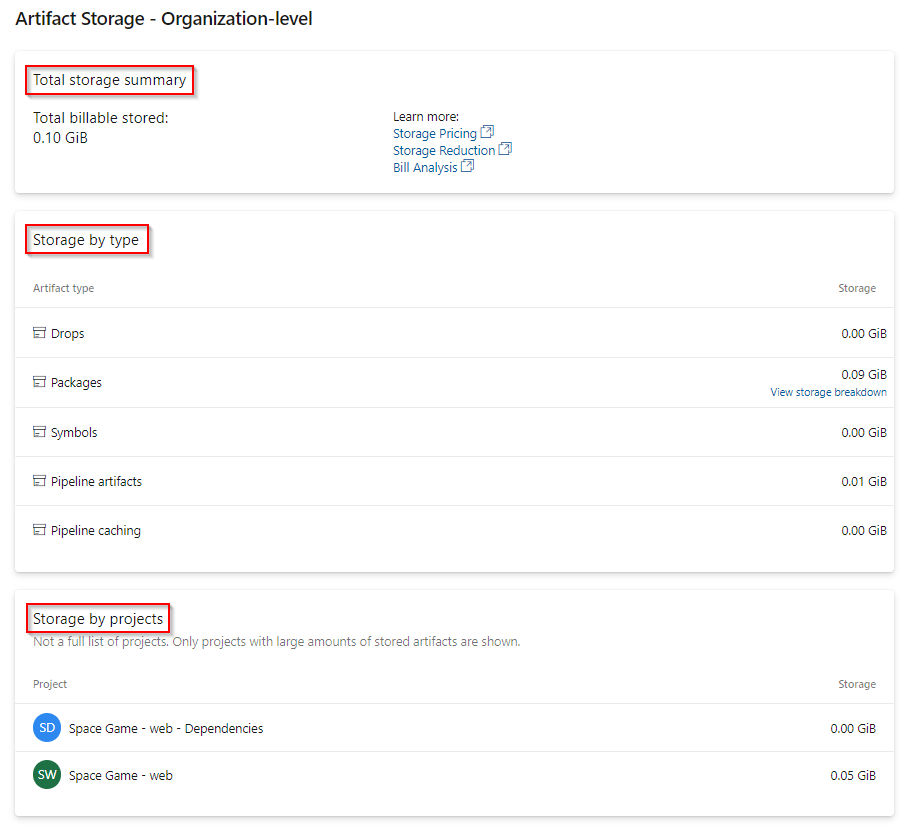
The total storage summary and storage consumption by artifact type and project are displayed in the organization-level view.
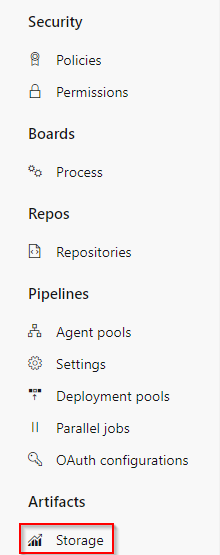
Follow the following steps to look into details of Organization-level storage:
Select the Organization settings icon from within your organisation.
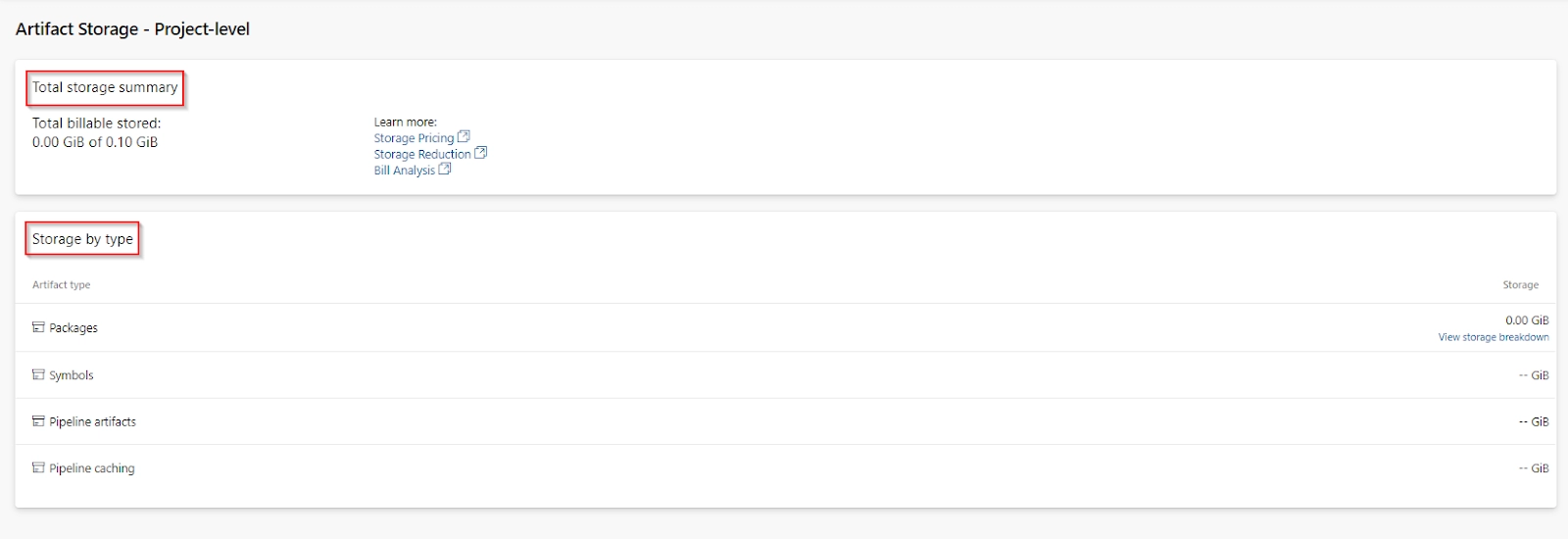
Your total billable stored artifacts are displayed in the overall storage summary. Your storage consumption is listed by artefact type in the Storage by type section. You can only see your storage breakdown for the Packages section in the current release.
Frequently Asked Questions
What are Azure DevOps Services?
Developer services are offered by Azure DevOps to help teams organise their tasks, work together on coding projects, and create and deliver applications. Azure DevOps promotes a collaborative culture and set of methods for software development by bringing together developers, project managers, and contributors.
What is TFS?
Microsoft creates a Team Foundation Server, or TFS, to manage teams and how they work. It's a management tool that's used for project management, reporting, gathering requirements, and testing. The process of ingesting live video feeds and disseminating them via the RTMPS protocol or Smooth Streaming is known as a Media Services live event.
What is the limit of Artifacts free storage consumption?
Each organisation is entitled to free use of Azure Artifacts for up to 2 GB of storage.
Conclusion
In this article, we have extensively discussed the details of Azure Artifacts, its features availability, details organization billings, and Artifacts storage consumption. We hope that this blog has helped you enhance your knowledge regarding Azure Artifacts, and if you would like to learn more, check out our articles on Microsoft Azure. You can refer to our guided paths on the Coding Ninjas Studio platform to learn more about DSA, DBMS, Competitive Programming, Python, Java, JavaScript, etc. To practice and improve yourself in the interview, you can also check out Top 100 SQL problems, Interview experience, Coding interview questions, and the Ultimate guide path for interviews. Do upvote our blog to help other ninjas grow. Happy Coding!!













 1+ registered

