Do you think IIT Guwahati certified course can help you in your career?
Introduction
In the world of software development, efficiency is key. Developers strive to create, test, and deploy applications quickly and seamlessly. This is where Docker comes into play. Docker is a platform that enables developers to build, package, and distribute applications as lightweight, portable containers. Containers bundle everything an application needs to run, from the code to libraries and dependencies.
To embark on your journey with Docker, let's explore some basic Docker commands that will help you get started on your containerisation adventure. In this article, we will take a look some basic docker commands. But first let’s answer.
What is Docker?
Docker is like a tool that makes it simple to create and operate software. Containers are used to do this.
Imagine a container as a lunchbox. You place your food, such as a sandwich and an apple, inside this lunchbox. Similar to how a computer's code and other necessary components are stored in a container. A container holds everything a program needs to operate. This enables the software to function wherever it is.
Containers are advantageous since they don't require a specialized computer to function. You don't need to worry about having a unique computer solely for your program because they run on any computer with Docker.
Installation and Verification
Before you can start using Docker, install it on your system. Once installed, you can verify its version and ensure everything is up and running with these commands:
cmd
cmd
docker --version
docker info
Logging In
In case you have not yet created a docker account. Head over to their official website and create one. Then, login with your username.
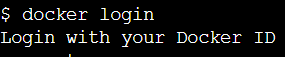
To log in to your account, simply type the following command.
cmd
cmd
docker login
Pulling Images
Docker images act as templates, for containers. These images are stored in a repository called Docker Hub. To retrieve an image you can use the command;
cmd
cmd
docker pull image_name:tag
For instance, to pull the latest Ubuntu image:
cmd
cmd
docker pull ubuntu:latest
Running Your First Container
Now lets make use of the image by executing a container. This is the part because containers are self images capable of running on their own. Here's how you can accomplish it;
cmd
cmd
docker run image_name:tag
For example, to run a basic Nginx web server container:
cmd
cmd
docker run nginx:latest
Listing Containers
You can see a list of running containers on your system using:
cmd
cmd
docker ps
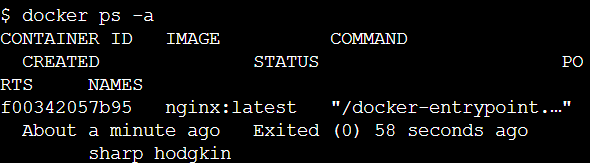
If you want to see all containers, including the ones that are not currently running:
cmd
cmd
docker ps -a
Create Container
To create a container in docker, use the following command:
To stop a running container, use the following command:
cmd
cmd
docker stop container_id
And to start a stopped container:
cmd
cmd
docker start container_id
Removing Containers
After a container has served its purpose, you can remove it using:
cmd
cmd
docker rm container_id
For example:
cmd
cmd
docker rm my_container
Managing Images
You can view a list of downloaded images on your system with:
cmd
cmd
docker images
If you want to remove an image:
cmd
cmd
docker rmi image_name:tag
Port Mapping
Containers often provide services that need access from the host or external network. You can map ports between the host and container using the -p flag:
cmd
cmd
docker run -p host_port:container_port image_name:tag
Docker is a platform that developers can use to create, package and distribute applications, in the form of portable containers. These containers encapsulate all the components for a program to run including dependencies, libraries and configuration files.
What's the Difference Between a Docker Container and a Virtual Machine (VM)?
Both Docker containers and virtual machines offer isolation capabilities. However there are some distinctions. Containers are more lightweight compared to machines since they share the host operating system kernel. This results in resource consumption and faster performance. On the hand virtual machines include an operating system making them more resource intensive but providing stronger isolation.
How Can I Manage Multiple Containers?
To effectively handle containers Docker Compose comes into play. It serves as a tool specifically designed for defining and running Docker applications consisting of interconnected services. By utilizing a YAML file, for configuration management Docker Compose simplifies the management of applications.
What's the Difference Between Docker and Kubernetes?
While Kubernetes is a framework for executing and managing containers from numerous container runtimes, Docker is a container runtime. Numerous container runtimes, such as Docker, containerd, CRI-O, and any CRI (Container Runtime Interface) implementation, are supported by Kubernetes. Kubernetes can be compared to a "operating system" and Docker containers to "apps" that you put on the operating system.
Conclusion
Now that you have a grasp of these basic Docker commands, you are ready to embark on your containerization journey. Docker greatly simplifies the process of development and deployment making it easier to create reliable and portable applications. By becoming proficient in these commands you are initiating the optimization of your development workflow and embracing the capabilities of containerization. Enjoy your experience, with Docker!














 5+ registered

