Do you think IIT Guwahati certified course can help you in your career?
Introduction
Bot Framework Composer is an integrated development tool for developers and multi-disciplinary teams to build bots and conversational experiences with the Microsoft Bot Framework. In this article, we will discuss Bot Framework Composer in Azure. We will also see how to install it and will learn how to create a bot with Azure.
Bot Framework Composer in Azure
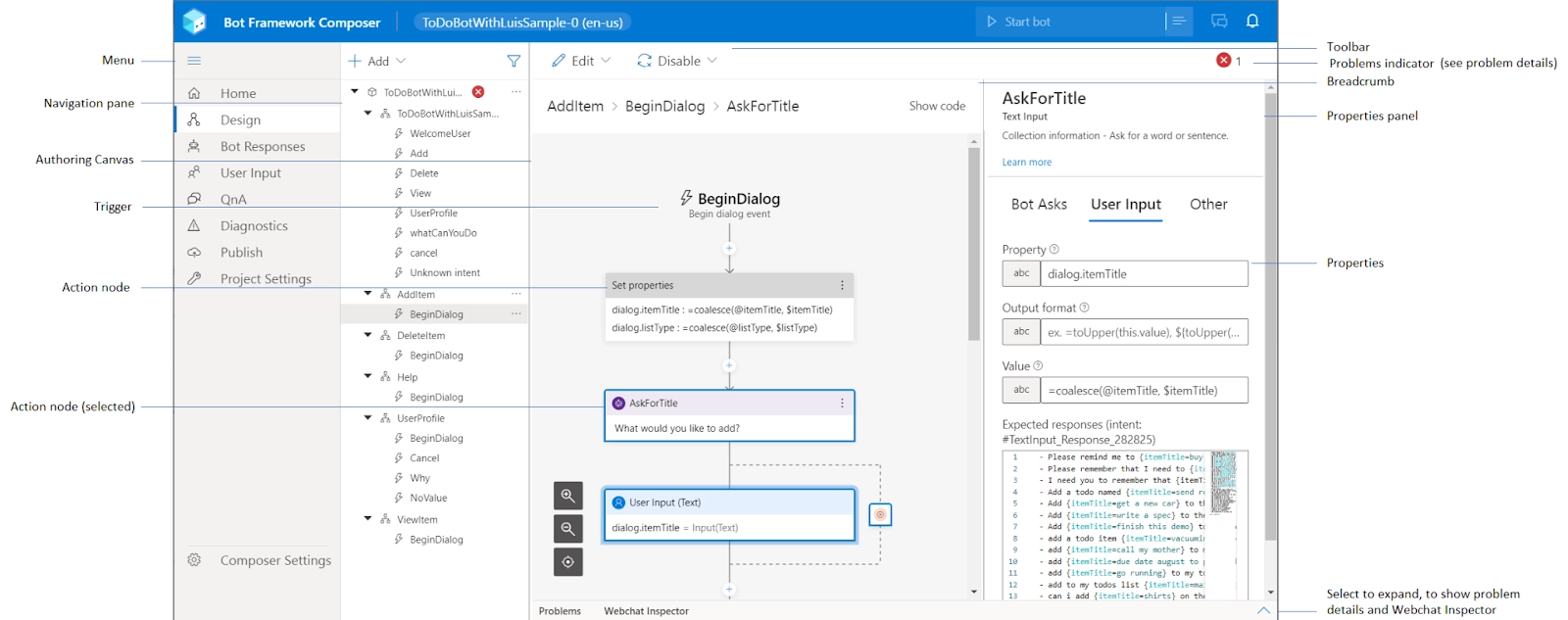
The Bot Framework Composer, built into the Bot Framework SDK, is an open-source IDE for developers to record, test, provide, and manage interview logistics. It provides a powerful visual authorization campus that allows discussions, language comprehension models, QnAMaker knowledge bases, and language production responses that will be validated within a single channel. Most importantly, it expands these experiences with complex code-like operations integration. The resulting experience can then be tested within the developer and provided to Azure and any dependent resources.
Composer is a desktop application for Windows, macOS, and Linux. If the desktop application does not suit Our needs, We can create Composer from the source or host Composer in the cloud.
The visual chat experience with the visual designer works more efficiently. It enables simple modeling of complex chat experiences where context change, distraction, and natural and dynamic conversation flow are essential. More complex functions such as integration and dependency such as REST Web Services are better suited to the code, and we offer an easy way to stretch Composer bots with code that combines the benefits of both.
Composer is a visual editing interface for creating bots. With Composer, We can:
Create a new bot with a template that directly integrates the Virtual Assistant feature into Composer.
Use LUIS and QnA to add natural language understanding to Our bot, and QnAMaker to add FAQ functionality.
Use the language generation template to create a response to Our bot's text and language variations.
Author bots in multiple languages.
Test directly in Composer with embedded web chat.
Publish Our bot to Azure App Service and Azure Functions.
Extend the PowerVirtualAgent with Composer (preview).
Qn Integrates external services such as the Amaker Knowledge Base.
Beyond the visual editing area, We can use Composer to:
Dialog Import and export dialog assets to share with other developers.
The Package Manager provides a reusable set of conversational resources and code created by Microsoft and third parties. These assets allow us to quickly add functionality to Our project.
Allows any bot to be used as a skill to be called by other bots.
Connect to the skill.
Expand the dialog canvas using Create Custom Action.
Adaptive Dialogs
Dialogs provide a way for bots to manage conversations with users. Adaptive dialogs and event models simplify sophisticated conversation modeling and enable more natural and dynamic conversation flow, interruptions, and context switching. It also helps us focus on the conversation model rather than the dialog management mechanism. For more information, see the article on dialog concepts.
Language Understanding
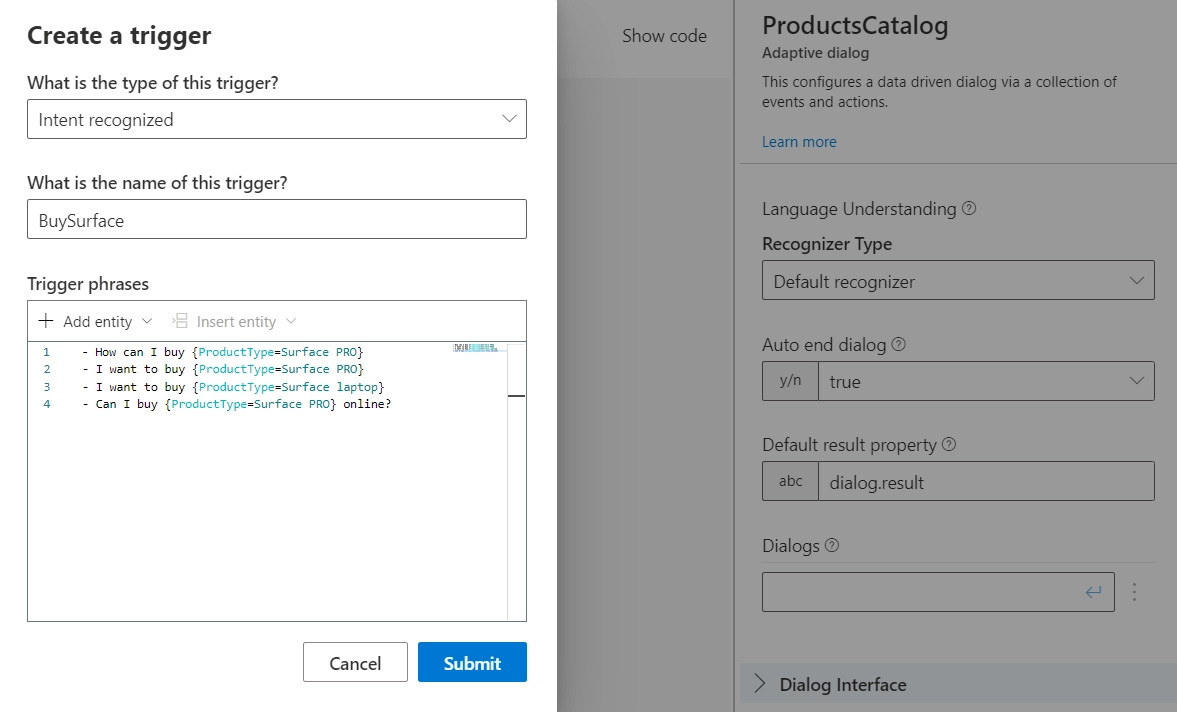
Language understanding is a core component of Composer, allowing developers and conversation designers to train speech comprehension models directly in the context of dialog editing. Dialogs are edited in Composer, allowing developers to continuously extend the bot's natural language capabilities using the .lu file format. It's a simple markdown-like format that allows us to easily define new intents and entities and provide examples of utterances. We can use regular expressions, LUIS, and Orchestrator recognizers in Composer. Composer detects changes and automatically updates Our bot's cloud-based natural language understanding model, so it's always up to date.
Creating a grammatically correct data-driven response that has a consistent tone and a clear brand voice has always been a challenge for bot developers. The built-in bot response generation in Composer gives developers great flexibility in creating bot responses using the editor on the Bot Responses page or the Response Editor in the Properties pane. Read more about the concept of language generation.
Language generation makes it easy to solve previously complex tasks such as:
Inserts a dynamic element into the message.
Create grammatically correct lists, pronouns, and articles. Provides context-sensitive variations on messages.
Create an adaptive card attachment as above.
Provides language variations for each response, including Speech Synthesis Markup Language (SSML) changes essential for speech-based experiences like telephony.
QnA Maker
QnA Maker is a cloud-based service that allows us to extract FAQ-style question and answer pairs from existing documents and websites into a knowledge base that a knowledge expert can manually maintain. When integrated with Our bot, We can use QnA Maker to find the most appropriate answer to a particular natural language input from Our custom knowledge base.
Bot Framework Emulator
The emulator is a desktop application that allows bot developers to test and debug bots built with Composer. This tool enables more advanced scenarios (such as authentication) that Composer's built-in web chat features don't currently support.
Benefits of developing a bot with the Composer
Creating dialogs using the visual canvas helps with conversational design rather than code, allowing us to focus Our development work on more complex tasks such as System integration.
Seamlessly combine visual and code creation to design a conversational experience.
Existing dialogs written in code can be used with composer-based bots.
A speech generator provides the ability to create more natural and personalized responses, making the conversation experience attractive.
Composer streamlines the code base of Our bot project and provides a more accessible visual design interface that provides a unified canvas for creating dialogs and responses along with languages and QnA resources.
Integration testing within the Composer authoring experience.
Azure provisioning of dependent resources is optimized as part of the overall Composer experience.
Apps built with Composer use a declarative dialog format. This is a JSON specification shared by many tools provided by the bot framework. The Composer bot project contains bot source code and reusable assets in the form of JSON and Markdown files that can be bundled and packaged. These can be checked into a version control system and deployed with code updates such as dialogs, language comprehension training data, and message templates.
The first bot of an existing SDK can leverage Composer to perform new functions while using the existing waterfall dialog. For more information, see Migrate bots and waterfall dialogs built with the v4 SDK to Bot Framework Composer.
Install Bot Framework Composer
To start with Bot Framework Composer, we need to install the desktop application for the preferred operating system. It is optimized for x64 architectures on Windows, macOS, and Linux. If the desktop app isn't suited to Our needs, We can build Composer from source or host Composer in the cloud.
Prerequisites
Templates are a way to create a conversational experience. Composer supports Node.js and C # templates. Two requirements must be met to ensure that Composer is enabled for both types of templates
Install Node.js with npm
The Node.js JavaScript runtime with the npm package manager ensures Composer supports Node.js templates.
Install Node.js LTS 14.x with npm.
Note:
Node.js and npm are mandatory requirements for Composer.
Install .NET Core SDK
For C# template support, Composer requires the .NET Core SDK.
We have downloaded Composer, now to run composer we need to follow the given instructions depending on our Operating System.
Windows:
Follow these instructions to install and run Composer.
Launch the Composer installer. Then follow the instructions provided by the install wizard.
Choose who can access Composer. Then select Next.
Select a location to install Composer. Then select Install. The installation will take a few minutes.
Select Finish to close the installation wizard.
Select the Composer icon to start the application and enjoy Our bot-building journey!
MacOS:
Unzip the Composer.
Move Composer to Our Applications directory.
Select the Composer icon to start the application and enjoy Our bot-building journey!
Linux:
Locate the AppImage for Composer.
Allow the AppImage to run as a program.
Select the Composer AppImage to start the application and enjoy Our bot-building journey!
Enable Auto-Updates
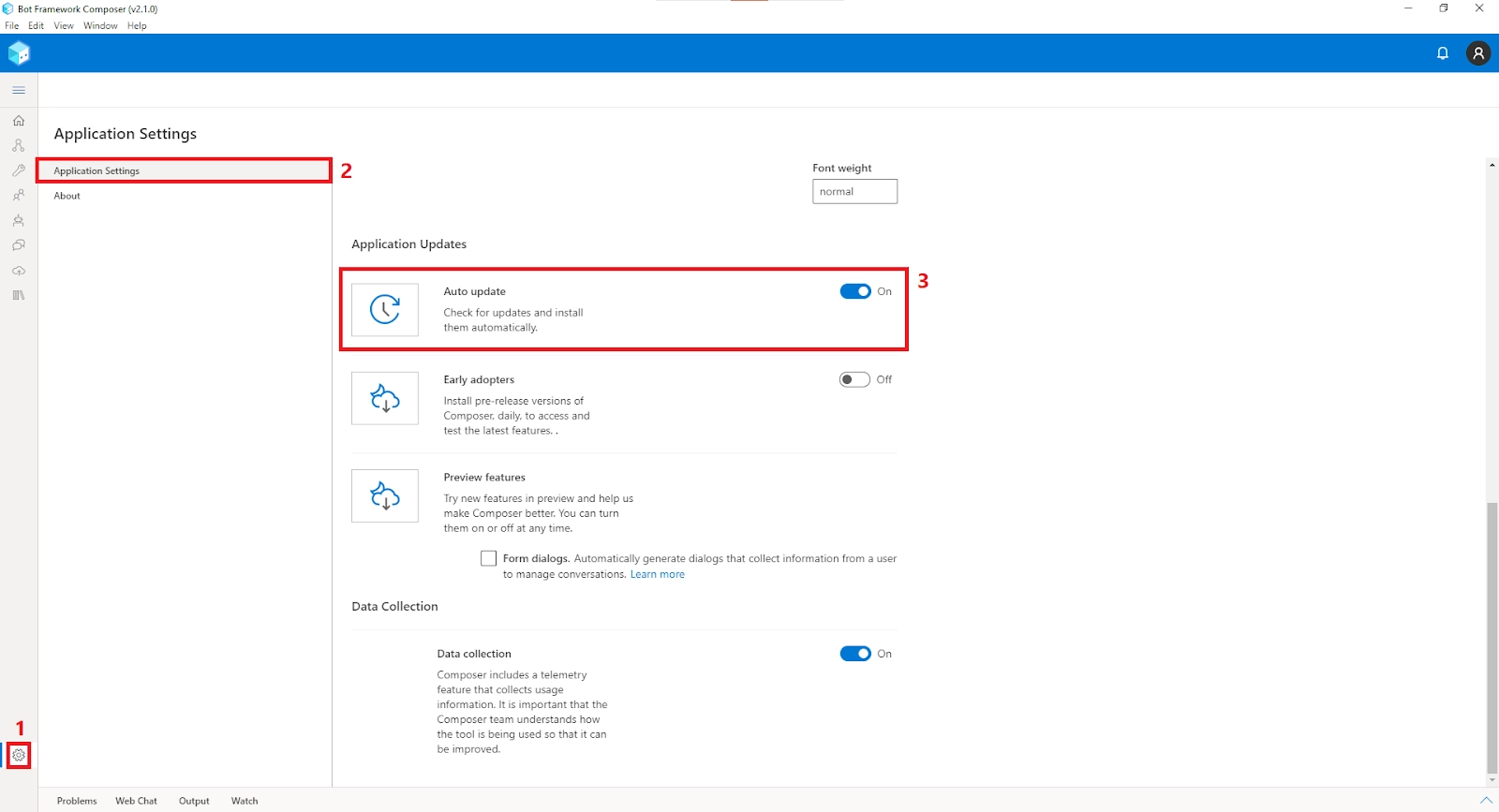
We can also enable auto-updates. If it is enabled, the composer will automatically check and install updates when it is closed. We can enable auto-updates from Composer's Application Settings page. To enable auto-updates, we need to follow the given steps:
Select Composer settings in the navigation pane, then Application Settings.
Locate Auto-update in the Application updates section. Set the toggle to On.
Hurray !! Auto-updates are now enabled for Composer.
Azure Bot Resource provides the infrastructure that gives bots access to secure resources. Users can also communicate with bots through multiple channels, such as web chat.
Go to the Azure portal.
In the right pane, select Create Resource.
Type bot in the search box and press Enter.
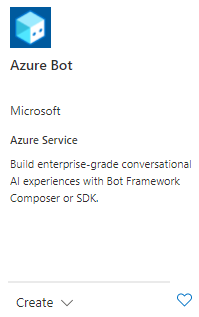
Select the AzureBot card.
Select Create.
Enter the required values.
Select Review + create.
If the validation passes, select Create. We should see the Azure Bot and the related key vault resources listed in the resource group We selected.
Select Open in Composer.
The Composer application opens. It the application isn't installed, We will be asked to install it before We can proceed with the next steps.
In the pop-up window, select Create a new bot.
Select Open.
Azure Key Vault
When Azure creates an AzureBot resource, it also generates an app ID and password, and AzureKeyVault stores the password.
Creating a bot is very simple, we just need to follow these steps:
Create a bot from a template
Open Composer.
On the home page, select New (+).
The composer displays a list of templates. The template provides a starting point for new bots. In this quickstart, select an empty bot template in the C # section. This template creates a bot with a root dialog, a first welcome dialog, and an unknown intent handler. Then select Next.
Enter the name of the bot as Menu_bot. Then select Azure WebApp from the runtime type and the location of the bot on your machine.
Select OK. It takes a little time for Composer to create a bot from the template.
Add bot functionality
A bot created from an empty bot template contains an unknown intent trigger. This acts as a fallback if you don't know how the bot reacts. If the bot is unaware of the intent of user input, the bot will send a response to inform the user. This section describes how to add basic bot functionality to an empty bot template.
We need to add:
A dialog called Menu displays a text message containing menu items.
Menu dialog trigger. This allows the bot to detect the intent and connect to the menu dialog above.
Add a dialog
Now We can add functionality for intents that We want Our bot to recognize.
Dialogs are a convenient way to organize conversational logic. This section shows We how to add a dialog. In the next section, We add a trigger to the bot's main dialog to call the new dialog.
Click the three dots next to Our bot project, Menu_bot, and select + Add a dialog.
In the Name field, enter Menu, and in the Description field, enter A dialog that shows the menu.. Then select OK.
Select BeginDialog underneath the Menu dialog.
In the authoring canvas, select the + button under BeginDialog. Then select Send a response.
Enter the following menu text in the response editor on the right.
Bot response
Copy
Now you can add the intent functionality you want your bot to recognize.
The dialog is a convenient way to organize your conversation logic. This section shows how to add a dialog. In the next section, you'll add a trigger to the bot's main dialog to call a new dialog.
Click the three dots next to the project Menu_bot and select the + Add dialog.
Type Menu in the Name box and Dialog in the Description box to display the menu. Then select OK.
Select BeginDialog in the menu dialog.
In the authoring workspace, select the + button under BeginDialog. Then select Send a response.
In the response editor on the right, enter the following menu text.
Today's menu
- Pizza
- Burger and fries
- Chicken sandwich
Our authoring canvas should look similar to the following screenshots:
Create a Trigger to Recognize the menu intent
Now that the dialog is ready to send a response for the menu option, we need to create a bot trigger to detect when the user needs the displayed menu item.
Select our bot project menu as Menu_bot.
On the right side, select RegularExpressionRecognizer as the RecognizerType. This recognizer provides a simple example without adding natural language understanding. Check your understanding of the language for real bots.
Now add a trigger to the Menu_bot dialog.
The default trigger type is intent detection.
Enter Menu in the name field for this trigger (regular expression).
Enter the menu in the Enter Regular Expression Pattern field.
Select Submit. This creates a trigger called Menu that fires when the user sends a menu message to the bot.
Next, you need to launch the menu dialog you created earlier from the trigger. Select [+] under the menu trigger on the authoring canvas. Go to Dialog Management and select Start New Dialog.
Go to the right and select the check box under Dialog Name
Now ourauthoring canvas should look like the following.
Our menu bot is now ready to test!
Frequently Asked Questions
Why did Microsoft develop the Bot Framework?
Microsoft created the Bot Framework to make it easier for developers to build and connect great bots to users, wherever they converse, including on Microsoft's premier channels.
How can I migrate Azure Bot Service from one region to another?
Azure Bot Service does not support region move. It's a global service that is not tied to any specific region.
How to run a bot offline?
Before talking about the use of a bot offline, meaning a bot not deployed on Azure or on some other host services but on premises, let's clarify a few points.
A bot is a web service that does not have a UI, so the user must interact with it via other means, in the form of channels, which use the Bot Framework Service. The connector functions as a proxy to relay messages between a client and the bot.
The connector is a global application hosted on Azure nodes and spread geographically for availability and scalability.
You use the Bot Channel Registration to register the bot with the connector.
So,You can run a bot offline but with limited capabilities
Conclusion
This article discusses Bot Framework Composer in Azure, how to install it and how to create a bot with Azure.
If you think you are ready for the tech giants company, check out the mock test series on code studio.
You can also refer to our Guided Path on Coding Ninjas Studio to upskill yourself in domains like Data Structures and Algorithms, Competitive Programming, Aptitude, and many more!. You can also prepare for tech giants companies like Amazon, Microsoft, Uber, etc., by looking for the questions asked by them in recent interviews. If you want to prepare for placements, refer to the interview bundle. If you are nervous about your interviews, you can see interview experiences to get the ideas about questions that have been asked by these companies.











 1+ registered

