Do you think IIT Guwahati certified course can help you in your career?
Introduction
Postman is one of the best API platforms that can be used for building and using APIs. It is user-friendly as it simplifies each step of the API lifecycle and streamlines the collaboration to help the user create better APIs that too faster. It allows the user to perform various tasks like making requests, testing APIs, building and managing APIs, etc.
Now we will see how, our Team settings in Postman enable us to manage items such as our team's profile, discoverability, custom domains, billing details, authentication, and active invite links.
Accessing team settings
You can access team settings by choosing Team in the header, then selecting Team Settings.
When you select Team Settings, you will be automatically directed to Team Profile. Here, you can edit your team's logo, cover photo, domain, favicon, and profile visibility.
Customize your team's look. Keep in mind the following when uploading a logo, cover photo, or favicon:
Logos and cover photos must be 500 KB or less in size and must be in .jpg, .jpeg, or .png format.
Logos must have a 1:1 aspect ratio (height: width), and cover photos must have a 1:7.5 aspect ratio. If your image has a different aspect ratio, Postman prompts you to select a part of your image to display.
Favicons must be in .ico format, no larger than 32x32 pixels, and 500 KB or less in size. Your favicon appears on the browser tab of your team's published documentation site.
Make your team discoverable. If you enable your team's public profile, your team will be visible on Postman's API Network, along with any APIs, collections, and workspaces your team has published. You can also add an About your team section, a link to your website, and links to social media accounts to your team's public profile.
Making your team discoverable
You can select Team Discovery from the left-hand menu to view your options for making your team discoverable to other Postman users with email addresses from your team's domain.
Adding custom domains
Select Custom Domains from the left-hand menu to add, update, or remove custom domains for your API documentation.
Select Billing Details from the left-hand menu to add to or update your team's billing information including email, address, and VAT ID (if applicable).
Editing authentication methods
SSO is available on Postman Professional and Enterprise plans.
Select Authentication from the left-hand menu to configure or reconfigure your team's authentication methods.
Understanding roles and permissions
Select Roles and Permissions from the left-hand menu to view a complete list of permissions for team members' roles at a team, collection, workspace, API, and mock server level..
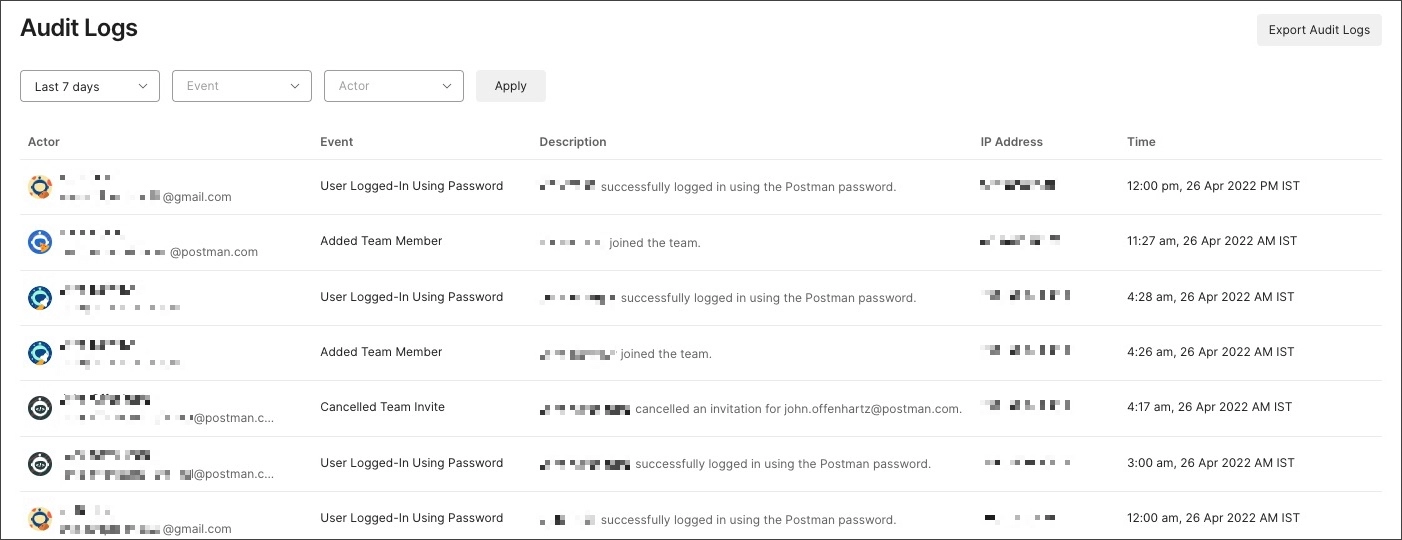
Audit logs offer information about actions taken by members of your team. Each event includes the user, the user's email address, the event name and a description of the event, the user's IP address, and the date and time of the action, including the user's timezone.
You can export audit logs as CSV files. By default, Postman will export all data in your audit logs from the last seven days. To start the export process, select Export Audit Logs.
To specify certain data to export, set the filters you want in the audit logs dashboard and Postman will generate the export using those parameters. To filter your results, select a time range, event, and user, then select Export Audit Logs.
You will receive an email with a link to the exported audit logs. The link in the email is active for one hour.
Accessing audit logs with the Postman API
You can also access audit logs with Postman, allowing you to integrate Postman's audit logs with your security information and event management (SIEM) tools.
Each audit log event has the following attributes:
Postman started as a REST client and has since developed into the extensive Postman API Platform it is today.
What distinguishes SCIM and SSO from one another?
SSO is a method of authentication, while SCIM is a provisioning method. Thanks to SAML SSO, members can log into MURAL using a single sign-on (SSO) identity provider service rather than the default email and password.
Can postman's global variables share the same names?
Global variables have a workspace-specific and constrained scope. Because of this, global scope variables cannot share names. Local variables can share names, but they must be a component of distinct variables.
Conclusion
We hope this blog has helped you enhance your Knowledge about Postman and Configuring team settings and utilizing audit logs in Postman.
If you think you are ready for the tech giants company, check out the mock test series on code studio.
You can also refer to our Guided Path on Coding Ninjas Studio to upskill yourself in domains like Data Structures and Algorithms, Competitive Programming, Aptitude, and many more! You can also prepare for tech giants companies like Amazon, Microsoft, Uber, etc., by looking for the questions asked by them in recent interviews. If you want to prepare for placements, refer to the interview bundle. If you are nervous about your interviews, you can see interview experiences to get ideas about these companies' questions.
Nevertheless, you may consider our premium courses to give your career an edge over others!
Do upvote our blogs if you find them helpful and engaging!










 1+ registered

