




Introduction
Hello there!!
You must already know that everything in Katalon starts with a test case. And if you are new to Katalon and wondering how to create a test case, then don’t worry. We have got you covered! Today, we will learn to create and run a test case in Katalon. We will also learn to plan a test suite.

So, without wasting any further time, let’s get started!!
Create and Run Web UI Test Case using Record and Playback
The basic steps that we will be following here are:
- We will create a new project to store the recorded actions.
-
We will interact with the given web page. For example,
- Login.
- Book appointment.
- The final step would be to stop recording the test cases and save the scripts.
Create and Run your first Web UI test case
Create a New Project
Below are the steps to create a new project:
- On the sidebar, you will see the Test Explorer. In the Test Explorer, click on New Project.

2. A New Project dialog will appear. Inside this dialog box:
- Write project name
- Select the Type as Web
- Select the project from the list of projects given. Here, we are taking Sample Web UI Tests Project(Healthcare).
- Browse and provide a location to store the project. Click OK.

Creating Test Cases using Record
-
Click on the Web Recorder Utility icon inside the main toolbar and open the Web Recorder.
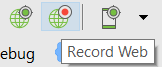
-
A Web Recorder will appear. In this Web Recorder:
- Enter URL: https://demoaut.katalon.com/
- To run the recording, select a browser, preferably chrome.
-
You might need to wait till the browser is launched and is ready to communicate.
When we hover over an element, we can see that the browser displays the element’s corresponding XPath at the top of the page.

4. Now, we need to communicate with the page. In our example, we will sign in and book an appointment.


5. In the recording, the Katalon Web Recorder captures all the objects that we interacted with. On entering the Password field, the Katalon Web Recorder automatically uses the ‘Set Encrypted Text’ keyword. This is done to ensure security.

6. After booking the appointment, click on Save script in the Web Recorder. And hence, the recording will stop and the captured objects will be saved.
You can either create a new folder or continue with an existing one in Object Repository. Click OK.

Playback the recorded Test Cases
To playback the Test cases that we Recorded above:
- Choose the test cases about which you recorded the actions and stored them.
-
Choose any browser from the drop-down list next to Run on the main toolbar.
The selected test case will be run by Katalon Studio in accordance with the recorded steps.

Test cases in Script Mode
To view the test cases in script mode, click on the Scripts option available at the bottom.

Below is the script generated.
import static com.kms.katalon.core.checkpoint.CheckpointFactory.findCheckpoint
import static com.kms.katalon.core.testcase.TestCaseFactory.findTestCase
import static com.kms.katalon.core.testdata.TestDataFactory.findTestData
import static com.kms.katalon.core.testobject.ObjectRepository.findTestObject
import static com.kms.katalon.core.testobject.ObjectRepository.findWindowsObject
import com.kms.katalon.core.checkpoint.Checkpoint as Checkpoint
import com.kms.katalon.core.cucumber.keyword.CucumberBuiltinKeywords as CucumberKW
import com.kms.katalon.core.mobile.keyword.MobileBuiltInKeywords as Mobile
import com.kms.katalon.core.model.FailureHandling as FailureHandling
import com.kms.katalon.core.testcase.TestCase as TestCase
import com.kms.katalon.core.testdata.TestData as TestData
import com.kms.katalon.core.testng.keyword.TestNGBuiltinKeywords as TestNGKW
import com.kms.katalon.core.testobject.TestObject as TestObject
import com.kms.katalon.core.webservice.keyword.WSBuiltInKeywords as WS
import com.kms.katalon.core.webui.keyword.WebUiBuiltInKeywords as WebUI
import com.kms.katalon.core.windows.keyword.WindowsBuiltinKeywords as Windows
import internal.GlobalVariable as GlobalVariable
import org.openqa.selenium.Keys as Keys

WebUI.openBrowser('')

WebUI.navigateToUrl('https://katalon-demo-cura.herokuapp.com/')

WebUI.click(findTestObject('Object Repository/Page_CURA Healthcare Service/a_Make Appointment'))

WebUI.click(findTestObject('Object Repository/Page_CURA Healthcare Service/input_Demo account_form-control'))

WebUI.setText(findTestObject('Object Repository/Page_CURA Healthcare Service/input_Username_username'), 'John Doe')

WebUI.click(findTestObject('Object Repository/Page_CURA Healthcare Service/input_Demo account_form-control_1'))

WebUI.setEncryptedText(findTestObject('Object Repository/Page_CURA Healthcare Service/input_Password_password'), 'g3/DOGG74jC3Flrr3yH+3D/yKbOqqUNM')

WebUI.click(findTestObject('Object Repository/Page_CURA Healthcare Service/button_Login'))

WebUI.click(findTestObject('Object Repository/Page_CURA Healthcare Service/label_Apply for hospital readmission'))

WebUI.click(findTestObject('Object Repository/Page_CURA Healthcare Service/input_Visit Date (Required)_visit_date'))

WebUI.click(findTestObject('Object Repository/Page_CURA Healthcare Service/td_6'))

WebUI.setText(findTestObject('Object Repository/Page_CURA Healthcare Service/textarea_Comment_comment'), 'An appointment required.')

WebUI.click(findTestObject('Object Repository/Page_CURA Healthcare Service/button_Book Appointment'))

WebUI.click(findTestObject('Object Repository/Page_CURA Healthcare Service/a_Go to Homepage'))


 1+ registered

