Steps to Detect and Draw Contours in OpenCV
Contours can be detected by the following four steps:
1. Converting Image to Grayscale Format
The image should be read and converted to the grayscale format. The conversion to grayscale is crucial because it prepares the image for the next step. The image must be converted to a single-channel grayscale image for thresholding, which is required for the contour detection technique to perform effectively.
2. Apply Binary Thresholding
Always perform binary thresholding to the grayscale image before looking for contours. We'll use binary thresholding in this case.
This turns the image to black and white, highlighting the points of interest to make the contour-detection algorithm's job easier. Thresholding makes the image's object's border totally white, with the same intensity across all pixels. From these white pixels, the program can now discern the object's edges.
3. Find the Contours
We will use the findContours() function to detect the contours of the image.
4. Drawing the Contours on the Original Image
Use the drawContours() function to overlay the contours on the original RGB image once contours have been identified.
Also See, Image Sampling
Implementation
Reading Image and Converting it to Grayscale
Import the OpenCV library and read the input image.
import cv2
# reading image
img = cv2.imread('image2.png')

You can also try this code with Online Python Compiler
Display function.
def display(photo, s):
    while(True):
        cv2.imshow('frame', photo)
        k = cv2.waitKey(1)
        if k == ord('q'):
            break
    cv2.imwrite(s, photo)
    cv2.destroyAllWindows()
    cv2.waitKey(1)
You can also try this code with Online Python Compiler
Displaying original image.
display(image, "original.jpeg")
You can also try this code with Online Python Compiler
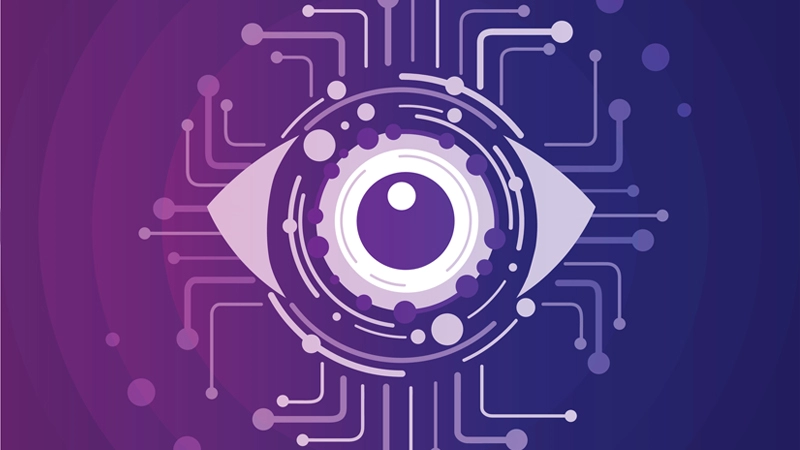
Convert the image to grayscale format.
img_gray = cv2.cvtColor(img, cv2.COLOR_BGR2GRAY)
You can also try this code with Online Python Compiler
Apply Binary Thresholding
Apply a binary threshold to the image using the threshold() function. A value of 255 will be assigned to any pixel with a value greater than 150. (white). In the resultant image, all remaining pixels will be set to 0. (black). You can play around with the threshold value of 150 because it is a configurable option.
After thresholding, use the imshow() function to display the binary image, as shown below.
ret, thresh = cv2.threshold(img_gray, 150, 255, cv2.THRESH_BINARY)
You can also try this code with Online Python Compiler
Displaying, the binary image.
display(thresh, "img_thresh.jpeg")
You can also try this code with Online Python Compiler
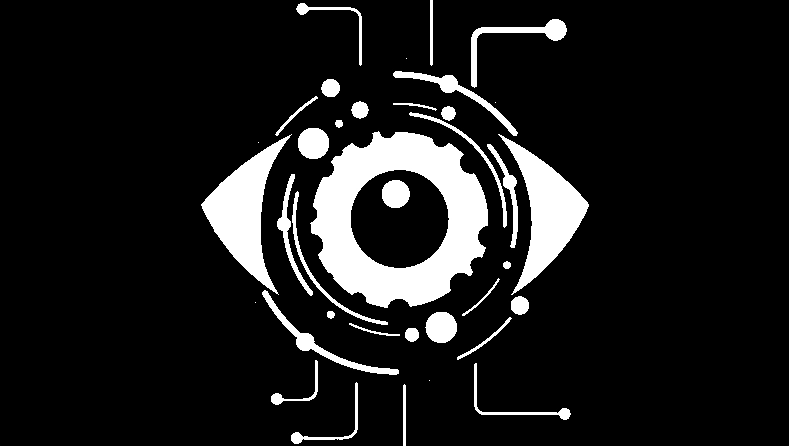
Till now, we have created a binary image. Furthermore, we will apply both the algorithms, i.e., CHAIN_APPROX_NONE and CHAIN_APPROX_SIMPLE.
findContours() Method
To find contours, we will use the findContours() method provided by OpenCV. It takes three arguments mandatorily. The three arguments are as follows:
Image: Binary image as input.
Mode: It is the contour-retrieval mode. The modes are as follows:
- RETR_EXTERNAL retrieves only the extreme outer contours.
- RETR_LIST retrieves all the contours without establishing any hierarchical relationship.
- RETR_CCOMP retrieves all the contours and establishes a two-level hierarchy.
- RETR_TREE retrieves all the contours and constructs a full hierarchy of nested contours.
Method: It is the contour-approximation method. This blog will see both CHAIN_APPROX_NONE and CHAIN_APPROX_SIMPLE to store all the contours.
contours, hierarchy = cv2.findContours(image=thresh, mode=cv2.RETR_TREE, method=cv2.CHAIN_APPROX_NONE)
You can also try this code with Online Python Compiler
The contours variable will store all the contours of the binary image. Now, we need to draw these contours on the original image; to do so, we will use the drawContours() function provided by the OpenCV library.
drawContours() Method
The drawContours() method provides functionality to draw the contours that are generated from the findContours() function on the original image. This function takes four mandatory arguments. Following are the four arguments:
image: This is the RGB input picture on which the contour should be drawn.
contours: The contours returned by the findContours() method are displayed here.
contourIdx: In the produced contours, the pixel coordinates of the contour points are listed. You can provide the index position from this list with this input, specifying exactly the contour point you wish to draw. If you provide a negative value, all of the contour points will be drawn.
color: This indicates the color of the contour you are drawing. Here we are drawing with red color.
image_copy = img.copy()
cv2.drawContours(image=image_copy, contours=contours, contourIdx=-1, color=(0, 0, 255), thickness=2, lineType=cv2.LINE_AA)
You can also try this code with Online Python Compiler
Displaying the final image on which contours are drawn.
display(image_copy,"img_copy.jpg")
You can also try this code with Online Python Compiler
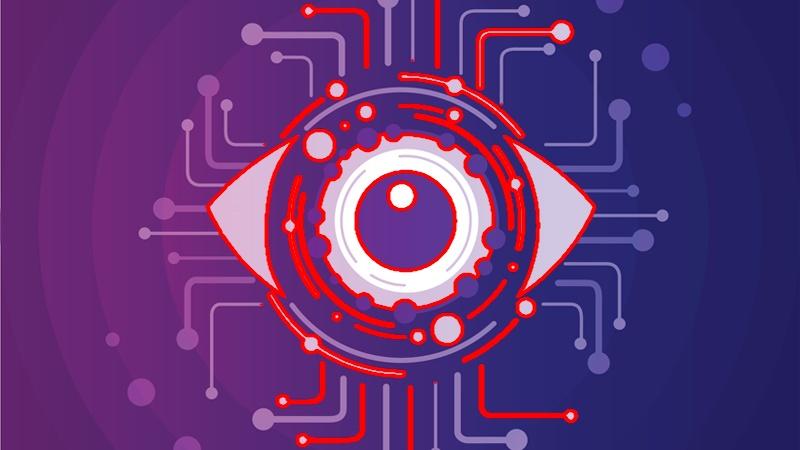
Note: To implement CHAIN_APPROX_SIMPLE just change the method to cv2.CHAIN_APPROX_SIMPLE.
Detecting Extreme Points
This was all about detecting contours in an image. In this section, we will see how to find extreme points in contours. Detecting extreme points helps enhance computer vision applications as it is preprocessing technique.
Let us see how we detect extreme points on the contours with an example.
Implementation
Till detecting contours, the process is the same. The first is to import libraries and read the input image. Convert the image to grayscale format. Now apply a binary threshold on the grayscale formatted image. Then detect contours using any of two algorithms provided by OpenCV.
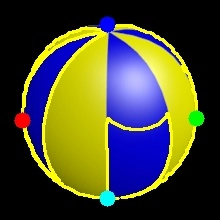
After detecting contours we will import a library named imutils. We will pass all the detected contours in the grab_contours() function provided by the imutils library and will determine the largest contour. Now we will determine left, right, top, bottom extreme points. Following code will guide you through the implementation process.
# importing libraries
import imutils
import cv2

# display function
def display(photo, s):
    while(True):
        cv2.imshow('frame', photo)
        k = cv2.waitKey(1)
        if k == ord('q'):
            break
    cv2.imwrite(s, photo)
    cv2.destroyAllWindows()
    cv2.waitKey(1)

# reading the image
image = cv2.imread("image3.png")

# displaying real image
display(image)

# converting the image to grayscale format
gray = cv2.cvtColor(image, cv2.COLOR_BGR2GRAY)

# applying binary threshold
thresh = cv2.threshold(gray, 45, 255, cv2.THRESH_BINARY)[1]

# find contours in thresholded image, then grab the largest contour
cnts = cv2.findContours(thresh.copy(), cv2.RETR_EXTERNAL,
cv2.CHAIN_APPROX_SIMPLE)
cnts = imutils.grab_contours(cnts)
c = max(cnts, key=cv2.contourArea)

# determining left, right, top, bottom extreme points
extLeft = tuple(c[c[:, :, 0].argmin()][0])
extRight = tuple(c[c[:, :, 0].argmax()][0])
extTop = tuple(c[c[:, :, 1].argmin()][0])
extBot = tuple(c[c[:, :, 1].argmax()][0])

# drawing largest contour and plotting extreme points on the image
cv2.drawContours(image, [c], -1, (0, 255, 255), 2)
cv2.circle(image, extLeft, 8, (0, 0, 255), -1)
cv2.circle(image, extRight, 8, (0, 255, 0), -1)
cv2.circle(image, extTop, 8, (255, 0, 0), -1)
cv2.circle(image, extBot, 8, (255, 255, 0), -1)

# displaying image
display(image,"ExtremePoints.jpeg")
You can also try this code with Online Python Compiler
Original Image
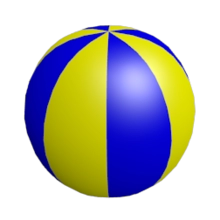
Image after finding extreme points
Also read, Sampling and Quantization
FAQs
1. What are image contours?
A: Contours are defined as a line that connects all of the spots along the image's boundaries that have the same intensity.
2. Difference between contour detection and edge detection?
A: Edge detection simply identifies points where the picture intensity varies dramatically. It might create a closed shape or not. The fundamental goal of contour detection is to discover a closed-form and draw the object's border.
3. Why do we use the CHAIN_APPROX_SIMPLE method?
A: To eliminate all unnecessary points and compress the shape, saving memory in the process.
4. Why is contour used in image processing?
A: The contours are a valuable tool for item detection and recognition as well as form analysis.
Key Takeaways
In this article, we have discussed the following topics:
- Introduction to contours
- Steps to detect contours
- Practical implementation of detecting contours
- Detecting extreme points of a contour.
Want to learn more about Machine Learning? Here is an excellent course that can guide you in learning.
Happy Coding!





 8+ registered

