Implementation
In our implementation, we will use widgets, random, and layout to make our App more presentable and improve the Graphic User Interface(GUI).
Basic Approach
You can follow the basic approach laid out below to create your Drawing App, similar to the example given in this article.
- Import kivy
- Import kivy App
- Import Relativelayout
- Import widget
- Set minimum version(optional)
- Create widget class as needed
- Create Layout class
- Create the App class
- Create a .kv file(same name as your app class; you can also name Drawing .kv for DrawingApp class)
- Return the widget, layout, etc., class
-
Run an instance of the class
We will look at a sample python application code using Kivy to demonstrate the working of the approach mentioned above for the Drawing App.
Python Code
# drawing.py

# import the kivy module
import kivy

from kivy.app import App

kivy.require('1.9.0')

# Widgets are elements of GUI
# that form part of the User Experience.
from kivy.uix.widget import Widget

# Relative layout allows you to set relative coordinates for children elements.
from kivy.uix.relativelayout import RelativeLayout

# the Widget class
class Paint_brush(Widget):
    pass

# the layout class
# where you define the working of
# the Paint_brush() class
class Drawing(RelativeLayout):

    # Paint_brush behavior on mouse press
    def on_touch_down(self, touch):
        pb = Paint_brush()
        pb.center = touch.pos
        self.add_widget(pb)

    # Paint_brush behaviour on mouse movement
    def on_touch_move(self, touch):
        pb = Paint_brush()
        pb.center = touch.pos
        self.add_widget(pb)

# the App class
class DrawingApp(App):
    def build(self):
        return Drawing()

DrawingApp().run()

You can also try this code with Online Python Compiler
.kv Code
# Drawing.kv


#code for Paint Brush
<Paint_brush>:
    size_hint: None, None
    size: 25, 50
    canvas:
        Color:
            rgb: rnd.random(), rnd.random(), rnd.random()
        Triangle:
            points:
                (self.x, self.y, self.x + self.width / 4, self.y,
                self.x + self.width / 4, self.y + self.height / 4)


# creating Drawing Pad
<Drawing>:
    canvas:
        Color:
            rgb: .2, .5, .5
        Rectangle:
            size: root.size
            pos: root.pos
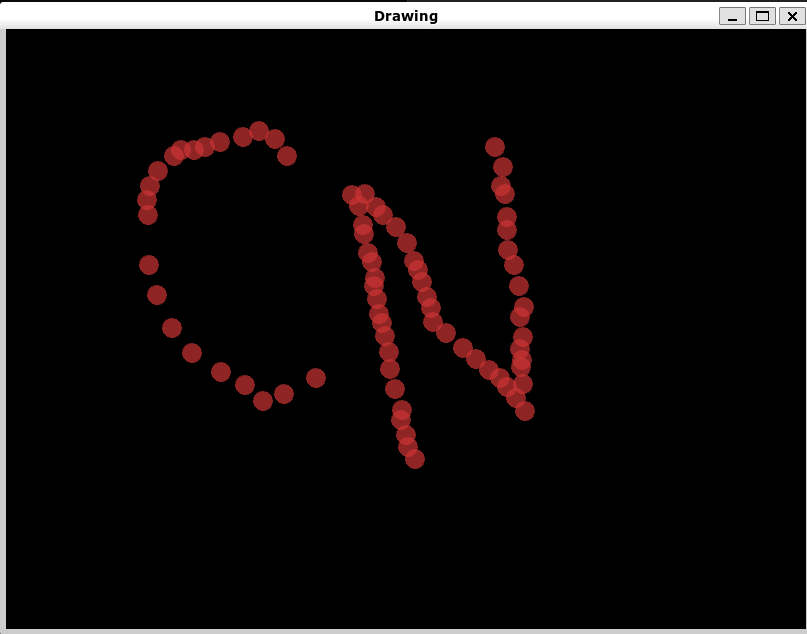
Output
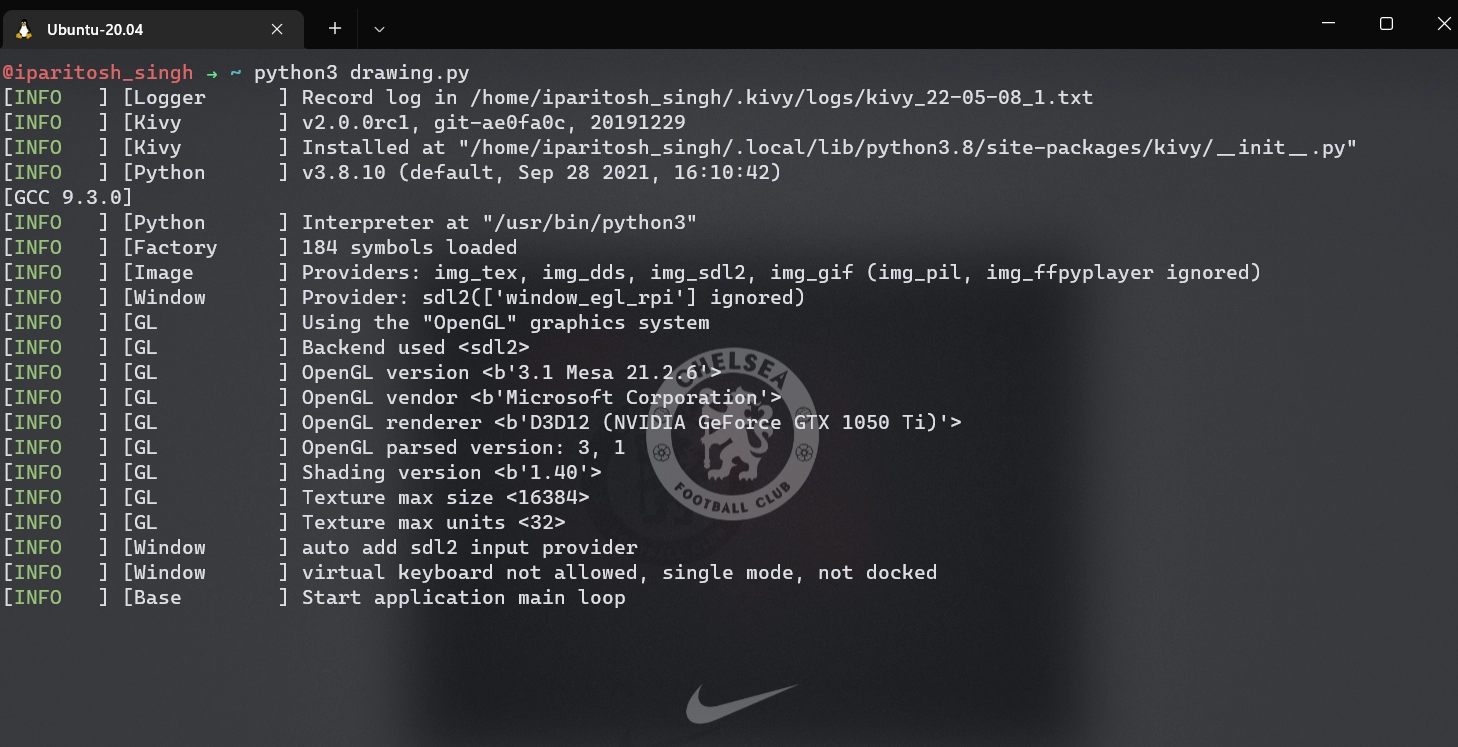
Terminal Output
Frequently Asked Questions
Is Kivy free for commercial use?
Kivy is entirely free of cost. It comes under an MIT license (from 1.7. 2) and LGPL 3 for previous versions. You can use Kivy in a commercial product. The toolkit is professionally developed, used, and backed.
Which Python GUI is most straightforward?
Tkinter is one of the most in-demand GUI libraries available on Python. Its easy-to-learn and straightforward syntax make it one of the first recommended choices for beginners to GUI development.
Is KIVY better than Tkinter?
Due to its complexity in learning and installation for beginner to GUI development compared to Tkinter, Kivy is often not preferred over Tkinter.\
Can I use pygame in KIVY?
Kivy and pygame are both incompatible with each other. So as a user, you cannot draw anything on pygame using Kivy.
Conclusion
In this article, we have extensively discussed the Drawing App in Kivy and its implementation in Python with the help of examples. There are many more Python frameworks and tools that you can learn and utilize for application development.
We hope that this blog has helped you enhance your knowledge of Kivy Python and if you would like to learn more, check out our articles on Basics of Python and Popular Python Libraries. Do upvote our blog to help other ninjas grow, and head over to our practice platform Coding Ninjas Studio to practice top problems, attempt mock tests, read interview experiences, and much more.
Happy Learning!






 39+ registered

