Working of Firewall
Most of the Linux distribution comes with pre-installed firewall tools like the IPTables. And in this blog, we will be using the IPTables to configure a firewall.
Iptables is used in the Linux kernel to create, manage, and inspect the tables of IPv4 and IPv6 packet filter rules.
There are different set of rules defined for a particular task known as chains. We have Three chains Input, Output, and forward chain.
🔶 Input Chain: Any traffic heading in the direction of your local machine from the internet (or network) must pass via the input chains. This implies that they must follow each rule that has been established in the input chain.
🔶 Output Chain: Any traffic from your local system to the internet must pass through the output chains.
🔶 Forward Chain: Every bit of traffic that originates on an external network and travels to another network must pass via the forward chain. It is used to transport data between linked computers when there are two or more of them.
Other than chains, we have different policies available in that can be performed on the traffic using IPtables. They are as follows:
-
ACCEPT: Traffic is accepted by iptable when it satisfies the conditions set forth in its stated chain of rules. This means that the firewall is allowing the traffic.
-
DROP: Iptable blocks traffic when it is unable to pass the rules in the defined chain. That indicates that the firewall is closed.
- REJECT: This action is identical to the drop action, except it sends a message to the traffic's sender informing them that the data transfer has failed.
As a general rule, use DROP for connections to hosts you don't want others to see and REJECT when you want the other end to know the port is unreachable.
NOTE: The rules you specify in iptables are checked in order from top to bottom. Anytime a packet satisfies one of the top rules, the firewall permits it to pass. Lower rules are not verified. So use caution when establishing rules.
There are commands that we can use to configure firewall. Let’s discuss those commands now.
IPTables Commands
We can list, clear or change rules defined in IPtables by using the commands mentioned below:
List the current rules
The below command is used to list the current defined rules
sudo iptables -L
The output will look like this

We have three chains, as you can see (INPUT, FORWARD, OUTPUT). Although column headers are visible, they do not constitute actual rules. This is due to the fact that most Linux distributions lack established rules.

Clear the rules
Whenever you wish to remove/flush out all the current rules. Run the command described here:
sudo iptables -F
Changing the default policy of chains
Accept is each chain's default policy. We can change this using the command mentioned below:
sudo iptables -P Chain_name Action
Making our own rules
We can make our own set of rules by using IPTables. Let’s discuss how we can make our own DROP rule.
Drop rule
Assume for the moment that we wish to stop all traffic from the IP address 172.168.18.1. You can use the following command:
sudo iptables -A INPUT -s 172.168.18.1 -j DROP
Let’s break up the above command and understand each part of it.
-A INPUT
A rule can be added at the end of a chain using the flag -A. This command line option informs iptable that we want to add a rule to the INPUT chain's very end.
-s 172.168.18.1
To indicate the packet's source, use the parameter -s. Using this instructs iptable to search for packets originating from the source 172.168.18.1.
-j DROP
Specifies what type of policy needs to be used with this rule.
🔺 The above mentioned command adds a rule to the input chain that instructs it to discard any packets arriving with the source address 172.168.18.1.

After executing the above command, you can see the new rule has been added to the INPUT chain.
Accept rule
The following commands can be used to add rules to particular ports on your network.
Syntax:
sudo iptables -A chain_name -s source_ip -p protocol_name --dport port_number -j Action
Let’s break up the above command and understand each part of it.
-p protocol_name
This option is used to match whether the packets follow a particular protocol or not.
-dport port_number
This option can only be used if the -p protocol_name option is specified. It directs the search to seek for packets bound for port "port number."
Example
sudo iptables -A INPUT -s 122.168.18.2 -p tcp --dport 22 -j ACCEPT
The above command allows any data coming from IP address 172.168.18.2 to the port 22 of the computer.

After executing the above command, you can see the new rule has been added to the INPUT chain.
Deleting a rule
We can delete a rule using the below command.
Syntax
sudo iptables -D chain_name rule_number
Example
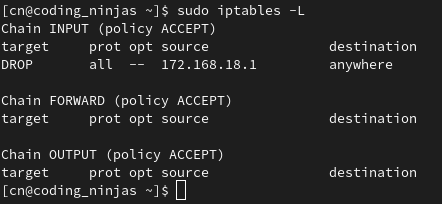
sudo iptables -D INPUT 2
After deleting the rule number 2 from the input chain. The output of the listing command look like this
Frequently asked questions
What is the exit code in Linux?
An exit code in Linux represents the result of the execution of a command or script. It ranges from 0 to 255. We can tell whether a process ran successfully or not by looking at the exit codes.
What is a firewall?
A firewall is a collection of rules. The contents of each data packet that enters or leaves a secure network space are checked against the firewall rules to determine if they should be permitted to pass.
What is the maximum length for a filename under Linux?
Under Linux, a filename can only be 255 bytes long.
Conclusion
In this blog, we have discussed firewall in Linux. We have also seen the working of a firewall and lastly, we discussed the commands using which we can implement firewall in Linux.
If you think this blog has helped you enhance your knowledge about the above question, and if you want to learn more, check out our articles.
🔥 Linux - Decision Making
🔥 Linux File System
🔥 Linux- Shell Loops
🔥 Linux Security
And many more on our Coding Ninjas Studio.
Visit our website to read more such blogs. Make sure that you enroll in the courses we provide, take mock tests, solve problems available, and interview puzzles. Also, you can pay attention to interview stuff- interview experiences and an interview bundle for placement preparations.
Please upvote our blog to help other ninjas grow.
Happy Learning!







 7+ registered

