Do you think IIT Guwahati certified course can help you in your career?
Introduction
When we write a program in R, there are different types of output that we can expect. Output can be an integer, string, character or vector. There are various ways to print the output in the R Programming Language. One of the most popular ways to get output in R is by using the print() function.
In this blog, we will discuss different methods to display output in R, and we will also see how to write output directly in a file.
What is R?
In the world of data science, we use R mostly for data cleaning or visualisation. It creates stunning visuals that help us to analyse the data very easily and quickly.
It is similar to Python programming language. It is an open-source programming language that is user-friendly and which offers different packages and libraries that help any user analyse complex datasets.
Output in R
The output of a program in R can be of different types, such as string, character or integer. Depending on the type of output, we have different types of methods available in R to display the output of these programs.
We can also use assignment operators to get the output in the console. Let us take an example to make it more clear for you.
Here is the list of the functions that we use to display the output of any program in R.
print()
cat()
paste()
sprintf()
message()
We will discuss all the functions with examples in this blog.
Using the print() function
One of the most common and used ways to display output in R is by using the print() function. It is able to show any type of output, whether it is a string, character or an integer.
Syntax
Let us look at the syntax of using the print() function.
print(object, optional arguments)
Optional Arguments:
Argument
Information
quote
It stores boolean values, which tell whether the string will be printed with surrounding quotes.
max.levels
It stores an integer that tells about the number of extra level lines that will be printed.
Digits
It is used to specify the number of significant digits after decimal places.
na.print
It stores a character string that can also be NULL and represents the missing values (NA) in the output.
zero.print
It is an optional argument that tells how the zeroes will be printed in the output.
right
It stores boolean values and tells about the alignment of a string. If true, it will be right aligned.
useSource
It stores boolean or logical values and specifies if the internal source is present and whether it should be used for printing.
width
It stores integer values and sets the maximum width of the output string.
Examples
We will take some examples where we use the print function to display the result of an R program.
Printing a string:
Let us try to print a string without the surrounding quotes.
In this example, we used the quote argument of print to display the string in the console without the surrounding quotes.
Printing a number:
Let us try to print the value of pi and limit of digits to 5.
print(pi, digits = 5)
Output
Explanation
In this example, we displayed only the first five digits of pi using the digits argument.
Printing a dataset:
Let us try to print a whole dataset using the print function.
data <- data.frame(Name = c("John", "Sarah", "Don"),
                      Age = c(25, 30, 35),
                      stringsAsFactors = FALSE)
print(data)
Output
Explanation
In this example, firstly, we created a dataset and stored it in a variable named data and used the print() function to display the dataset.
Printing a number using the right and width attributes:
In this example, we will use the format function with width and right attributes to align the output to the right side.
number <- 123.45
formatted <- format(number, right = TRUE)
print(formatted)
Output
Explanation
In this example, we have used the width argument to increase the width of the output, and we used the right argument to format the output to the right side.
Using the cat() function
The cat() function in R can also be used to display the results of a program that we wrote. It converts the objects into a string before showing the output. It can concatenate different variables and display the output. The cat() function requires one more argument to display the output to the console.
Syntax
Let us look at the syntax of using the cat() function.
cat(any_variable, optional arguments)
Optional Arguments:
Argument
Information
file
It is a connection or a file path that tells where the output need to be printed or saved.
sep
It is a separating character that separates the printed objects.
fill
It is a boolean or positive integer that fills the printed object to a certain width.
labels
It is a boolean argument that is used to label the printed objects. It is useful in cases of vectors and datasets.
append
It is a boolean argument that tells if the output needs to be appended to any existing file.
Examples
We will take some examples where we use the cat function to display the result of an R program.
Printing a string:
In this example, we will try to print a string using the cat function.
my_string <- "showing results using a cat function"
cat(my_string)
Output
Explanation
In this example, we displayed a string in the console using the cat() function.
Printing an Integer:
Let us try to print an integer using the cat function.
number <- 42433534535
cat(number)
Output
Explanation
In this example, we displayed an integer in the console using the cat() function.
Printing an array:
vector <- c(1, 2, 3, 4, 5)
cat(vector)
Output
Explanation
In this example, we displayed a vector in the console using the cat() function.
Printing a character array using the sep argument:
Let us try to use the sep argument to print the characters of an array.
cat("Apples", "Oranges", "Bananas", sep = " # ")
Output
Explanation
In this example, we used the sep argument in the cat() function to display the characters of an array separated by “#”.
Printing a vector using label argument:
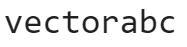
cat(labels = c("A", "B", "C"), "vectorabc")
Output
Explanation
In this example, we used a label argument in the cat() function to display the name of the vector in the console.
Note: We must be careful using the cat function as it cannot display the results of a list or a dataset. It may show an error like the one below.
It is used inside the print function to display the output that concatenates strings and variables together. It converts the object that is to be printed into character strings.
The paste() function adds default space between concatenated string. If we do not want automatic spacing in the output string, we can use the paste0 function in place of the paste() function.
Syntax
Let us look at the syntax of using the paste() function.
In the Syntax, any_string and variable refers to the string and the variable that will be concatenated and printed using paste() and print() function respectively.
Optional Arguments:
Argument
Information
sep
It is a separating character that separates the objects that are concatenated.
collapse
It is a string that joins the final concatenated string.
Examples
We will take some examples where we use the paste function to display the result of an R program.
Printing a string and a number using the paste function:
name <- "Khan"
age <- 21
print( paste("My name is", name, "and I am", age, "years old."))
Output
Explanation
In this example, we used the paste() function to concatenate both the string and number and convert them into a string and used print() function to display the output string.
Printing strings and a number using the paste() function and sep argument:
paste("apple", "oranges", 3, sep = ", ")
Output
Explanation
In this example, we used the paste() function to concatenate the strings and the number and convert them into a string, used the sep argument to separate the characters in the string by commas and used the print() function to display the output string.
Using the message() function
In R, the message() function is used to print simple informative messages while executing any program. It makes it easier to understand the logic of a program. It is also used to display diagnostic messages that provide any error that may occur in a program or the running status of a program.
Syntax
Let us look at the syntax of using the message() function.
It is an optional argument that is used to specify the domain of the message. It may be a general or a warning message.
appendLF
It is an optional argument that tells whether a new line should be inserted after printing the message.
expr
It is an R expression that gets evaluated with the message.
Examples
We will take some examples where we use the message function to display the result of an R program.
Printing a warning message using appendLF argument:
message("This is a Warning message with appendLF argument.", domain = "Warning", appendLF = TRUE)
message("This is a Warning message without appendLF argument.", domain = "Warning")
Output
Explanation
In this example, we used the appendLF argument and set it to true inside the message function to print a line break after the message is printed.
Printing a message with the expression:
x <- 10
message("The square of ", x, " is ", expr = x^2)
Output
Explanation
In this example, we used the message() function to print the square of a number using the expr argument inside the message() function.
Using the sprintf() function
The sprintf() function is used to format the string and handle the special values such as NA, Inf or -Inf. It is a C library function that prints the string as a C language.
Syntax
Let us look at the syntax of using the sprintf() function.
sprintf(character vector)
We use a vector containing characters inside the sprintf function.
Example
We will take an example where we use the sprintf() function to display the result of an R program.
Printing a formatted string showing the weather and humidity of an area:
In this example, we used the sprintf function to format the string using the placeholder %f for temperature and humidity and finally used the cat() function to display the output.
Writing Output to a File
In R, we use the write.table() function to export output DataFrame to a file. The file types can be CSV or Text files.
Syntax
Let us look at the syntax of using the write.table() function.
In this example, we used the write.table() function along with arguments such as file(path where the output will be saved), sep (separates the cell with tab spacing), and row.names() and col.names() (to display row and column names) and used print function to display the DataFrame.
Frequently Asked Questions
What is R programming language?
R is one of the most used programming languages for big calculations and analysing data.
What is R Studio?
R Studio is an open-source Integrated Development Environment (IDE) specially made for the R programming language.
How can we save the output of a command to a variable?
We can save the output of a command by using assignment operators ("<-", "= ”) in the R programming language.
How do we write the output to a file in R?
We use the write() function to directly save the output to a file in R and use the print function to print the output written in the file.
Is it possible to limit the digits written after the decimal places of a number?
Yes, we can limit the number of digits by using the digit argument in the print function in R.
Conclusion
This article discusses the topic of displaying outputs in the R programming language. We have discussed different methods to display output in R and how to write output directly in a file.
We hope this blog has helped you enhance your knowledge about outputs in the R programming language. If you want to learn more, then check out our articles.
But suppose you have just started your learning process and are looking for questions from tech giants like Amazon, Microsoft, Uber, etc. In that case, you must look at the problems, interview experiences, and interview bundles for placement preparations.
However, you may consider our paid courses to give your career an edge over others!














 1+ registered

