Table of contents
1.
Introduction
2.
Generate Screen-Based Videos
2.1.
Configuring Screen-based Recorder
2.1.1.
For Configuration in Version 7.8 and Onwards
2.1.2.
For Configuration in Versions Before 7.8
2.2.
View Recorded Videos
3.
Generating Browser-Based Videos
3.1.
Requirements
3.2.
Why use Browser-based recording?
3.3.
Enable Browser-based Recorder in Katalon Studio
3.4.
Install FFmpeg library
3.4.1.
For Windows
3.4.2.
For macOS
3.4.3.
For Linux
3.4.4.
For Docker Image
3.5.
View Recorded Videos
4.
Frequently Asked Questions
4.1.
Can I use Python and other languages in Katalon?
4.2.
Is Katalon tough to learn?
4.3.
Where do Katalon recorder files get saved?
5.
Conclusion
Last Updated: Mar 27, 2024

Record Screen-based and Browser-based Videos in Katalon

Career growth poll
Do you think IIT Guwahati certified course can help you in your career?

Introduction

Sometimes it becomes tough for us to find out the minor errors that we make in our tests, or sometimes we need to know what went wrong with our tests and why they failed. A screen recording might help us as we can look at it again and find out. Let us find out how we can  Record Screen-based and Browser-based Videos in Katalon. From version 7.8 and later, we can do screen-based and browser-based recording in Katalon studio. Let us have a look at both.
Record Screen-based and Browser-based Videos in Katalon

Generate Screen-Based Videos

When we are facing failed tests, we have the option to record and watch videos of our screen records. This is an inbuilt feature of Katalon Studio version 7.8 and above. It helps us find out what is causing the failed tests.

When we are running a test, a screen-based recorder records and captures the things we are doing on the screen. However, we should note that a Screen-based Recorder can currently be used when a single test suite gets executed.

Configuring Screen-based Recorder

Before starting to use a Screen-based Recorder, we have to configure it. Let us take a look at the steps that we will follow to go with the configuration process. 

This is what we have to follow the steps below to record the screen.

Note for macOS users: If you are using macOS, we have to make sure that the Screen Recording permissions are given in to Katalon Studio in the settings. We will go to Security & Privacy settings> Privacy > Screen Recording to enable this. We have to enable the "Allow Katalon Studio to do Screen Recording" option. 

For Configuration in Version 7.8 and Onwards

Now, we will look at how to configure in Katalon Version 7.8 above.

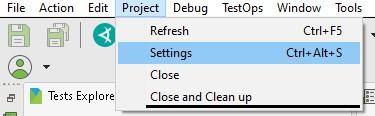
Step 1: First, we click on Projects and will click on Settings.
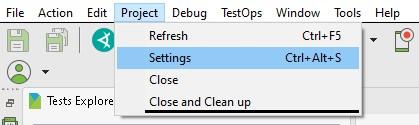
we click on Projects and will click on Settings.

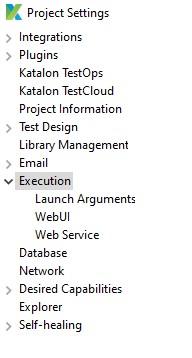
Step 2:  Now, we will click on Execution to go to the Execution View.
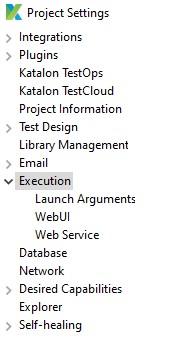
click on Execution to go to the Execution View.

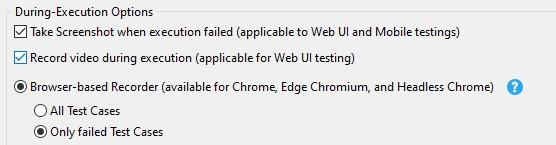
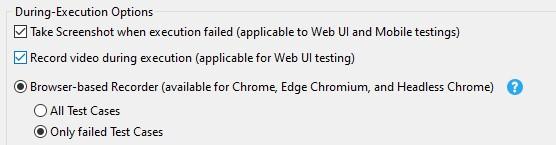
Step 3: There in the During-Execution Options panel, we will click to check on Record Video during execution option. This will enable the Video recorder function.
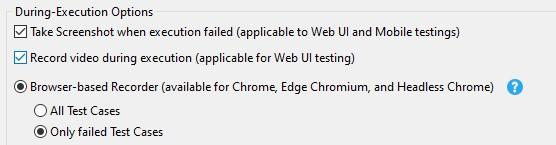
check on Record Video during execution option. This will enable the Video recorder function.

Step 4: Now, we will navigate to the Screen recorder option and give our video settings.

Step 5: We can choose our video format and the Quality of the screen recording video. It is suggested to choose the Low or medium option to save disk space.

Step 6: After making all our selections, we will click on Apply and Close.

For Configuration in Versions Before 7.8

Now let us take a look at the configurations below Katalon 7.8.

Step 1: After we have created a test suite, We will go to Project and select settings.

Step 2: In the settings, we will navigate to the side panel and click on Report. This will open the report view.
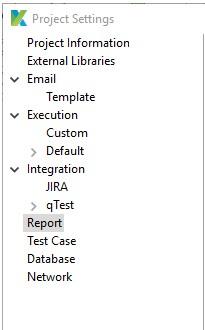
navigate to the side panel and click on Report. This will open the report view.

Step 3: In the report view, we will check on the Enable Video Recorder during execution option.

By default, the Katalon Studio only captures Failed test cases option is already selected. But along with that, we have the option to select if we want to capture Passed or Failed test cases or not.
By default, the Katalon Studio only captures Failed test cases option is already selected

Step 4: We can choose our video format and the Quality of the screen recording video. It is recommended to choose the Low or medium option to save disk space.
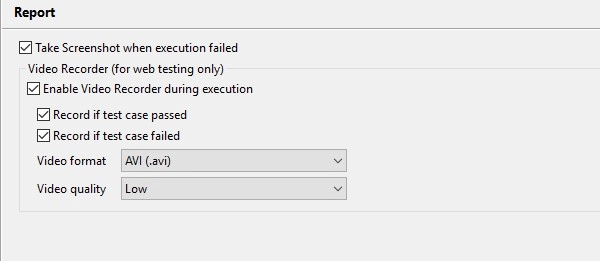
We can choose our video format and the Quality of the screen recording video.

Step 5: After making all our selections, we will click on Ok.

View Recorded Videos

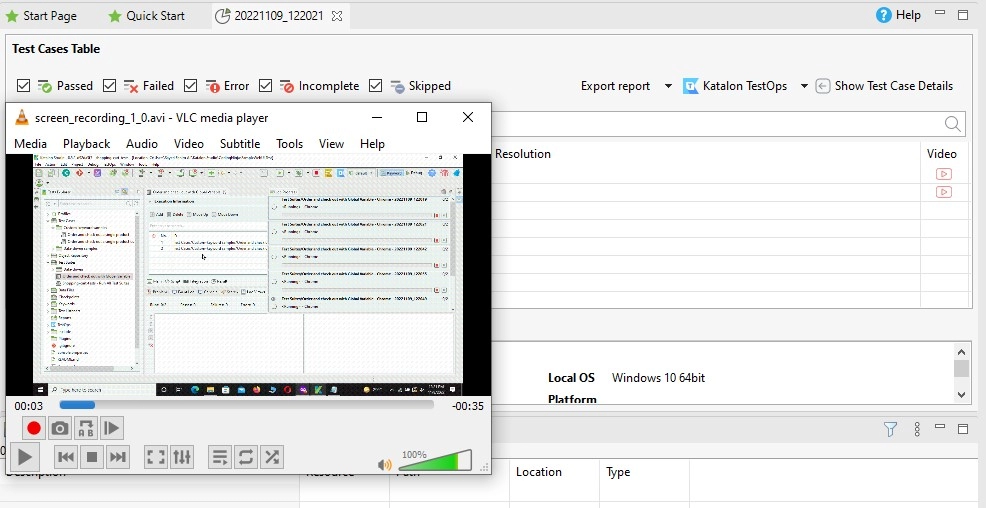
After we have run the test suite, we would definitely want to see the recorded videos. To do this, we will have to go to the Result tab. There we will be able to see a list of the test cases.

Every case will have a recorded video attached to it. 

We can find a Play icon in the Video column. If we press that, it will play the recorded video.
Generating Browser-Based Videos

Katalon gives us the ability to make browser-based videos too. Similar to Screen-based videos, we can record them only for Web UI testing. This is also supported by Katalon Studio version 7.8.0 and later. Again browser-based recorded videos help us see the things that may have gone wrong in the failed tests.

Requirements

There are a few requirements for recording browser-based videos in Katalon Studio:

1. We must have a valid license for Katalon Studio Enterprise. 

2. The Katalon Version used should be 7.8.0 and later. 

Why use Browser-based recording?

We can use the browser-based recording feature to do the following things:

Recording a selected browser window: Sometimes, we might want to record a selected browser window as we might click on other open windows on the desktop while recording. This might obstruct the recording. Browser-based recording feature lets us record the screen even if it's hidden behind another window.

Record multiple browser windows: We can record more than one browser window at the same time. This can be done when we are executing Test Suite Collection parallelly.

Recording in Headless browser: We can run browsers in a Headless environment. When a visible GUI is not needed, this is commonly used for test automation and browser testing in a CI/CD pipeline.

Note: We must note that if we want to use the browser-based recording feature, we have to enable it in Katalon Studio first. Along with that, we have to install FFmpeg, which is a third-party library for video encoding.

Enable Browser-based Recorder in Katalon Studio

Now we will see how to enable the browser-based recorder in Katalon Studio.

Step 1: First, we click on Projects, and there we will click on Settings.

we click on Projects, and there we will click on Settings.

Step 2:  Now, we will click on Execution to go to the Execution View.

click on Execution to go to the Execution View

Step 3: There in the During-Execution Options panel, we will check on Record Video during execution option. This will enable the Video recorder function.

check on Record Video during execution option.

Now it is time to set a window side. We want to set a window size of 1500x1000 for our browser. Similar to the above steps, we will go to Project Settings.

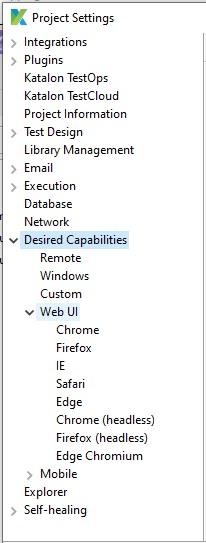
Step 4: Once we are in the Project Settings, We will go to the Desired Capabilities side panel.

We will go to the Desired Capabilities side panel

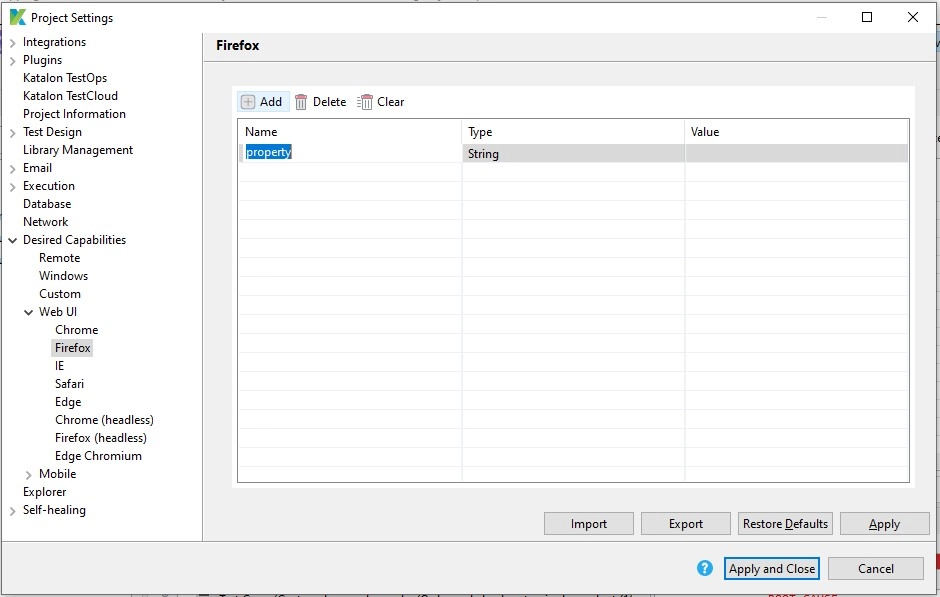
Step 5: Then, we select our browser. Here we have selected Firefox or Firefox Headless or Edge Chromium. 

Here we have selected Firefox or Firefox Headless or Edge Chromium

Step 6: Finally, we click on Apply and Close.

Install FFmpeg library

We know that for browser-based videos in Katalon Studio, we have to install the FFmpeg library for video encoding. We will take a look at the steps to install this third-party library. The setup needs us to follow some different steps for different operating systems.

For Windows

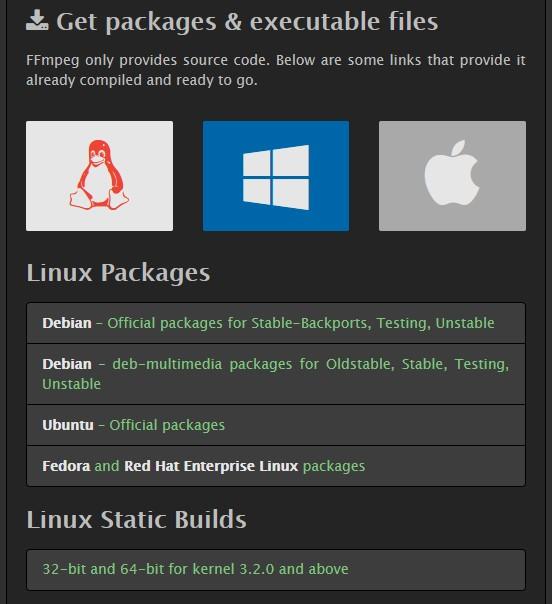
Step 1: To set up FFmpeg on windows, we have to go to the official download page of FFmpeg

we have to go to the official download page of FFmpeg.

Step 2: Now we will download the package for windows.

Step 3: To our PATH environment variable, we have to add the path to the FFmpeg executable file.

Step 4: We will restart Katalon Studio for the installation of FFmpeg to take effect. 

For macOS

Setting up automatically:

We can easily install FFmpeg automatically using Homebrew. We just have to give the command 

$ brew install ffmpeg

Setting up Manually:

Step 1: To set up FFmpeg on macOS, we have to go to the official download page of FFmpeg

Step 2: Now, we will download the package for macOS.

Step 3: Once downloaded, we will add the path to the .../ffmpeg/bin folder to our /etc/paths file.

For Linux

Automatically:

Similar to macOS, we have the option to use commands to install FFmpeg.

We have to use the command "sudo apt-get install ffmpeg".

Manually:

Following are the steps to manually install FFmpeg in Linux.

Step 1: To set up FFmpeg on macOS, we have to go to the official download page of FFmpeg

Step 2: Now we will download the package for Linux

Step 3: Now, we will add the location or path to the ".../ffmpeg/bin" folder to the "/etc/environment" file.

For Docker Image

We can use Katalon Docker Image as a container to run Katalon Studio tests. We can also use it to write reports for our file system.

The FFmpeg library is not included in the Katalon Docker Image at the moment. But we can build our own image. These are the steps to follow.

Step 1: First, create a docker image with this: 

FROM katalonstudio/katalon
RUN apt-get -y update
RUN apt-get install -y ffmpeg

Step 2: Now we build our own image:

docker build -t OurCNbuild .

Step 3: After it gets built, it is time to run our docker with the Katalon:  

docker run -t --rm -v "$(pwd)":/tmp/project OurCNbuild katalonc.sh -projectPath=/tmp/project - browserType="Firefox" -retry=0 -statusDelay=15 -testSuitePath="Test Suites/TS_RegressionTest"

View Recorded Videos

After we are done with all the steps and done setting up that we discussed above, it is time to View the recorded videos. Think that we have run our test suite. After running the test suite, we will go to the Results tab.

In the results tab, we can find a list of test cases.

View Recorded Videos

Each test case will have a video that has been recorded relative to it.

Each test case will have a video that has been recorded relative to it.

To play the video, we will just click on the Play icon in the Video column, and that's it. 

Frequently Asked Questions

Can I use Python and other languages in Katalon?

Katalon Recorder is a Selenium IDE-compatible browser automation testing record and playback tool. It can be used to record, debug, execute, and manage test cases, as well as export test suites to a variety of programming languages such as C#, Ruby, Java, Python, Groovy, Robot Framework, and others.

Is Katalon tough to learn?

Katalon Studio is an easy automation testing tool that does not need sophisticated programming knowledge to develop automated tests. It also has a scripting mode for users who are more advanced and for test cases.

Where do Katalon recorder files get saved?

Examine the user folder in Katalon Studio. There should be a folder called Reports in the project folder. Users should be able to find all of the execution reports there.

Conclusion

In the article, we read about Recording Screen-based and Browser-based Videos in Katalon. We found out the steps and things to do both options in simple ways. It is something really handy to help us find our errors in cases while using Katalon. Refer to our courses and explore Coding Ninjas Studio to find more exciting stuff. You can also look into the interview experiences and solve different problems. Look into our Guided paths, test series, libraries and resources to know more.

Thank You

Happy Coding!

Live masterclass