Introduction
The article demonstrates WebUI testing fundamentals in Katalon Studio for a healthcare sample. Before beginning, the article let us understand the terms web testing and Katalon. Web testing allows us to verify that the functionality of a given web application is working as per our requirements. It helps us find bugs at any given time, before a release, or on a day-to-day basis.
Katalon test-ops is a web-based application that gives dynamic perspectives and insight into your automation testing data. You can use your automation testing data by transforming and visualizing your data, analyzing test results; seamlessly integrating with tools like Katalon Studio and Jira; maximizing the testing capacity with remote execution. So now, without wasting time, let us delve into the article.

Open the Healthcare sample project
Open File > New Example Project > Sample Web UI Tests Project in Katalon Studio to launch the Healthcare sample project (Healthcare).
Healthcare sample project components
Profiles
To open the execution profile, go to Profiles > default.

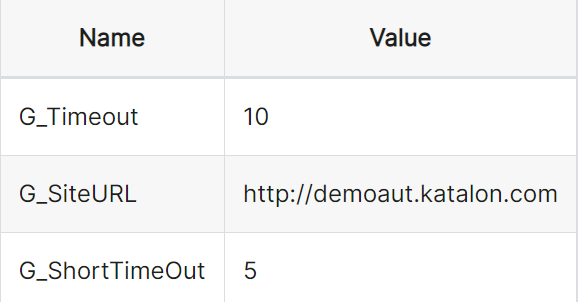
You can even create and save every global variables in the execution profile. They can be utilized across test cases in your project.
Katalon creates 3 global variables in this sample project as given:
Custom keywords
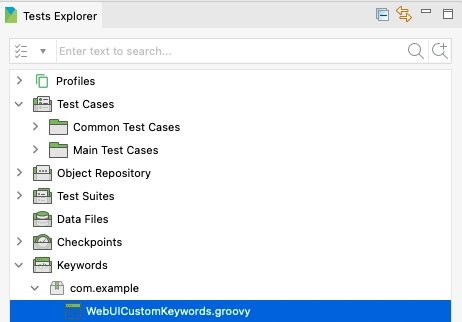
You can utilize custom keywords in the test case. Katalon makes three custom keywords in this sample project. To view the custom keywords, in the Test Explorer panel, move to Keywords > com.example > WebUICustomKeywords.groovy.
com.example.WebUICustomKeywords.isElementPresent
Description
This keyword is to check if any element gives output within a pre-defined limit.
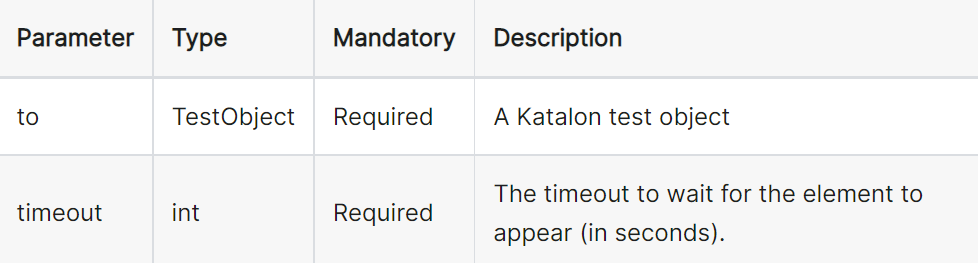
Parameters
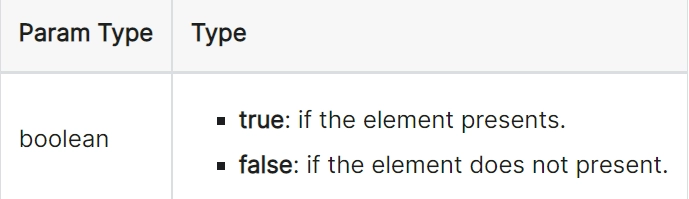
Returns
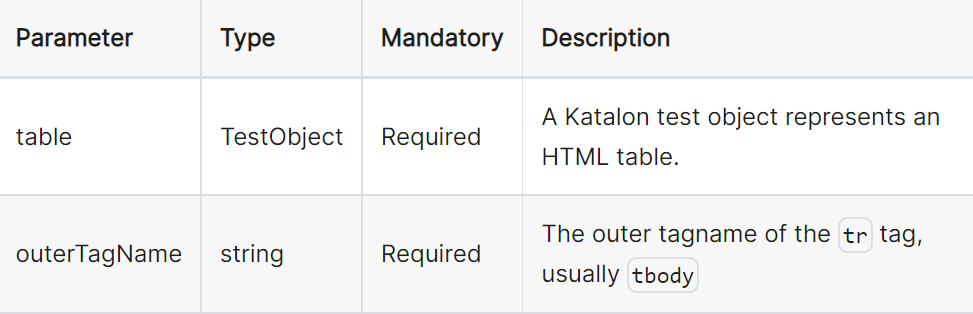
com.example.WebUICustomKeywords.getHtmlTableRows
Description
This keyword gets back web elements from every rows in an HTML table.
Parameters
Returns
The web elements of every rows in the HTML table.
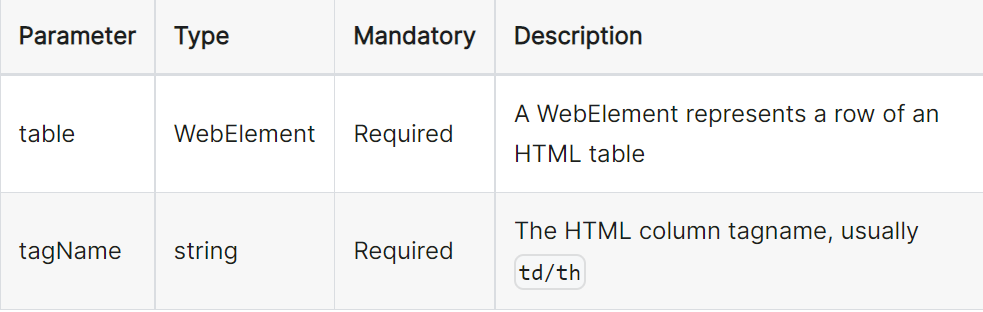
com.example.WebUICustomKeywords.getHtmlTableColumns
Description
This keyword retrieves web elements of all row cells in an HTML table.
Parameters
Returns
The web elements of every cells of a row in the HTML table.
Example
In this eg, we want to retrieve the web elements of every cells of the 1st row in the given HTML table body.

Test cases
In the Test Explorer panel, open Test Cases > Main Test Cases, to access the main test-cases in this project.
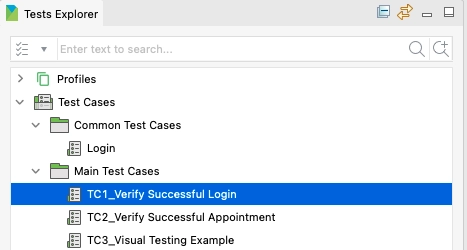
There are 3 test cases for different purposes:
- The test case TC1_Verify Successful Login is to check if a person can successfully log in with a valid account. The flow of this test case is as given:
-
Open the CURA Healthcare Service website: https://katalon-demo-cura.herokuapp.com/. Here, we utilize the G_SiteURL global variables.
-
Sellect the Make Appointment button.
- Write in the Username and Password. Here, we set the value type of Password and Username as Variable. You can modify the Password and Username value in the Variable tab.

-
Select the Login button.
-
Check if the account is logged in successfully. Here, we utilize the G_Timeout variables. If the page Appointment shows within 10 seconds, the login is successful.
-
Close browser.
2. The test case TC2_Verify Successful Appointment is to check if that person can correctly make an appointment after logging in. The flow in following test case is as given:
-
Move to the CURA Healthcare Service website: https://katalon-demo-cura.herokuapp.com/ and sign in. Dont re-record the login steps, but call the Login/Common Test Cases test case.
-
To make an appointment, write in the valid value for Healthcare Program, Facility, and Visit Date. Select the Book Appointment button.
-
Check if the appointment is confirmed. Here, we make sure an appointment is successfully confirmed if the Appointment Confirmation text shows up.
-
Check if the booking information is matched with the confirmation information.
3. The test case TC3_Visual Testing Example uses the Visual Testing feature in Katalon TestOps to compare images captured while test executions.
Test suite and test suite collection
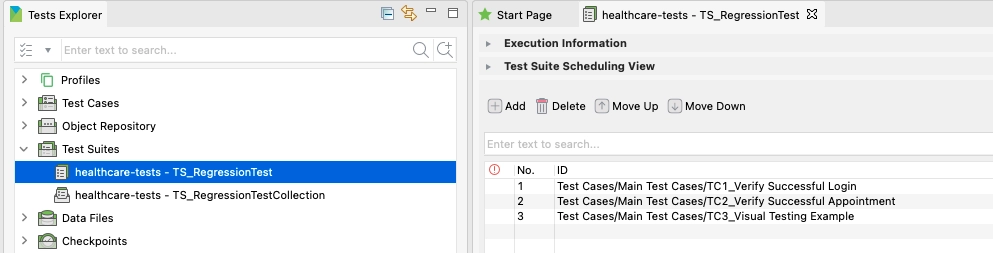
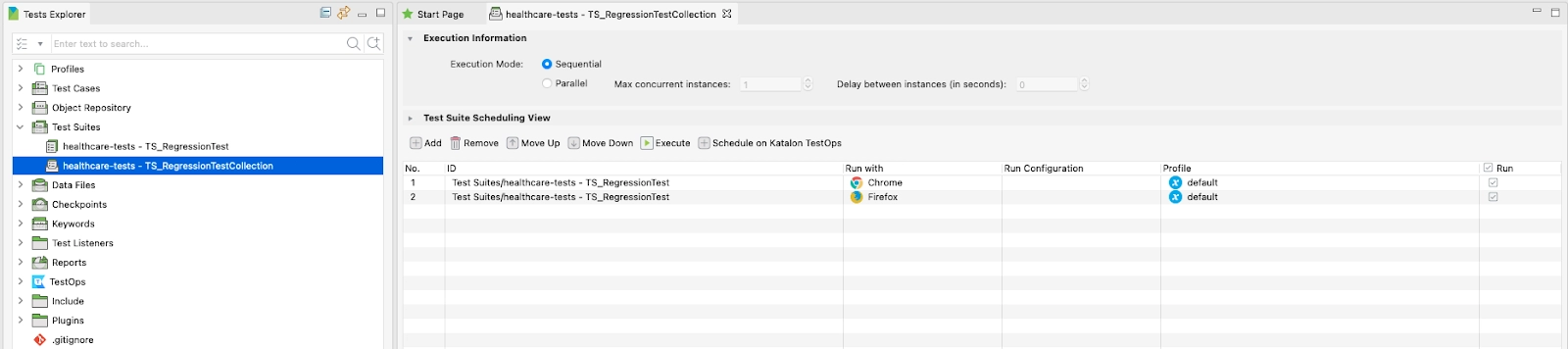
There are 2 test suites in this project. Move to Test Suites, to access them, in the Test Explorer panel.
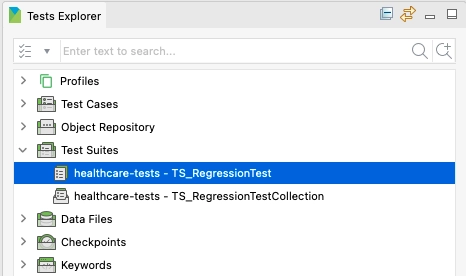
- The test suite Healthcare-tests - TS_RegressionTest merges the 3 test cases shown above.
- The test suite collection Healthcare-tests - TS_RegressionTestCollection unites two Healthcare-tests - TS_RegressionTest test suites with various testing environments. We run the test suites with Chrome and Firefox in this healthcare project.
Execute selected test case or test suite/test suite collection
For executing a test suite/test suite collection or a test case in the sample project:
-
Select the test suite/test case/test suite collection you want to execute.
-
Select Run or click Ctrl + Shift + A (macOS: Cmd+Shift+A).
- You can select various browsers to execute your test in the dropdown list beside Run.

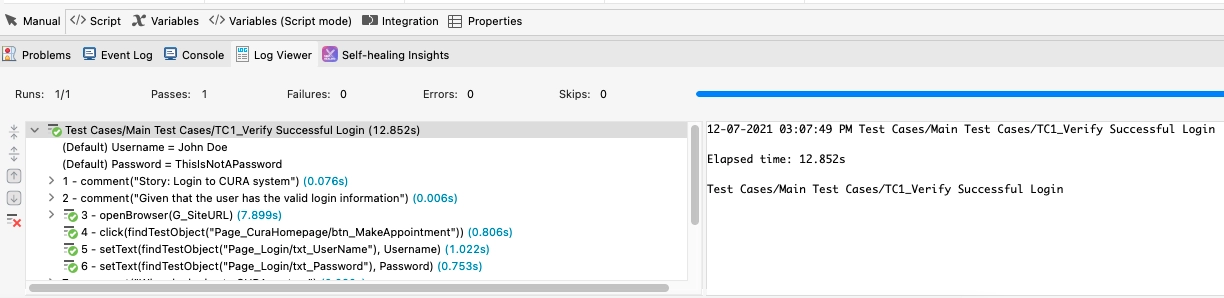
- Check the test result in the Log Viewer tab.
Frequently Asked Questions
Which is better: Katalon or Selenium?
In general, Selenium moves more quickly than Katalon studio. The reason is that because Katalon is built on Java and uses Groovy as its scripting language, it must load more test objects and libraries.
Does Katalon support BDD?
Along with the original built-in keywords, Katalon Studio supports Cucumber keywords.
Does Katalon support Java?
To operate a Katalon Studio instance and create test applications, Katalon Studio uses the standard embedded Java Runtime Environment (JRE) version 8.


 8+ registered