Do you think IIT Guwahati certified course can help you in your career?
Introduction
Hey Readers!!
We all have learned about making a web application but have you wondered how to make a perfect one? To do this we have to include certain test cases, which are series of operations carried out to validate a certain aspect or capability of your software program. A Test Case has pre-condition, test steps, test data, and post-conditions developed for specific test scenarios to verify any requirement. The test case includes specific conditions or variables, using which a testing engineer can compare actual and expected results to determine whether a software product is functioning as per the customer's requirements.
So, let's begin with this article to learn more about it.
Test cases for Online Shopping Application
Some test cases for an e-commerce website are:
General Test Cases for E-commerce Application
Make sure the customer can easily browse all the products in the various categories.
Check that all the banners and links lead to the appropriate product/category pages and that no links are broken.
Make sure the corporate logo is easy to see.
Make sure that the price, category name, product description, and all other text are legible.
Make sure the product and banner images are all properly visible.
Product Buy Flow
Make sure the consumer may choose the desired product attribute, such as size, color, etc., on the product page.
Check to see if the user can add one or more items to their cart.
Check to see if users may add items to their wishlists.
Check that the user may purchase the items they have put in their cart after logging into the application (or as per the website's functionality).
Check to see if the user can add more items to their cart and complete the purchase.
User(Buyer) Registration
Check to see if the registration page has each of the required fields.
Make sure that fields marked with a * are mandatory or required.
Make sure that, if possible, fields other than textboxes, such as dropdowns, radio buttons, and checkboxes, are provided for a better user interface.
Make sure the page submits and cancel/reset buttons are located at the bottom.
Make sure the data is submitted to the server by confirming that by pressing the submit button after filling out all mandatory fields.
Seller – Product creation
Check to see if approved vendors can access product creation panels for those categories.
Check to see if the product creation panel functions properly for creating single products.
Check to see if the product creation panel is functioning properly for creating numerous products.
Check to see if the seller's maximum product production limit prevents them from producing more products than necessary.
Check the panel's validity to see whether any fields are required.
Open the Shopping Cart sample project.
In Katalon Studio, to open the Shopping Cart sample project, go to File > New Sample Project > Sample Web UI Tests Project (Shopping Cart).
Katalon also makes sample custom keywords in this sample project. To see our custom keywords, in the Test Explorer panel, move to Keywords > sample. Double-click one of the following .groovy files:
Custom keywords can be re-used multiple times in test cases to carry on different actions, such as adding items to the cart, logging in, and checking out.
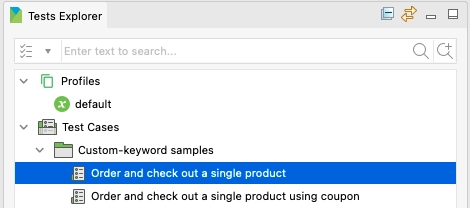
Go to Test Cases > Custom-keywordsamples in the Test Explorer panel to explore the test cases for this project that use custom keywords. Double-click to launch one of the test cases below:
The test case Order and check out a single product contains a single product to the shopping cart, and checks-out. The sequence in this test case is as given:
We utilize the loginIntoApplicationWithGlobalVariable custom keyword to:
Open the http://cms.demo.katalon.com website along with maximized windows.
Log in with the password and username described as the global variables in the execution profile.
We go to the Shop page.
Next, we utilized the addToCartWithGlobalVariable custom keyword to:
Move the product to the cart. The product is defined as a global variable in the execution profile.
Move to the Cart page.
Click on Proceed to checkout to move to the Checkout page.
For the checkout step, we use the CheckoutShop custom keyword to:
Click on the checkout page.
Complete the checkout form. In the Variables tab, the checkout information is listed as a test case variable.
Finally, we use the logoutFromApplication custom keyword to:
Visit the My Account section.
At last, click log out.
Data-driven samples test cases
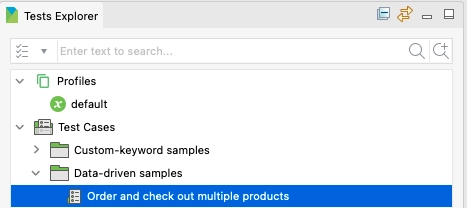
Go to Test Cases > Data-driven samples > Order and check out multiple products in the Test Explorer panel to explore the Data-driven samples test cases for this project.
The test case Order and check out multiple products contains products from the list of product to the shopping cart, and checks-out. The sequence in this test case is as given:
We utilize the loginIntoApplicationWithGlobalVariable custom keyword to:
Open the http://cms.demo.katalon.com website with maximized windows.
Log in with the password and username defined as the global variables in the execution profile.
We move to the Shop page.
Next, we want the test case to read the data files. To do so, we use the getAllData() keyword to extract product names from the product list as follows:
TestData product = findTestData(GlobalVariable.dataFile)
List<String> productList = product.getAllData().stream()
.map{data -> data[0]}/*get first column of each row in data file */
.collect(Collectors.toList())/*add collect and parse to list*/
Then, we use the addToCart custom keyword to add extracted product names to the cart.
The sample test suites demonstrate data-driven testing in Katalon Studio. To view sample test suites, move to the Test Suite folder in the Test Explorer panel. Double-click to open one of the 3 following test suites:
Data-driven testing using data-binding is demonstrated in the test suite by Order and check out a single product many times. The check out and test case Order and single product with the Multiple Checkout data file is bound by this test suite. To view the crucial data, launch the Test Suite and select Show Data Binding.
2. The test suite Order and check out multiple products demonstrates data-driven testing by the Groovy script. This test suite calls the test case Order and check out multiple products . This test case reads the Product list test data file by using the Groovy script. In the script mode of the test case Order and check out multiple products, you can see the following sample code:
TestData product = findTestData(GlobalVariable.dataFile)
List<String> productList = product.getAllData().stream()
.map{data -> data[0]}/*get first column of each row in data file */
.collect(Collectors.toList())/*add collect and parse to list*/
/*Add extracted product names to cart*/
for(def productName : productList){
CustomKeywords.'sample.Shop.addToCart'(productName.toString(), GlobalVariable.urlProduct)
}
The test suite Order and check out with Global Variable demonstrates data-driven testing by global variables. In Order and check out with Global Variable test suite, we call the Custom-keywords samples test cases. These test cases use custom keywords with global variables.
The Shopping-cart-tests - Run All Test Suites combines the 3 test suites shown above with different testing environments.
Execute selected test case or test suite/test suite collection
To execute the test case or a test suite collection/test suite in the sample project:
Select the test suite/test case/test suite collection you want to execute.
Click Run.
You can choose various browsers to execute your test in the dropdown list next to Run.
See the test result in the Log Viewer tab.
Frequently Asked Questions
Which framework is used in Katalon Studio?
Groovy is a Java-based language used by Katalon Studio. It requires the loading of numerous libraries in order to parse test data, test objects, and logging.
What is Katalium?
A framework called Katalium offers a design for TestNG and Selenium-based test automation projects.
Does Katalon support Java?
To operate a Katalon Studio instance and create test applications. Katalon Studio makes use of the standard embedded Java Runtime Environment (JRE) version 8.
Conclusion
We have extensively discussed the sample WebUI tests project with data-driven testing (Shopping Cart sample) in Katalon Studio.










 12+ registered