







Introduction
The Katalon platform offers testing solutions. It benefits teams of various sizes and testing maturity levels. Using Katalon, you can easily change the default language of your web browser.
This blog explains the details of Testing different browser locales in Chrome with Desired Capabilities in Katalon Studio.
Without further ado, let's get started.

Using Configured Desired Capability with Test Case Variables
With the opening of the first Chrome window, Chrome establishes a default UI language. The Chrome driver still determines the default language from the Chrome browser. You can change browser locales using the command line.
Command
parameter chrome.exe—lang= es-ES
This command will start Chrome in Spanish.
We will look into two potential methods for changing browser locales while testing:
-
Testing one specific language with a test case.
- Testing different languages with a test suite.
Creating a test case to test one language
The following steps configures a test case with a specific browser locale:
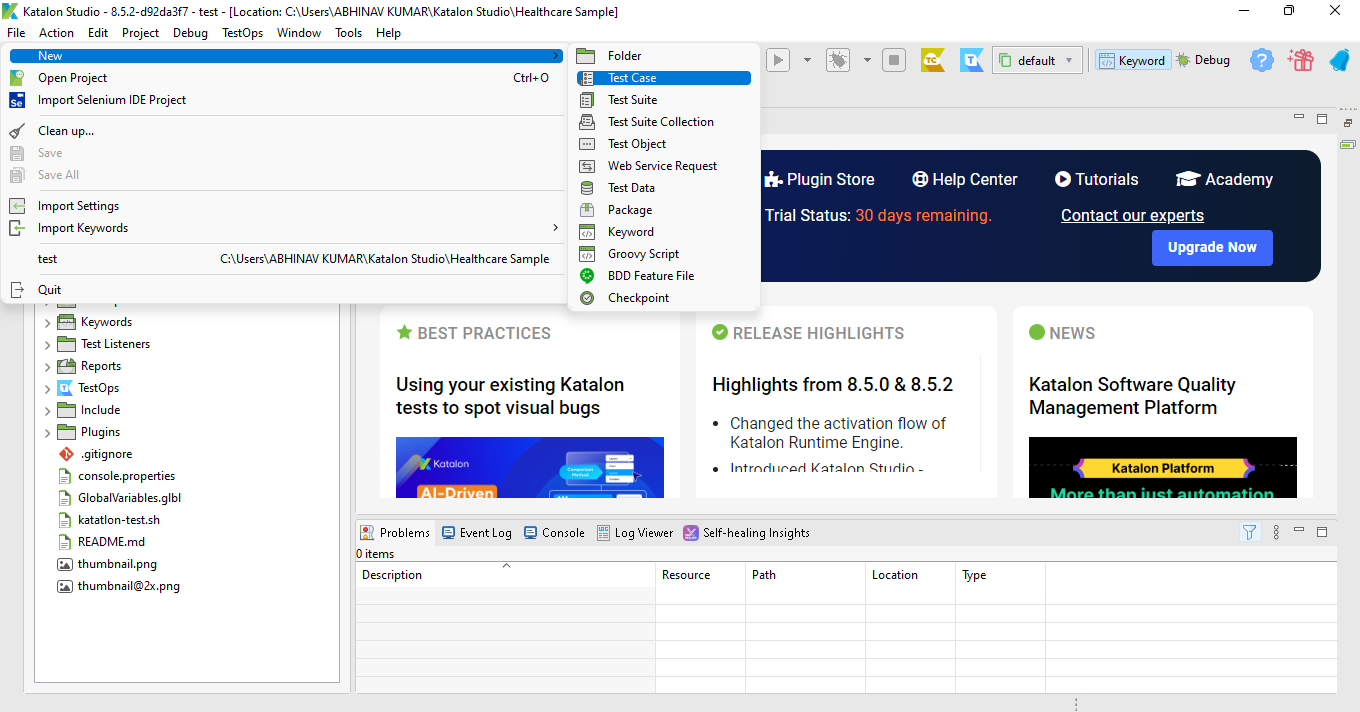
- Select File -> New -> Test case.
-
Create a new test case variable.
-
Go to your Test Case's Variables tab.
- Select Add. The variable list now has a new row.
-
Go to your Test Case's Variables tab.
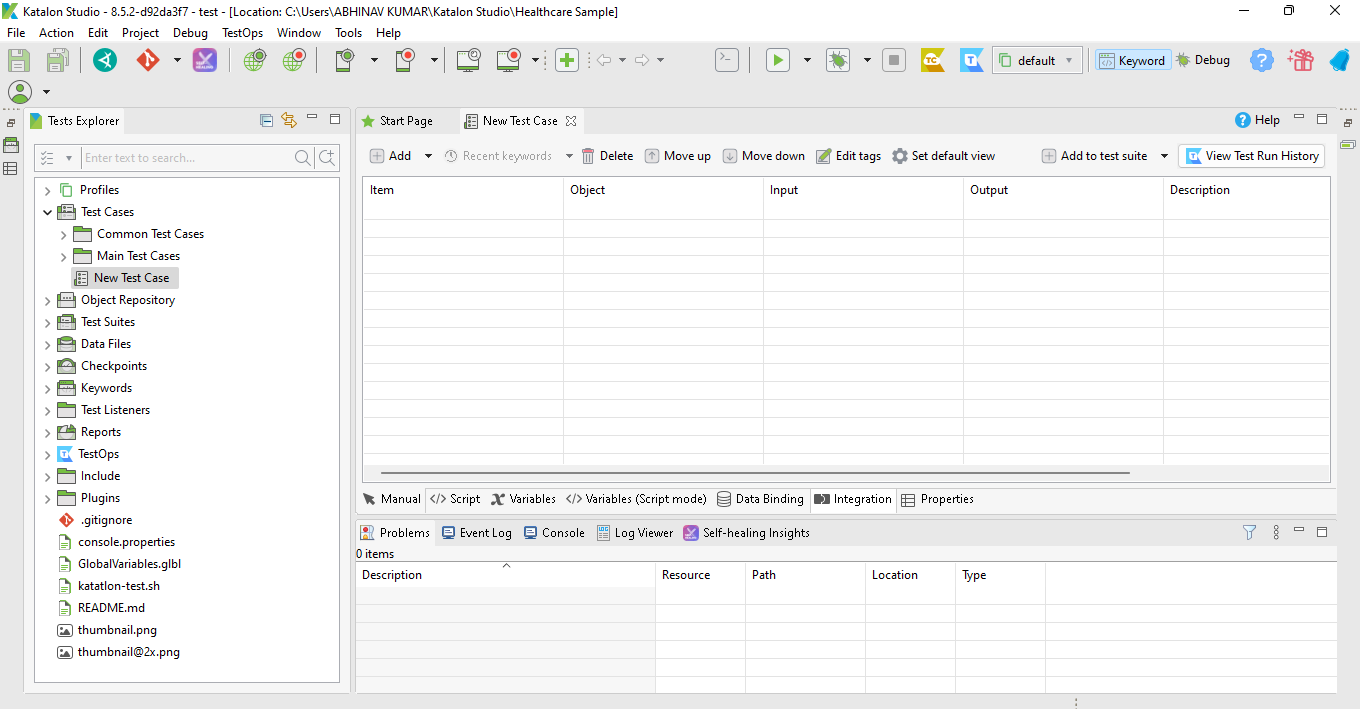
-
Put this value into the "locale" variable:
-
Name: locale
-
Type: String
- Default Value: “es-ES”
-
Name: locale
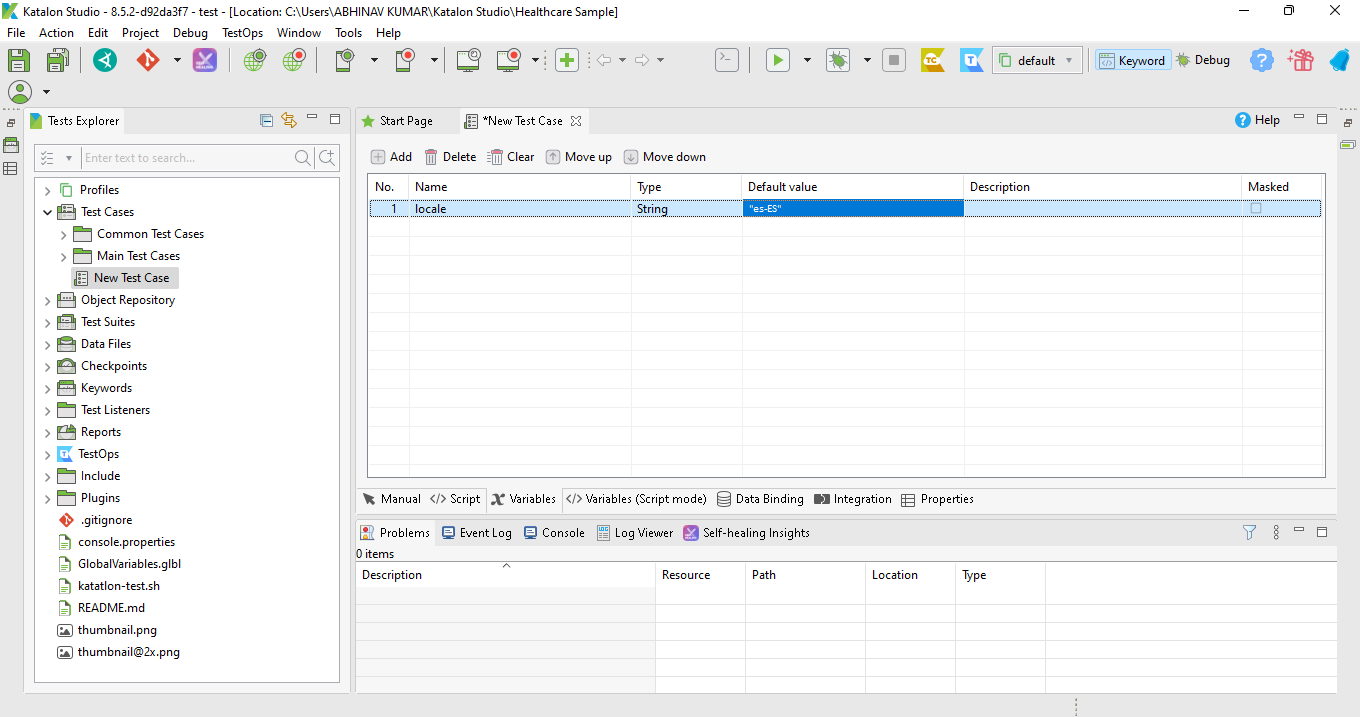
We have the Default value as “es-ES”. This is the default value for the Spanish language.
-
Using Configured Desired Capabilities, change the Chrome default language settings.
-
Change your Test Case tab to the Script tab.
-
Insert the code from the list below into your test script. You can change the testing browsers' locales using this code.
-
Change your Test Case tab to the Script tab.
Code:
import com.kms.katalon.core.configuration.RunConfiguration
Map prefs = [('intl.accept_languages') : locale]
RunConfiguration.setWebDriverPreferencesProperty("prefs", prefs)
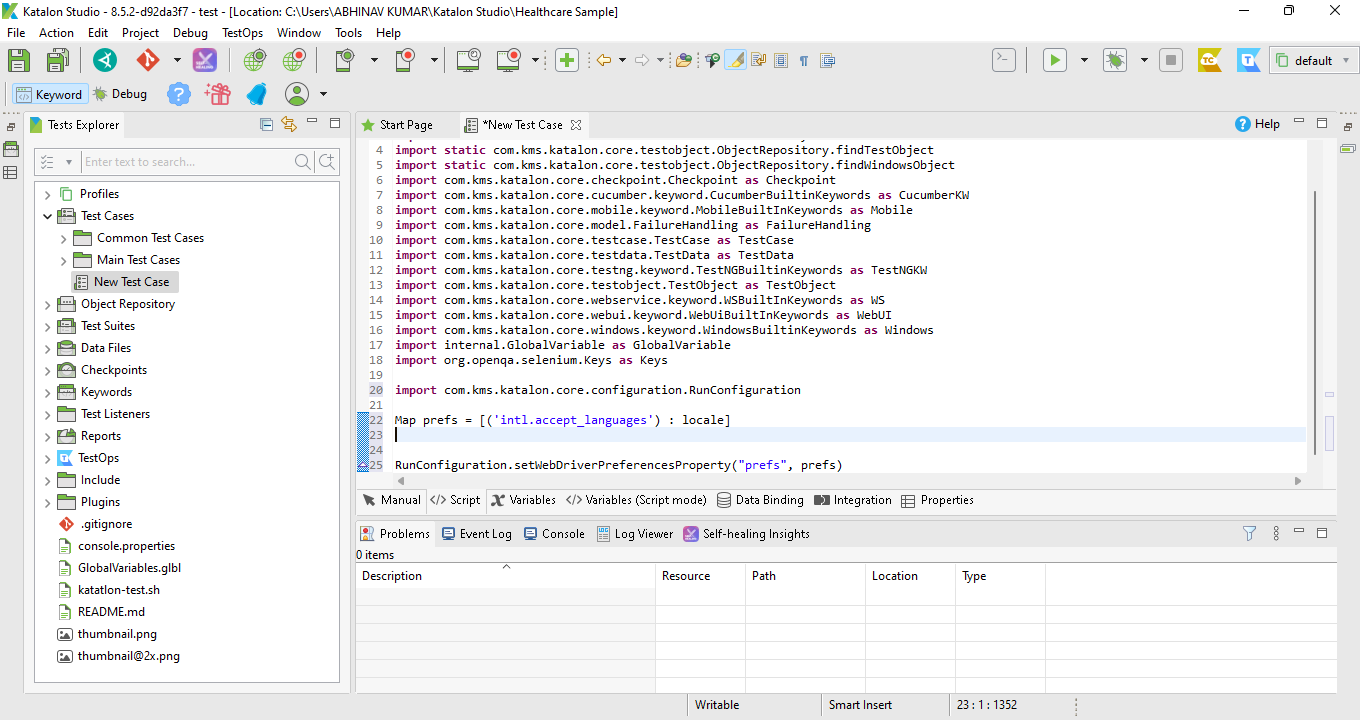
The Test case is ready to run in the Spanish Language.
Creating a Test Suite to test different languages
The following steps configure a test case with a different browser locale:
-
Select File -> New -> Test Suite.
- The command toolbar will appear. Click Add.
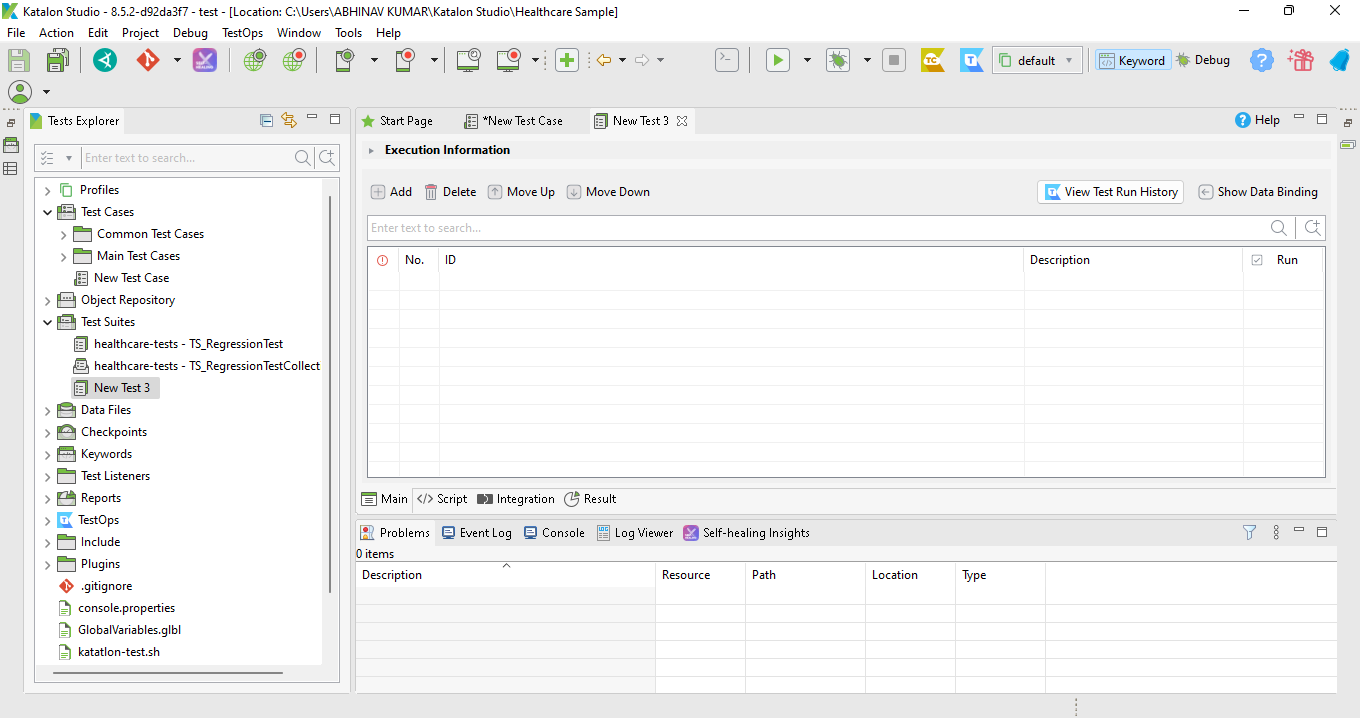
-
Select pre-configured test cases.
- Select File -> New -> Test Data.
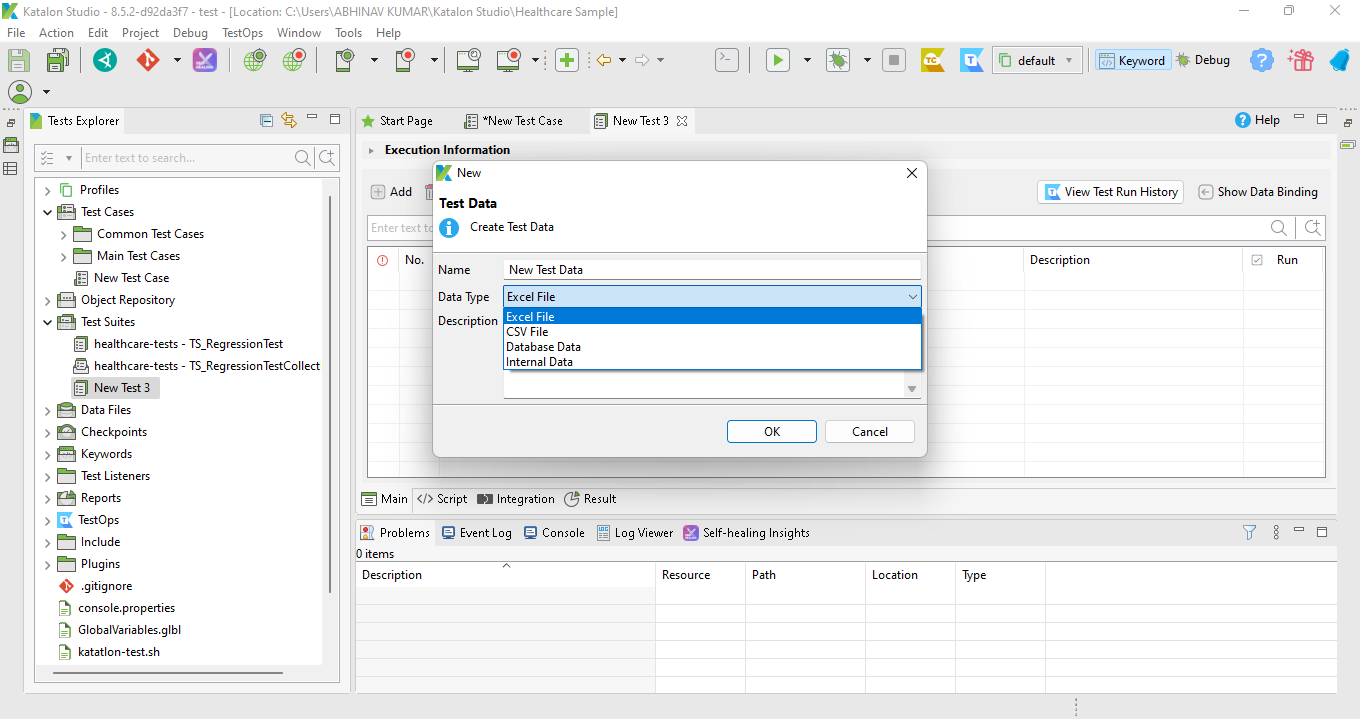
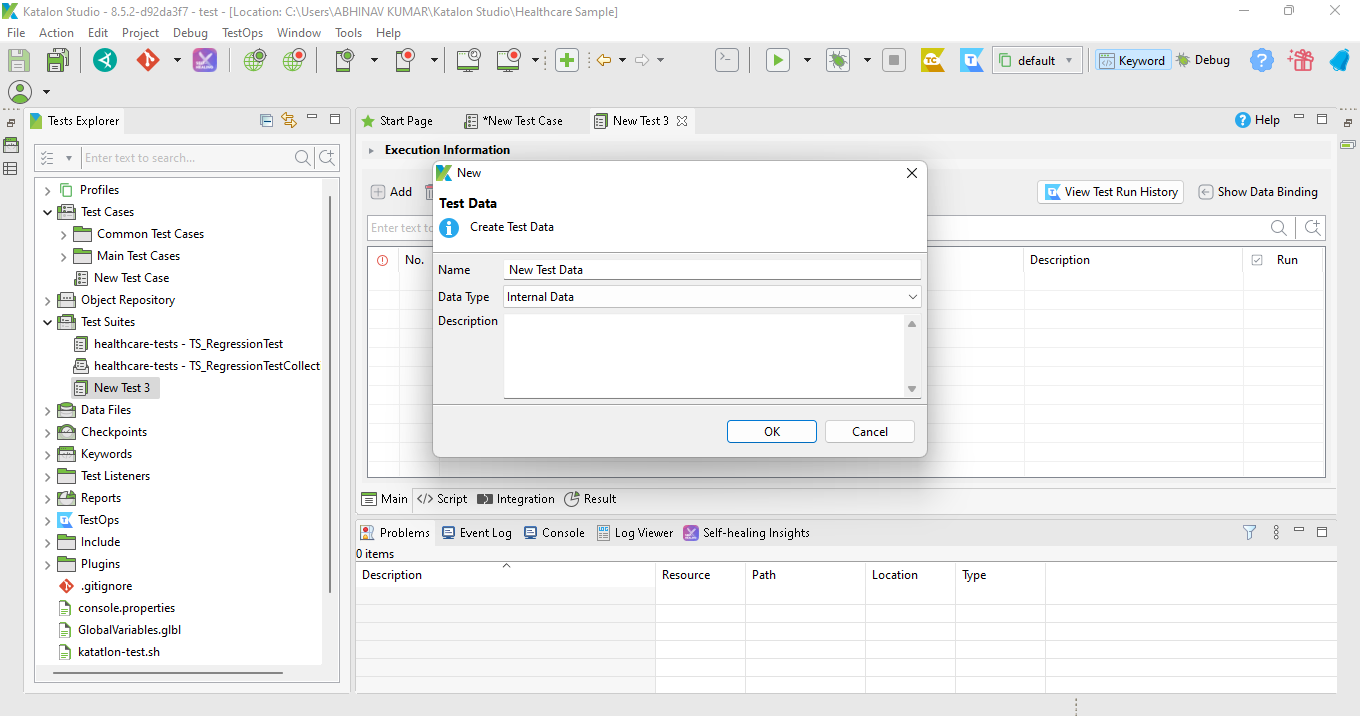
- Select Data Type as Internal Data.
-
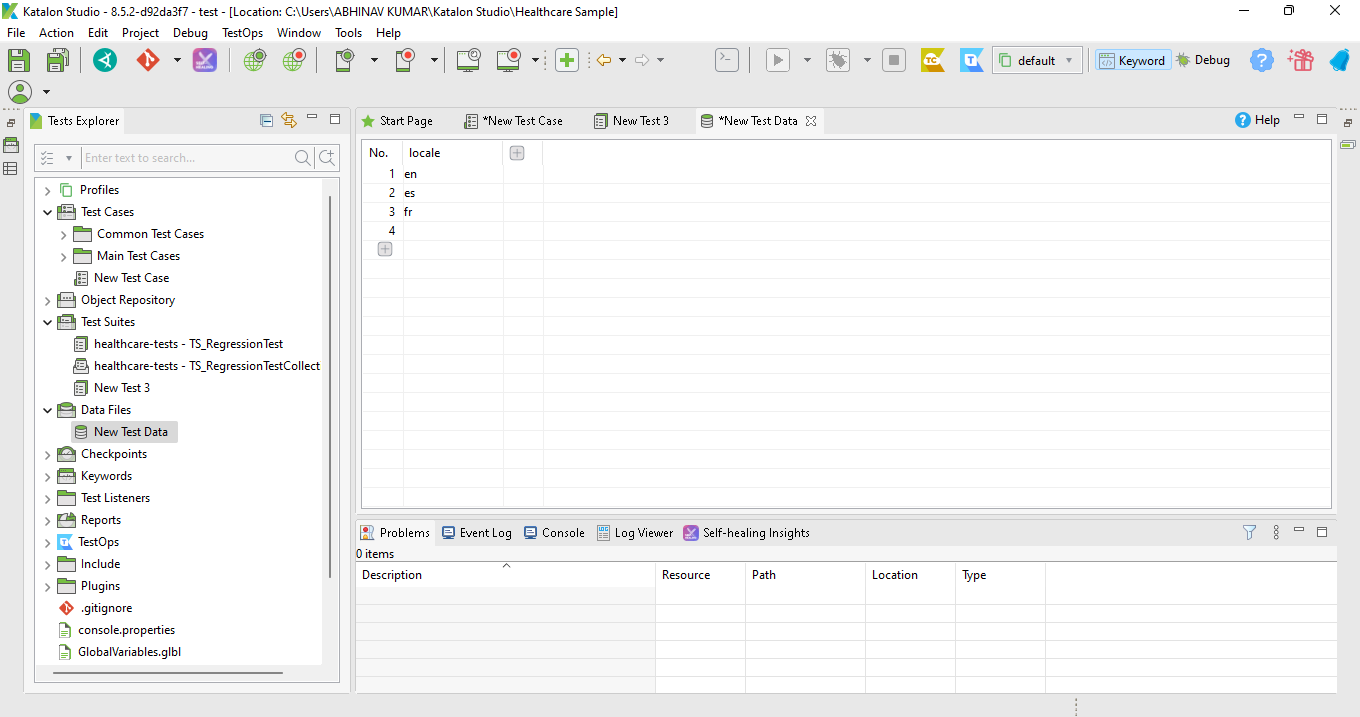
Enter the different languages for your browser.
-
On the Main page, Click on Show Data Binding.
- You will get the final result as shown:
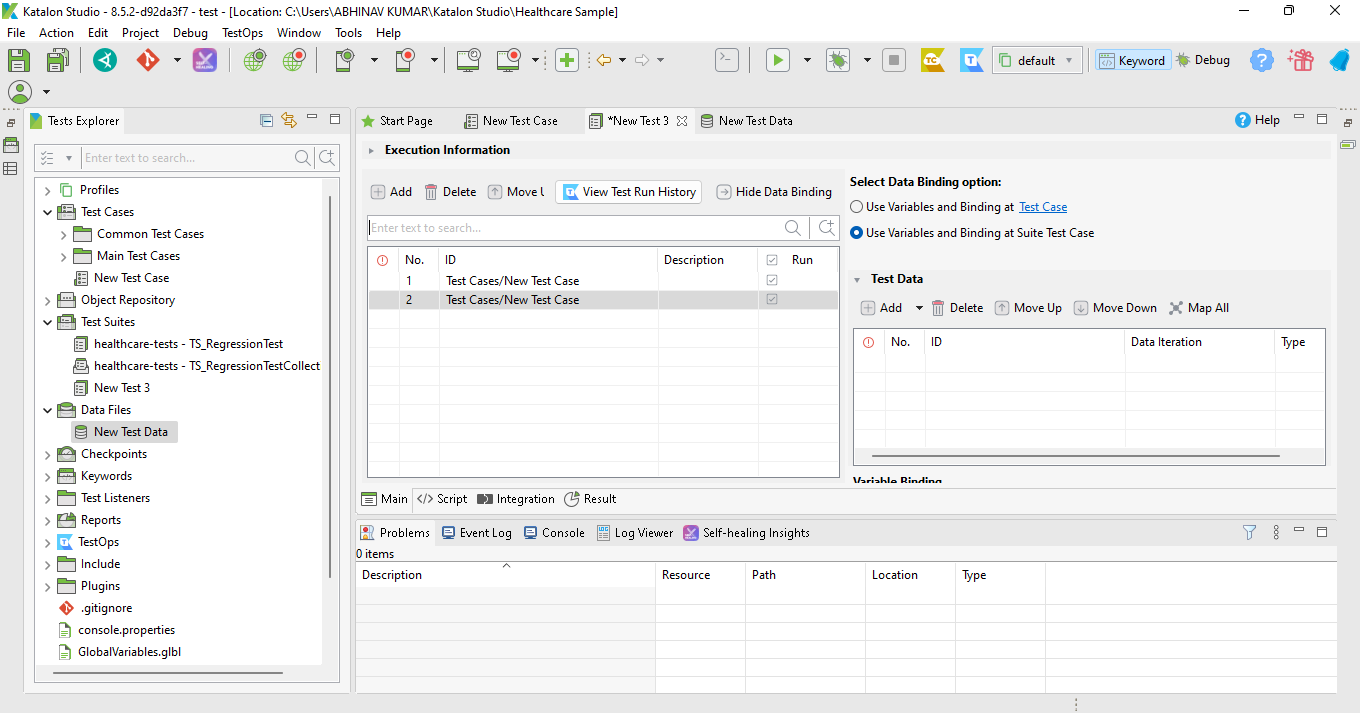
The Test Suite is ready to run in Different Languages.
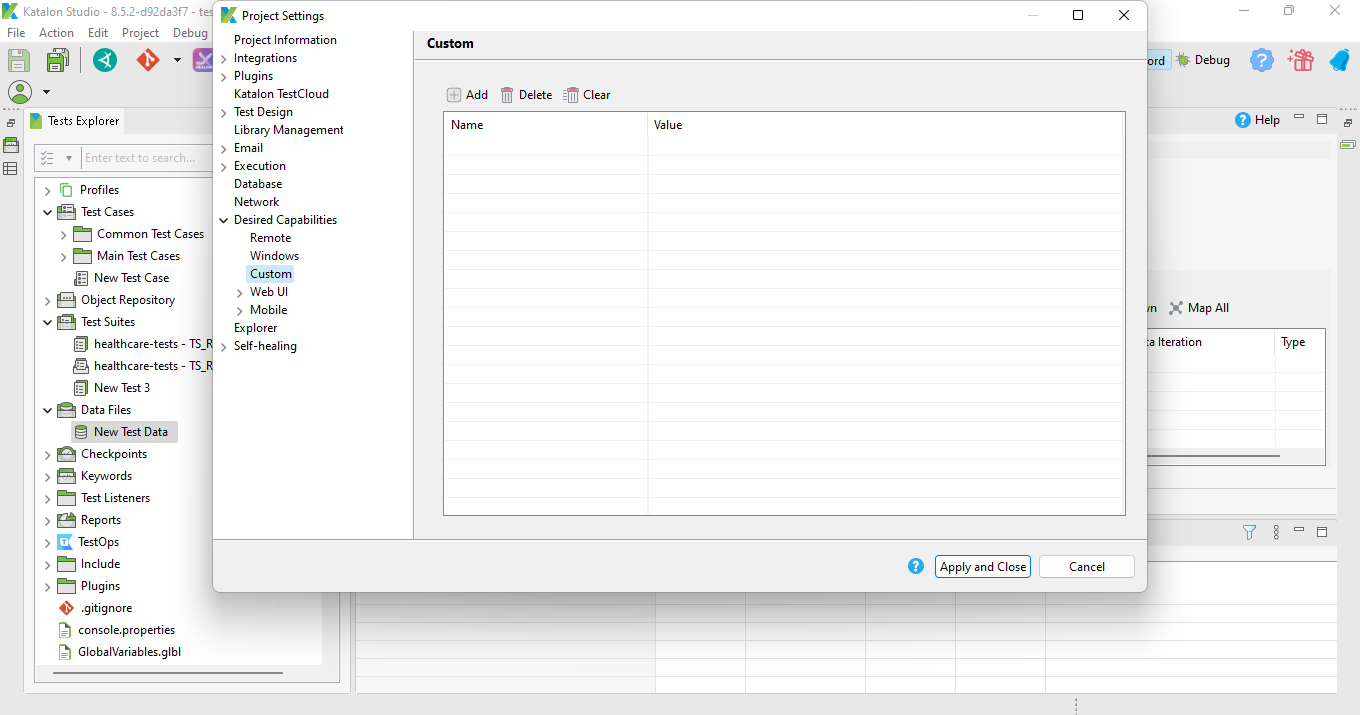
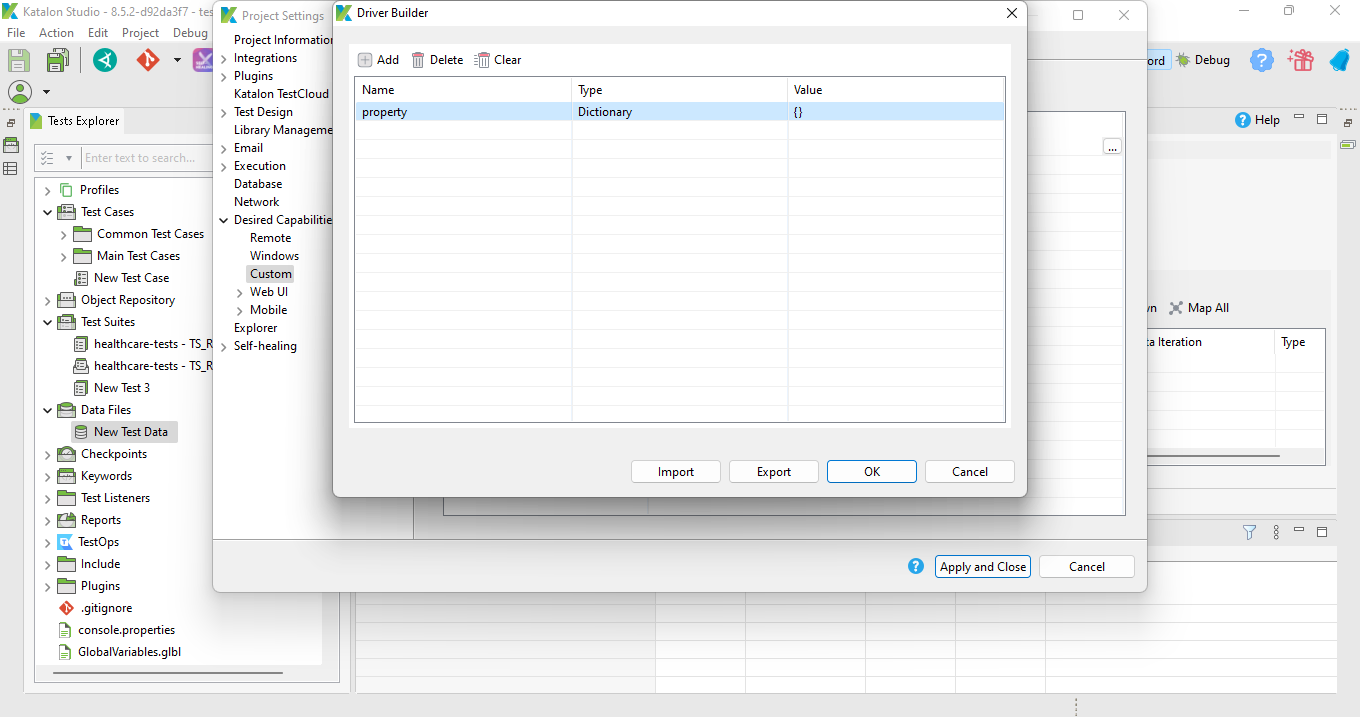
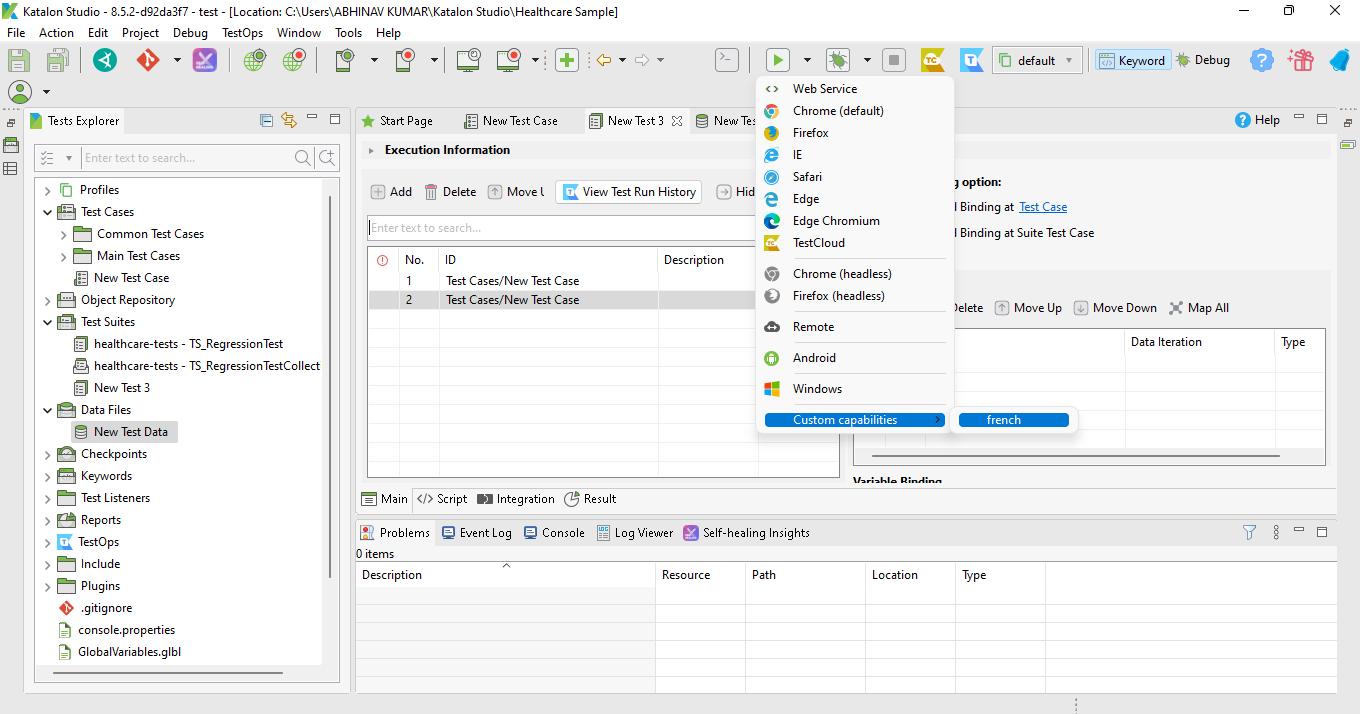
Let's look into the details of Using Custom Profiles in Desired Capabilities.




 5+ registered

