




Introduction
VueJs offers us some abstracts that can work with transitions and animations. These abstracts particularly respond to some changes. A few of these abstracts are:
- Hooks for components to enter and leave the DOM in CSS and Js; this uses the built-in <transition> component.
- Transition modes are also there, which can be used to orchestrate during a transition.
- Hooks are also used for multiple elements to update their position with the FLP techniques applied under the hood to increase performance. This can be achieved using the transition group component.
- Transition difference can be observed in a state within an application by using watchers.
This article covers all these sections in detail to help you give a brief overview of transitions in VueJs. Let's go through some basic web animation and transitions, which can link to some resources for further exploration.
Class-based Animations and Transitions
Instead of using the transition component, we can add an animation without mounting a component by simply adding a conditional class.
Let’s consider an example to create an animation by the use of a class-
Js File
const Demo = {
  data() {
    return {
      noActivated: false
    }
  }
}

Vue.createApp(Demo).mount('#demo')
CSS File
body {
  margin: 30px;
}

button {
  background:black;
  border-radius: 4px;
  display: inline-block;
  border: none;
  padding: 0.75rem 1rem;
  margin: 20px 10px 0 0;
  text-decoration: none;
  color: #ffffff;
  font-family: sans-serif;
  font-size: 1rem;
  cursor: pointer;
  text-align: center;
  -webkit-appearance: none;
  -moz-appearance: none;
}

button:focus {
  outline: 1px dashed #fff;
  outline-offset: -3px;
}

.shake {
  animation: shake 0.82s cubic-bezier(.36,.07,.19,.97) both;
  transform: translate3d(0, 0, 0);
  backface-visibility: hidden;
  perspective: 1000px;
}

@keyframes shake {
  10%, 90% {
    transform: translate3d(-1px, 0, 0);
  }

  20%, 80% {
    transform: translate3d(2px, 0, 0);
  }

  30%, 50%, 70% {
    transform: translate3d(-4px, 0, 0);
  }

  40%, 60% {
    transform: translate3d(4px, 0, 0);
  }
}
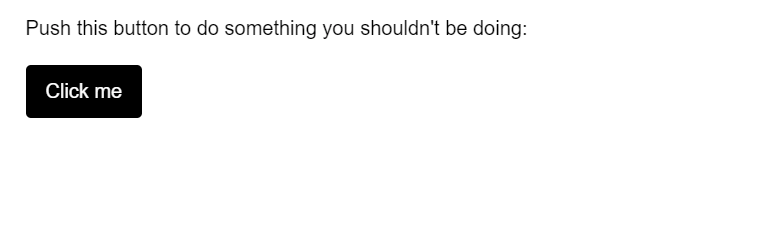
OUTPUT
Transitions with Style bindings
A few of the transition effects can be applied by interpolating values, and we can consider an example for the same. You have to bind a style element during which interaction coincides.
Js File
const Demo = {
  data() {
    return {
      x: 0
    }
  },
  methods: {
    xCoordinate(e) {
      this.x = e.clientX;
    }
  }
}

Vue.createApp(Demo).mount('#demo')
CSS File
#demo {
  width: 100vw;
  height: 100vh;
}
.movearea {
  position: absolute;
  top: 0;
  left: 0;
  width: 100vw;
  height: 100vh;
  padding: 6vmin;
  transition: 0.2s background-color ease;
}
OUTPUT

In the above example, we have created an animation using interpolation of the axis, where we have attached it to the mouse movement. The CSS transitions change the background color according to the direction of your mouse.



 39+ registered

