Do you think IIT Guwahati certified course can help you in your career?
Introduction
Turtle programming in Python is a fun and engaging way to introduce programming concepts, especially for beginners. Using the built-in turtle module, users can create graphics and drawings by controlling a virtual "turtle" that moves around the screen. This approach allows you to explore key programming concepts such as loops, functions, and variables while creating visually appealing output. Whether you're creating simple shapes or complex patterns, turtle graphics provide an excellent hands-on learning experience. In this blog, we’ll dive into the basics of Turtle programming.
What is a Python turtle?
In Python, the turtle is a built-in graphics module that allows for the creation of drawings and graphics in a fun, interactive way. It provides a "turtle" that moves around the screen, drawing lines as it goes. The concept of the "turtle" comes from the idea of controlling a pen (or turtle) attached to a drawing tool, which leaves a trail as it moves. You can control this virtual turtle using commands to make it draw shapes, patterns, and even animations.
Turtle Programming in Python
Turtle is a pre-installed module in python that lets you draw various shapes and figures using python with a provided virtual canvas. Using this, you can create graphics, pictures, and games. Students or kids can create fun programs with only a few lines and code with turtle programming.
There are 4 steps that you need to follow to use the turtle library in python. They are
Import the turtle library.
Create a virtual canvas or window
Use various functions available in the turtle module to draw figures
Run the turtle.done() command to see the results.
First of all, we will import the turtle library, as it is a pre-installed library; you do not need to download it explicitly. You can write import turtle, and you are good to go and use its various functionalities.
Below is the syntax for importing the turtle module.
import turtle
    # or
import turtle as tt
    # or
from turtle import *
After running the above commands to import the turtle module, you will have all the functionalities to draw the shapes you want. The next step is to create a virtual canvas or a window. We can create a window wd, using a turtle object tt by using the following code block.
Now, after creating the window, you are free to use any command of the turtle module to instruct the turtle to move and draw your desired shapes. Following is the code to move the turtle forward by 200 and then rotate clockwise by 90 degrees and forward by 100.
tt.forward(200)
tt.right(90)
tt.forward(100)
After writing the command, the final step is to run the turtle.done() command to finish the program.
turtle.done()
Example of Turtle Programming in Python
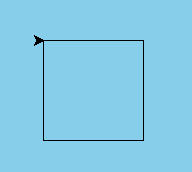
A complete python program to create a square using the turtle module
# Importing turtle module
import turtle
# Creating a virtual canvas or a window
wd = turtle.Screen()
wd.bgcolor("sky blue")
wd.title("Turtle programming")
tt = turtle.Turtle()
# Using turtle functions to draw a square
for i in range(4):
tt.forward(100)
tt.right(90)
# Finish by turtle.done() command
turtle.done()
Output
You can practice by yourself with the help of online python compiler for better understanding.
How do I install Turtle in Python?
The turtle module is typically included by default in the standard Python library, so in most cases, you don't need to install it separately. However, if you're using a version of Python that doesn't have the turtle module installed, or if you're working in a specific environment where it's missing, you may need to install it.
Here’s how you can check and install the turtle module in Python:
1. Check if Turtle is Already Installed
First, check if the turtle module is available in your Python environment. You can do this by simply trying to import it in a Python script or in the Python shell:
import turtle
If there are no errors and the import is successful, then turtle is already installed, and you can start using it.
If you get an error like ModuleNotFoundError: No module named 'turtle', it means that the turtle module is not available in your Python setup.
2. Install Turtle if Not Already Installed
If you're using Python on Linux or other operating systems where the turtle module might not be installed by default, you can install it manually. Here's how:
For Windows/Mac (Usually Pre-installed)
Turtle should be pre-installed with Python, so you typically don’t need to install anything extra.
For Linux (Debian-based systems like Ubuntu)
If you're on a Linux system (such as Ubuntu), you may need to install the python3-turtle package. You can do this using the apt-get command in your terminal:
sudo apt-get install python3-turtle
This will install the turtle module for Python 3, and you can start using it.
For Linux (Other Distributions)
If you're using a different Linux distribution, you might need to use your distribution's package manager to install turtle:
sudo yum install python3-turtle  # For CentOS/RHEL
sudo pacman -S python-turtle     # For Arch Linux
3. Using Turtle in Virtual Environments
If you're working with a virtual environment (created using venv or virtualenv), ensure that your environment has access to the standard library. Since turtle is part of the standard library, it should work automatically when the environment is set up correctly. Just activate your virtual environment and run the Python script that imports turtle.
Some of the commonly used turtle methods
Turtle Function
Description
Turtle()
Takes no parameters. Creates and returns a turtle object.
forward(distance) or fd(distance)
Moves the turtle forward by the distance passed as the parameter.
backward(distance) or bk(distance) or back(distance)
Moves the turtle backward by the specified distance.
right(angle) or rt(angle)
Takes an argument angle and rotates the turtle clockwise by the specified angle.
left(angle) or lt(angle)
Takes an argument angle and rotates the turtle anti-clockwise by the specified angle.
penup() or pu() or up()
Takes no argument; picks up the turtle’s pen. The turtle does not draw when moved with the pen up.
pendown() or pd() or down()
Takes no argument; puts down the turtle’s pen. The turtle will draw a line when it is moved with the pen down.
goto(x, y=None) or setpos(x, y=None) or setposition(x, y=None)
Moves the turtle to the specified position (x, y). If y is None, then x must be a pair in the form (x,y). If the pen is down, it will draw a line.
setx(x)
Sets the x-coordinate of the turtle’s pen to x, without changing the y-coordinate.
sety(y)
Sets the y-coordinate of the turtle’s pen to y, without changing the x-coordinate.
setheading(to_angle) or seth(to_angle)
Sets the orientation of the turtle’s pen to the specified angle (to_angle).
position() or pos()
Returns the current position of the turtle.
xcor()
Gives the x-coordinate of the turtle.
ycor()
Gives the y-coordinate of the turtle.
pensize(amount) or width(amount)
Sets the turtle’s pen size to the specified amount. If no parameter is given, it returns the current pen size.
begin_fill()
Marks or remembers the starting position of the polygon to fill color.
end_fill()
Ends the polygon and fills the specified color.
reset()
Deletes the turtle’s drawings from the screen, re-centers the turtle, and sets variables to their default values.
The Python Turtle module offers numerous advantages, particularly for beginners and those interested in graphical programming. Below are some key benefits of using Python Turtle:
1. Easy to Learn and Use
Beginner-Friendly: Turtle programming is highly intuitive, making it ideal for beginners. It allows users to understand fundamental programming concepts like loops, variables, and functions in a visual and interactive way.
Simple Syntax: The commands and syntax used in Turtle are easy to understand. For instance, turtle.forward(100) moves the turtle forward by 100 units, and turtle.right(90) turns it 90 degrees.
2. Visual Feedback
Immediate Results: With Turtle, users can immediately see the output of their code as a visual representation on the screen. This immediate feedback helps users quickly understand the effects of their code and debug easily.
Encourages Creativity: By drawing shapes, patterns, and animations, Turtle provides a creative platform for users to experiment with code and produce visual art.
3. Interactive Programming
Interactive Learning Tool: Python Turtle is often used in educational settings, particularly for teaching programming to children. It allows them to interact with the turtle in real time and see how their code affects the drawing.
Engages Visual Learners: It supports learners who benefit from visual representations, as they can directly correlate what they see on the screen with what they are programming.
4. Teaches Core Programming Concepts
Understanding Loops: Turtle programming is a great way to understand and practice loops. For example, drawing a star or polygon requires repeating the same set of commands in a loop.
Learning Functions: Functions can be created to draw specific shapes or perform repeated actions, teaching users the concept of modular programming.
Event Handling: Users can work with event-driven programming by using the turtle’s built-in onclick() function to make interactive graphics.
5. Cross-Platform Compatibility
Works on All Major Platforms: Python Turtle is compatible with all major operating systems, including Windows, macOS, and Linux. This makes it accessible to a wide audience regardless of the platform.
No Need for External Libraries: The Turtle module is built into Python, so no additional libraries or installations are required, making it a hassle-free tool for graphical programming.
6. Used for Game Development and Animation
Basic Animation: Turtle can be used to create basic animations by repeatedly updating the drawing on the screen. This is a good way to introduce animation concepts to beginners.
Game Development: Simple games like racing games or interactive activities can be built using Turtle, making it an excellent starting point for those interested in learning game development.
Frequently Asked Questions
How do you launch a turtle in Python?
To launch a Turtle in Python, first import the Turtle module using import turtle. Then, create a turtle object with t = turtle.Turtle(). Finally, use turtle.done() to display the window and start the Turtle graphics.
Is turtle a pre-installed library?
Yes, turtle comes in the standard python package, so it does not need to be downloaded explicitly. You can import it directly into your program.
What is the use of turtle programming in python?
Turtle programming is used to create graphics, pictures, and games. Students or kids can create fun programs with only a few lines and code with turtle programming
What command is used to create a virtual canvas or a window to draw figures in turtle programming?
The turtle.Screen() command is used to create a virtual canvas or a window to draw figures in turtle programming.
What is the difference between pendown and down in turtle library?
In the Turtle library, pendown() and down() serve the same purpose; both functions put the turtle's pen down, enabling it to draw when it moves. They are interchangeable, so you can use either to achieve the same effect.
Conclusion
In this article, we discussedturtle programming in Python. Turtle programming in Python offers a unique and engaging way to learn coding, blending creativity with fundamental programming concepts. Its simple yet powerful commands allow users to visualize their code in action, making it an ideal tool for beginners and educators alike. By exploring the various functions and features of the Turtle library, you can create captivating graphics and animations while developing essential problem-solving skills.






 1+ registered

