

Table of contents
1.
Introduction
2.
Charts
2.1.
Installing Charts for Vaadin Flow
3.
Maven Dependency
4.
Installing a License Key
5.
Basic Use of Charts
6.
Basic Chart Configuration
7.
Plot Options
8.
Chart Data Series
9.
Axis Configuration
10.
Displaying Multiple Series
11.
Mixed Type Charts
12.
Frequently Asked Questions
12.1.
Is Vaadin capable of handling large applications?
12.2.
Can Vaadin be used to create PWAs?
12.3.
How are Vaadin apps unit tested?
13.
Conclusion
Last Updated: Mar 27, 2024
Medium

Vaadin - Charts

Career growth poll
Do you think IIT Guwahati certified course can help you in your career?

Introduction

Vaadin (formerly Vaadin Framework) is a Java web framework for developing web applications and websites. Vaadin's programming model allows developers to use Java as the programming language for implementing User Interfaces (UIs) without directly using HTML or JavaScript.

Vaadin

In this article, we will discuss Vaadin charts. We will start by introducing the basics of the Vaadin charts. Afterward, we will discuss installing Vaadin charts for Vaadin flow, the maven dependency, and the associated license key. 

We will also discuss the basic use of vaadin charts by going through basic chart configuration, plot options, chart data series, and axis configuration. At last, we will know how to display multiple series and discussion of mixed-type charts, concluding our discussion of Vaadin charts. So let’s get started!

Charts

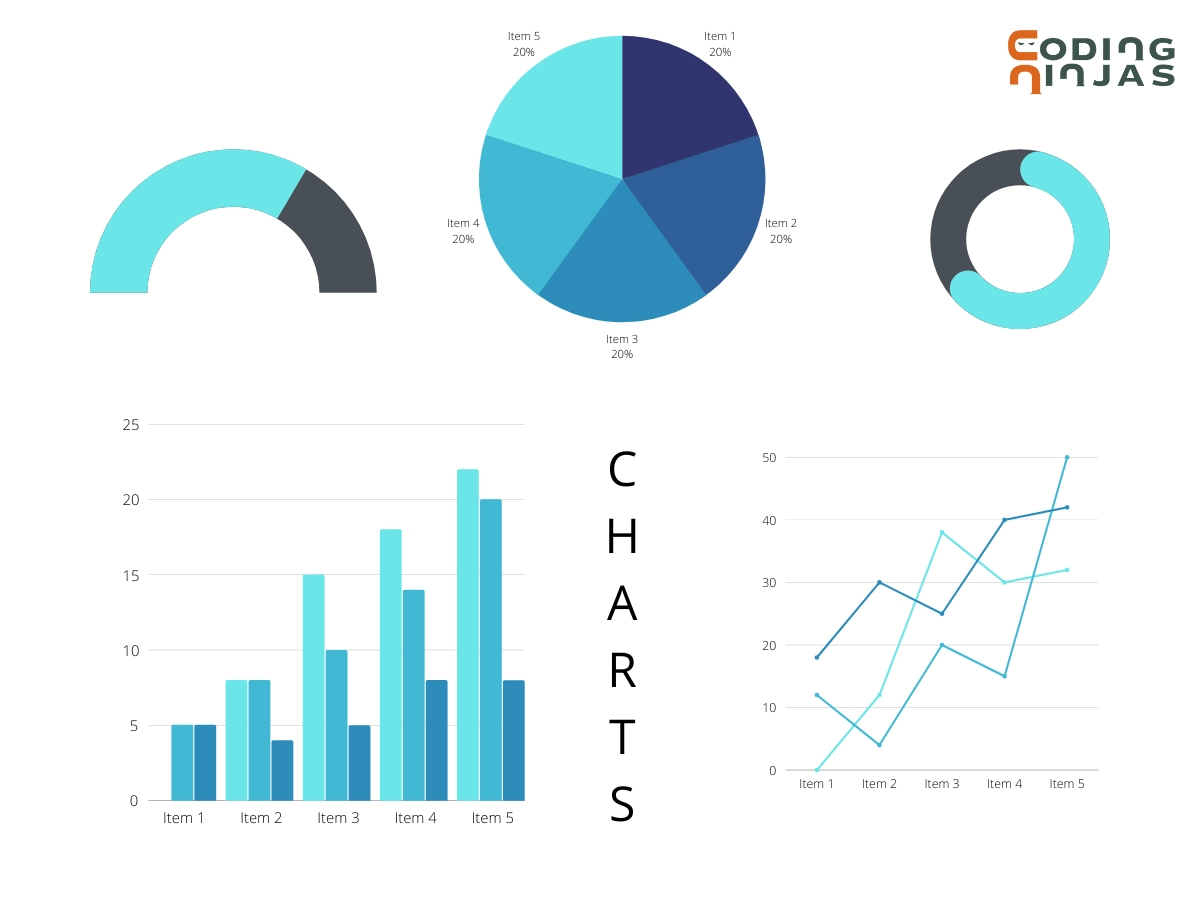
A chart is a graphical representation of data that "represents the data by symbols such as  lines in a line chart, the slices in a pie chart, or bars in a bar chart." A chart can represent tabular numeric data, functions, or some types of quality structure and provide various types of information.

Chart tools are powerful, easy to use, and completely free.

Let’s consider the following chart program to better understand Vaadin charts and how to implement them.

render() {
  return html`
// Making Vaadin chart for a column group
    <vaadin-chart
      id="vaadin-chart-1"
      type="column"
      categories='["Jan", "Feb", "Mar"]'
      additional-options='{ "yAxis": { "title": { "text": "" } } }'
    >
      <vaadin-chart-series title="Tokyo" values="[49.9, 71.5, 106.4]"></vaadin-chart-series>
      <vaadin-chart-series title="New York" values="[83.6, 78.8, 98.5]"></vaadin-chart-series>
      <vaadin-chart-series title="London" values="[48.9, 38.8, 39.3]"></vaadin-chart-series>
    </vaadin-chart>


    <vaadin-chart
      type="area"
      stacking="normal"
      categories='["Jan", "Feb", "Mar", "Apr", "May", "Jun", "Jul", "Aug", "Sep", "Oct", "Nov", "Dec"]'
      tooltip
      no-legend
      additional-options='{
        "yAxis": {
          "title": {
            "text": ""
          }
        },
        
        
         "xAxis": {
          "visible":false
        },
        "plotOptions": {
          "series": {
            "marker": {
              "enabled": false
            }
          }
        }
      }'
    >
    
    
      <vaadin-chart-series
        title="United States dollar"
        values="[135, 125, 89, 124, 105, 81, 111, 94, 95, 129, 98, 84]"
      ></vaadin-chart-series>
      
      <vaadin-chart-series
        title="Euro"
        values="[62, 72, 89, 68, 94, 92, 110, 100, 109, 89, 86, 105]"
      ></vaadin-chart-series>
      
      <vaadin-chart-series
        title="Japanese yen"
        values="[30, 25, 32, 26, 15, 31, 24, 32, 21, 8, 12, 32]"
      ></vaadin-chart-series>
      
      <vaadin-chart-series
        title="Poud sterling"
        values="[32, 21, 8, 12, 32, 21, 12, 30, 25, 19, 26, 15]"
      ></vaadin-chart-series>
    </vaadin-chart>


// Making a pie chart 
    <vaadin-chart
      type="pie"
      tooltip
      additional-options='{
        "tooltip": {
          "pointFormat": "{series.name}: <b>{point.percentage:.1f}%</b>"
        },
        "plotOptions": {
          "pie": {
            "allowPointSelect":true,
            "cursor": "pointer",
            "innerSize": "60%"
          }
        }
      }'
    >
    
      <vaadin-chart-series
        title="Brands"
        values='[
          {
            "name": "Chrome",
            "y": 38
          },
          {
            "name": "Firefox",
            "y": 24
          },
          {
            "name": "Edge",
            "y": 15,
            "sliced": true,
            "selected": true
          },
          {
            "name": "Internet Explorer",
            "y": 8
          }
      ]'
      ></vaadin-chart-series>
    </vaadin-chart>


// Making a polar chart
    <vaadin-chart
      polar
      additional-options='{
        "xAxis": {
          "tickInterval": 45,
          "min": 0,
          "max": 360,
          "labels": {},
          "visible":false
        },
        "yAxis": {
          "min":0
        },
        "plotOptions": {
          "series": {
            "pointStart": 0,
            "pointInterval":45
          },
          "column": {
            "pointPadding": 0,
            "groupPadding": 0
          }
        }
      }'
    >
    
      <vaadin-chart-series
        type="column"
        title="Column"
        values="[8, 7, 6, 5, 4, 3, 2, 1]"
        additional-options='{ "pointPlacement": "between" }'
      ></vaadin-chart-series>
      <vaadin-chart-series type="line" title="Line" values="[1, 2, 3, 4, 5, 6, 7, 8]">
      </vaadin-chart-series>
      <vaadin-chart-series type="area" title="Area" values="[1, 8, 2, 7, 3, 6, 4, 5]">
      </vaadin-chart-series>
    </vaadin-chart>


    <label>
      Theme:
      <select @change="${this.changeTheme}">
        <option value="">Default</option>
        <option value="gradient">Gradient</option>
        <option value="monotone">Monotone</option>
        <option value="classic">Classic</option>
      </select>
    </label>
  `;


Output:

Vaadin charts


Installing Charts for Vaadin Flow

Using Vaadin Charts necessitates using a license key, which will be requested during development time after 24 hours of the application being opened for the first time with Vaadin Charts.
Maven Dependency

Install Charts by adding the dependency (here as a Maven dependency in pom.xml) to the project:

<dependency>
    <groupId>com.vaadin</groupId>
    <artifactId>vaadin-charts-flow</artifactId>
</dependency>


As long as you have vaadin-bom imported, you do not need to specify the version number. Otherwise you have to specify the version number as follows:

<version>6.0.0</version>

Change the version number to the one you need.


If it has not already been defined, you must also define the Vaadin add-ons repository:

<repository>
   <id>vaadin-addons</id>
   <url>https://maven.vaadin.com/vaadin-addons</url>
</repository>

Installing a License Key

To develop your application with Charts, you must have a valid license. After 24 hours of opening the application with Charts in a local browser, you will see a pop-up asking you to validate your subscription. 

This pop-up will open a new tab where you must log in with your Vaadin account. If the license is valid, it will be saved to the browser's local storage, and you will not see the pop-up again.

Basic Use of Charts

The Chart class is a standard component that can be added to a layout. The chart type can be specified in the function or later in the chart model.

Syntax:

Chart chart = new Chart(ChartType.COLUMN);

//or

Chart chart = new Chart();
chart.getConfiguration().getChart().setType(ChartType.COLUMN);
...
layout.add(chart);
Charts

To display something in a chart, you must typically configure the following aspects:

  • Configuration of a basic chart
  • Options for plotting the chart type
  • Display one or more data series
  • Axes

Plot options can be set individually for each data series or for different chart types in mixed-type charts.

Basic Chart Configuration

You must configure a chart after it has been created. In the configuration, you must, at the very least, specify the data series to be displayed.

The Chart object's basic component properties are handled by most of its methods. The chart's properties are stored in a separate Configuration object, which can be accessed using the getConfiguration() method.

Configuration conf = chart.getConfiguration();
conf.setTitle("Reindeer Kills by Predators");
conf.setSubTitle("Kills Grouped by Counties");

Plot Options

Many chart settings can be configured in the chart or data series plot options. Some options are chart-type specific, as explained further below for each chart type, while many are shared.

For example, you could disable point markers in line charts by doing the following:

// Disable markers from lines
PlotOptionsLine plotOptions = new PlotOptionsLine();
plotOptions.setMarker(new Marker(false));
conf.setPlotOptions(plotOptions);

Chart Data Series

The data displayed in a chart is saved as a list of Series objects in the chart configuration. The addSeries() method adds a new data series to a chart.

The data can be specified using a variety of series types, including DataSeries, ListSeries, HeatSeries, and TreeSeries.

The versatile DataSeries, which contains DataSeriesItem items, can be used to define data point features such as names and data labels. Special chart types, such as box plots and 3D scatter charts, necessitate the use of a unique data point type.

ListSeries series = new ListSeries("Diameter");
series.setData(4900,  12100,  12800,
               6800,  143000, 125000,
               51100, 49500);
conf.addSeries(series);

Axis Configuration

Customizing the axes is one of the most common chart tasks. You should usually set the axis titles as a minimum. Labels for data values in the axes are typically specified as well.

Category labels can be assigned to the items when an axis is categorical rather than numerical. They must be in the same order and count as the values in your data series.

XAxis xaxis = new XAxis();
xaxis.setCategories("Mercury", "Venus",   "Earth",
                    "Mars",    "Jupiter", "Saturn",
                    "Uranus",  "Neptune");
xaxis.setTitle("Planet");
conf.addxAxis(xaxis);

Displaying Multiple Series

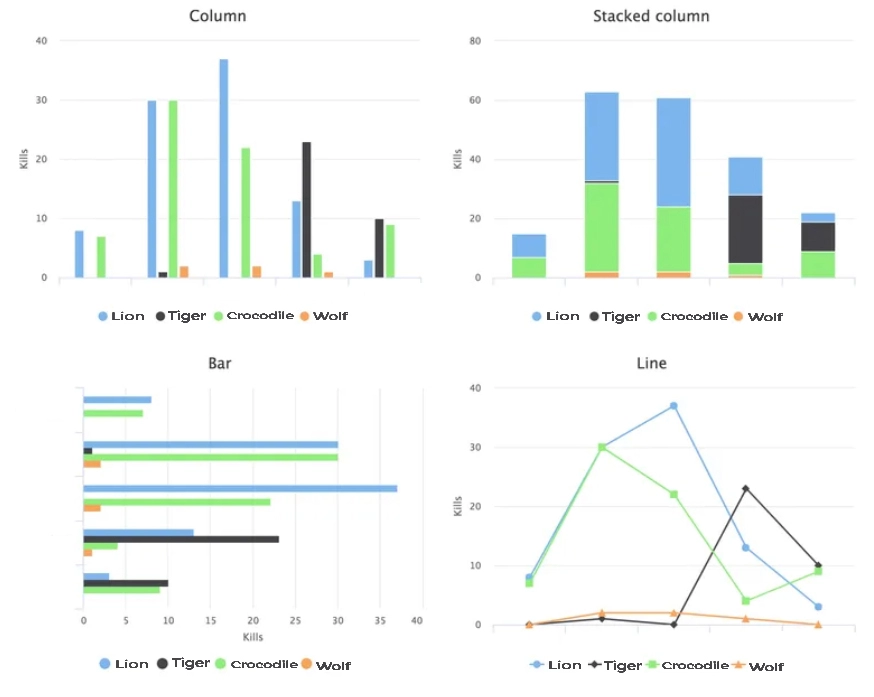
The most basic data, as seen in the examples earlier in this chapter, is one-dimensional and can be represented by a single data series. Most chart types allow for multiple data series to be used to represent two-dimensional data. 

Line charts, for example, can have multiple lines, whereas column charts group the columns for different series by category. Various chart types, such as stacked columns, can provide alternative display modes. The symbols for each series are displayed in the legend.

String predators[] = {"Lion", "Tiger", "Crocodile", "Wolf"};
int kills[][] = {       
        {8,   0,  7, 0}, 
        {30,  1, 30, 2}, 
        {37,  0, 22, 2}, 
        {13, 23,  4, 1}, 
        {3,  10,  9, 0}, 
};

// Create a data series for each numeric column in the table
for (int predator = 0; predator < 4; predator++) {
    ListSeries series = new ListSeries();
    series.setName(predators[predator]);

    // The rows of the table
    for (int location = 0; location < kills.length; location++)
        series.addData(kills[location][predator]);
    conf.addSeries(series);
}


Output:

Output chart image

Mixed Type Charts

You can enable mixed charts by overriding the default chart type set in the Chart object by setting the chart type in the PlotOptions object for a data series. You can also control the animation and other series settings in the plot options.

For example, to create a line chart, use PlotOptionsLine.

// A data series as a column graph
DataSeries series1 = new DataSeries();
PlotOptionsColumn options1 = new PlotOptionsColumn();
series1.setPlotOptions(options1);
series1.setData(4900,  12100,  12800,
    6800,  143000, 125000, 51100, 49500);
conf.addSeries(series1);

// A data series as a line graph
ListSeries series2 = new ListSeries("Diameter");
PlotOptionsLine options2 = new PlotOptionsLine();
series2.setPlotOptions(options2);
series2.setData(4900,  12100,  12800,
    6800,  143000, 125000, 51100, 49500);
conf.addSeries(series2);


The overall chart type is irrelevant in this case because we set the chart type for each series.

Frequently Asked Questions

Is Vaadin capable of handling large applications?

Yes, the client JavaScript size is not dependent on the app size when using the server-side Flow framework, so a 100-view application loads just as quickly as a single-view application.

Client-side Hilla apps can delay loading views or parts of the app until they are required. You can ensure that your build automatically bundles code in an optimal way by using dynamic import() statements.

Can Vaadin be used to create PWAs?

Yes. By default, Vaadin applications are progressive web apps. The starters create a manifest file and a service worker for an offline fallback page. Colors, icons, and the offline page can all be customized.

How are Vaadin apps unit tested?

For unit testing, you can use JUnit or any other Java framework. Vaadin Test Bench can also be used to implement integration tests that interact with your application and allow you to verify conditions on these interactions.

Conclusion

In this article, we have extensively discussed the Vaadin basic layouts. We started by introducing the basics of the Vaadin charts. Afterward, we discussed installing Vaadin charts for Vaadin flow, the maven dependency, and installing a license key. 

We also discussed using vaadin charts by going through basic chart configuration, plot options, chart data series, and axis configuration. At last, we discussed how to display multiple series and mixed-type charts, concluding our discussion of Vaadin charts.

If you think this blog has helped you with Vaadin basic layouts, and if you want to learn more, check out our articles 

You can also refer to our guided path on the basics of java and many more on our Website.

Refer to our Guided Path on Coding Ninjas Studio to upskill yourself in Data Structures and AlgorithmsCompetitive ProgrammingJavaScriptSystem Design, and many more! If you want to test your competency in coding, you may check out the mock test series and participate in the contests hosted on Coding Ninjas Studio! 

But suppose you have just started your learning process and are looking for questions asked by tech giants like Amazon, Microsoft, Uber, etc. In that case, you must look at the problemsinterview experiences, and interview bundle for placement preparations.

Nevertheless, you may consider our paid courses to give your career an edge over others!

Happy Learning!

Live masterclass


