
Source: Link
Introduction
Active Server Pages (ASP) and Active Server Pages (ASP.NET) are server-side technologies for displaying interactive web pages. ASP.NET offers developers a wide range of options in a large, diverse ecosystem of libraries and tools. Developers can also design custom libraries that can be shared with any .NET platform application.
ASP.NET also contains an authentication system for developers, which includes a database, libraries, templates for handling logins, external authentication to Google, Facebook, and other services, and more. ASP.NET may be used on all major platforms, including Windows, Linux, macOS, and even Docker, by developers.
Backend code for ASP.NET apps can be written in C#, Visual Basic, or even F#. Developers can effectively code the business logic and data access layer because of this flexibility. Another big benefit of utilising ASP.NET is the ability to create dynamic web pages in C# using the Razor webpage template grammar tool.
In addition to HTML, CSS, JavaScript, and C#, Razor has a syntax for constructing interactive dynamic web pages. Client-side code is commonly written in JavaScript, and ASP.NET can even operate with other web frameworks like Angular or React.
Creating a Web Form for User Registration
Web Forms are pages which are requested by your users through their browser. HTML, client-script, server controls, and server code can all be used to create these pages. When users request a page, the framework compiles and executes it on the server, then generates the HTML markup that the browser may render. In any browser or client device, an ASP.NET Web Forms page displays information to the user.
ASP.NET Web Forms may be created with Visual Studio. Drag and drop server controls to set out your Web Forms page in the Visual Studio Integrated Development Environment (IDE). The methods, properties, and events for controls on the page, as well as the page itself, can then be readily set. These attributes, methods, and events are used to define the behaviour, appearance, and feel of a web page, among other things. We can use .NET language like Visual Basic or C# to develop server code to handle the page's logic.
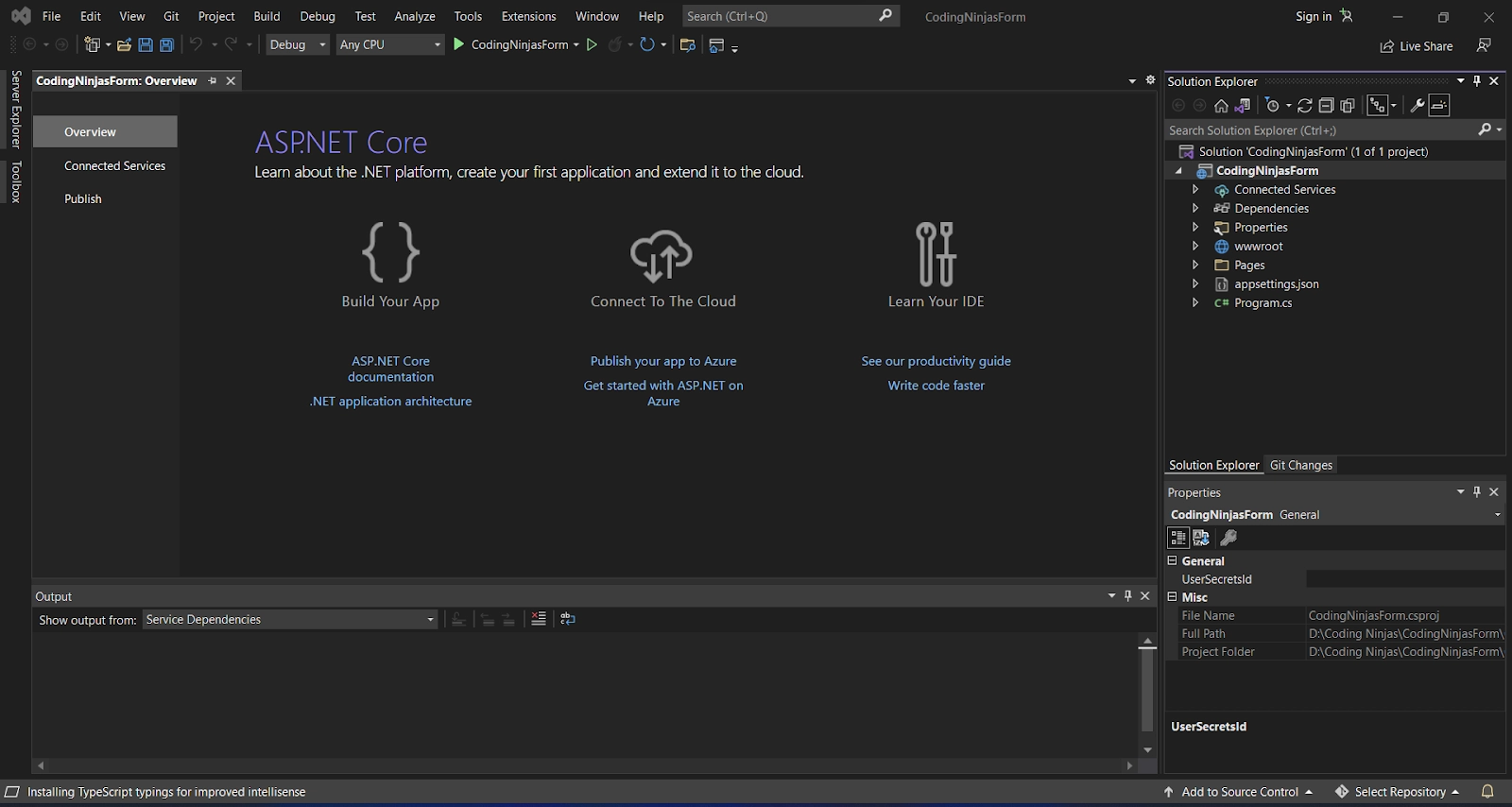
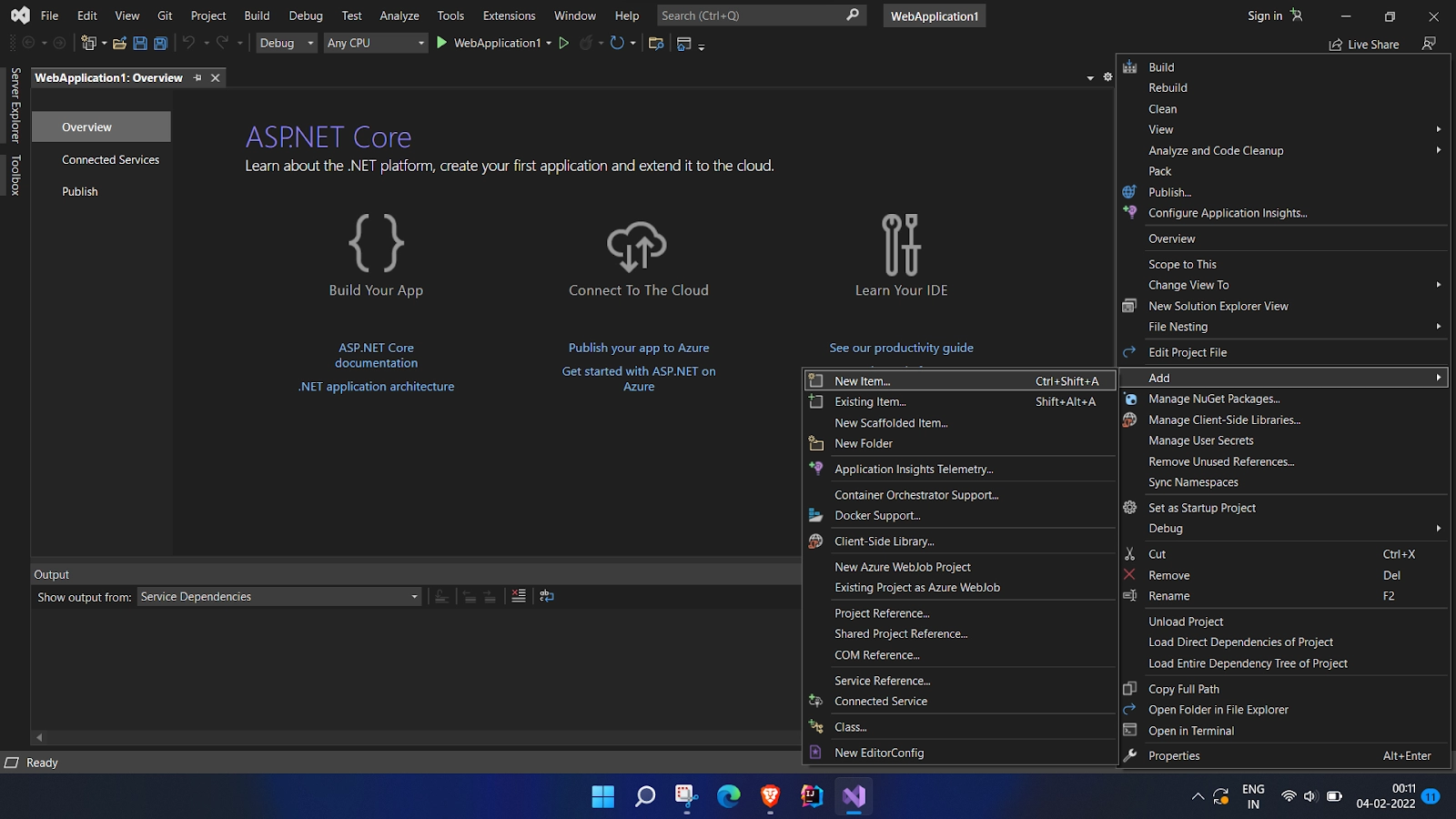
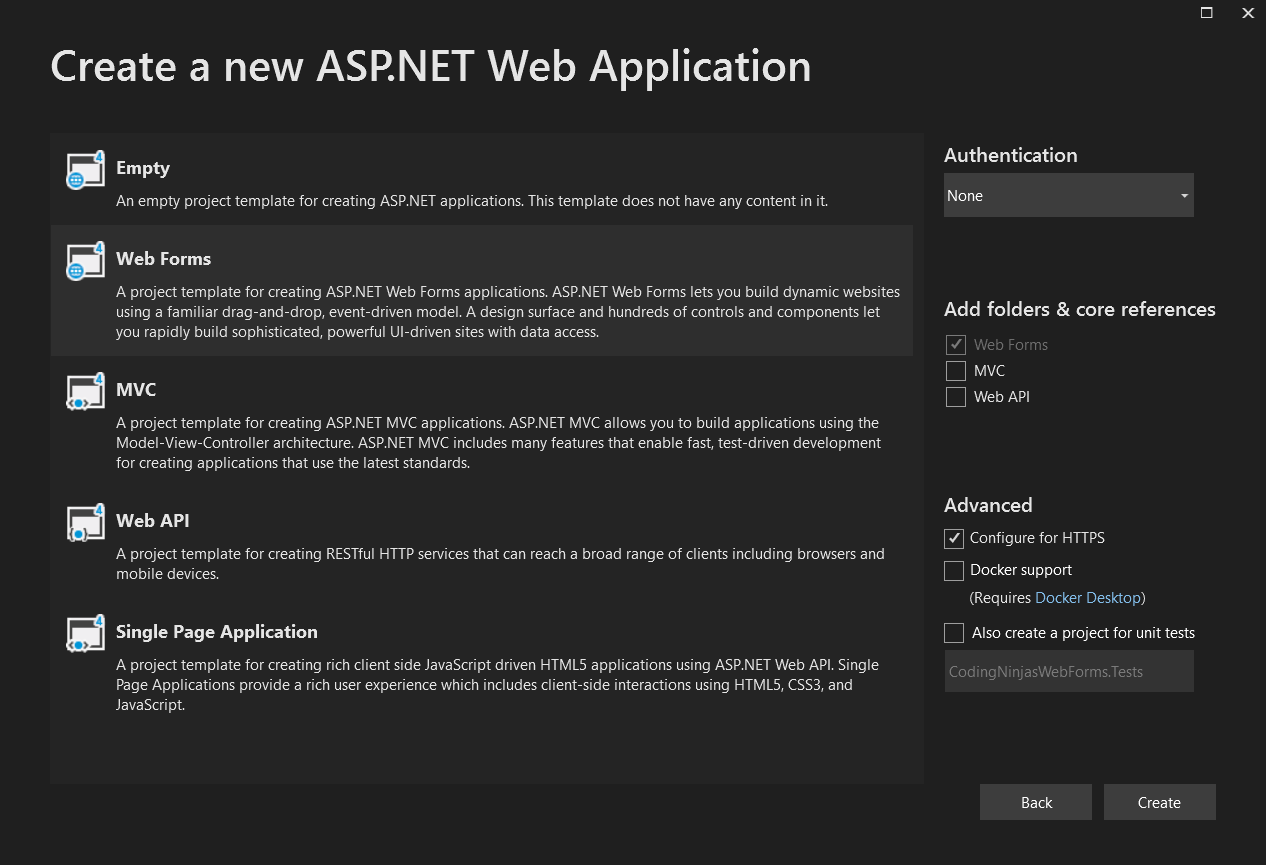
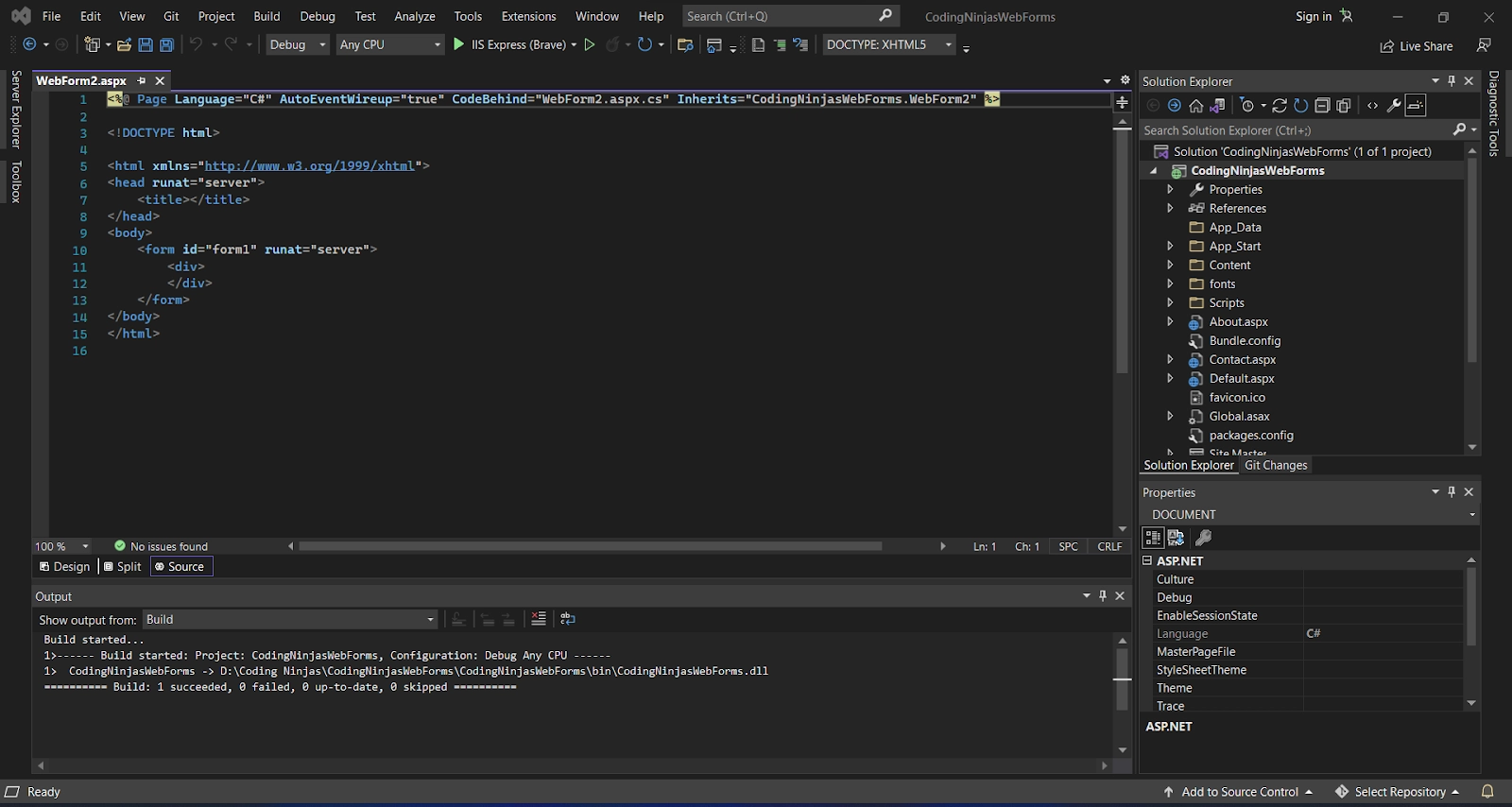
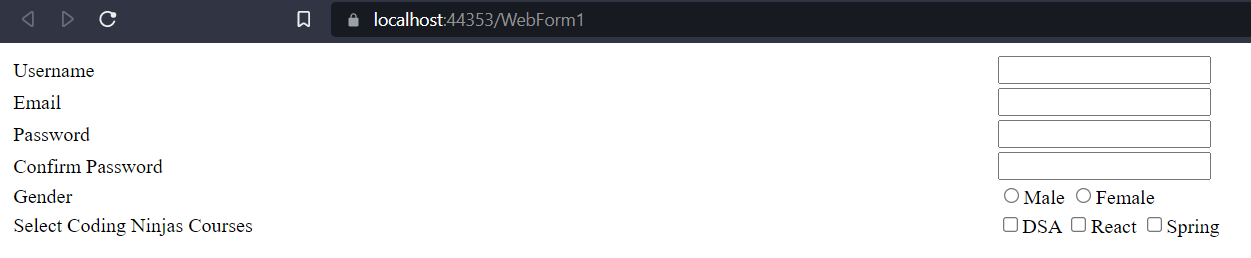
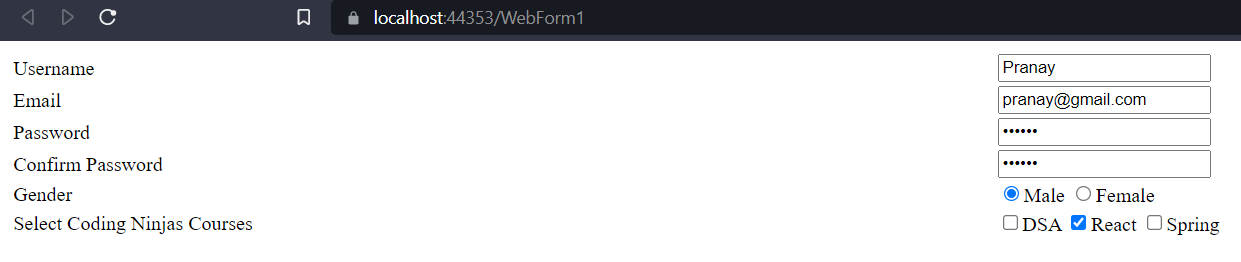
Let's make a registration form for users. This web form collects data from the user and sends it to the server. It returns the message "successfully registered" after submission. The steps in this technique are as follows.



 16+ registered