Do you think IIT Guwahati certified course can help you in your career?
Introduction
MBR, i.e., Master Boot Record, is an important component that helps ensure the computer system boots up properly. It is the first sector on a hard disk drive and contains vital information that enables the system to boot up. Only some computer users directly interact with the MBR. So it is beneficial for you to have a general understanding of MBR.
In this article, we will focus on that to provide you with the basics of MBR. Its role in the world of computing. The potential threats that can arise from MBR-related issues.
What is Master Boot Record (MBR)?
MBR is a small piece of code in the first sector of a hard disk or a solid-state drive (SSD). It is usually located at the very beginning of the disk, occupying the first 512 bytes of the disk. This sector is also known as the boot sector or sector zero. It contains essential information about the disk's partition table and the boot loader. The MBR serves as a primary boot loader that starts the boot process for the operating system.
Understanding the Master Boot Record
The Master Boot Record (MBR) is a critical 512-byte sector at the beginning of a storage device, such as a hard drive. It comprises boot code, a partition table, and a signature. The boot code initiates the boot process and loads the operating system's boot loader. The partition table, limited to four entries, provides information about partitions on the disk.
Each entry includes details like the partition type and boot status. MBR has limitations, such as supporting a maximum of four primary partitions and a 2-terabyte storage cap. Associated with BIOS systems, it's being replaced by the GUID Partition Table (GPT) in modern, UEFI-based systems, offering advanced features and larger storage support. Understanding the MBR is crucial for troubleshooting boot issues and disk management.
How Does the MBR Work?
When a computer is powered on, the BIOS, which stands for Basic Input/Output System, first performs a power-on self-test (POST). After that, the BIOS checks the MBR to identify which partition to boot from. The MBR contains the partition table, which is a disk map showing each partition's location. The BIOS reads the partition table to determine the active partition and loads the boot loader from the active partition.
MBR Role in Computing
The MBR plays a crucial role in the boot process. When powered on, a computer loads the BIOS (Basic Input/Output System), which checks and initializes the hardware components. The BIOS then looks for the MBR in the boot sector and transfers control to the MBR. The MBR then loads the boot loader from the active partition, typically containing the operating system files. Without a functional master boot record, a computer cannot boot up.
The MBR is critical because it contains the partition table, essential for identifying the active partition and loading the operating system. Additionally, the MBR contains the boot loader, which is responsible for loading the operating system kernel and initiating the startup process.
The process of reading the Master Boot Record (MBR) involves accessing the first sector of a storage device (usually a hard drive or SSD) and interpreting its contents. Here are the steps involved in reading the MBR:
Initialization: The computer's BIOS or UEFI firmware initiates the boot process by loading the initial instructions from a specific memory address.
Boot Device Selection: The BIOS or UEFI firmware identifies the boot device, which is typically a storage device such as a hard drive.
Read MBR: The BIOS or UEFI firmware reads the first sector (512 bytes) of the selected storage device into memory. This sector contains the MBR.
Boot Code Execution: The 512 bytes of the MBR include a small piece of executable code known as the boot code. This code is executed by the computer's CPU.
Partition Table Examination: The MBR contains a partition table that describes the layout of the disk. The boot code examines this table to identify the active (bootable) partition.
Loading Boot Loader: The boot code then loads the boot loader from the active partition. The boot loader is responsible for loading the operating system.
Operating System Initialization: The loaded boot loader initializes the operating system, and control is transferred to the kernel of the operating system.
Operating System Boot: The operating system completes its initialization process and becomes fully operational.
Parts of the MBR
MBR consists of 3 parts:
Bootstrap Code: The Bootstrap Code, often referred to as the boot loader code, is the first part of the Master Boot Record (MBR). It occupies the initial 446 bytes of the MBR. This code is crucial in the boot process as it is executed by the computer's BIOS or UEFI firmware. Its primary function is to locate and load the operating system's boot loader, which then continues the booting process.
Partition Table: The Partition Table is a 64-byte section within the MBR. It follows the Bootstrap Code and precedes the Master Boot Record Signature. The partition table is divided into four 16-byte entries, each describing a specific partition on the storage device. Information includes the starting and ending addresses of the partition, partition type, and a flag indicating if the partition is bootable (active). The partition table is essential for the operating system to understand the layout of the disk and locate individual partitions.
Master Boot Record Signature: The Master Boot Record Signature is a 2-byte value located at the very end of the MBR, specifically at bytes 511 and 512. It consists of the hexadecimal values 0x55AA. This signature is a marker that indicates a valid and bootable MBR. During the boot process, the system checks for this signature to ensure the integrity of the MBR. If the signature is present, it signifies a proper MBR structure, and the system proceeds with the booting process.
The below diagram gives you the general structure of MBR.
Partition Table and Boot Loader
The partition table is a vital part of the MBR that contains information about the disk's partition layout. It identifies the primary and extended partitions and the logical drives within the extended partitions. The boot loader code loads the operating system from the active partition.
Potential Risks Associated with the MBR
Several potential risks associated with the MBR can threaten the computer system. These include malware attacks, disk errors, and MBR corruption. These can prevent MBR from booting. This can be fixed by system repair in windows.
1. Malware Attacks on the MBR
To take control of the system, the easiest way for hackers is to attack your MBR. The attacker overwrites the MBR with malicious code. It can cause the computer system to fail to boot, or the attacker can install a rootkit that allows them to take control of the system.
2. Disk Errors and MBR Corruption
Disk errors and MBR corruption can cause the computer system to fail to boot. Sometimes, the MBR may become corrupted due to virus infection, power surge, or hard disk failure. If this happens, the system will not be able to boot. The user has to either reinstall the operating system or perform a system restore.
Protecting the MBR
As mentioned earlier, MBR protection is a must. Protecting the MBR is crucial to ensure the security and stability of the computer system. Here are some tips to protect the MBR:
Install anti-malware software and
Keep your OS/MBR up-to-date.
This can help detect and remove any malware that may try to infect the MBR. Some standard practices to protect your MBR from malware include:
Update the operating system: Keep the system and software up-to-date with the latest security patches.
Create backups of MBR/System files: This can help restore the system in case of corruption or damage.
Use secure boot: Only trusted boot loaders can boot the system. This feature is already provided in modern UEFI-based systems.
Features of MBR:
The Master Boot Record (MBR) is a crucial component of a storage device, typically a hard drive or solid-state drive, responsible for the initial booting process of a computer. Here are some key features of the MBR:
Boot Code: The MBR contains a small piece of executable code (boot code) in the first sector of the storage device. This code initiates the booting process and loads the boot loader.
Partition Table: MBR includes a partition table that describes the layout of the partitions on the disk. It can support up to four primary partitions, or three primary partitions and one extended partition.
Boot Loader: The boot code in the MBR loads the boot loader from the active partition. The boot loader is responsible for loading the operating system.
512-Byte Size: MBR is limited to 512 bytes in size, which includes the boot code, partition table, and a small signature.
Legacy System Support: MBR is a legacy system that has been widely used in BIOS-based systems for many years.
Limited Partition Size: MBR has limitations on partition size, with the maximum addressable storage being 2 terabytes (TB).
Master Boot Record vs. GUID Partition Table
Feature
Master Boot Record (MBR)
GUID Partition Table (GPT)
Maximum Partition Size
Limited to 2 TB
Extremely large, supports over 9 zettabytes
Number of Partitions
Up to 4 primary partitions or 3 primary + 1 extended
Virtually unlimited, over 128 partitions
Boot Code Location
In the first sector (512 bytes) of the disk
In the first 16 sectors of the disk
Compatibility
Legacy systems, BIOS firmware
Modern systems, UEFI firmware
Backup Partition Table
Single partition table
Primary and backup partition tables
Partition Identification
Uses partition type identifiers (e.g., 0x07 for NTFS)
Uses GUIDs (Globally Unique Identifiers)
Checksums and Error Detection
Limited error detection capabilities
Improved error detection and correction
BIOS vs. UEFI Support
Typically used with BIOS systems
Supports UEFI firmware for modern systems
Sector Size
Fixed sector size of 512 bytes
Variable sector size, commonly 512 or 4096 bytes
Protection Against Corruption
More susceptible to corruption due to limited error-checking
Better protection with CRC32 checksums
Adoption Timeline
Introduced in the early PC era and widely used for decades
Adopted for modern systems, becoming more prevalent
Advantages of MBR
Compatible with older operating systems
Supported by most computers and operating systems
Simple structure
Disadvantages of MBR
Limited to 2TB hard drive size
Can only support up to four primary partitions
How to fix Master Boot Record problems
Fixing the Master Boot Record (MBR) involves using the Windows recovery environment and the bootrec command. These are the steps that you can follow to fix MBR problems:
Boot from a Windows Installation or Recovery Disk: Insert your Windows installation DVD or USB drive. Then restart your computer. Then press the key (like F2, F12, or Esc) to enter the boot menu and select the installation or recovery media.
Choose "Repair Your Computer" and Access Command Prompt: When the Windows Setup screen appears, choose your language and other preferences, then click "Next." Then click on "Repair your computer" at the bottom left. Then in the Advanced Options, select "Troubleshoot" > "Advanced options" > "Command Prompt."
Access the Command Prompt: You might be prompted to select your account and enter the password.
Use the bootrec Command: In the Command Prompt, type the following command and press Enter: bootrec /fixmbr. This command repairs the MBR on the system.
Reboot Your Computer: Type exit and press Enter to close the Command Prompt. Then click on "Continue" or "Exit and continue to Windows" to restart your computer.
Verify the Fix: After restarting, check if your computer boots into Windows without any issues.
The bootrec /fixmbr command repairs the Master Boot Record, a critical part of the boot process. This process assumes that the issue is with the MBR, and not with other boot-related components. If problems persist, you may need to consider additional troubleshooting steps or seek professional assistance.
Frequently Asked Questions:
What does MBR do?
MBR is a critical component in computer boot processes. It contains the primary boot loader and partition table, facilitating the system's startup by pointing to the active partition for loading the operating system.
What happens if the master boot record becomes corrupted?
If the master boot record becomes corrupted, the computer may not be able to boot up, and in some cases, data loss may occur. Reproducing or restoring the MBR as soon as possible is essential to avoid further issues.
Can a virus attack damage the master boot record?
Yes, a virus attack can damage the master boot record, leading to boot problems and potential data loss. It is crucial to have a reliable antivirus program installed and to keep it updated to prevent virus attacks.
Is it necessary to back up the master boot record?
Yes, it is recommended to back up the master boot record regularly. By backing up the MBR, users can restore it if it becomes corrupted or damaged, avoiding boot problems and potential data loss.
Can the master boot record be modified or customized?
Yes, the master boot record can be modified or customized. Advanced users can use tools such as MBRWizard or Partition Table Doctor to modify the partition table or install a custom boot loader.
Conclusion
In conclusion, the master boot record is critical to a computer's startup process. It contains essential information about the disk's partition table, boot loader, and other key components required for the system to boot up correctly. Without a functional MBR, a computer cannot boot up, making it a crucial aspect of the overall system functionality.
It is essential to back up the MBR regularly and to know how to repair it in case of corruption or damage.
Overall, understanding the importance and functionality of the master boot record is crucial for maintaining a healthy and functional computer system. By backing up the MBR regularly and knowing how to repair it, users can avoid potential boot problems and data loss. Additionally, installing a reliable antivirus program and keeping it updated can prevent virus attacks that may damage the MBR.





 In this article, we will focus on that to provide you with the basics of MBR. Its role in the world of computing. The potential threats that can arise from MBR-related issues.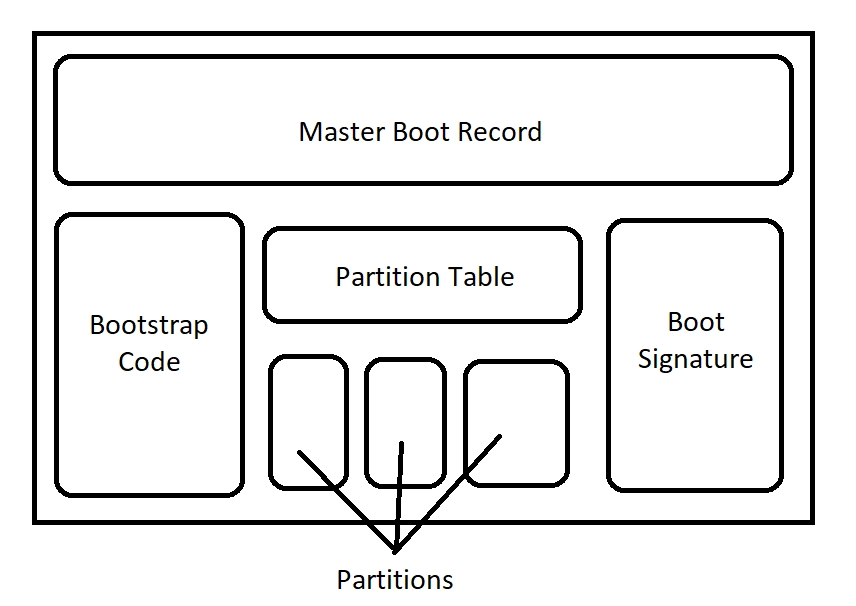

 1+ registered

