




Introduction
We know that Katalon Studio is a powerful automation tool. It is mainly intended for the creation and reuse of automated UI test scripts. Katalon Studio also supports automated testing of UI elements such as pop-ups, iFrames, and wait time. But imagine if we need to check for errors in the things we created in Katalon or if we want to bundle up a set of tasks and want them to get done whenever we want to. How will we do that? We can do that by using Assert Statements and Define Methods. Let's find out about them today.

Also See, procedure call in compiler design
Assert Statements
We can use an assert statement to write sanity checks in the code. These checks are known as assertions, and we may use them to see if particular assumptions are still true as we write code. An assert statement holds a boolean expression that must be true in order for the test to continue. Thus, when the assertion is executed, the boolean expression is evaluated. It reports an error if the expression evaluates as false. To put it simply, If any of your assertions turn out to be untrue, we can assume that the code contains a flaw.
In Manual View
We can go along with Assert Statements in both manual and Script view. Let us see the Assert Statements procedure in manual view now.
Steps
1. First, we have to open a test case in Katalon Studio. We have to make sure it is opened in manual view. There we have to click on the "Add" button. We will get a drop-down menu. There we will choose the Assert Statements option.
2. For adding a keyword under a statement, we have to select the statement first. Then we will click add, and a test step will be made under the statement.

A test step represents that the assert expression has been added to the test case.

3. Now, we will Double-click on the input cell. This will let us edit the method that is called.

In Script View
The Script view lets us define and handle assertions programmatically. It is done using groovy or java.
Script View as Default Open View
Sometimes we are comfortable using the Script View more. Let us have a look at how we can enable Script View as our Default Open View.
1. First, we click on the "Set default view" button present. Once we click, this will pop up the preferences dialog box.

2. In the preferences dialog box, we change the default open option from "Manual View" to "Script View". We then click on "Apply and Close".
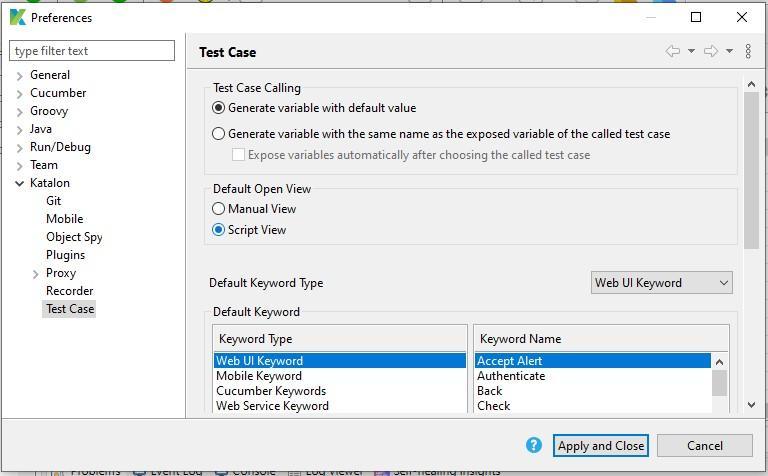
This will set up the script view as our default open view.






 1+ registered

