Do you think IIT Guwahati certified course can help you in your career?
Introduction
Azure DevTest Labs is an Azure service that enables you to quickly create environments in Microsoft Azure while minimizing waste and controlling cost. During the past year, a lot of new capabilities were shipped to better support Dev/Test and other scenarios (e.g. education). In this article, we will discuss Azure DevTest Labs in detail.
Azure DevTest Labs
Azure DevTest Labs is a service that makes it easy to create, use, and manage Infrastructure as a Service (IaaS) Virtual Machine (VM) and Platform as a Service (PaaS) environments in our lab. The lab provides pre-built foundations and artifacts for creating VMs, as well as Azure Resource Manager (ARM) templates for creating environments such as Azure WebApps and SharePoint farms
Common DevTest Labs scenarios
Common DevTestLabs scenarios include development VMs, test environments, training labs, or educational labs. DevTest Labs promotes, consistency, efficiency, and cost control by maintaining all resource usage in the lab context.
DevTest Labs can create and manage labs, virtual machines, and environments using custom images, formulas, artifacts, and templates. DevTest Labs' public GitHub repository contains many ready-made virtual machine artifacts and ARM templates for creating sandboxed labs, environments, or resource groups. Lab owners can also create custom ARM images, formulas, and templates to create and manage labs, virtual machines, and environments.
Custom VM bases, artifacts, and templates
Lab owners can store ARM templates and artifacts in a private Git repository and connect the artifact and template repositories to the lab so that lab users can access them directly from the Azure portal. Add the same repository to multiple labs in your organization to promote consistency, reuse, and sharing.
Development, test, and training scenarios
DevTest Labs users can quickly and easily create IaaSVM and PaaS environments from preconfigured bases, artifacts, and templates. Developers, testers, and trainers can:
Create a Windows and Linux training and demo environment or sandbox resource group to explore Azure using reusable ARM templates and artifacts.
Create multiple test agents and environments to test app versions and scale load tests.
Build a development or test environment from a CI / CD (Continuous Integration and Deployment) tool, an integrated development environment (IDE), or an automated release pipeline. Integrate your deployment pipeline with DevTestLabs to build your environment on demand.
Use the Azure CLI command-line tools to manage your VMs and environment.
Lab policies and procedures to control costs
Lab owners can take several actions to reduce waste and manage lab costs.
Set lab policies such as the number and size of VMs allowed per user or lab.
Schedule automatic shutdown and automatic start to shut down and start the lab VM at a specific time of the day.
Monitor costs, track lab and resource utilization, and assess trends.
Create a lab in the Azure portal
We have already discussed Azure Portal, now let’s create a lab by using Azure Portal.
Prerequisite
We should have an Azure account, don’t have one yet? Click here and register for free.
Contributors should have access to an Azure subscription.
Creating a lab
Search and select devTest labs In the Azure portal.
On the DevTest Labs page, select Create. The Create DevTest Lab page appears.
On the Basic Settings tab, we need to provide the following information:
Subscription: Change the subscription if we want to use a different subscription for the lab.
Resource group: In this, we need to select "create new" to create a new resource group so it's easy to delete later or we can also select an existing resource group from the dropdown list
Lab Name: We just need to enter a name for the lab.
Location: If we're creating a new resource group, then select an Azure region for the resource group and lab.
4. We can select the Auto-shutdown, Networking, or Tags tabs at the top of the page, and customize those settings(it is optional). We can also apply or change most of these settings after lab creation.
5. After we complete all settings, we just need to select Review + create which is present at the bottom of the page.
6. At the top of the Review + create the page, a Succeeded appears message will appear if the settings are valid. Review the settings, and then select Create.
Auto-shutdown tab
Auto-shutdown help us to save lab costs by shutting down all lab VMs at a specific time of the day. Lets the steps to configure auto-shutdown:
Select the Auto-shutdown tab, from the Create DevTest Lab page.
Fill out this information:
Enabled: Select On to enable auto shutdown.
Scheduled shutdown and Time zone: It specifies the daily time and time zone to close all lab VMs.
Send notification before auto-shutdown: We can get the notification 30 minutes before the auto-shutdown time, we can enable it by selecting Yes or No.
Webhook URL and Email address: If we choose to send notifications, then we need to semicolon-separated list of email addresses where we want the notification to post or be sent or enter a webhook URL endpoint
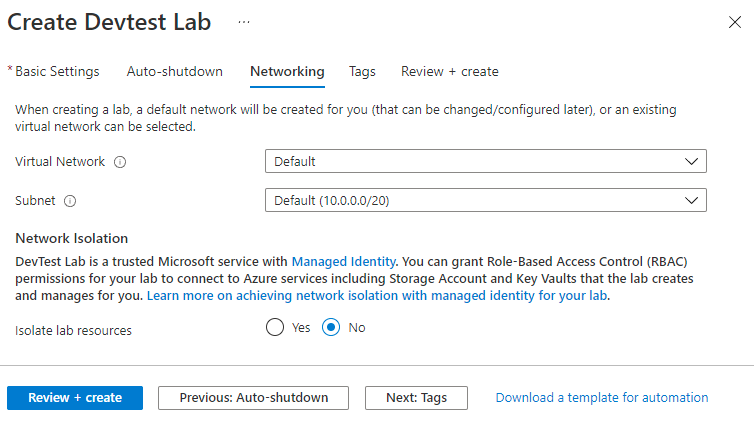
Azure DevTest Labs creates a new default virtual network for each lab. If we have another virtual network, we can choose to use it for the new lab instead of the default. To know about it in more detail, see adding a virtual network in Azure DevTest Labs.
Steps for configuring network:
Select the Networking tab from the Create DevTest Lab page.
For Virtual Network, we can select a virtual network from the dropdown list. For Subnet, we can also select a subnet from the dropdown list.
For Isolate lab resources, we can select Yes to completely separate lab resources to the specifically selected network. For more information, see Network isolation in DevTest Labs.
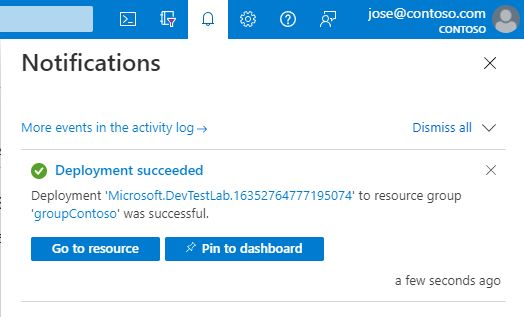
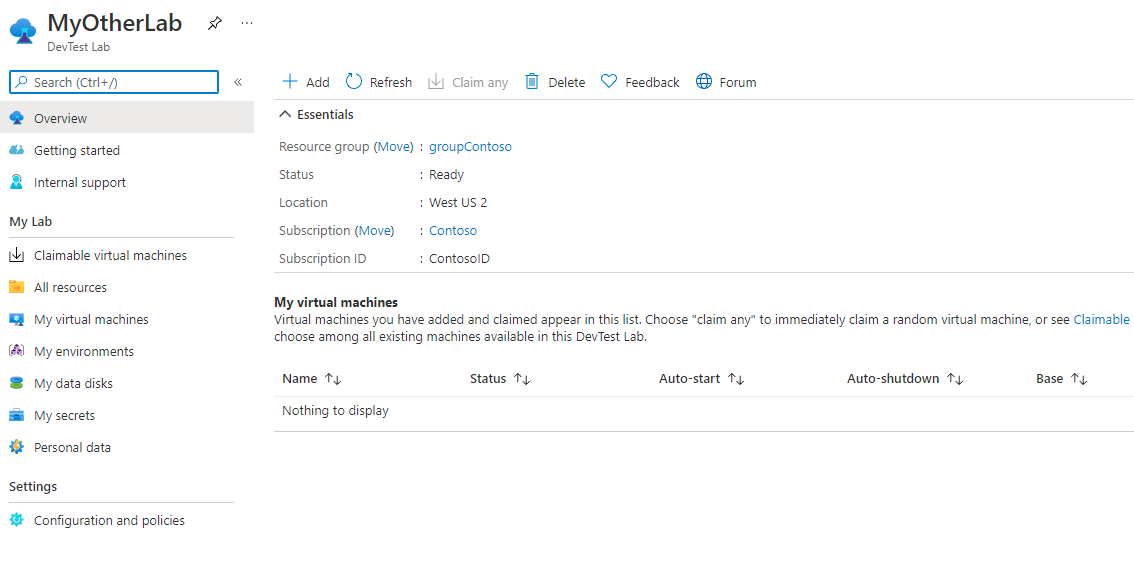
When the deployment finishes, select Go to the resource. The lab's Overview page appears.
Source: Microsoft
We can now add and configure the lab's VMs, environments, users, and policies.
Frequently Asked Questions
How many labs can I create under the same subscription?
There isn't a specific limit on the number of labs that can be created per subscription. However, the amount of resources used per subscription is limited. You can read about the limits and quotas for Azure subscriptions and how to increase these limits.
How many VMs can I create per lab?
There is no specific limit on the number of VMs that can be created per lab. However, the resources (VM cores, public IP addresses, and so on) that are used are limited per subscription. You can read about the limits and quotas for Azure subscriptions and how to increase these limits.
How do I maintain a naming convention across my DevTest Labs environment?
You may want to extend current enterprise naming conventions to Azure operations and make them consistent across the DevTest Labs environment. When deploying DevTest Labs, we recommend that you have specific starting policies. You deploy these policies by a central script and JSON templates to enforce consistency. Naming policies can be implemented through Azure policies applied at the subscription level. For JSON samples for Azure Policy, see Azure Policy samples.
Conclusion
This article discusses Azure DevTest Labs along with its different scenarios. We also discussed how to create a lab in Azure Portal.
If you think you are ready for the tech giants company, check out the mock test series on code studio.
You can also refer to our Guided Path on Coding Ninjas Studio to upskill yourself in domains like Data Structures and Algorithms, Competitive Programming, Aptitude, and many more!. You can also prepare for tech giants companies like Amazon, Microsoft, Uber, etc., by looking for the questions asked by them in recent interviews. If you want to prepare for placements, refer to the interview bundle. If you are nervous about your interviews, you can see interview experiences to get ideas about questions that have been asked by these companies.
Do upvote if you find this blog helpful!
Please share it as much as possible and help others as well









 1+ registered

