Do you think IIT Guwahati certified course can help you in your career?
Introduction
Tools for sprints include a task board and backlog that are filtered depending on an iteration path. For putting Scrum practices into practice, these tools are helpful. With Scrum, you can set up your Task board, organize your sprints, and keep track of your sprint burndown.
Iteration Paths, also known as sprints in Scrum methodologies, are used to schedule the tasks a team will compete on over a set period of time and cadence. Several sprints are already set up for your squad, to begin with.
Implement Scrum with Azure Boards
The general procedure for using Azure Boards to implement Scrum is as follows:
Setup sprints and teams
Project-level Iteration definition Routes and fixed dates
Add project-level Area Paths (optional) (Or add an area path when you configure each team)
Add teams
Choose iteration paths at the team level.
Team backlog creation
Make a backlog for your team and organize it.
(Optional) Project the backlog for your team.
Implement a sprint
By dragging and dropping work items from the product backlog to the sprint, you may quickly assign them to a sprint.
Add sprint-related items to the backlog
Backlog jobs should be added
Set a sprint limit
Work must be modified to meet sprint capacity
Share your sprint plan if you want to.
Refresh the task board
Keep an eye on your sprint burndown.
Overview of Sprint backlogs and task boards
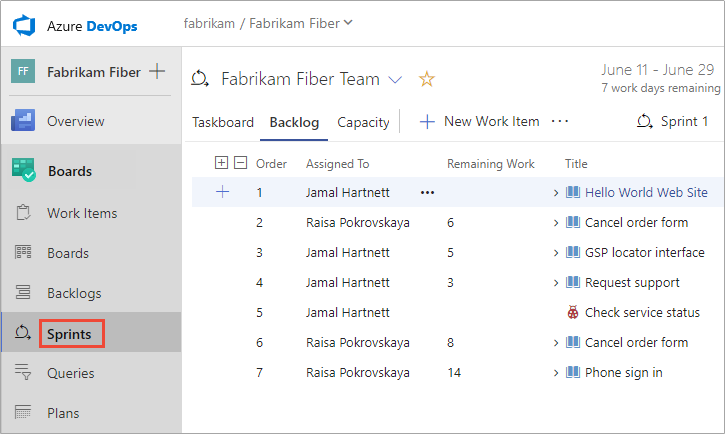
Task boards and sprint backlogs offer a filtered view of a team's work items designated to an individual sprint or iteration path. Teams first define the sprints for a project before choosing them. You can drag and drop work from your backlog to an iteration path and then view that work in a different sprint backlog.
How selected sprints show up on the backlog
Access to a task board, sprint backlog, and other Agile planning and tracking tools are available for each sprint you choose for your team.
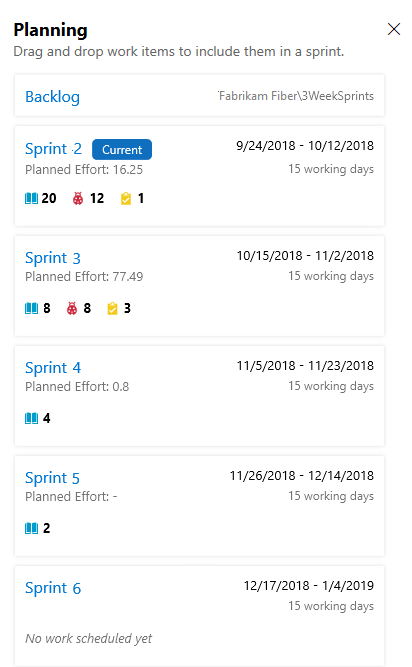
You may get an overview of your sprint planning by activating the Planning view option. Select Planning from the view options on the product backlog or sprint backlog.
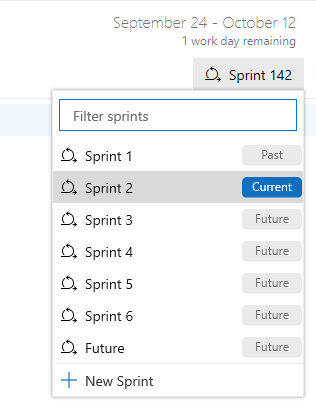
Choose a sprint from the sprint selector in a sprint backlog, or select a sprint from one of the sprint links in the Planning pane.
Track team capacity
The following tools can be used to organize your sprint once you've established iteration (sprint) paths and set up team iterations.
You should plan the work that your team can commit to before each sprint. The sprint backlog, capacity planning, and capacity bars are the three Agile tools that help with this effort. A filtered subset of backlog items with iteration paths that match the current sprint can be found in the sprint backlog.
Team capacity planning tool
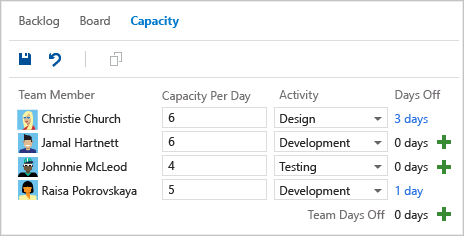
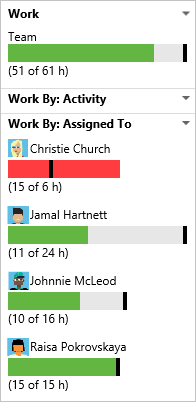
The team can precisely estimate the total number of workdays or hours available for each sprint by specifying the team's capacity. Using this tool, you can set each team member's capacity and vacation days. Additionally, you can quickly arrange team-wide holidays or shared vacation days. The capacity bar for each team member participating in a sprint appears once their capacity has been set.
You can schedule recurring vacation days through team settings, such as weekends.
Individual and team capacity bars
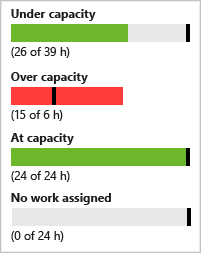
You can instantly determine who is over, at, or below capacity using capacity bars. With each of these actions, capacity bars are updated:
Tasks are assigned with some amount of labor left over.
Alteration to the remaining work
Within the sprint cycle, the date changes. The capacity of an individual or a team always reflects that of the current day till the end of the sprint.
The capacity colors can be understood as follows:
Update tasks and monitor burndown
Use the task board and sprint burndown chart to monitor their progress during a sprint. By looking at the sprint burndown graphic, you can quickly assess whether your team is on pace to complete its sprint plan.
Task board
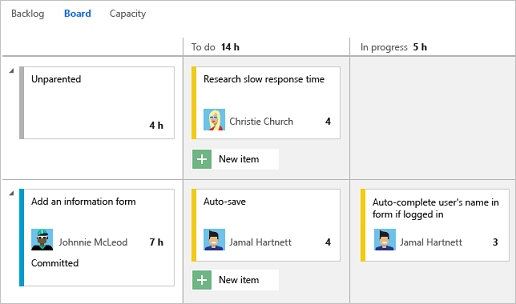
An interactive progress board for the work necessary to finish the sprint backlog is provided by your Taskboard. You should update each task's status and the amount of work left to do throughout your sprint.
A smoother burndown chart results from updating jobs frequently during the week or daily.
Sprint burndown chart
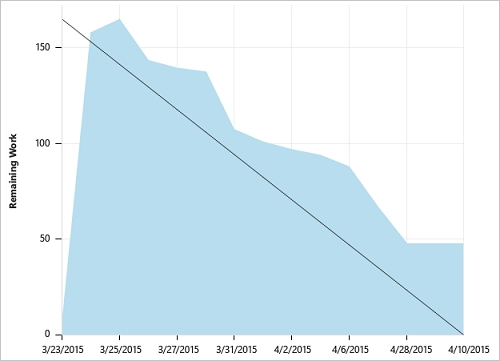
You use the sprint burndown chart to reduce risk and monitor scope creep throughout your sprint cycle. Your team's progress toward finishing the work they projected at their sprint planning meeting is shown on the burndown chart.
The optimum trend line always shows a continuous burndown. However, the actual situation is depicted in the blue area. It demonstrates how work increases as team members add tasks and decreases when they finish them.
Use velocity and forecast tools to predict work effort.
Utilize tools for sprint planning and tracking. Additionally, calculate the amount of work that can be finished in upcoming sprints using the velocity and prediction tools. Velocity is an excellent statistic for understanding how much work your team can accomplish in a sprint cycle. Additionally, the forecasting tool gives you a way to estimate how much work your team can finish in a sprint. The team velocity determines this sum.
After a few sprints, estimate how much work can be completed in upcoming sprints using the Velocity chart and Forecast tool.
Velocity chart
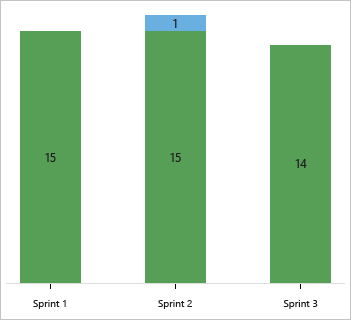
There is just one velocity chart assigned to each squad. The amount of estimated work (story points or size) for backlog items (user stories or requirements) finished during the sprint is shown in the chart by the green bar. (Blue represents the estimated effort of tasks that have not yet been completed.) Sprint after sprint, velocity will change depending on team capacity. But over time, the velocity ought to show a trustworthy average that can be applied to forecast the entire backlog.
You can obtain more accurate velocity metrics by reducing the unpredictability of backlog item size—effort or story points. Source
Forecast tool
To estimate how many and which tasks you can finish in a sprint, utilize the forecast tool.
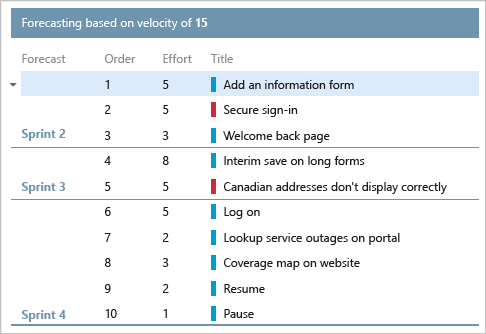
By entering a velocity, you may discover which items are within scope for the sprints the team has chosen. As can be seen, a velocity of 15 means that the task at hand will be finished in three sprints.
Query sprint scope changes
There is no widget or sprint scope change chart. However, when a sprint has begun, you can run a query to see what work items have been added to or removed from that sprint. Use the next set of instructions.
List the tasks that were added after the sprint began
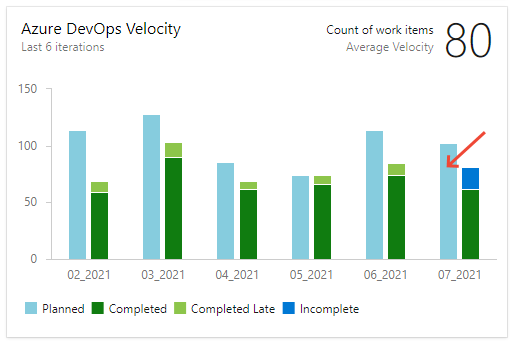
Select the Planned bar for the relevant sprint while viewing the team's velocity chart. You can utilize the team backlog velocity chart or the Planned bar for a velocity chart widget.
A list of the work items assigned to the sprint on the first day of the sprint is displayed on the Query Results page. The work item IDs in this list are listed individually.
To edit the query, select the Editor page.
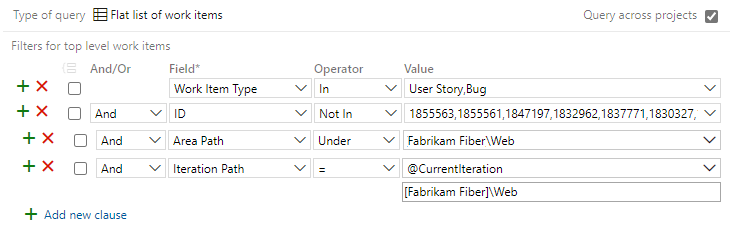
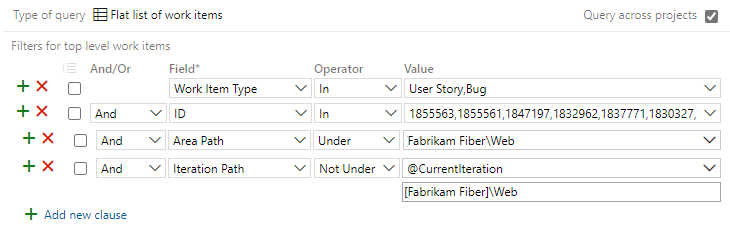
Describe the extra elements added to the sprint after it had begun. To accomplish this, modify the query to include and modify the following clauses: 1. Specify the work item types of interest in a clause at the beginning. 2. Set Not In as the Operator for the ID Field. 3. Include the interest sprint's iteration path. 4. For the team, add the Area Path.
The revised query should be like the image below.
Sort by the field Created Date after adding it as a column option. Then, you can see which already-created work items were added to the sprint and which new ones.
List work items moved out of the sprint.
Select the Planned bar for the relevant sprint while viewing the team's velocity chart. You can utilize the team backlog velocity chart or the Planned bar for a velocity chart widget.
A list of work items for the sprint defined on the first day of the sprint is displayed on the Query Results page. The work item IDs in this list are listed individually.
To edit the query, select the Editor page.
List the things that were removed from the sprint after it began. To accomplish this, modify the query to include and modify the following clauses:
1. The interesting work item types should be added as a clause at the beginning.
2. Add the desired sprint's iteration path, then describe Under operator, not For the team, add the Area Path.
The revised query should be like the image below.
Manage sprint timelines
Teams use Scrum to schedule and monitor work at predetermined intervals known as sprints. To facilitate the assignment of work items to time-box intervals, you define iteration paths, often known as sprints. All teams that choose iteration paths use it as a common resource. A two- or three-week cadence is popular among teams. Nevertheless, you can define either shorter or longer sprint cycles. Alternatively, you may plan a release that spans several sprints.
Start scheduling sprints
Use the default sprints to get going quickly. Iterations and default sprints were both included when your project was established. Please note that to add sprints and set up sprint dates, you must be a member of the Project Administrators group. You would be a member if you started the project.
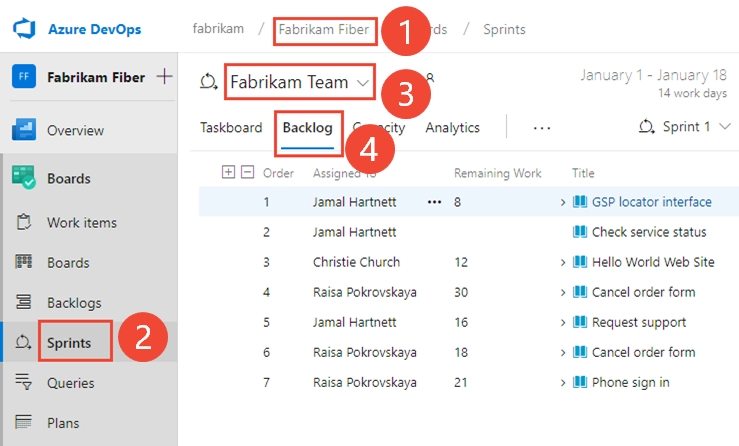
Open the sprint backlog for your team via your web browser. Verify that you've chosen the correct project, select Boards>Sprints, choose the 2right team from the team picker menu, and then backlog.
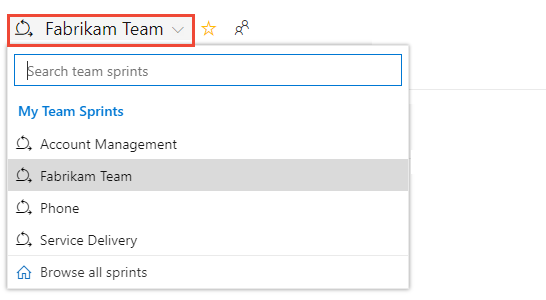
Open the selection and select a different squad, or select Browse all sprints to choose another team. You can also use the search box to narrow down the list of team backlogs for the project by entering a keyword.
Select the Set sprint dates option.
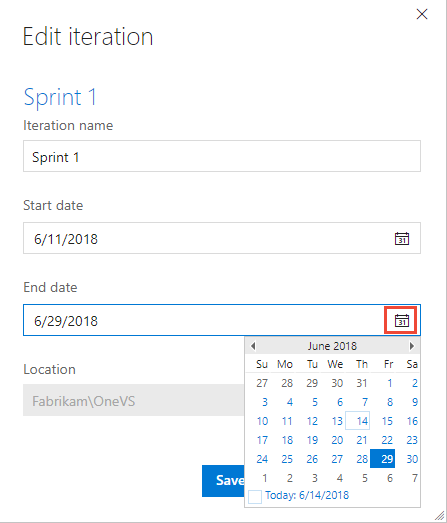
Select the sprint's beginning and ending dates using the calendar icon.
Close after selecting Save. The date will be displayed.
All done! Now you may begin organizing your first sprint.
Schedule new sprints for different teams and release cadences
There are various predefined sprints included in your project. They aren't connected to any dates, though. Assign start and end dates for the sprints your team will use for Scrum and sprint planning.
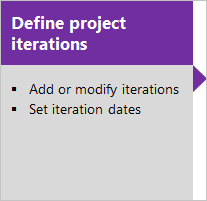
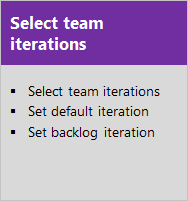
There are two steps involved in defining other sprints. Iteration (sprint) pathways are defined, and team iterations are configured, after which you choose the sprints that each team will utilize. The system helps teams who use various sprint cadences do this.
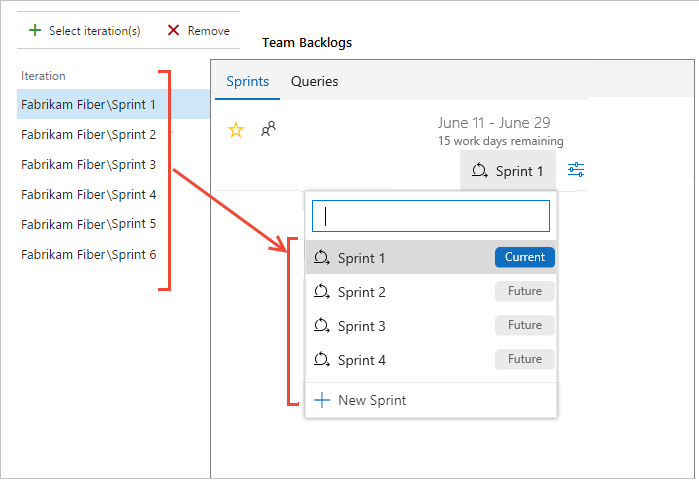
With each sprint you choose, access to a sprint backlog, Task board, and other sprint planning tools are provided for your team. These tools are used for work planning and tracking.
For example, The Fabrikam Fiber team instance has access to six sprint backlogs by choosing Sprints 1 through 6. They also have access to sprint task boards and capacity planning tools.
Customize cards on a sprint task board in Azure Boards
Because work items are shown as cards rather than lists, Sprint Task Boards are comparable to Kanban boards. They differ in how Backlogs, Boards, and Plans list them. You can alter cards and add columns in a manner akin to Kanban boards.
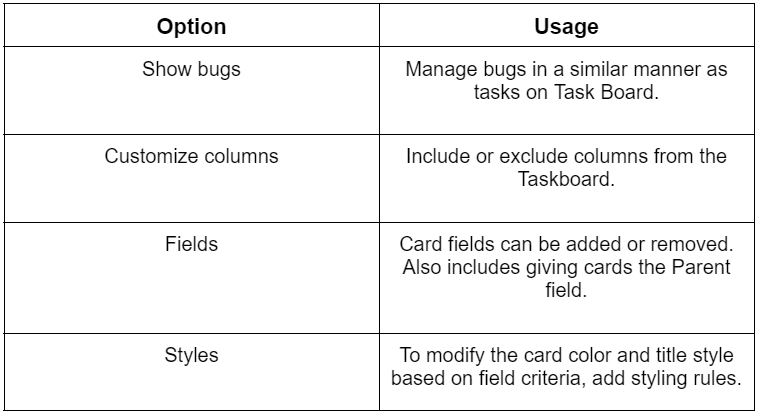
Task board customization options
Select Column Options to add or remove columns. Through the Task board's Settings menu, you can adjust every other setting.
Understand the Task Board customization sequence
Make sure the following steps are as finished as feasible before configuring your Task board. If not, you'll have to change your configuration again.
Process Administrator:
Include any particular work item types you want to see on your Task board.
Make sure all of the work item types you wish to see on the Task Boards are included in your iteration backlog by customizing it.
Create any custom fields you want to display for each type of work item.
Team Administrator:
Establish how the team intends to manage bugs, similar to needs or tasks, during a meeting with the team.
You can support styling rules by adding whatever tags you wish to work with objects.
Show bugs on your Task board
Change your team's settings to show bugs on the backlogs and boards if you want them to appear on your Task board.
Add columns
The columns that display in your Task Board can be expanded or renamed. Depending on the method used to construct your project and whether your team decided to handle bugs as needed or like tasks, you'll see several column titles and options. The changes will affect all sprint task boards for the chosen team.
Open the Sprint Task Board for your team on your web browser as instructed in Update and monitor your Taskboard. Keep in mind that the task board can only be customized by team or project administrators.
Select the Column option.
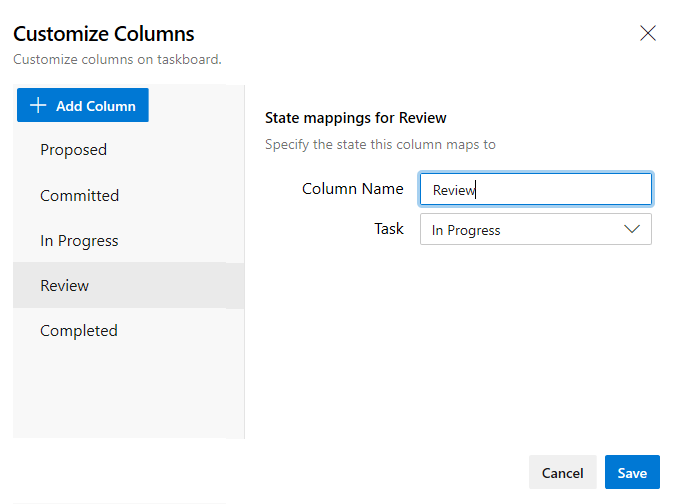
Choose Add Column or the column you want to rename in the Customize Columns dialogue.
In this illustration, we add a review column and change the task's status to In Progress.
You can move a column up or down in the list of columns by hovering over it and selecting the grabber icon.
Make sure there are no work items in the column before deleting it. Move the items to a different column if it does. Then select the delete icon by placing your cursor over the column.
Add fields to cards on a sprint task board.
During daily stand-ups, Scrum teams utilize the Task Board to burn down work and report on progress. Cards corresponding to both requirements and tasks are displayed on each sprint task board.
Add or remove fields from cards on the Task board.
Similar to how you can alter the appearance of cards on Kanban boards, you can change how cards appear on the Taskboard. You begin from the Task Board only here.
To personalize a sprint, open the task board for that sprint. Keep in mind that the task board can only be customized by team or project administrators.
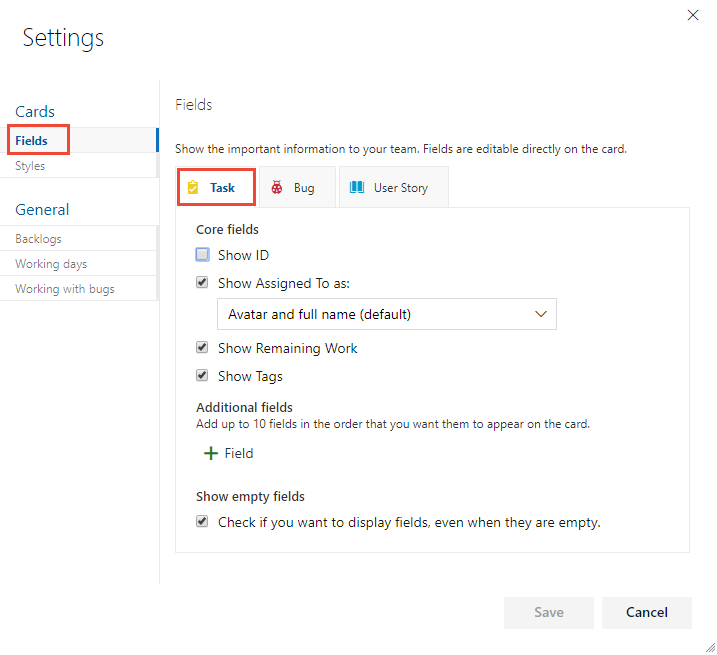
To access the Settings dialogue, select the gear icon.
To view all the settings, you can change, select Fields, and then a work item type.
Check the boxes next to the fields you want to show up on the board.
Repeat this procedure for each work item you want to change. Don't be shocked if the options alter when selecting a different work item type. For instance, Show Remaining Work does not apply to user stories or product backlog items; it only pertains to tasks and perhaps defects.
Select the addition sign and type the field's name to add a new field.
Select the delete icon next to a field to remove it.
Select Save once you're through making adjustments.
Update fields from cards
Using the board views, you can update work items as work advances quickly and easily. Making regular or frequent updates enables your team to stay on the same page on what has been completed and what must be done next.
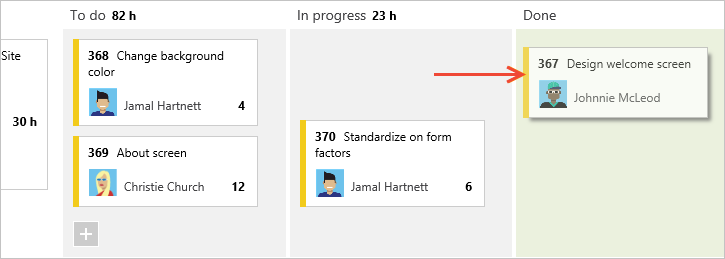
Simply drag & drop cards to a different column to change a work item's status. You can move a card up or down inside a column to alter the order or stack ranking of a task.
For instance, moving the card from the In Progress to the Done column on the Task board updates the relevant State field. The State field changes from Doing to Done in this instance.
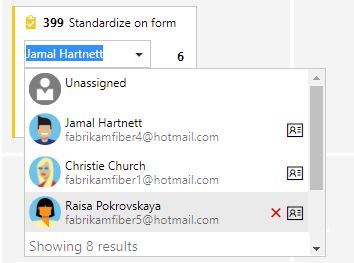
Updating a field without opening the work item is another helpful feature. The majority of the areas on the card can be edited. Here, a task is reassigned.
When you need to edit numerous work items simultaneously, this quick update option is helpful. You may, for instance, amend the Remaining Work or add estimates.
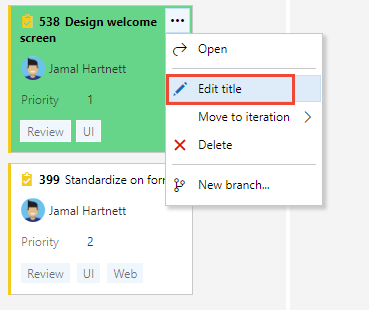
Select the action icon, then select Edit title to alter the title.
Double-click the work item to open it and add tags. Just a reminder that neither from the card nor from within the form can you modify the IDs for a work item.
Define style rules, highlight cards
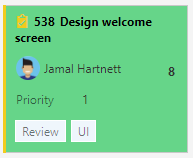
Cards' colors can be changed by styling rules when their individual work items satisfy predefined conditions. Here, we emphasize jobs that are Priority 1 by making the cards seem green.
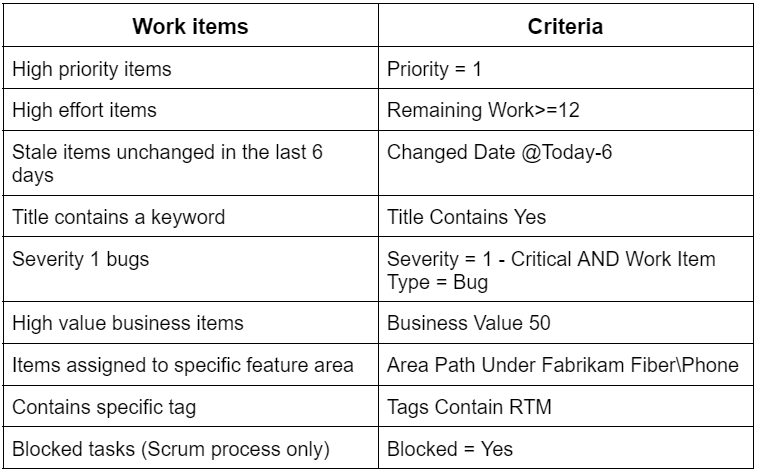
Example styling rules
What guidelines should you follow while emphasizing job items? Here are a few instances and the criteria that go along with them.
Add or remove a style rule.
Based on predetermined field criteria, you can use style rules to alter the color of Task Board cards.
Open the Task Board that needs modification.
To access the Settings dialogue, select the gear icon.
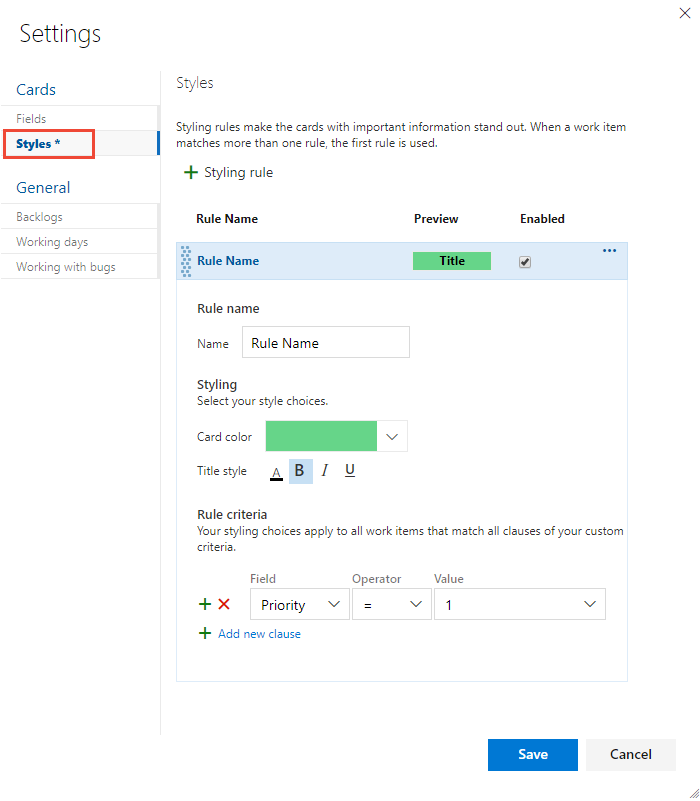
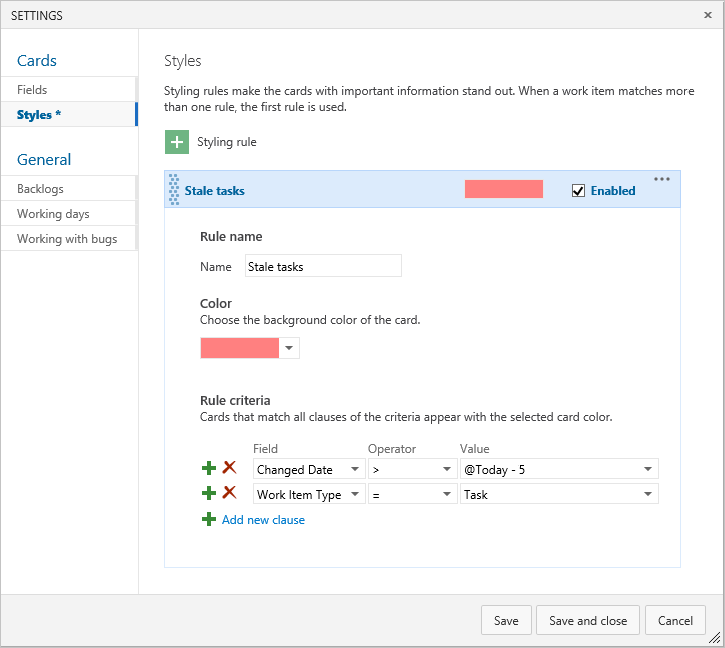
To set a style rule, select Styles. To add a style, select the plus icon. Choose the card's color and specify the requirements for the style rule. We demonstrate the Task board's Styles dialogue in this example.
When establishing and arranging your style standards, remember to:
Similar to how a query is built, the criteria you specify operate similarly.
Grouping clauses are not supported; all clauses are treated as AND clauses.
All work items that satisfy the rule criteria are subject to the card rules.
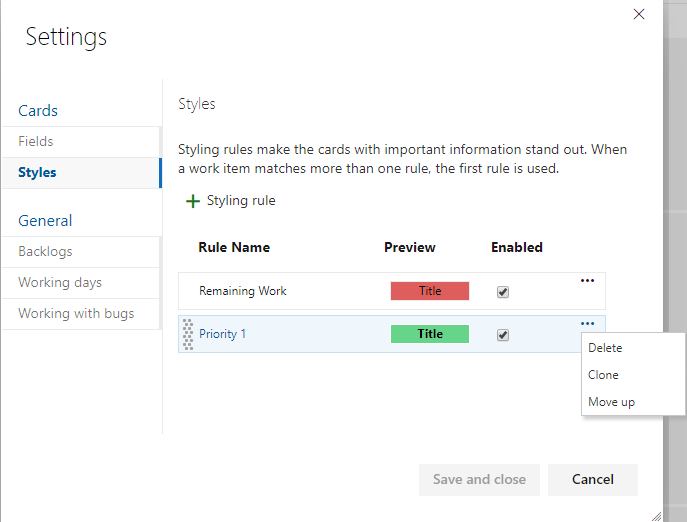
Based on the sequence in which the rules are written, rule color is applied to work items. Make sure to reorder the style rules in the order of greatest priority if you add more than one. To use them in the desired order, drag them there.
A style rule can be instantly enabled and disabled. Here, we provide a rule called Stale tasks that flags tasks that haven't changed in the past five days.
Select Clone or Delete from the actions icon to copy or delete a style rule, respectively.
Select Save once you're through making adjustments.
Changes cause automatic task board updates
When something changes, your Task Board immediately updates. There is no control over live updates; they take place silently in the background. The task board automatically updates with changes made by other team members who move or rearrange cards. F5 is not required to view the most recent changes.
Sprints and Scrum key concepts in Azure Boards
This section of the article offers a concise glossary of terms and resources for use in tracking work using sprints and Scrum techniques.
Agile tools
A collection of web-based applications for supporting Agile techniques and tracking work. Scrum and Kanban, the two primary Agile methodologies used by modern software development teams, are supported by agile technologies.
Bugs
A particular kind of work item that keeps track of prospective product complaints. A work item type a typical term for tracking code faults. The method used to manage bugs is up to each team. Some teams choose to keep requirements and bugs together on the backlog. Other teams enjoy keeping track of bugs as actions are taken to fulfill a need. After that, the problems show up on their Taskboard.
Team and individual capacity
The amount of actual task time that a person or a team must work—in hours or days—correlates with capacity. Azure DevOps offers the Capacity tool to set capacity for each team's sprint. Teams often determine their capacity when they prepare to generate tasks and project how long each task will take to accomplish.
The team can precisely estimate the total number of workdays or hours available for each sprint by specifying the team's capacity. Using this tool, you can set each team member's capacity and vacation days. The capacity bar for each team member participating in a sprint appears once their capacity has been established.
Capacity bars
Using capacity bars, you can instantly determine who is over, at, or below capacity. With each of these actions, capacity bars are updated:
Tasks are assigned with some amount of labor left over.
Alteration to the remaining work
Within the sprint cycle, the date changes. The capacity of an individual or a team always reflects that of the current day till the end of the sprint. Source
Capacity colors
Capacity bars
Daily scrum meetings
Teams may keep focused on what they need to do to fulfill their sprint commitments by holding daily Scrum sessions. The meeting should follow a specific format, and the team's scrum master should ensure it begins on schedule and ends in 15 minutes or less.
Forecast
Teams use the forecasting tool to organize their sprints. Based on work item estimates and a predetermined velocity, the tool displays to teams the backlog items that can be finished in upcoming sprints.
Iteration paths (aka sprints)
A period of time, often two to three weeks is used to arrange tasks that must be finished during that time. Sprints support the planning, burndown, and other Scrum activities in Scrum methodologies. You can organize work into sprints, milestones, or other events- or time-specific periods using iteration pathways.
Product backlog
An interactive list of tasks that matches a team's project plan or road map for the products the team intends to produce. Prioritizing work, projecting work by sprints, and immediately connecting work to portfolio backlog items are all supported by the product backlog. Using the Kanban board, you may specify your backlog items and control their status. A team can alter each product backlog.
Product backlog item
a specific kind of work item that outlines the applications, specifications, and components that teams intend to develop. Product backlog items, defined using the Scrum process, are often defined and ranked by product owners.
Product owner role
Product owners' primary responsibility is to liaise between the team and the clientele. The product owner can minimize specifications that are too specific. They lessen the necessity by responding quickly to the team's inquiries on implementation specifics. Additionally, each requirement's acceptance criteria are spelled out.
Scrum Master role
Scrum Masters use Scrum practices to aid in the creation and maintenance of healthy teams. They help Scrum teams implement Scrum practices correctly by advising, coaching, instructing, and assisting them. To help teams overcome obstacles and propel them toward significant productivity increases, scrum masters also serve as change agents.
Sprints (also known as iterations)
A sprint is a period of time, typically two to three weeks, during which work items are grouped and scheduled to be finished. Sprints support the planning, burndown, and other Scrum activities in Scrum methodologies. Iteration pathways are used to define sprints.
Sprint backlog
An interactive list of the tasks that a team's sprint or iteration path has designated for that particular sprint. The sprint backlog supports teams that employ the Scrum methodology.
Sprint burndown chart
The progress a team has made toward finishing all of the work they estimated during their sprint planning meeting is shown on the burndown chart for that sprint. Throughout their sprint cycle, teams keep an eye on it to reduce risk and look for scope creep. The optimum trend line always shows a continuous burndown. The following graph illustrates what is happening in the blue area. It demonstrates how work increases as team members add tasks and decreases when they finish those tasks.
Sprint goals
Sprint goals direct sprint activities. What the team hopes to accomplish by the end of the sprint is outlined in the goal.
Sprint planning
The product owner and team decide on a set of sprint goals and work during the sprint planning meeting, which takes place at the beginning of a sprint.
Sprint retrospective meetings
After a sprint, there is a review or retrospective meeting. The team presents the work they did throughout the sprint during this meeting. User stories that satisfy their needs and mention additional requirements are accepted by the product owner, customers, and stakeholders.
Task
A piece of work called a task is used to keep track of estimated and unfinished tasks. A task in Scrum is specified as lasting between four and twelve hours. Task definition is necessary for using the Task board, keeping track of sprint burndown, and working with team capacity. Tasks are connected to the user stories or product backlog items that are their parents.
Task board
A task board offers an interactive progress board for the work necessary to finish a team's sprint backlog. You should update the tasks' statuses and the amount of work left to complete each job throughout your sprint. A smoother sprint burndown graphic results from updating tasks daily or numerous times per week.
Teams
A team is equivalent to a particular group of project participants. Organizations can use teams to subcategorize work to better concentrate on all the work they track within a project. A set of Agile tools are made available to each team. These technologies enable teams to operate independently and cooperate with other teams across the company. Each team can configure and alter each tool to suit their needs.
Team member
A person who has joined a team has been added to a project or organization. Teams can be created from project participants. Team-scoped Agile technologies include dashboard widgets, team notifications, and capacity planning. To assist task planning or alert sending, they automatically refer to the users who have been enlisted as team members.
Technical debt
Anything the team needs to complete to deploy production-ready code and maintain it while it is in use in production is considered technical debt. Examples include errors, poor functionality, operational problems, accessibility, etc.
Triage meetings
The backlog and bugs assigned to a team are reviewed and organized during triage meetings. The work items may also include other information such as estimates, acceptance standards, etc. Team leads, business analysts, and other stakeholders who may discuss particular project risks typically attend triage meetings, which a product owner naturally leads.
User story
A specific kind of work item that outlines the applications, specifications, and components that teams intend to develop. User stories are often defined and ranked by product owners. The Agile process determines user stories.
Velocity and velocity chart
Velocity is an excellent statistic for understanding how much work your team can accomplish in a sprint cycle. Your team can use the velocity chart and forecast tool to determine how much work can be completed in upcoming sprints after a few sprints.
Based on their sprint cadence, a team's velocity measures how much work they can accomplish. By adding the Story Points (Agile), Effort (Scrum), or Size (CMMI) established for a sprint; the built-in velocity chart calculates velocity.
The green bar, for instance, in the graph below shows the estimated total effort (story points) of the user stories finished during each sprint. The expected effort of any unfinished items is indicated in blue.
You can add a Velocity widget to your team dashboard in addition to the built-in Velocity chart. This widget can be set up to add a count of work items or the total effort.
There is just one velocity chart assigned to each squad. Sprint after sprint, velocity will change depending on team capacity. But over time, the velocity ought to show a trustworthy average that can be applied to forecast the entire backlog. You can obtain more accurate velocity metrics by reducing the unpredictability of backlog item size—effort or story points.
Frequently Asked Questions
What is the term for a sprint in Azure Boards?
The assignment of work items to time-box intervals is supported through iteration paths, commonly known as sprints. At the project level, iteration pathways are defined, and each team then chooses which paths to follow. All teams that choose iteration paths use it as a shared resource.
What function do sprints serve in Azure DevOps?
Each sprint reflects a time-boxed period that enables your team's use Agile tools and methods. Your product owner collaborates with your team to decide which stories or backlog items will be finished in the sprint during the planning meeting. There are various predefined sprints included in your project.
What distinguishes the terms Sprint and Scrum?
Sprints are brief, recurring periods during which important project components are finished. On the other hand, Scrum is the name of an Agile project management approach that uses predetermined procedures and guidelines, such as sprints, to improve collaboration and address issues regularly.
In Scrum, how many sprints are there?
You may have as little as two to three Scrum sprints or as many as 10 to 20 sprints. It depends on your project's size and what you decide as a team during goal formulation, including sprint planning.
Conclusion
In this article, we have extensively discussed the sprint and Scrum in Azure Boards. We have also discussed the implementation of Scrum and sprint in detail.





















 1+ registered

