Table of contents
1.
Introduction
2.
The Most Common HTML Tags  
2.1.
1. Headings (`<h1>` to `<h6>`)
2.2.
2. Paragraphs (`<p>`)
2.3.
3. Links (`<a>`)
2.4.
4. Images (`<img>`)
2.5.
5. Lists (`<ul>`, `<ol>`, `<li>`)
2.6.
6. Bold (`<b>`) & Italics (`<i>`)
2.7.
7. Divisions (`<div>`)
2.8.
8. Line Breaks (`<br>`)
3.
Heading Tags
3.1.
Example
4.
Paragraph Tag
4.1.
Example
5.
Line Break Tag
5.1.
Example
6.
Center Tag
6.1.
Example
7.
Horizontal Rule Tag
7.1.
Example
8.
Preserve Formatting Tag
8.1.
Example
9.
Non-breaking Spaces
9.1.
Example
10.
Listing Tags
10.1.
Example
10.1.1.
Unordered List
10.1.2.
Ordered List
11.
How to Check Your Website’s HTML Tags?  
11.1.
Using Browser Developer Tools  
11.2.
Using Online Tools  
11.3.
Why Checking HTML Tags Matters  
12.
Frequently Asked Questions
12.1.
What are the most commonly used HTML tags?
12.2.
How can I center text in HTML?
12.3.
What is the purpose of the <pre> tag?
13.
Conclusion
Last Updated: Feb 16, 2025
Easy

Basic HTML Tags List

Author Gaurav Gandhi
0 upvote
Career growth poll
Do you think IIT Guwahati certified course can help you in your career?

Introduction

HTML provides a set of basic tags that help structure web pages and define content elements such as headings, paragraphs, links, and images. These tags are essential for creating well-organized and readable web pages. Understanding these fundamental tags is crucial for beginners learning web development.
Basic HTML Tags List

In this article, you will learn about the basic HTML tags, their syntax, and how to use them effectively in web design.

The Most Common HTML Tags  

HTML tags are the building blocks of any webpage. They define how content is structured and displayed. Now, we’ll discuss the most common HTML tags, explain what they do, with the help of proper examples.

1. Headings (`<h1>` to `<h6>`)

Headings are used to create titles and subheadings on a webpage. There are six levels of headings, from `<h1>` (most important) to `<h6>` (least important).  

For example:  

<h1>Main Title of the Page</h1>
<h2>Section Heading</h2>
<h3>Subsection Heading</h3>


In this code:  

  • `<h1>` is the main heading. It’s usually the largest text on the page.  
     
  • `<h2>` is a smaller heading, often used for sections.  
     
  • `<h3>` is even smaller and can be used for subsections.  

2. Paragraphs (`<p>`)

The `<p>` tag is used to add paragraphs of text. It’s one of the most common tags in HTML.  

Example:  

<p>This is the first paragraph of text. It explains something important about the topic.</p>
<p>This is the second paragraph. It provides additional details or examples.</p>


Each `<p>` tag starts a new block of text. Browsers automatically add space before and after paragraphs.  

3. Links (`<a>`)

Links allow users to navigate between pages. The `<a>` tag creates a hyperlink.  

Example:  

<a href="https://www.example.com">Visit Example Website</a>


In this code:  

  • `href` specifies the URL the link points to.  
     
  • “Visit Example Website” is the clickable text users see.  

4. Images (`<img>`)

The `<img>` tag is used to display images on a webpage. Unlike other tags, it doesn’t have a closing tag.  

Example:  

<img src="image.jpg" alt="Description of the image">


Here:  

  • `src` specifies the path to the image file.  
     
  • `alt` provides alternative text if the image fails to load.  

5. Lists (`<ul>`, `<ol>`, `<li>`)

HTML supports two types of lists: unordered (`<ul>`) and ordered (`<ol>`). Each item in the list is marked with `<li>`.  

Example of an unordered list:  

<ul>
  <li>First item</li>
  <li>Second item</li>
  <li>Third item</li>
</ul>


Example of an ordered list:  

<ol>
  <li>First step</li>
  <li>Second step</li>
  <li>Third step</li>
</ol>


Unordered lists use bullet points, while ordered lists use numbers.  

6. Bold (`<b>`) & Italics (`<i>`)

You can make text bold or italic using `<b>` and `<i>` tags.  

Example:  

<p>This is <b>bold text</b> and this is <i>italic text</i>.</p>


These tags are useful for emphasizing certain parts of your content.  

7. Divisions (`<div>`)

The `<div>` tag is a container used to group elements together. It’s often used with CSS for styling.  

Example:  

<div>
  <h1>Title Inside a Div</h1>
  <p>This paragraph is inside the same div as the heading.</p>
</div>


Think of `<div>` as a box that holds other elements.  

8. Line Breaks (`<br>`)

The `<br>` tag adds a line break without starting a new paragraph.  

Example:  

<p>This is the first line.<br>This is the second line.</p>


This is helpful when you want to split text into multiple lines without extra spacing.  
Heading Tags

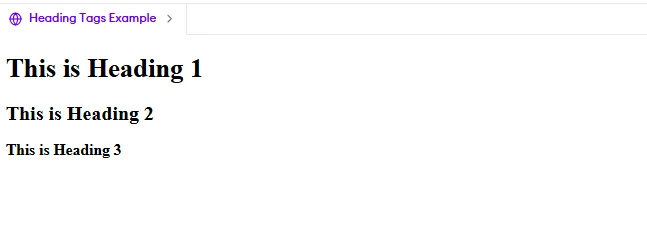
Heading tags are used to define headings in an HTML document. There are six heading levels, from <h1> (largest) to <h6> (smallest). Search engines use headings to understand the structure of a web page.

Example

<!DOCTYPE html>
<html>
<head>
    <title>Heading Tags Example</title>
</head>
<body>
    <h1>This is Heading 1</h1>
    <h2>This is Heading 2</h2>
    <h3>This is Heading 3</h3>
</body>
</html>


Output: 

Output

Paragraph Tag

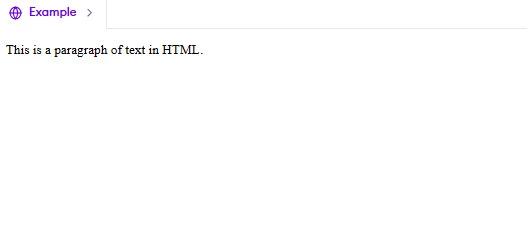
The <p> tag is used to define a paragraph of text. It automatically adds space before and after the text.

Example

<!DOCTYPE html>
<html lang="en">
<head>
    <meta charset="UTF-8">
    <meta name="viewport" content="width=device-width, initial-scale=1.0">
    <title>BDO Tag Example</title>
</head>
<body>
<p>This is a paragraph of text in HTML.</p>
</body>
</html>


Output: 

Output

Line Break Tag

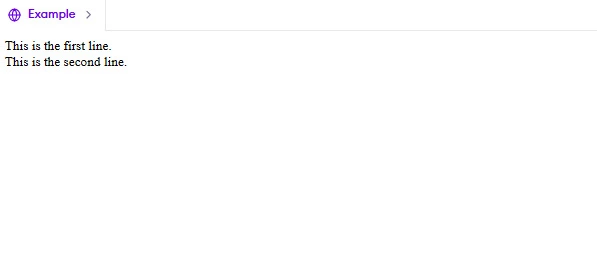
The <br> tag is used to insert a line break. Unlike the <p> tag, it does not add extra space.

Example

<!DOCTYPE html>
<html lang="en">
<head>
    <meta charset="UTF-8">
    <meta name="viewport" content="width=device-width, initial-scale=1.0">
    <title>Example</title>
</head>
<body>
This is the first line.<br>
This is the second line.
</body>
</html>


Output: 

Output

Center Tag

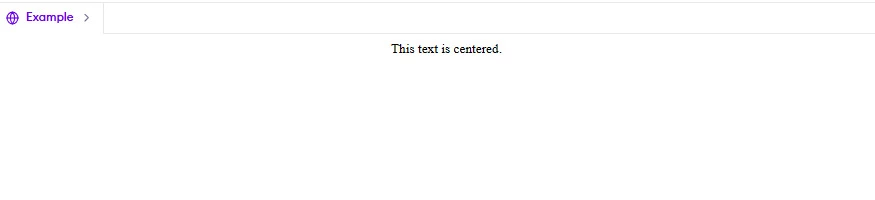
The <center> tag is used to align text or other elements in the center of a page. However, this tag is outdated, and the CSS text-align: center; property is preferred.

Example

<!DOCTYPE html>
<html lang="en">
<head>
    <meta charset="UTF-8">
    <meta name="viewport" content="width=device-width, initial-scale=1.0">
    <title>Example</title>
</head>
<body>
<center>This text is centered.</center>
</body>
</html>


Output: 

Output

Horizontal Rule Tag

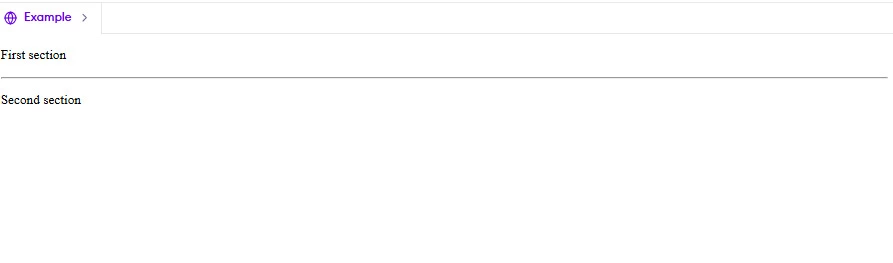
The <hr> tag is used to insert a horizontal line, which acts as a separator between sections.

Example

<!DOCTYPE html>
<html lang="en">
<head>
    <meta charset="UTF-8">
    <meta name="viewport" content="width=device-width, initial-scale=1.0">
    <title>Example</title>
</head>
<body>
  
  <p>First section</p>
<hr>
<p>Second section</p>
</body>
</html>


Output: 

Output

Preserve Formatting Tag

The <pre> tag is used to display text exactly as written in the HTML code, preserving spaces and line breaks.

Example

<!DOCTYPE html>
<html>
<head>
    <title>Example</title>
</head>
<body>
<pre>
This is      a preformatted
   text block in HTML.
</pre>

</body>
</html>


Output
 

Output

Non-breaking Spaces

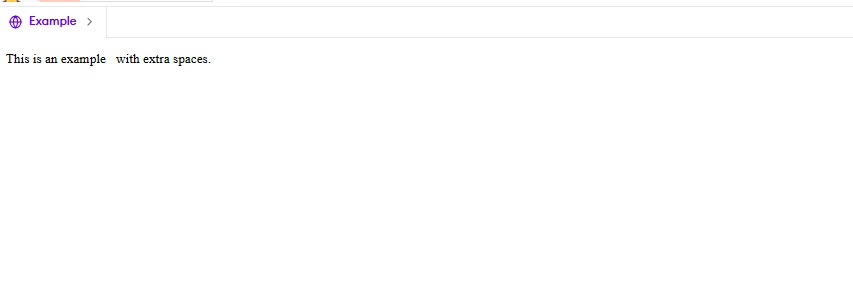
The &nbsp; entity is used to add extra spaces between words or elements.

Example

<!DOCTYPE html>
<html>
<head>
    <title>Example</title>
</head>
<body>
<p>This is an example&nbsp;&nbsp;&nbsp;with extra spaces.</p>
</body>
</html>


Output: 

Output

.

Listing Tags

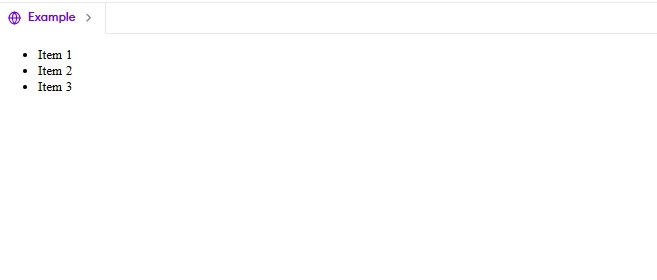
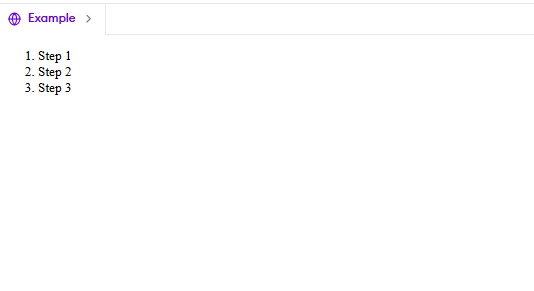
HTML provides ordered (<ol>) and unordered (<ul>) lists for displaying lists of items.

Example

Unordered List

<!DOCTYPE html>
<html>
<head>
    <title>Example</title>
</head>
<body>
<ul>
    <li>Item 1</li>
    <li>Item 2</li>
    <li>Item 3</li>
</ul>
</body>
</html>


Output:

Output

Ordered List

<!DOCTYPE html>
<html>
<head>
    <title>Example</title>
</head>
<body>
   <ol>
    <li>Step 1</li>
    <li>Step 2</li>
    <li>Step 3</li>
</ol>
</body>
</html>


Output:

Output

How to Check Your Website’s HTML Tags?  

Checking your website’s HTML tags is important to ensure everything is working properly. Whether you’re building a new website or fixing an old one, knowing how to inspect the HTML code can save you time. Let’s see how you can do it step by step.  

Using Browser Developer Tools  

Most modern browsers like Chrome, Firefox, or Edge come with built-in tools to inspect HTML. These tools allow you to see the code behind any webpage. Follow these steps:  

1. Open the webpage you want to check in your browser.  
 

2. Right-click anywhere on the page. A menu will appear.  
 

3. Click on “Inspect” or “Inspect Element.” This will open a panel showing the HTML code of the page.  
 

4. In the panel, you’ll see all the HTML tags used on the page. You can click on any tag to see its details.  


For example, if you right-click on a heading and inspect it, you might see something like this:  

<h1>Welcome to My Website</h1>


This means the text “Welcome to My Website” is wrapped in an `<h1>` tag, which makes it a main heading.  

Using Online Tools  

If you don’t want to use browser tools, there are online platforms that can help you check HTML tags. Websites like W3C Markup Validation Service allow you to paste your HTML code or enter a URL to check for errors.  

Let’s see how you can use it:  

1. Go to [W3C Validator](https://validator.w3.org/).  
 

2. Enter the URL of your website or upload your HTML file.  
 

3. Click “Check.” The tool will show you if there are any mistakes in your HTML tags.  

Why Checking HTML Tags Matters  

When HTML tags are incorrect, browsers may not display your website properly. For instance, missing a closing tag like `</p>` can mess up the layout. By checking your tags, you ensure your website looks good on all devices.  

Frequently Asked Questions

What are the most commonly used HTML tags?

The most commonly used HTML tags include <h1> to <h6> (headings), <p> (paragraph), <br> (line break), <ul> and <ol> (lists), and <hr> (horizontal rule).

How can I center text in HTML?

You can use the <center> tag (deprecated) or apply text-align: center; using CSS.

What is the purpose of the <pre> tag?

The <pre> tag preserves formatting, including spaces and line breaks, displaying text exactly as written in the HTML code.

Conclusion

In this article, we learned about the basic HTML tags list and their importance in structuring web pages. These tags help define headings, paragraphs, links, images, and more, making content organized and user-friendly. Understanding these tags is essential for creating well-structured web pages. By using them correctly, you can improve website readability and accessibility.

Live masterclass