Do you think IIT Guwahati certified course can help you in your career?
Introduction
The HTML <article> tag is used to define independent, self-contained content on a web page. This tag is commonly used for blog posts, news articles, or other sections of content that can stand alone. It helps developers organize and structure web pages more effectively. The <article> tag also improves accessibility and makes it easier for search engines to understand the content.
In this article, you will learn about the syntax of the <article> tag, its common uses, and best practices for using it in modern web development.
HTML <article> Tag
The <article> tag is a semantic element introduced in HTML5. It is designed to define independent, self-contained content that can be distributed or reused elsewhere. This content can include blog posts, news articles, forum posts, or even user comments.
Definition and Usage
The `<article>` tag in HTML is used to define a piece of content that is independent & self-contained. This means the content inside the `<article>` tag should make sense on its own & be reusable in different contexts. For example, a blog post, news article, or even a comment can be wrapped inside an `<article>` tag.
The `<article>` tag is part of the semantic elements in HTML5. Semantic elements are tags that describe the meaning of the content they contain. Using semantic tags like `<article>` makes your code more readable & helps search engines understand the structure of your webpage.
Syntax of <article> Tag
<article>
  <!-- Your content goes here -->
</article>
For example:
<!DOCTYPE html>
<html lang="en">
<head>
    <meta charset="UTF-8">
    <meta name="viewport" content="width=device-width, initial-scale=1.0">
    <title>Article Tag Example</title>
</head>
<body>
    <article>
        <h1>Understanding the Article Tag</h1>
        <p>The article tag is used to define independent, self-contained content. It is commonly used for blog posts, news articles, or forum posts.</p>
        <p>This content should make sense on its own & be reusable in different contexts.</p>
    </article>
</body>
</html>
Output
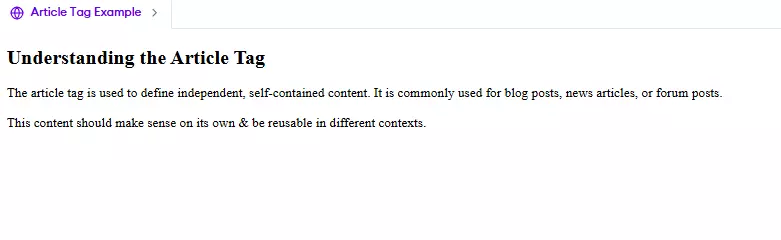
In this example, the `<article>` tag wraps a heading & two paragraphs. This content is independent & can be reused elsewhere without losing its meaning.
Key Points to Remember:
1. Self-contained Content: The content inside the `<article>` tag should be meaningful on its own.
2. Reusability: The content can be reused in different parts of the website or even on other websites.
3. Semantic Meaning: Using the `<article>` tag improves the structure & readability of your HTML document.
Key Features of the <article> Tag
Represents a standalone piece of content.
Makes web pages more accessible and easier to understand for screen readers.
Improves SEO (Search Engine Optimization) because search engines recognize its semantic importance.
This Tag Is Most Often Used in Two Contexts
The <article> tag is commonly used in two main scenarios:
1. Blog Posts or News Articles
When writing blog posts or news stories, the <article> tag is perfect for wrapping individual pieces of content. It ensures each post is treated as an independent entity.
Example:
<!DOCTYPE html>
<html lang="en">
<head>
  <meta charset="UTF-8">
  <meta name="viewport" content="width=device-width, initial-scale=1.0">
  <title>Blog Example</title>
</head>
<body>
  <h1>My Blog</h1>
  <article>
    <h2>What is HTML?</h2>
    <p>HTML stands for HyperText Markup Language. It is the standard language for creating web pages.</p>
    <p>Posted on: January 7, 2025</p>
  </article>


  <article>
    <h2>Benefits of Learning CSS</h2>
    <p>CSS is used to style HTML elements. It allows developers to create visually appealing websites.</p>
    <p>Posted on: January 6, 2025</p>
  </article>
</body>
</html>
Output Explanation:
Each <article> tag contains a blog post.
The <h2> tags represent the titles of the posts, and the <p> tags hold the content.
When displayed in a browser, the posts will appear one after the other with clear separation.
2. User Comments or Forum Posts
The <article> tag is also used to enclose user-generated content like comments or forum threads.
Example:
<!DOCTYPE html>
<html lang="en">
<head>
  <meta charset="UTF-8">
  <meta name="viewport" content="width=device-width, initial-scale=1.0">
  <title>Forum Example</title>
</head>
<body>
  <h1>Discussion Forum</h1>
  <article>
    <h2>User: Alice</h2>
    <p>I love using the `<article>` tag in my projects. It makes content so organized!</p>
  </article>


  <article>
    <h2>User: Bob</h2>
    <p>I find it really helpful for structuring blog posts. Thanks for the tips!</p>
  </article>
</body>
</html>
Output Explanation:
Each <article> represents a user’s comment.
The structure makes it easier for developers to separate and style individual comments.
Default CSS Settings
Browsers apply default styles to the <article> tag, but you can customize it using CSS. By default, the <article> tag behaves like a block-level element, meaning it takes up the full width of its parent container.
Default Behavior
<article>
  <p>This is a block-level element by default.</p>
</article>
The content inside the <article> tag will appear on a new line.
Customizing the <article> Tag with CSS
You can use CSS to style the <article> tag to match your design preferences.
Example:
<!DOCTYPE html>
<html lang="en">
<head>
  <meta charset="UTF-8">
  <meta name="viewport" content="width=device-width, initial-scale=1.0">
  <title>Styled Articles</title>
  <style>
    article {
      border: 1px solid #ccc;
      padding: 16px;
      margin-bottom: 16px;
      background-color: #f9f9f9;
    }
    h2 {
      color: #333;
    }
    p {
      color: #555;
    }
  </style>
</head>
<body>
  <article>
    <h2>Introduction to HTML</h2>
    <p>HTML is the building block of web development.</p>
  </article>


  <article>
    <h2>Why Learn CSS?</h2>
    <p>CSS enhances the visual appeal of your web pages.</p>
  </article>
</body>
</html>
Output Explanation:
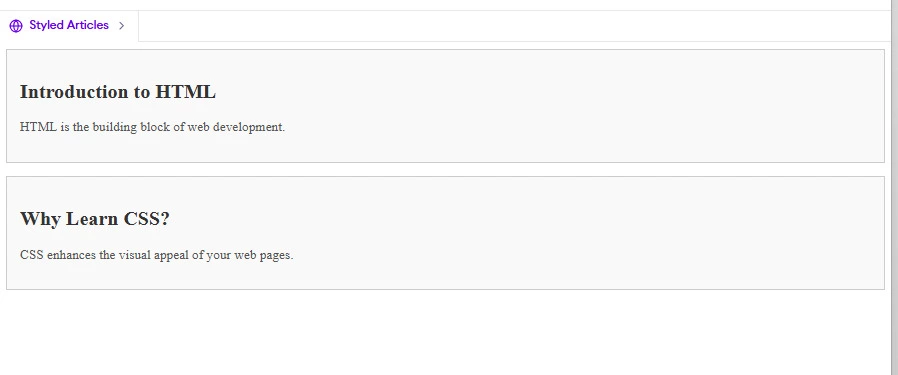
Each <article> has a light-gray background, padding, and a border to make it stand out.
This enhances readability and makes the content visually appealing.
Browser Support
The `<article>` tag is widely supported across all modern web browsers. This means you can use it without worrying about compatibility issues in most cases. However, it’s always good to know which browsers support it & to what extent.
This is a quick overview of browser support for the `<article>` tag:
Google Chrome: Fully supported
Mozilla Firefox: Fully supported
Microsoft Edge: Fully supported
Safari: Fully supported
Opera: Fully supported
Internet Explorer: Partially supported (IE9 & above)
While the `<article>` tag is supported in most browsers, older versions of Internet Explorer (IE8 & below) do not recognize it. To ensure compatibility with older browsers, you can use a simple JavaScript workaround called the HTML5 Shiv. This script enables support for HTML5 elements in older versions of IE.
Let’s see how you can add the HTML5 Shiv in your code:
<!DOCTYPE html>
<html lang="en">
<head>
    <meta charset="UTF-8">
    <meta name="viewport" content="width=device-width, initial-scale=1.0">
    <title>Article Tag with HTML5 Shiv</title>
    <!-- HTML5 Shiv for IE8 and below -->
    <!--[if lt IE 9]>
        <script src="https://cdnjs.cloudflare.com/ajax/libs/html5shiv/3.7.3/html5shiv.min.js"></script>
    <![endif]-->
</head>
<body>
    <article>
        <h1>Browser Support for the Article Tag</h1>
        <p>The article tag is supported in all modern browsers, including Chrome, Firefox, Edge, Safari, & Opera.</p>
        <p>For older versions of Internet Explorer, you can use the HTML5 Shiv script to enable support.</p>
    </article>
</body>
</html>
Output
In this example, the HTML5 Shiv script is conditionally loaded only for Internet Explorer versions below IE9. This ensures that the `<article>` tag is recognized & styled correctly in older browsers.
Key Points to Remember:
1. Modern Browsers: The `<article>` tag is fully supported in all modern browsers.
2. Older Browsers: For older versions of Internet Explorer, use the HTML5 Shiv script to enable support.
3. Testing: Always test your website in multiple browsers to ensure compatibility.
Frequently Asked Questions
What is the purpose of the <article> tag?
The <article> tag is used to define self-contained, reusable content such as blog posts, news articles, or comments.
Can I use the <article> tag inside another <article> tag?
Yes, you can nest <article> tags if the inner content is relevant and self-contained within the outer content.
How does the <article> tag improve SEO?
The <article> tag adds semantic meaning to your content, helping search engines understand and rank your pages better.
Conclusion
The <article> tag is an essential HTML5 element for structuring independent and reusable content. Whether you're creating blog posts, news articles, or forum comments, the <article> tag ensures clarity and organization. It also improves accessibility and SEO, making it a must-use tag for modern web development.









 7+ registered

