Do you think IIT Guwahati certified course can help you in your career?
Introduction
The BoxLayout layout manager comes standard with Java platforms. Components can be arranged horizontally or vertically inside the container. If we resize the frame, the arrangement of components will remain as such. For example, vertical arrangement will remain vertical even if the frame resizes. A container's components will not wrap around each other. Instead of passing the containers to the layout manager constructor, BoxLayout passes the containers to the layout manager constructor. In the following sections, we will discuss BoxLayout's constructors, methods, and examples.
Constructors of BoxLayout in Java
The following constructor will be used to implement the BoxLayout class in Java:
public BoxLayout(Container c, int axis)
Container and axis are passed as arguments, which help to create the container with the axis mentioned. There are two valid directions:
Left to right – BoxLayout.X_AXIS
Top to bottom – BoxLayout.Y_AXIS
A layout like the following figure will appear if we pass BoxLayout.Y_AXIS to the constructor.
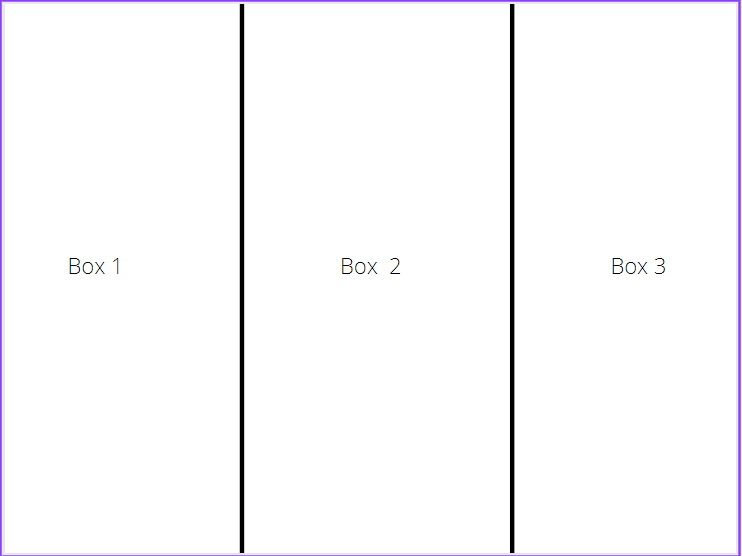
A layout like the following figure will appear if we pass BoxLayout.X_AXIS to the constructor.
Methods of BoxLayout class in Java
The methods of BoxLayout class are listed below:
Method name
Method description
public void addLayoutComponent(Component comp, Object obj)
Using the constraint object specified, this method adds the component to the container.
public Float getLayoutAlignmentX(Container contnr)
The alignment of the container in the left-right direction is returned by this method, i.e., X-Axis. Alignment values range from 0 to 1, with 0 representing the origin and 1 representing the furthest alignment from the origin. Alignment values between 0.5 and 1 represent the middle line.
public Float getLayoutAlignmentY(Container contnr)
The alignment of the container in the top-bottom direction is returned by this method, i.e., Y-Axis. Alignment values range from 0 to 1, with 0 representing the origin and 1 representing the furthest alignment from the origin. Alignment values between 0.5 and 1 represent the middle line.
Float maximumLayoutSize(Container contnr)
When the target container is added to a layout, this method returns the maximum size it can layout the containers.
Float minimumLayoutSize(Container contnr)
When the target container is added to a layout, this method returns the minimum size it can layout the containers.
removeLayoutComponent(Component comp)
By using this method, the mentioned component will be removed from the layout of the container.
layoutContainer(Container contnr)
The Abstract Window Toolkit (AWT) calls this method to lay out the container.
invalidateLayout(Containercontnr)
The cached layout information is discarded with this method. As a result, the layout is invalidated.
These are the BoxLayout Classes.
Example for BoxLayout in Java
A Java example of BoxLayout is given that creates buttons on both X-axis and Y-axis below:
import java.awt.*;
import java.awt.event.*;
import javax.swing.*;
public class BoxLayoutXY extends JFrame
{
public BoxLayoutXY()
{
Container cp = getContentPane();
placed in a line
cp.setLayout(new FlowLayout());

Box hbox = Box. createHorizontalBox();
Box vbox = Box. createVerticalBox();
hbox.add(new JButton("Horizontal Button 1"));
hbox.add(new JButton("Horizontal Button 2"));
hbox.add(new JButton("Horizontal Button 3"));
vbox.add(new JButton("Vertical Button 1"));
vbox.add(new JButton("Vertical Button 2"));
vbox.add(new JButton("Vertical Button 3"));
cp.add(hbox);
cp.add(vbox);
pack();

setVisible(true);
}
public static void main(String args[])
{
new BoxLayoutXY();
}
}
You can also try this code with Online Java Compiler
By extending the JFrame class, this BoxLayout is implemented.
Frequently Asked Questions
In Java, why do we need LayoutManagers?
It is the LayoutManagers that arrange components in a particular way.
How does Java's BoxLayout work?
By using the BoxLayout class, components can be arranged vertically (along the Y-axis) or horizontally (along the X-axis). The components of the BoxLayout class are arranged either in a row or in a column.
How is the panel layout set up by default?
Applet, the most famous subclass of Panel, uses the FlowLayout layout.
How does the frame layout look by default?
A frame or window's default layout is Java BorderLayout.
What is the number of layout managers available in Java?
Five layout managers are included in the java.awt package: FlowLayout, BorderLayout, GridLayout, CardLayout, and GridBagLayout.
Conclusion
The BoxLayout layout manager arranges the components of a container according to a specified format, i.e. X-axis and Y-axis. In order to achieve this, we will use the constructor of the class, which contains various methods.
Layouts in Java come in a variety of types, and each type has its own arrangement of components. Programmers must have a thorough understanding of every layout in order to work efficiently with GUI applications. In the IT sector, Layout Managers are also popular in Graphics Programming.







 7+ registered

