Do you think IIT Guwahati certified course can help you in your career?
Introduction
An Ethernet-capable Azure Sphere device can be linked to a private network to access network services or to a public (internet-connected) network to communicate with Azure IoT or your own cloud services. An Azure Sphere device needs a board configuration image and an external Ethernet adapter to interact over Ethernet. This blog describes how to connect Azure Sphere to Ethernet, as well as the preparation, network configuration, and supported Ethernet adapters and development boards in Azure Sphere.
Without further ado, let's get started.
Prepare Azure Sphere for Ethernet
An Azure Sphere device needs a board configuration image and an external Ethernet adapter to interact over Ethernet. Information needed by the Azure Sphere Security Service to add Ethernet capability to the Azure Sphere OS is contained in the board configuration image.
Let's look into the details of configuring Azure Sphere for Ethernet.
Configure Azure Sphere for Ethernet
You can set up your Azure Sphere device to connect to a network via the command line or from your application using the Azure Sphere SDK Application Libraries after attaching your Azure Sphere device to a supported Ethernet adapter and deploying the board configuration image (Applibs).
Let's dive into the details of configuring ethernet using CLI.
Ethernet configuration using the CLI
You can set up your Azure Sphere device to connect to a network via the command line or from your application using the Azure Sphere SDK Application Libraries after attaching your Azure Sphere device to a supported Ethernet adapter and deploying the board configuration image (Applibs).
Command:
azsphere device network enable --interface "eth0"
The network interface (eth0) needs to be operational in order to use the configured Ethernet network. To check if the interface is active, use the device network list-interfaces command.
Command:
azsphere device network list-interfaces
If necessary, activate it using the device network enable command.
Command:
azsphere device network enable --interface eth0
Let's look into the details of configuring ethernet using Applibs.
Ethernet configuration using Applibs
Your application has to utilise the applibs networking API to configure Ethernet.
Add the following header file to your programme:
#include <applibs/networking.h>
The NetworkConfig capability must be present in the application manifest.
Code:
"Capabilities": {
  "NetworkConfig" : true
}
To find out if the network interface is active, use the Networking_GetInterfaceConnectionStatus function.
Use the Networking_SetInterfaceState method to turn on the network interface.
Command:
Networking_SetInterfaceState("eth0", true);
The particular network interface the device will utilise for communication is non-deterministic if both network interfaces (wlan0 and eth0) are active and connected. Your application should use the Networking_SetInterfaceState() function to explicitly switch the chosen interface on and the other interface off if you wish to control which network interface is in use at any given time. The DHCP client high-level app sample, among other things, shows how to change between interfaces by giving a global variable a value that corresponds to one of the two interfaces.
Let's into the details of preparing Azure Sphere for Ethernet.
Prepare Azure Sphere for Ethernet
An Azure Sphere device needs a board configuration image and an external Ethernet adapter to interact over Ethernet. To get your device ready for Ethernet networking, take the following actions:
Connect the adapter to your device.
Create and deploy the board configuration image.
Enable the Ethernet interface.
Let's examine each of them in more detail.
Connect the adapter to your device
For a list of compatible Ethernet adapters and instructions on connecting them to an Azure Sphere development board, see Supported Ethernet adapters boards and modules.
Let's look at the details of creating and deploying the board configuration image.
Create and deploy the board configuration image
Each Ethernet adapter used with Azure Sphere must have a board configuration picture. For the Azure Sphere Security Service to add Ethernet capability to the Azure Sphere OS, it needs information from the board configuration image. In addition to deploying your application image package, you must also produce a board configuration image package for your Ethernet adapter. For development and debugging, it is possible to sideload the board configuration image package. Additionally, you can field-deploy your Azure Sphere application and the board configuration image package from the cloud. The Flash memory and RAM set aside for high-level applications are not affected by the board arrangement.
Let's look at the details of Creating a board configuration image package.
Create a board configuration image package
The CLI command azsphere image-package pack-board-config is used to produce a board configuration image package. If one is available, you can use an Azure Sphere preset board configuration image or supply a custom configuration image.
Set the –reset parameter of the azsphere image-package pack-board-config command to the ID of the preset board configuration image to utilise the preset board configuration image.
Set the –input parameter of the azsphere image-package pack-board-config command to the path to your unique board configuration image in order to use it.
You can generate a board configuration image package by using the azsphere image-package pack-board-config command, as seen in the example below.
The board configuration image package for an Ethernet adapter based on the Microchip ENC28J60 is created in the following example and is designated enc28j60-isu0-int5.imagepackage. The —destination parameter indicates a path to the output filename for the final image package, and the —preset parameter defines the name of the preset board configuration picture to package.
Let's look at the details of Sideloading a board configuration image package.
Sideload a board configuration image package
When developing and debugging, utilise a board configuration image package:
The device should be ready for development and debuggin Command:
azsphere device enable-development
Utilize the azsphere device sideload delete command to remove any installed programs from the device. To prevent resource conflicts between existing apps and the board configuration, it's crucial to remove any existing applications before loading the board configuration image package.
The board configuration image package must be sideloaded. For instance, the board configuration image package enc28j60-isu0-int5.imagepackage can be sideloaded using the following command:
Using Visual Studio or the azsphere device sideload deploy command, sideload the application.
Let's look at the details of Cloud deploy a board configuration image package.
Cloud deploy a board configuration image package
Your device must have a product, be a member of a device group, and not have the AppDevelopment capability installed in order to publish a board configuration image package through the cloud.
When your device is prepared, you can deploy both the application image and the board configuration image at once.
The steps to create a deployment are as follows:
Using azsphere image add, upload the image package to your Azure Sphere tenant.
Using azsphere device-group deployment create, create a new deployment for a device group for the uploaded pictures.
The device group is identified by the argument —device-group. Device groups are uniquely identified across all products by a GUID, which is provided by the device group ID. As an alternative, you can use the pair of the product name and device group name in the format product-name>/device-group-name>. For a specific product, a device group is uniquely identified by this pair of names. Replace "image-ID" with the image package's image ID.
Let's look at the details of removing a sideloaded board configuration.
Remove a sideloaded board configuration
In order for other programs to utilise the resources that the board reserves, it may be necessary to later delete a board configuration that was sideloaded while the board was being developed. When the board configuration is loaded on the Azure Sphere device, pin conflict errors will appear if you attempt to launch an application that needs these resources.
Take the following actions to remove a board configuration:
List the pictures that are on the gadget.
Command:
azsphere device image list-installed
For the board setup, locate the component ID in the list:
Using its component ID, delete the board configuration image package:
Press the Reset button or type the command azsphere device restart to restart the device.
Let's look at the details of enabling the Ethernet interface.
Enable the Ethernet interface
The interface will automatically be enabled after the board configuration has been loaded and the device has been rebooted. Use the azsphere device network disable command or the Networking_SetInterfaceState function from the network configuration API to disable the interface. By default, all interfaces use dynamic IP addresses.
Let's look into the details of Supported Ethernet adapters and development boards.
Supported Ethernet adapters and development boards
The image ID that was used to construct the board configuration image package is also given here if the adapter has a pre-configured board configuration image. For additional details on building a board configuration image package, see Create and deploy the board configuration image.
Let's look into the details of Microchip ENC28J60-based adapters.
Microchip ENC28J60-based adapters
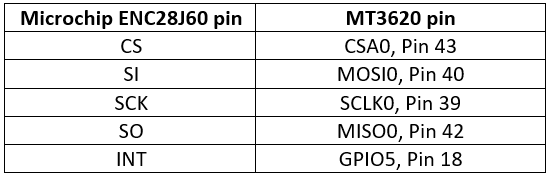
The Microchip ENC28J60 Stand-Alone Ethernet Controller-based Ethernet adapters are supported by Azure Sphere.
The necessary mapping between the MT3620 and Microchip ENC28J60 controller is shown in the table below.
Let's look into the details of MT3620 compatible ENC28J60-based adapter boards and modules.
MT3620 compatible ENC28J60-based adapter boards and modules
Using a pre-made Ethernet adapter board or module with an ENC28J60-based design that is compatible with one of the standard MT3620 development boards will speed up the prototype process during development. Examples include:
Olimex ENC28J60-H Ethernet controller development board
Seeed Studio MT3620 Ethernet Shield for Seeed Studio MT3620 development kit
MikroE ETH Click board for Avnet MT3620 Starter Kit V2
Let's look into the details of the Olimex ENC28J60-H Ethernet controller development board.
Olimex ENC28J60-H Ethernet controller development board
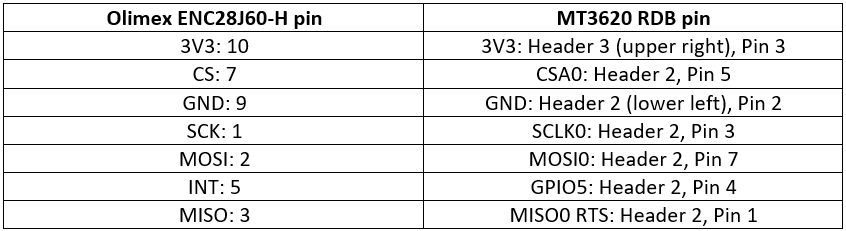
Every MT3620 development kit that exposes ISU0 and GPIO 5 is compatible with the Olimex ENC28J60-H development board.
Let's look into the details of the Seeed Studio MT3620 Ethernet Shield for Seeed Studio MT3620 development kit.
Seeed Studio MT3620 Ethernet Shield for Seeed Studio MT3620 development kit
Internally, the Olimex ENC28J60-H Development Board and the MT3620 Ethernet Shield are connected to the same GPIO pins on the MT3620 development board. The same ISU port (ISU0) is also used for SPI communication with the MT3620 board. On the MT3620 board, the interface headers are where the MT3620 Ethernet Shield is connected.
Let's look into the details of the MikroE ETH Click board for Avnet MT3620 Starter Kit V2.
MikroE ETH Click board for Avnet MT3620 Starter Kit V2
On the MT3620 development board, the Olimex ENC28J60-H Development Board and the MT3620 Ethernet Shield are both internally connected to the same GPIO pins. For SPI connection with the MT3620 board, the same ISU port (ISU0) is employed. The connection point for the MT3620 Ethernet Shield on the MT3620 board is the interface headers.
Frequently Asked Questions
What are the LAN network connectivity supported by Azure Sphere OS?
Wi-Fi and Ethernet are the two types of LAN network connectivity that the Azure Sphere OS currently supports.
Which Wi-Fi service is supported by the Azure Sphere MT3620 device?
The 2.4GHz and 5GHz dual-band 802.11 b/g/n Wi-Fi radio is offered by an Azure Sphere MT3620 device.
What is the use of the MQTT message protocol in Azure Sphere?
Azure Sphere supports the MQTT message protocol for the provisioning of devices and communication with Azure IoT Hub as well as non-Azure hosts.
Conclusion
In this article, we have extensively discussed the details of connecting Azure Sphere to Ethernet, along with the details of its network configuration, preparation, and details of supported Ethernet adapters and development boards in Azure Sphere.











 1+ registered

