Do you think IIT Guwahati certified course can help you in your career?
Introduction
Extensible Authentication Protocol-Transport Layer Security (EAP-TLS) is a Wi-Fi connection method that is supported by Azure Sphere. EAP-TLS is not supported over Ethernet. In circumstances where security is a concern, EAP-TLS for Wi-Fi is a popular authentication technique. It needs more work to make sure the Azure Sphere device and the network are correctly configured and authorised but offer substantially more protection than utilising the SSID password as a global secret.
This blog describes the details of EAP-TLS in Azure Sphere, including its authentication, EAP-TLS Network, and how to set up an EAP-TLS network using the CLI and from an app. Without further ado, let's begin by going through the terminology.
Terminology
The following terminologies are used :
Access Point (AP): An access point (AP) is a piece of networking hardware that connects other Wi-Fi gadgets to a wired network.
Certificate: A certificate is made up of a public key and additional metadata that has been signed by a CA.
Certificate Authority (CA): An organisation that signs and issues digital certificates are known as a certificate authority (CA).
CA Certificate: Authentication certificates for RADIUS servers are chained to a root CA certificate or CA certificate. The Azure Sphere device may hold this public key in storage.
Client Certificate: The private key and certificate used for network authentication. The Azure Sphere device houses both the client certificate and the private key that goes with it.
Key Pair: A set of keys that are cryptographically coupled. A key pair typically refers to a public key and a private key. However, in the context of the Azure Sphere EAP-TLS scenario, it also refers to the client certificate and its private key.
Private Key: A key that should only be disclosed to the dependable owner.
Public key infrastructure (PKI): Digital certificates must be created, managed, distributed, used, stored, and revoked, along with managing public-key encryption. This is known as public key infrastructure or PKI.
Remote Authentication Dial-In User Service (RADIUS): Authentication, Authorization, and Accounting (AAA or Triple-A) management for users who connect to and utilise a network service is provided via the Remote Authentication Dial-In User Service (RADIUS), a networking protocol that runs on port 1812. When a client submits authentication information, a RADIUS server receives it, verifies it, and then grants access to additional network resources.
Rivest–Shamir–Adleman (RSA): RFC 3447 is the foundation of the public-key cryptosystem Rivest-Shamir-Adleman (RSA).
Supplicant: The wireless client is the submitter. The Azure Sphere gadget is making a request.
Let's look at the details of EAP-TLS authentication.
EAP-TLS authentication
An Azure Sphere device contacts a wireless access point to request access to a network resource (AP). The AP receives the request, inquires about the identity of the device, and then makes contact with the RADIUS server to begin the authentication procedure. EAP encapsulation over LAN (EAPOL) is the protocol used for communications between the access point and the device In order to deliver the EAPOL messages to the RADIUS server, the access point converts them to RADIUS format. On port 1812, the RADIUS server offers network authentication services. Through the access point, which passes the messages from one to the other, the Azure Sphere device and the RADIUS server carry out the authentication process. The RADIUS server notifies the device with a status message once authentication is finished. The server opens the port for the Azure Sphere device if authentication is successful. The Azure Sphere device can access various network and internet resources upon successful authentication.
Let's dive into the details of the Azure Sphere EAP-TLS platform.
Azure Sphere EAP-TLS platform
The capabilities listed below are available for network configuration and management on the Azure Sphere EAP-TLS platform:
The client certificate and private key for Wi-Fi EAP-TLS connections are stored in a .PEM file that must be loaded.
Set up EAP-TLS on the Wi-Fi interface. The client certificate for the device must be stored in the .PEM file on the device.
To obtain a device certificate and private key, enable an EAP-TLS network, and connect to the EAP-TLS network, connect to an existing non-EAP-TLS network.
Enable programs to login to a certificate store using the device authentication and attestation (DAA) certificate used for HTTPS connections.
Wi-Fi network management with the WifiConfig API
To handle certificates, use the Certstore API.
The local network administrator is in charge of all other EAP-TLS network elements. Let's look at the details of the EAP-TLS Network setup.
EAP-TLS network setup
Your network administrator is in charge of setting up the EAP-TLS network. The public-key infrastructure (PKI) must be specified by the network administrator, who must also make sure that all network elements abide by its rules. The following tasks are included in network setup and configuration but are not limited to them:
Establish the requirements for a device to validate its identity, install the CA certificate on the RADIUS server, and set up the RADIUS server.
Set up your Azure Sphere devices to use the RADIUS server's root CA for server authentication.
Each device should have a client certificate and private key loaded onto it.
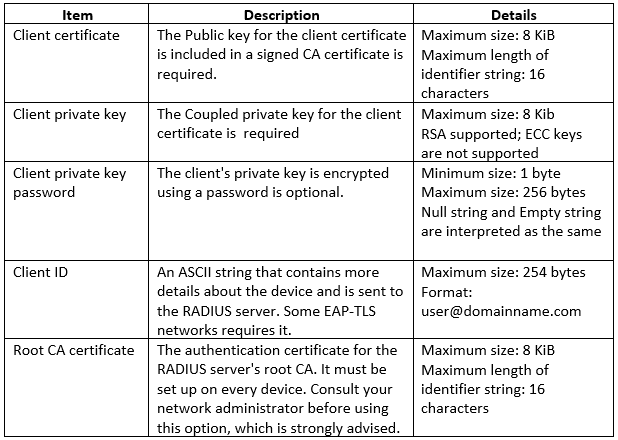
The information required to set up an EAP-TLS network for Azure Sphere is listed in the following table:
Let's look at the details of the deployment techniques.
Acquire and deploy certificates for EAP-TLS network
A client certificate must be present on an Azure Sphere device before it can connect to an EAP-TLS network so that the RADIUS server may use it to verify the device's identity. Every device also needs a Root CA certificate in order to authenticate the RADIUS server if your network requires mutual authentication.
Depending on the network resources your devices have access to, there are many ways to obtain and deploy these certificates:
You must manually install the certificates if the EAP-TLS network is the only one accessible.
You can employ a "bootstrap" strategy if another networking option, such as an open network, is available. When connecting to the EAP-TLS network via the bootstrapping method, an Azure Sphere high-level application first obtains the certificates from the open network.
Manual deployment
You must manually install the certificates if your devices can only connect to the EAP-TLS network. The certificates must first be obtained manually using a networked PC or Linux system, and then they must be loaded using the Azure Sphere CLI into each Azure Sphere device. This method necessitates a direct physical link between the PC or Linux device and the Azure Sphere gadget.
Manually obtain the certificates
To load certificates into an Azure Sphere device, the Root CA and client certificates must be in the .pem format. You will want the client certificate, private key, and, if applicable, a password for your private key for your device, as well as the Root CA certificate from the appropriate server. The proper EAP-TLS network server must create and sign each certificate. The information you need to obtain the certifications can be obtained from your network administrator or security team.
Use the Azure Sphere CLI to store the certificates on the Azure Sphere device after saving them in the .pem format on your PC or Linux system.
Store the certificates using the CLI
Utilize your networked PC or Linux machine to connect the Azure Sphere device, then use the azsphere command in order to store the certificates on the device.
On the Azure Sphere device, store the Root CA certificate as follows:
Consider adopting a "bootstrap" technique if you want to connect multiple Azure Sphere devices at once or in different places. The ability to connect to a network and visit a server that can provide the certificates is a requirement for using this method on your devices. Using the available network, your high-level Azure Sphere application establishes a connection with the server, obtains the certificates, and stores them on the hardware.
This procedure is depicted as:
The Azure Sphere device's application connects to the public network and makes contact with the Azure Sphere Security Service to request a DAA certificate. The DAA certificate is then installed on the device. This certificate should be used by the device to establish authentication with the certificate issuance service.
The program then establishes a connection with the authorised certificate issuing service by the network administrator. It requests the Root CA certificate for the RADIUS server on the EAP-TLS network along with the client certificate and private key and provides its DAA certificate to the server to verify its identity. If necessary, the service may also send additional application data, such as the client's identification and the private key password. The client certificate, client private key, and Root CA certificate are then installed on the device by the program. The open network can then be left alone.
The program sets up and activates the EAP-TLS network. To demonstrate the identification of the device, it provides the client certificate and private key. The application uses the Root CA certificate to authenticate the RADIUS server if the network allows mutual authentication.
Authenticating the Device
An Azure Sphere device can log in to a service that can provide the other necessary certificates by using its device authentication and attestation (DAA) certificate. The Azure Sphere Security Service has the DAA certificate on hand.
Follow the steps to obtain the DAA certificate:
The high-level application's DeviceAuthentication portion of the application manifest should contain the Azure Sphere tenancy ID.
The certificate chain required for the current Azure Sphere tenant can be obtained by calling DeviceAuth_CurlSslFunc from the high-level application.
If the target service demands TLS mutual authentication, the DeviceAuth_CurlSslFunc function will use the DAA client certificate chain to authenticate if the application manifest has the Azure Sphere tenancy ID for the present device.
Getting the Root CA certificate
The application makes a connection to a certificate server endpoint that is reachable on its network and may provide the certificate in order to obtain the Root CA certificate for the RADIUS server. How to connect to the endpoint and get the certificate should be explained by your network administrator.
Installing the certificates using the CertStore API
The certificates are installed on the device by the application using the CertStore API. The client certificate is installed by the CertStore InstallClientCertificate function, while the Root CA certificate for the RADIUS server is installed by CertStore InstallRootCACertificate. For more information on how to use the CertStore API for managing certificates, see Manage certificates in high-level applications.
Let's look at the specifics of configuring the EAP-TLS network using the CLI.
Set up EAP-TLS network from CLI
You'll need the client certificate for your device and the Root CA certificate for the RADIUS server in your network in order to configure an EAP-TLS network using the azsphere command. PKCS1 or PKCS8 syntax must be used for the certificates, which must be in the .pem format. Learn more about certificates and where to get them in Acquire and deploy certificates for EAP-TLS networks. On Linux and the Windows subsystem for Linux, you can use OpenSSL to convert a PFX file to .pem format.
Steps to Set Up EAP-TLS Network
To configure the network using the command line, adhere to these procedures.
Step 1: Installing the client certificate
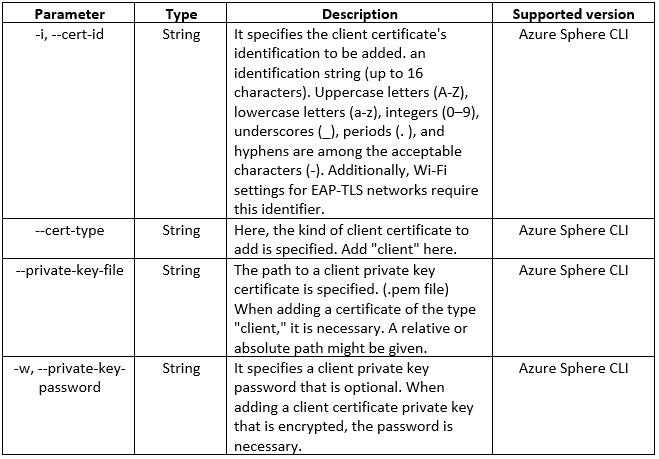
If your network requires them, install the client certificate information, which includes the public certificate, private key, and password. Use the following inputs with the azsphere device certificate add command:
Every network requires the public key file path and the private key file location in order to add a client certificate. If the private key is encrypted, you simply need the private key password.
Step 2: Installation of the Root CA certificate
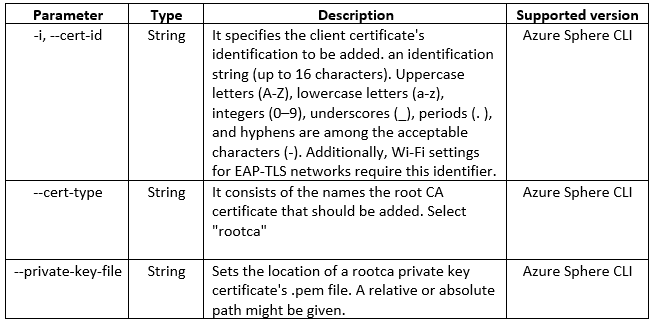
If your network needs mutual authentication, install the Root CA certificate on your RADIUS server. The following options should be used with the azsphere device certificate add command.
Step 3: Adding the Wi-Fi network
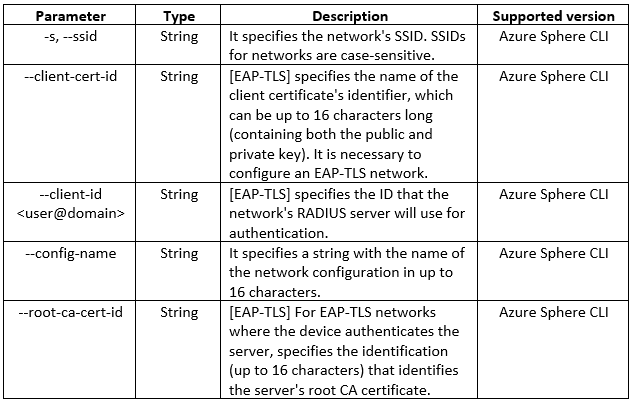
Add the EAP-TLS network to your device following the installation of the certificates. Use the following inputs with the azsphere device wifi add command:
Step 4: Reload the network configuration
You must reload the network configuration to make sure it uses the most recent information from the certificate store after installing the certificates and configuring the EAP-TLS network. Use the wifi azsphere device wifi reload-config command.
Step 5: Check to see if the network is connected.
Using the azsphere device wifi display-status command will show you whether your device has successfully connected to the network. The network you created should be listed, enabled, and connected, so make sure to look at the output.
Let's walk over the steps for configuring the EAP-TLS network in an application.
Set up EAP-TLS network in an app
EAP-TLS configuration can be done manually or through a high-level application using azsphere commands. The Certstore and WifiConfig APIs are used by applications to configure and establish connections to networks.
Requirements
Your high-level app must have access to the certificates needed for authentication, including the proper header files, and activate the necessary capabilities in its application manifest in order to set up an EAP-TLS network.
Header files
The following header is required in your application:
The CertStore header is required if the application uses the CertStore API to manage certificates. The WifiConfig functions that get certificate information, such as WifiConfig_GetRootCACertStoreIdentifier, do not require the use of this header.
Application manifest
To configure an EAP-TLS network, the EnterpriseWiFiConfig feature must be enabled in the application manifest. In order to use WifiConfig_* functions that do not control EAP-TLS features, it also has to have the WifiConfig capability. Finally, the CertStore capability must be enabled if the app also maintains certificates. Avoid enabling features that the program doesn't need because doing so compromises security. Do not mention CertStore if the certificates will be updated manually. Only use this feature if the program is in charge of managing and storing certificates on the device.
In the app manifest.json file, the following example demonstrates how to set all three capabilities:
The device must have access to the client certificate for your device. The Root CA certificate required for your network's RADIUS server must also be loaded on the device if the EAP-TLS network is set up for mutual authentication. Both certificates must be in the PKCS1 or PKCS8 .pem format.
Installing certificates
Your app needs to have access to the Root CA and client certificates to be able to configure an EAP-TLS network. Acquire and deploy certificates for EAP-TLS networks explains methods for obtaining certificates and putting them as PEM files on a device. You are in charge of certificate acquisition and implementation; for more information, speak with your network administrator.
An application can install the certificates for use once they are on the device. Installing them is demonstrated in the Certificates sample. These are the fundamental steps are:
Make sure the certificate storage has enough room. Because there is a limited amount of space in the certificate store, the program should use CertStore_GetAvailableSpace before attempting to install a certificate. The program should erase an older certificate to create a way for the new one if there isn't enough room. 24 KiB is the maximum certificate storage size.
Call CertStore_InstallRootCACertificate to install a Root CA certificate. The program also provides an identifier that it can use later as a friendly name for the certificate, as well as a link to the certificate's content. If mutual authentication is enabled on the network, a Root CA certificate is necessary. Uppercase, lowercase, 0–9 digits, periods (. ), hyphens (-), and underscores (_) can all be used as identifiers. Identification can only be up to 16 characters long.
Call the CertStore_InstallClientCertificate to install a client certificate. The app provides a pointer to the certificate content and an identifier that it can use later to give the certificate a pleasant name, much like with the Root CA certificate. The required private key and, if the key is encrypted, the encryption password must also be provided by the app.
The CertStore_MoveCertificate function can be used by the program to update a certificate. By replacing the contents of an existing destination certificate with those of the source certificate, this function transfers one certificate to another. The certificate store must already have both certificates installed. Strategies for updating certificates without causing network outages are described in Certificate Life Cycle and Renewal.
Let's look at the steps to configure and set up an EAP-TLS network.
Configure and set up an EAP-TLS network
An app should adhere to these fundamental procedures to configure and set up the network:
Call WifiConfig_AddNetwork to add a network. This function merely establishes a network; it makes no adjustments to the network's properties.
Calling WifiConfig_SetSecurityType will set the network's security type. The security type for an EAP-TLS network must be WifiConfig_Security_Wpa2_EAP_TLS.
Call WifiConfig_SetSSID to set the network's SSID. The program can search for the SSID if one doesn't already know it. The app should enable targeted scanning by executing WifiConfig_SetTargetedScanEnabled if the network environment is expected to be loud or if the SSID might not be broadcast. Once all networks have been scanned for, it can call WifiConfig_TriggerScanAndGetScannedNetworkCount and WifiConfig_GetScannedNetworks to retrieve the scan's findings. An array of structures with information about every network are returned by the WiFiConfig_GetScannedNetworks function. In order to retrieve the SSID of a network that has the security type WifiConfig_Security_Wpa2_EAP_TLS, the application can search the results for that network.
Calling WifiConfig_SetConfigName will set the network's configuration name. The configuration name serves as a nice identifier for this network setup for the app.
If the network needs server authentication, use the WifiConfig_SetRootCACertStoreIdentifier function to set the name of the Root CA certificate for the RADIUS server. The device must already have the Root CA certificate installed.
Calling WifiConfig_SetClientCertStoreIdentifier will set the name of the client certificate store. The device must already have the client certificate installed.
Calling WifiConfig_SetClientIdentity will set the client identity. A pleasant name for the client device serves as the client identification.
Calling WifiConfig_SetNetworkEnabled will enable the network.
By invoking WifiConfig_PersistConfig, the network settings can be saved. The network configuration on the device is saved using this function so that it will remain after a reboot.
Let's have a look to modify the network properties.
Modify an EAP-TLS network's properties
By using the same functions that were used to initially set the network's properties, as stated in Configure and set up an EAP-TLS network, the app can modify those properties. The app must call WiFiConfig_PersistConfig to save the settings after making changes, as well as WiFiConfig ReloadConfig to refresh the network right away. This is crucial when a certificate is updated by the program.
Lets see the details for deleting a network.
Delete an EAP-TLS network
By using the functions WifiConfig_ForgetNetworkById or WifiConfig_ForgetAllNetworks, an app can remove a network.
If the network is connected, WifiConfig_ForgetNetworkById removes it from the device and disconnects it. The modification does not, however, last through a reboot because it does not update the Wi-Fi setup. The removal must be made permanent by calling WifiConfig_PersistConfig in the app.
WifiConfig_ForgetAllNetworks erases all networks from the device and disconnects the currently connected network. This modification ensures a reboot.
Frequently Asked Questions
What is Azure Sphere?
Azure Sphere are services and products from Microsoft that allows vendors of Internet of things (IoT) devices to increase security by combining a specific system on a chip, Azure Sphere OS, and an Azure-based cloud environment for continuous monitoring.
Is Azure Sphere a PaaS?
Azure Sphere integrates with Azure services but isn't a cloud computing solution, so it isn't IaaS, PaaS, or SaaS. Instead, it makes use of cloud services that may be IaaS, PaaS, or SaaS.
What is the prerequisite for EAP-TLS authentication?
EAP-TLS authentication requires a minimum of the following infrastructure: AAA/RADIUS, User Directory, 1x Capable Access Point, and Controller.
Conclusion
In this article, we have extensively discussed the details of EAP-TLS in Azure Sphere, along with the details of its authentication, EAP-TLS Network, and steps to set up an EAP-TLS network from CLI and in an app.
We hope that this blog has helped you enhance your knowledge regarding EAP-TLS in Azure Sphere, and if you would like to learn more, check out our articles on Microsoft Azure.











 1+ registered

