




Introduction
Do you know how to create and execute an R file in R studio? If not, then you are at the right place. In this blog, we will learn about the creation and execution of an R file in R studio.

Below is the process of creation and execution of an R file in R studio.
How to Create and Execute an R file in R Studio
Creating an R file
R is a programming language, and R Studio is an integrated development environment (IDE) specially designed for working with R. IDE is a platform where you can write your quotes and see the variables and outputs that are generated during the programming.
Let's discuss how to create an R file in R Studio. So you can create an R file in R studio in two ways.
By using the File Tab
Below are the steps to create an R file.
-
The first way to create an R file is that you first open your R Studio and click on the File tab.
-
After clicking, it will give you a drop-down menu. There you will see that a new file option is available; click on that and then R script.
- Now, you will get a new file open, and your R file will be created.

By using the Plus Button
Below are the steps to create an R file.
-
The second way to create an R file is that you go to the R Studio and click on the plus button, which is below the file tab.
-
Then choose the R Script to open a new R script file.
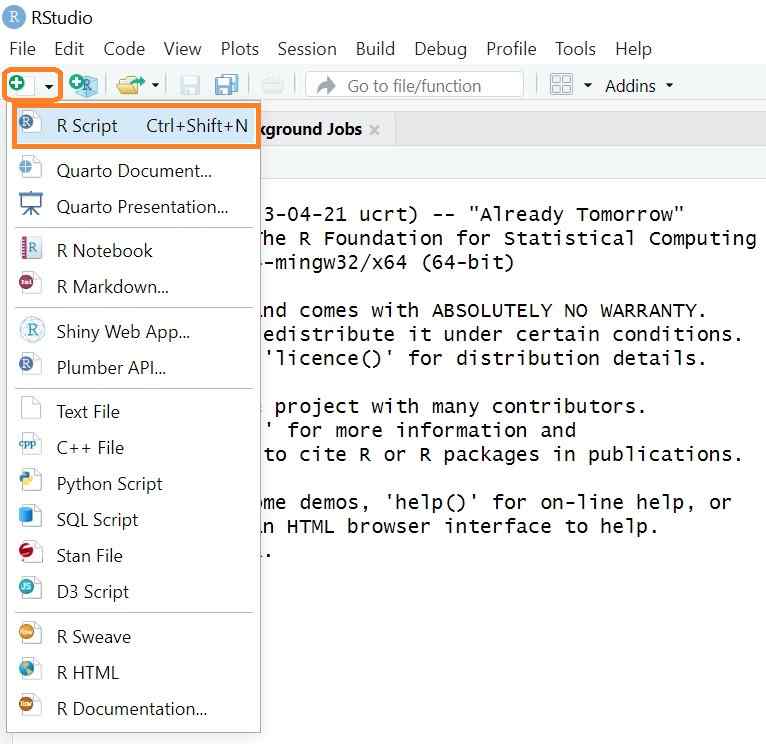
Once you open an R file, the R Studio environment will look like below.

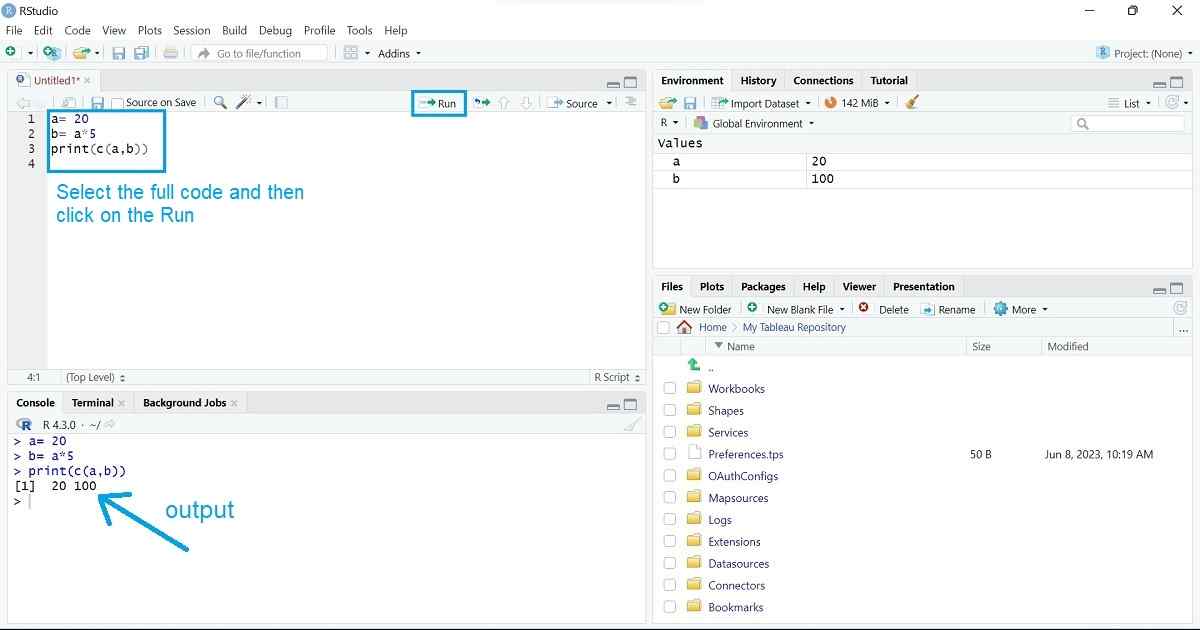
In the above image, there are four panels, Scripts, Environment/History, Files/Plots, and Console. Now you are all set up and ready to write your script file.
Example of Writing Scripts
Now we are going to learn how we can write a script or code in an R file. Below is an example script.

Code
a = 20
b = a*5
print(c(a,b))
Output

Explanation
In the above image example, we assigned a variable “a” with a value of 20 and a variable “b” which is five times of “a” value. Here, the code finds the third statement's value, print(c(a,b)). This statement will concatenate the a and b and print the result, which is 100. So, in this way, a script file is written in R.
Saving an R file
Let's see how we can save an R file in R Studio. First, you go to the File tab, where you can choose either Save or Save as button. If you choose the Save button, it will save the file automatically.

If you use the Save as a button, so, this will pop out a window where you can rename your script file. Then by clicking on the save button, you can save your script file.

Execution of an R file
There are many ways by which you can execute your commands that are available in the R file.
By using the Run Command
A "Run" command is available at the top right corner. You can execute your R file by clicking o the "Run" button. It will execute the line in which the cursor is there. Instead of all this, you can simply use the shortcut key "Ctrl+Enter".
By using the Source Command
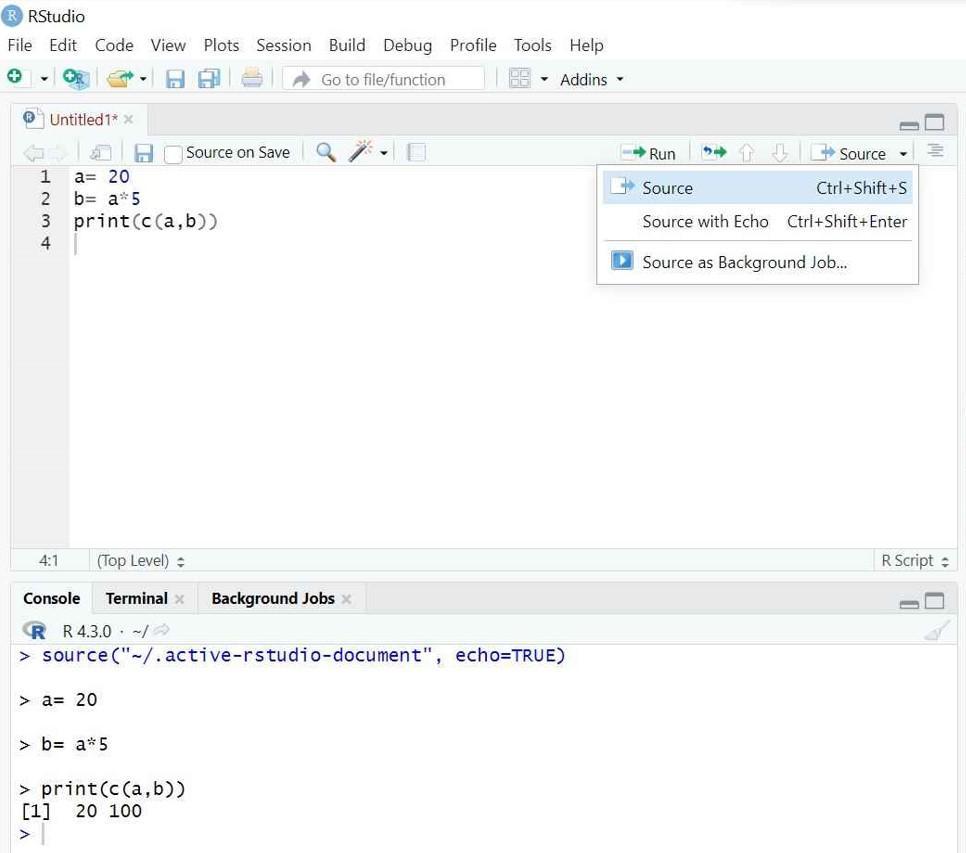
Click on the "Source” command, which is available just beside the “Run” command. This will print the output along with the command. Use the shortcut key “Ctrl+Shift+S” to execute it.
By using the Source with Echo Command
Click on the “Source with Echo” button, which is available on the “Source” command. This will print the output along with the command. Use the shortcut key “Ctrl+Shift+S” to execute it.

Run Command vs Source Command
You can use any command “Source” or “Run”. Both methods can execute R files effectively.
-
The run command is specific to R studio. It allows you to execute the selected lines of R code.
-
Source and source with echo allow you to run the whole file.
-
By using the Run command, you can debug or troubleshoot the program.
- The source reads the R code from the file and evaluates it in the current R session.


 1+ registered

