Table of contents
1.
Introduction
2.
Duplicate
2.1.
Object Duplicate
2.2.
Linked Duplicate
3.
Extrude
3.1.
Extrude Faces
3.2.
Extrude Faces Along Normals
3.3.
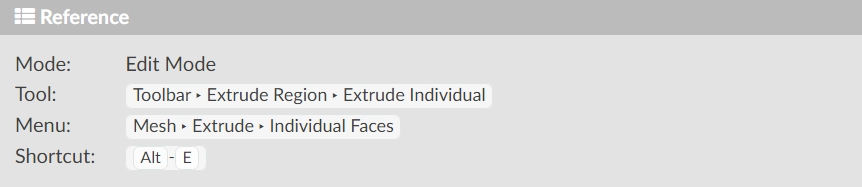
Extrude Individual Faces
4.
Snap to Symmetry
5.
FAQs
5.1.
How do you duplicate in edit mode in Blender?
5.2.
What is duplicate linked in Blender?
5.3.
What is Extrude in Blender?
5.4.
What is Snapping in Blender?
6.
Conclusion
Last Updated: Mar 27, 2024
Easy

Duplicate in Blender

Career growth poll
Do you think IIT Guwahati certified course can help you in your career?

Introduction

Welcome readers! In this blog, we will learn about the  Duplicate tool, which replicates the selected objects without connecting them to the rest of the mesh (unlike extrude, for example) and places the duplicate at the original location. It uses two methods, namely Object Duplicate and Linked Duplicate.

Further, we will learn two mesh tools, namely, Extrude and Snap in Blender. Mesh Edit Tool adds several tools to Blender that are not available in the built-in tools or provide different methods for similar tasks.

Duplicate

The Duplicate tool replicates the selected objects without connecting them to the rest of the mesh (unlike extrude, for example) and places the duplicate at the original location. When the duplication is complete, only the newly copied items are selected, and you are placed in move mode, allowing you to relocate your copy to a new location.

There are settings for Vector offset, Proportional Editing, Duplication Mode, and Axis Constraints in the toolbar.

There are two types of object duplication:

1. Object Duplicate

2. Linked Duplicates

Object Duplicate

Source: Blender

Object Duplicate creates a visually-identical copy of the selected object(s). The copy is made 

in the exact location as the original object, and you are placed in Grab mode automatically.

Duplicate Objects is Blender's Copy/Paste. Selections are reproduced as independent objects from their originating parent but may include instanced references to material assignments, modifiers, UV maps, and other assignable characteristics (for mesh objects in particular). Make a selection, then click Duplicate Objects – Object > Duplicate Objects from the primary menu for the editor or editing context you're using, e.g., Object in Object Mode (3D View). Use the Shift + D shortcut instead. When you move the mouse over a group of objects, they will appear to move (and typically offset for visibility). To return the new selection to its original spot, right-click or hit Esc (coincidental to the parent from which it was duplicated).


Design Note: The menu labelled Object in Object Mode, Key in the Action Editor, Marker in the Timeline, and so on varies depending on the editor and/or active editing environment. In the 3D View, for example, the menu is labelled Object in Object Mode, Key in the Action Editor, Marker in the Timeline, and so on; regardless of whether the mouse cursor is over the editor/area/view before commencing, the shortcut keys Shift + D activate the function.
Source: Blender

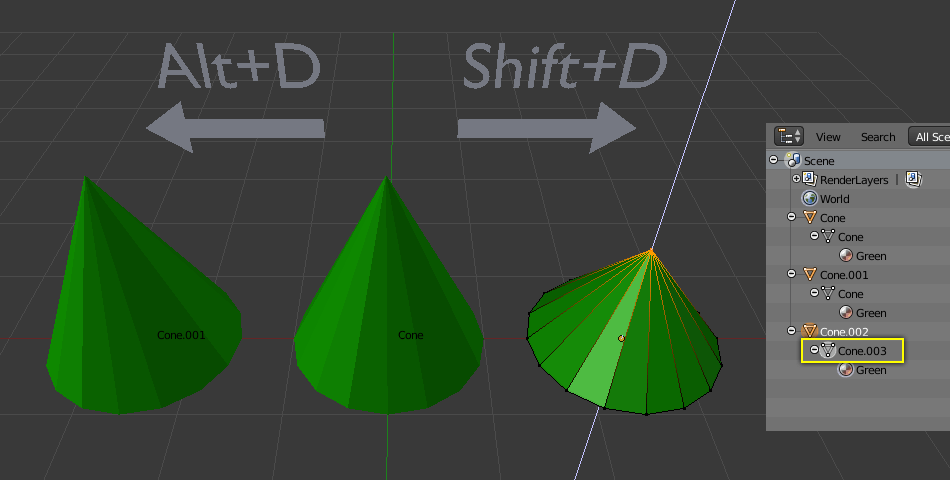
Object Cone.002's mesh Cone.006 is being updated. In the Outliner, the mesh's Unique data-block ID name is highlighted.

The central cone has been copied twice: once to the left and once to the right.

  • The replicated right cone is being edited, but the original middle cone is being left alone. The mesh data was copied rather than connected.
  • Likewise, the initial cone remains unaltered if the right cone is edited in object mode. The new object's transform properties or data block is a copy, not a connected copy.
  • The material of the middle cone was passed down to the right cone when it was copied. The qualities of the materials were linked rather than duplicated.

Linked Duplicate
Source: Blender

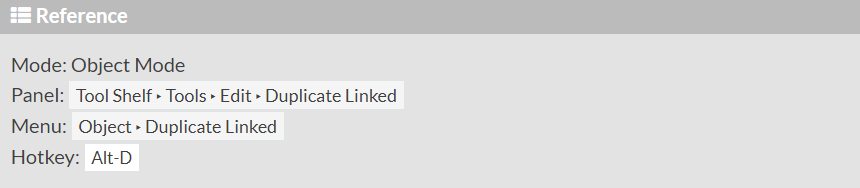
Linked Duplicates vary from Duplicate Objects in that the data generated by this method is not unique. Thus it'll often keep references to any number of the parent object's properties, allowing changes to one to propagate to the others. In other words, while some characteristics of a selection may appear to be unique, such as object-based rotation, position, and scale, others, such as edit mode-based changes or adjustments, are not.

Where available, to use Duplicate Linked, select from the primary menu for the active editor or editing context, click Duplicate Linked – Object » Duplicate Linked. Alternatively, press Alt + D. A set of objects or elements will appear synced with the mouse, right-click or press Esc to release and reset back to their originating locations.


Design Note: The context menu for Duplicate Linked, like Duplicate Objects, is context-sensitive, having different locations based on the active editor and/or editing context; for example, in the 3D View, the menu is called Object in Object Mode, Key in the Action Editor, Marker in the Timeline, and so on. However, the function is activated regardless of the shortcut keys Alt + D.
Source: Blender

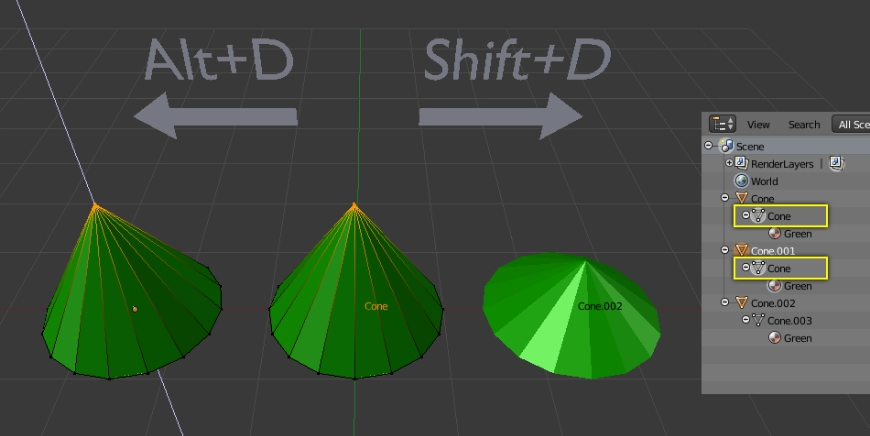
The object Cone.001 was linked and duplicated. Though both these cones are separate objects with unique names, the single mesh named cone, highlighted in the Outliner, is shared by both.

Extrude

Source: Blender

Creates a 3D solid or a 3D surface from an object with open ends or an object that encloses an area. Objects can be extruded orthogonally from the source object's plane, in a certain direction, or along a predetermined path.

Extrude Faces

Source:  Blender Doc

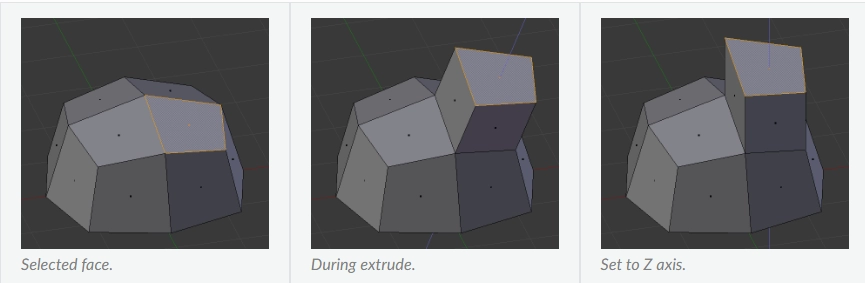
Extrude Faces duplicate faces while keeping the new geometry connected with the original vertices.

When it comes to designing new geometry, this tool is crucial. It lets you make parallelepipeds out of rectangles and cylinders out of circles, as well as tree limbs.

The axis along which faces are extruded can be changed in real-time. By default, faces are extruded along their averaged normal. The extrusion can be limited to a single axis by specifying an axis; see Axis Locking.

Source:  Blender Doc

Extrude Faces Along Normals

Source: Blender

Flip Normals

The normals of the new faces formed by extrusion will only be flipped.

  • Dissolve Orthogonal Edges

Edges whose faces form a flat surface are removed and connected, and new edges intersect.

  • Offset

The amount of geometry that can be moved along the normals.

  • Offset Even

The new edges will all be the same length.

  • Proportional Editing

The adjacent geometry will be affected by the extruded face.

Extrude Individual Faces

Source: Blender Doc

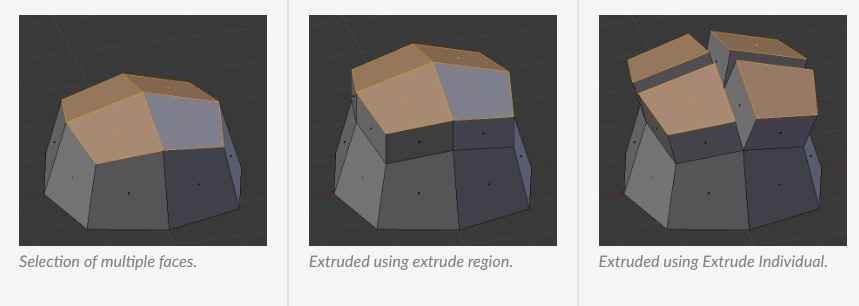
Instead of extruding a selection of many faces as a region, you can use this tool to extrude them as individuals. Rather than their average, the faces are extruded along their respective normals. This has many implications: first, "internal" edges (those between two selected faces) are no longer erased (the original faces are).

Source: Blender Doc

Snap to Symmetry

Source: Blender

You can use the Snap to Symmetry tool to align mesh vertices with their mirrored neighbours.

When working with meshes that are essentially symmetrical but contain vertices that have been moved enough that Blender does not recognize them as mirrored, this feature comes in handy (when X Mirror option is enabled, for example).

When editing without X Mirror enabled, this can happen by accident. Models imported from other applications are occasionally asymmetrical enough to cause mirroring to fail.

  • Direction
    Set the snapping axis and direction. It can be any of the three axes, and it can be either positive or negative.
     
  • Threshold
    When looking for matching vertices, provide the search radius to use.
     
  • Factor
    It is possible to blend mirrored spots from one side to the other.
     
  • Center
    Vertices along the middle axis should be snapped to zero.

FAQs

How do you duplicate in edit mode in Blender?

It creates a visually identical clone of the thing you've chosen. The copy is made in the same location as the original object, and you are placed in Grab mode automatically.

What is duplicate linked in Blender?

Duplicates vary from Duplicate Objects in that the data generated by this method is not totally unique. Thus it'll often keep references to any number of the parent object's properties, allowing changes to one to propagate to the others.

What is Extrude in Blender?

Extrusion tools duplicate vertices while maintaining a connection between the new geometry and the old vertices. Edges are formed from vertices, and faces are formed from edges.

What is Snapping in Blender?

Toggling the magnet symbol in the 3D Viewport's header buttons allows you to snap objects and mesh elements to various types of scene elements during a transformation.

Conclusion

In this article, we have extensively discussed the Duplicate tool in Blender, which replicates the selected objects by two methods, namely Object Duplicate and Linked Duplicate. Further, we will learn to Extrude and Snap in Blender.

We hope that this blog has helped you enhance your knowledge regarding Duplicates in Blender and if you would like to learn more on AR/VR, check out our articles here. Do upvote our blog to help other ninjas grow. 

Check out this problem - Duplicate Subtree In Binary Tree

Refer to our guided paths on Coding Ninjas Studio to learn more about DSA, Competitive Programming, JavaScript, System Design, etc. Enroll in our courses and refer to the mock test and problems available, interview puzzles. Also, look at the interview experiences and interview bundle for placement preparations. 

Happy Learning!

Live masterclass