Do you think IIT Guwahati certified course can help you in your career?
Introduction
If we visit ancient websites, they seem to look very unattractive. Apart from being irresponsive, bland, or loud, they have little to no transitions. Without transitions, the user interaction with our web pages’ components would become boring. The user would not know where to focus, and the whole web page would seem monotonous and lacking zeal. With transitions, we can make a user stay on our website for longer. Won’t that be awesome!
When a component or element changes from one form to another after an event, it is known as transition. There are many types of transitions in Vue.js: Enter and leave transitions, list transitions, and state transitions. However, in this article, we will only look at Enter and Leave Transitions and understand it with the help of a few examples!
Enter and Leave Transitions
Enter and leave transitions are used whenever we want any element to undergo style changes while entering and leaving a component, respectively. Here, by Enter, we mean becoming visible or coming into a component. By Leave, we mean the element is becoming hidden or non-existent. To add Enter and leave transitions, we can use the following classes:
v-enter-from
v-enter-to
v-enter-active
v-leave-from
v-leave-to
v-leave-active
Let us create a Vue.js app and see how to use these classes through code to achieve enter and leave transitions:
src/App.vue
<template>
<div>
<h1>Enter and Leave Transitions</h1>
<Opacity/>
</div>
</template>
<script>
importOpacityfrom"./components/Opacity.vue"
exportdefault{
name:"App",
components:{
Opacity
}
}
</script>
<style>
body{
font-family:Avenir,Helvetica,Arial,sans-serif;
text-align:center;
color:white;
margin-top:30px;
background-color:black;
}
button{
padding:10px;
width:200px;
background-color: #FFC300;
color:white;
border:none;
border-radius:10px;
box-shadow:0px0px30px #FFC300;
font-weight:bold;
letter-spacing:1px;
}
button:hover{
box-shadow:none;
}
</style>
src/components/Opacity.vue
<template>
<div>
<button @click="filter=!filter">Click to see magic</button>
<div>
<transition>
<pid="filter-div"v-show="filter">Make Webpages Come to Life</p>
</transition>
</div>
</div>
</template>
<script>
exportdefault{
data(){
return{
filter:false
}
}
}
</script>
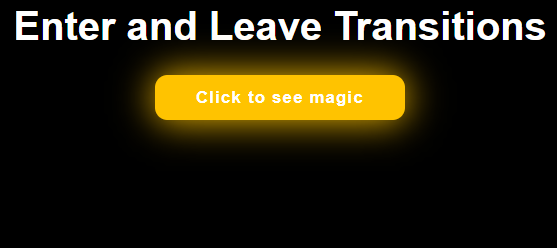
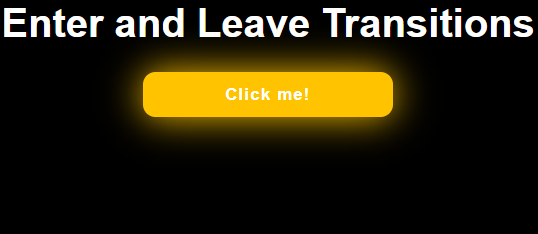
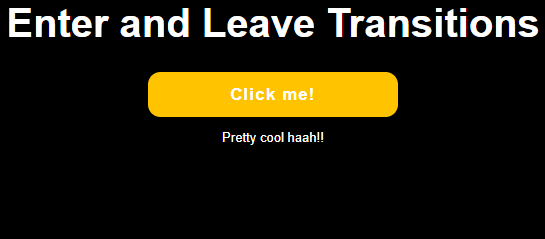
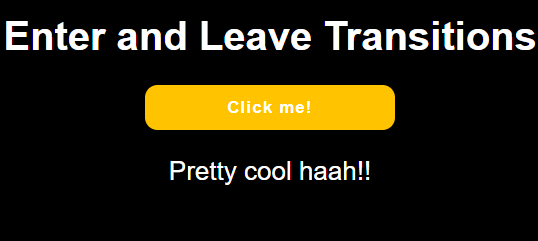
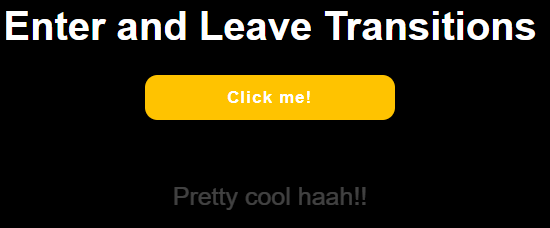
We have made a button. Clicking this button will make filter toggle between true and false values. The paragraph will be visible only when filter is true. Since we want to apply the transition to the paragraph of id filter-div, we encapsulate it inside the <transition> tags.
<stylescoped>
#filter-div{
margin:30px;
padding:30px;
border-radius:10px;
color:orange;
display:inline-block;
font-family:'Parisienne',cursive;
font-size:40px;
.v-enter-from{
background:orange;
}
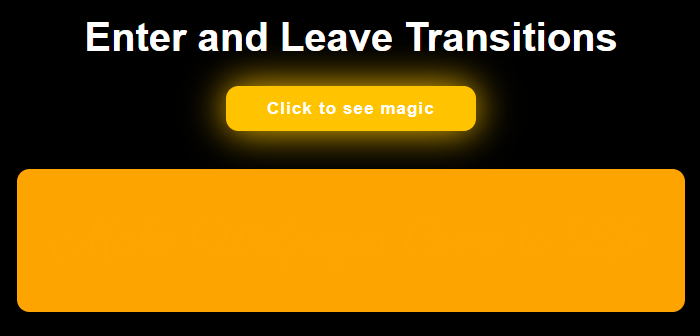
v-enter-from will have the element’s styles when it is in its initial state. It has the styles applied before the element appears or enters the component. Here it means the paragraph will have the background color orange when it just appears in the component.
.v-enter-to{
background:none;
}
v-enter-to will have the paragraph’s styles when the transition has reached the end of entering the component. Thus, the paragraph will have no background color at the last step of entering the component transition.
.v-enter-active{
transition:background3sease;
}
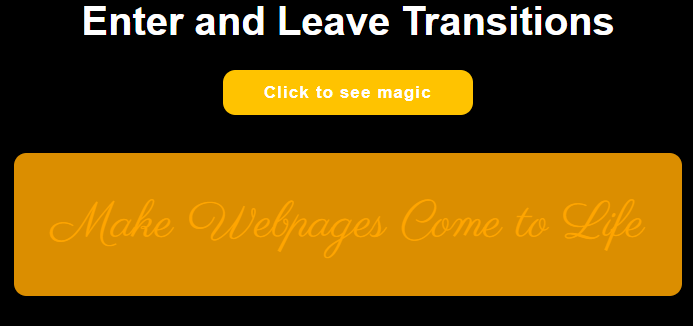
v-enter-active will have the styles of the entire entering process. In the above code, the enter transition of the background color from orange to transparent would take 3 seconds and with ease.
.v-leave-from{
opacity:1;
}
v-leave-from will have the element style when it begins to leave the component. Here, the opacity of the paragraph will be 1 when it just starts to disappear. However, in this case, even if you don’t write the above, the code will work the same because, by default, the paragraph has opacity 1 when it is visible in the component.
.v-leave-to{
opacity:0;
}
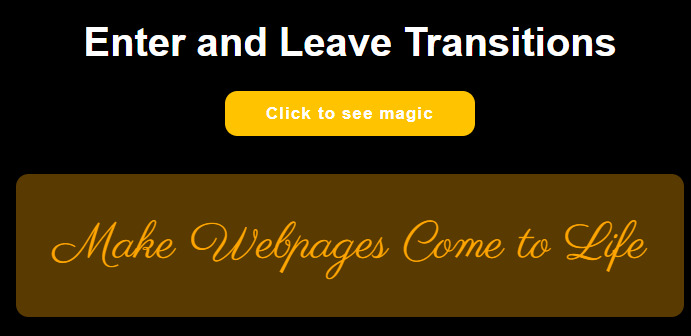
v-leave-to will have the element style when the process of leave transition ends. That is, the paragraph will disappear, its opacity will become 0.
.v-leave-active{
transition:all10sease;
}
</style>
v-leave-active will have the styles of the entire leave transition process. The paragraph will go from opacity 1 to 0 with ease.
Enter and leave using CSS transitions
We can use CSS to achieve enter and leave transitions like the above. CSS transitions are written inside the style tags. Let’s see one more example of this.
src/App.vue
The previous component has been commented out. Import the component Introduction.vue and register it under App.vue components. Let the styles be same as the previous code.
Here, the transition has been given the name slidedown (You can give any name of your choice to the transition). So, when writing the transition class, we prefix slidedown-. By default, when we don’t name the transition, v- is prefixed, as we saw in the example above.
In the code below:
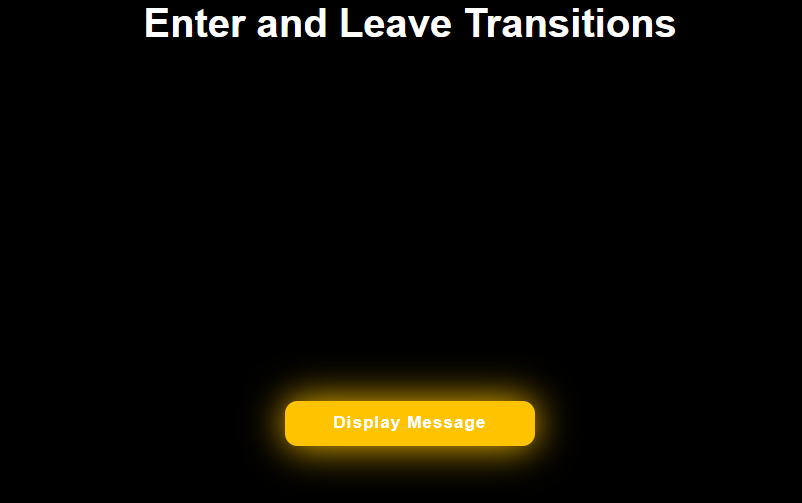
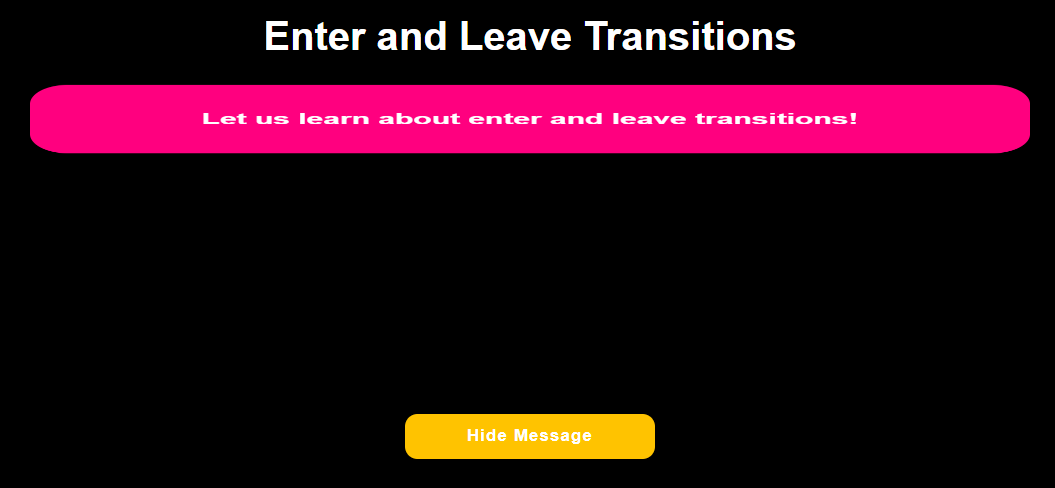
- Clicking the button calls the handleShowMessage() function, making the introduction-msg-div enter and leave the component. It also makes the button text toggle between display and hide message.
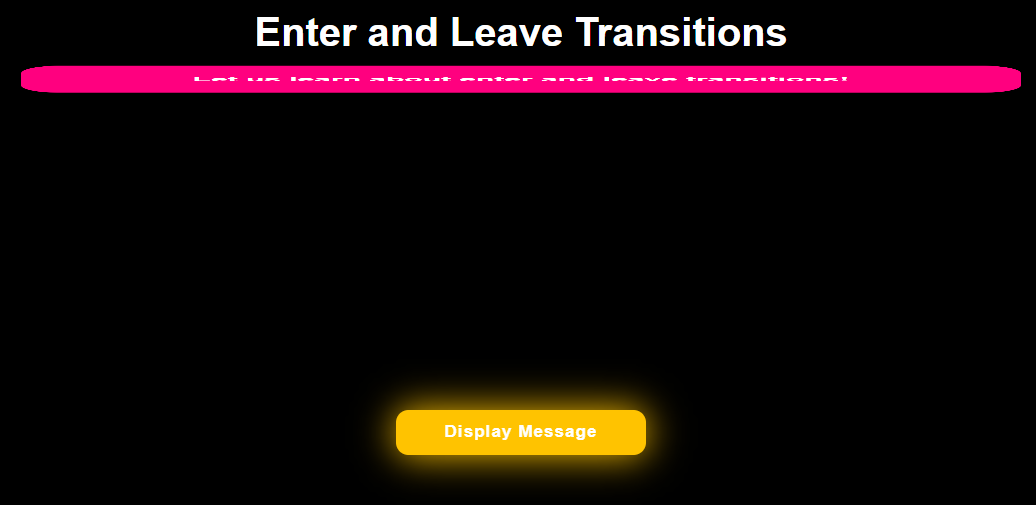
Rotate and translate transforms have been applied to the transition classes. The div appears to have a hinge on top; the div drops vertically whenever the display message is clicked and goes back to its original horizontal position whenever the hide message button is clicked.
-The enter and leave transitions take 2 seconds each with ease to complete.
<template>
<div>
<transitionname="slidedown">
<divid="introduction-msg-div"v-if="showMessage">
<h2>Let us learn about enter and leave transitions!</h2>
Enter and leave transition using CSS animations (Keyframes)
src/App.vue
Lets comment out or delete Opacity.vue and Introduction.vue so that it doesn’t interfere with the Keyframes.vue code.
<template>
<div>
<h1>Enter and Leave Transitions</h1>
<Keyframes/>
</div>
</template>
<script>
importKeyframesfrom"./components/Keyframes.vue"
exportdefault{
name:"App",
components:{
Keyframes,
}
}
</script>
src/components/Keyframes.vue
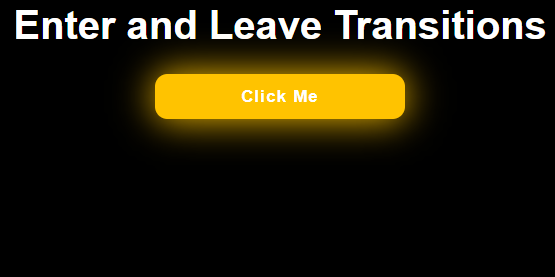
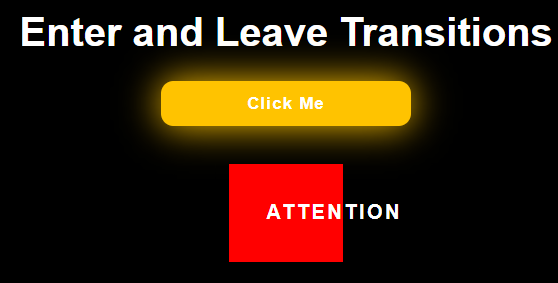
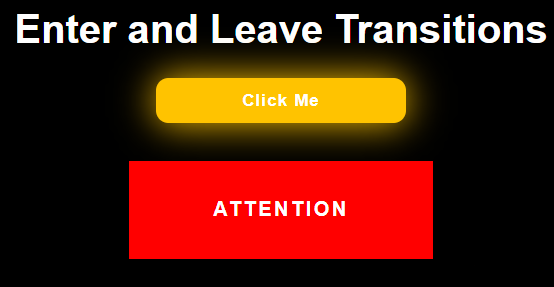
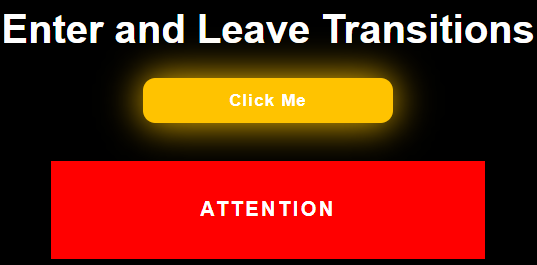
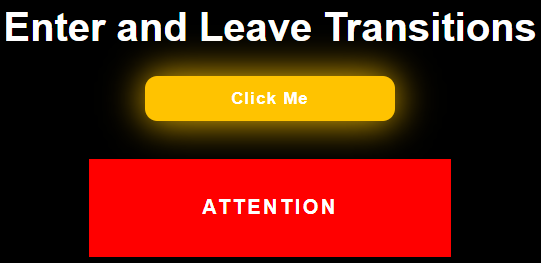
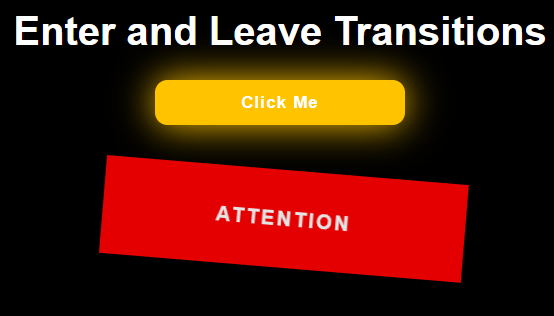
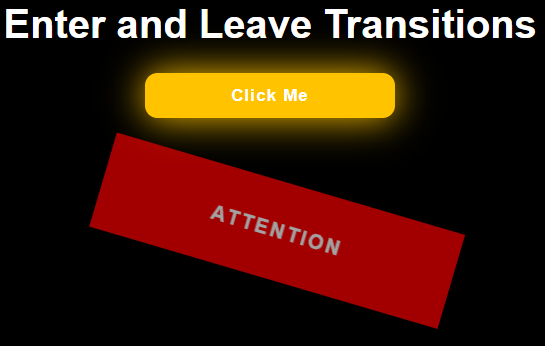
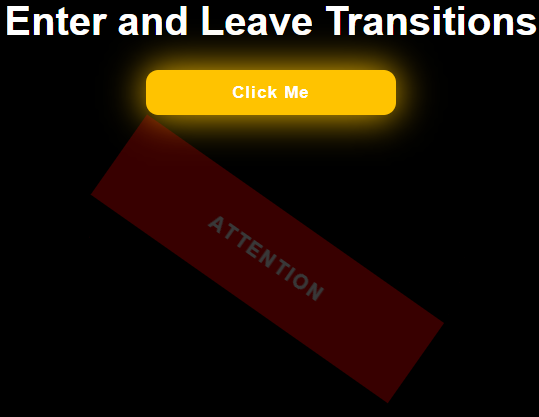
Here, for enter transition we have applied keyframe animations. So in pop-enter-active class, instead of transition, we have written animation. We have named the keyframe animation as grab-attention.
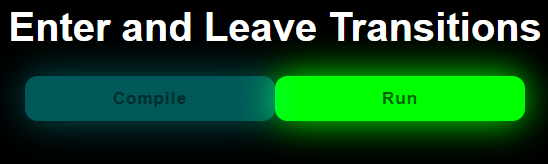
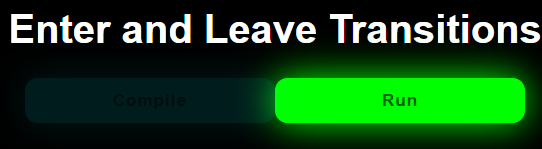
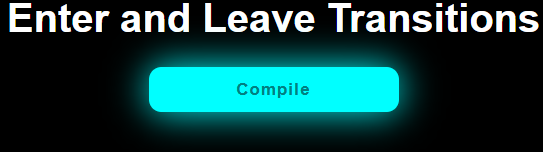
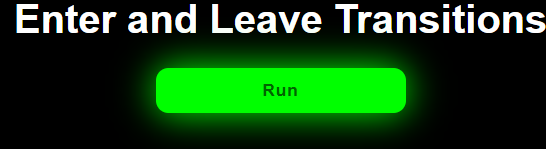
In this code we want our compile button to transition into run button when we click it and vice versa. However when we run this code our transition does not look so smooth. Let us have a look.
As we can see from the above transition, the compile button leave transition happens simultaneously as the run button enter transition. This is undesirable as we want the compile button to disappear entirely, and only then the run button should appear.
Here, the out-in mode of transition comes to the rescue! The out-in mode means that the current element will transition out first, then when it is completed, the new element will transition in. Just add the mode to the above code:
<transitionname="change-status"mode="out-in">
. . .
</transition>
src/App.vue
<template>
<div>
<h1>Enter and Leave Transitions</h1>
<Modes/>
</div>
</template>
<script>
importModesfrom"./components/Modes.vue"
exportdefault{
name:"App",
components:{
Modes
}
}
</script>
There is one more mode: in-out mode, which makes the second element enter transition first then makes the first element leave transition.
FAQs
1. When using Javascript hooks as attributes for transition, why is it advised to add v-bind:css=” false” explicitly?
Adding v-bind:css=” false” in the transition attribute prevents the CSS styles from interfering with javascript transitions.
2. What should we do if we want to apply transitions only on the initial render of an element?
We can use the appear attribute when we want the transitions to be applied only on the initial render of the element. Like so,
<transition appear>
<!-- element to be transitioned -->
</transition>
3. Why do we need done callbacks when using javascript-only transitions?
The done callbacks are required for the entry and leave hooks when utilizing JavaScript-only transitions because otherwise, the hooks will be invoked synchronously, and the transition will be completed immediately.
Key Takeaways
From this article, we learned about entry and leave transitions. We learned how they are used with CSS transitions and animations. We also saw how to use Javascript hooks as attributes for transition. We looked at why we need the mode attribute in transition and how to use it.
But this is not enough; you need something extra to excel in Vue.js truly. If you want to learn more about Vue.js, you can read our articles on Vue.js or take our highly curated Web Development course.


















 7+ registered

