Table of contents
1.
Introduction
2.
Features of Progressive Web Apps-
3.
Generate test scripts using a mobile recorder
3.1.
Configure the remote server settings in Katalon Studio​
3.2.
Recording the desired use case​
4.
Frequently Asked Questions 
4.1.
What is a JMeter?
4.2.
What is the use of Test Recorder by CloudQA?
4.3.
What is a Playwright?
5.
Conclusion
Last Updated: Mar 27, 2024

Generate test scripts for a Progressive Web App using mobile recorder

Career growth poll
Do you think IIT Guwahati certified course can help you in your career?
OG Image

Introduction

intro

Progressive Web Applications, or PWAs, are the talk of the tech world. The rise greatly aided its popularity in mobile users and the app-like experience it offers. However, what exactly is a PWA, and how does it vary from native mobile apps? What are the significant considerations a tester should bear in mind when testing PWAs, and how are they developed? Let's look at it...

Before diving right into how to test one, we should first grasp what a Progressive Web App is and what critical considerations a tester should make.

PWA is a web app that utilizes modern website capabilities to give users an app-like experience. In simple terms, it is a hybrid of a website and a mobile app.

It opens as a regular webpage in a browser and asks the user if they want to "Add to Home Screen" as they visit the website. PWA is put on the user's home screen if they approve of this prompt. It can conceal the browser UI controls and appear as an app once launched from the home screen.
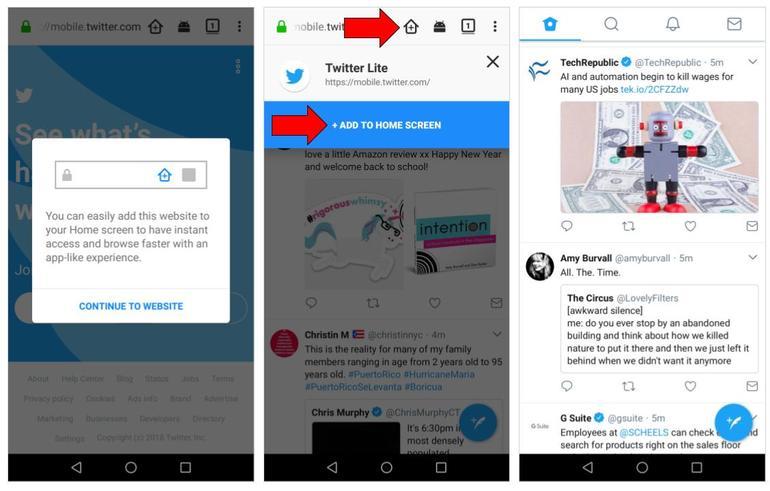
pwa example

Some popular PWAs are-

  1. Twitter lite
  2. Flipkart lite
  3. Trivago hotel booking PWA
  4. Forbes
  5. Starbucks coffee PWA etc

Features of Progressive Web Apps-

  • Responsiveness and browser compatibility- These apps are build on Progressive enhancement principles. With progressive web design, the most advanced page versions are delivered to visitors whose newer browsers can handle them while maintaining fundamental functionality and content for everyone regardless of browsers and connection quality. PWA is therefore compatible with all browsers, screen sizes, and other device requirements.
     
  • Offline Support- PWA supports both offline and low-quality network.
     
  • Push Notifications- Push notifications to play an essential role in customer engagement if used wisely.
     
  • Regular Updates- PWA can also self-update, like any other app.
     
  • An APP-like interface- These apps copy interactions and navigations of native apps.
     
  • Discoverability- These apps are shared using URLs so they can be found easily. A user can visit on the site and include that to the home screen.
Generate test scripts using a mobile recorder

For generating test scripts using a mobile recorder, perform the given steps:

Configure the remote server settings in Katalon Studio​

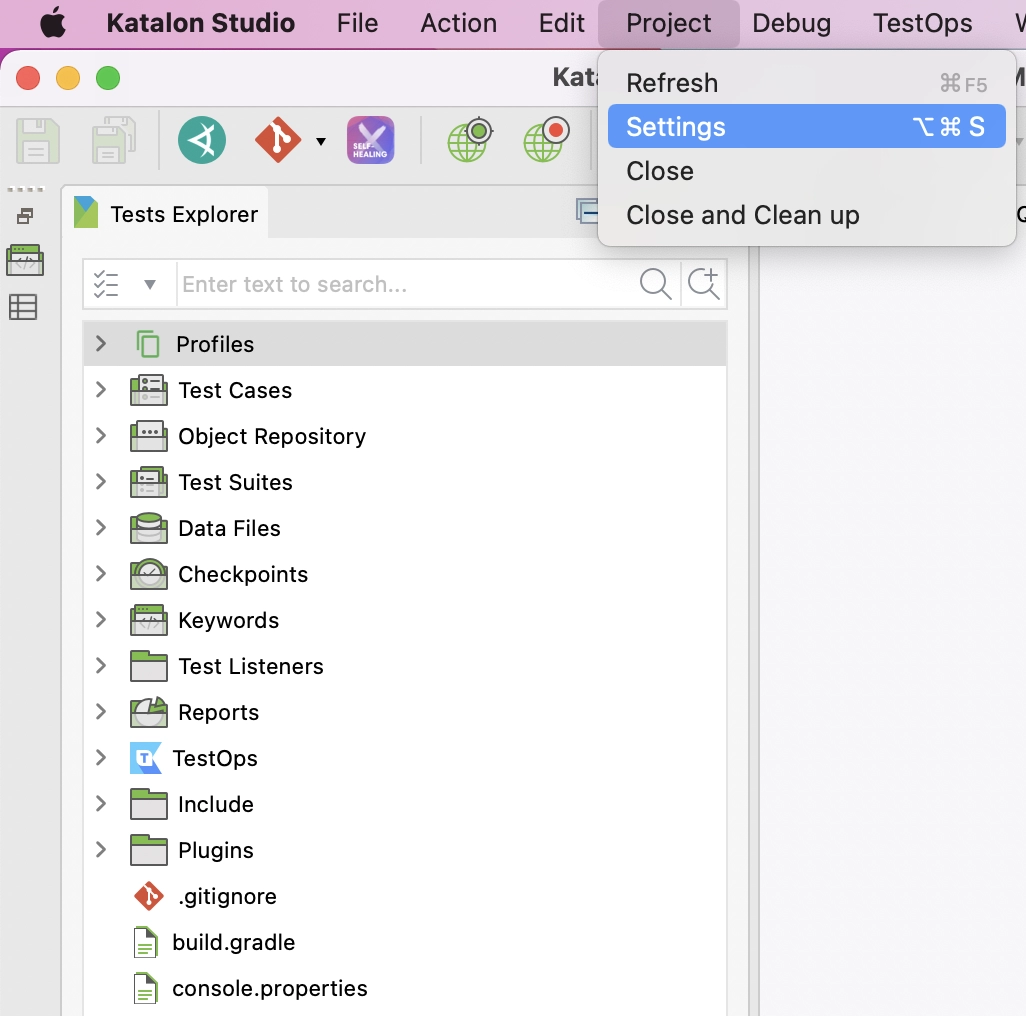
  • Start Katalon Studio and move to Project > Settings.
configuring remote server setting
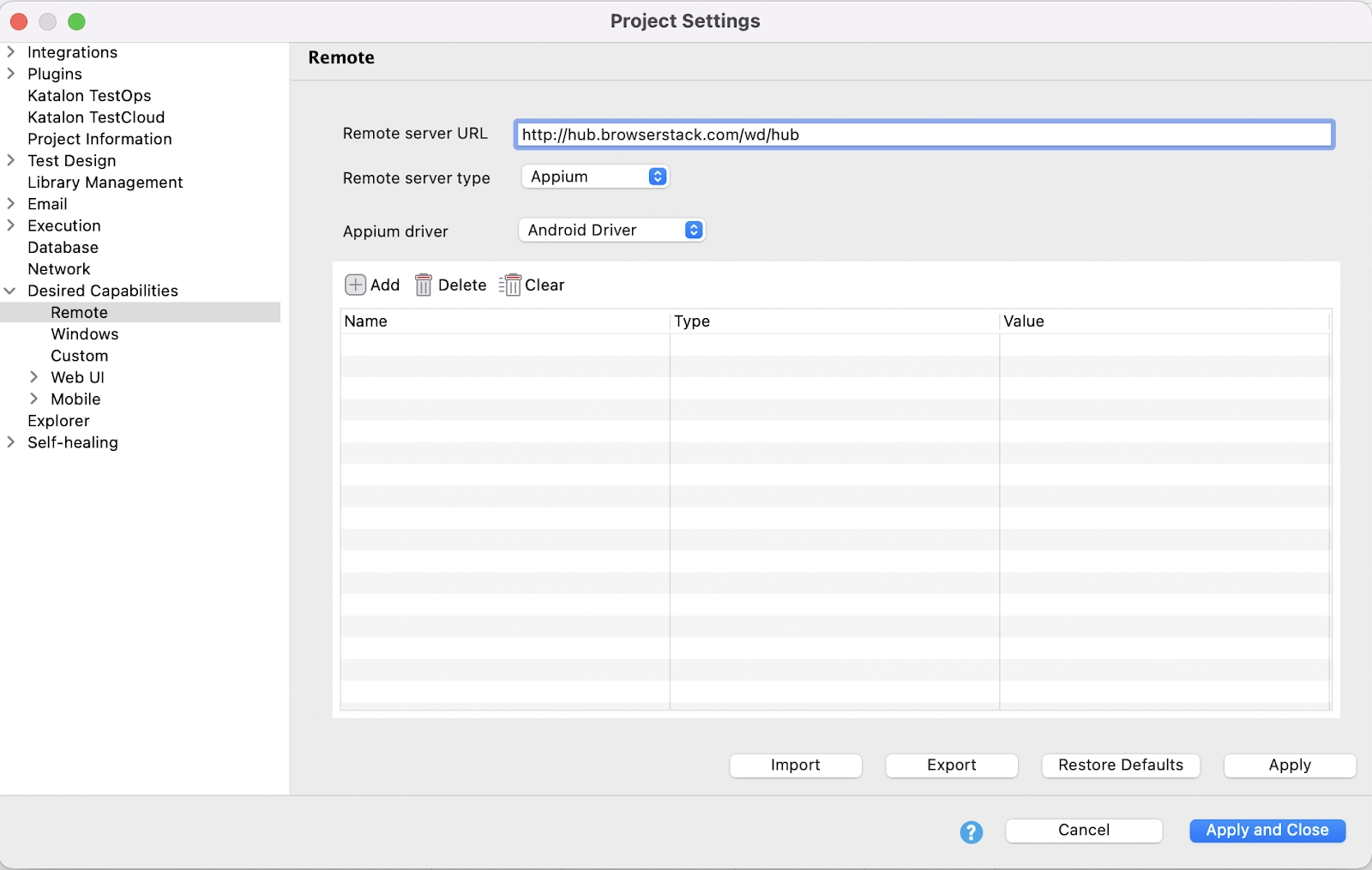
  • The Project Settings page appears. Go to Desired Capabilities > Remote.
project settings screenshot
  • Write the given remote server information:
  1. Remote server URL: Write the URL of your remote server. Like: http://hub.browserstack.com/wd/hub
  2. Remote server type: In the dropdown list, Select Appium.
  3. Appium driver: In the dropdown list, select Android Driver.
     
  • Indicate whether an Application ID or Application File should be used to start the recording.
  1. Application ID: Give the Application ID of your tested application, that is either the bundle identifier of an iOS app or the package name of an Android app.
  2. Application File: Browse to your tested application (.ipa file for iOS; .apk file for Android).

Recording the desired use case​

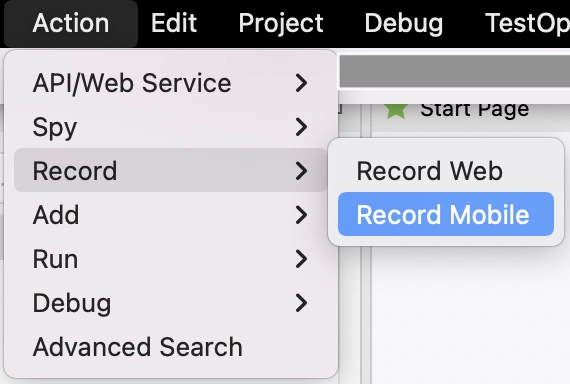
  • On the main toolbar of Katalon Studio, open  Action > Record > Record Mobile.
main toolbar
  • Choose Start to begin recording your use case.
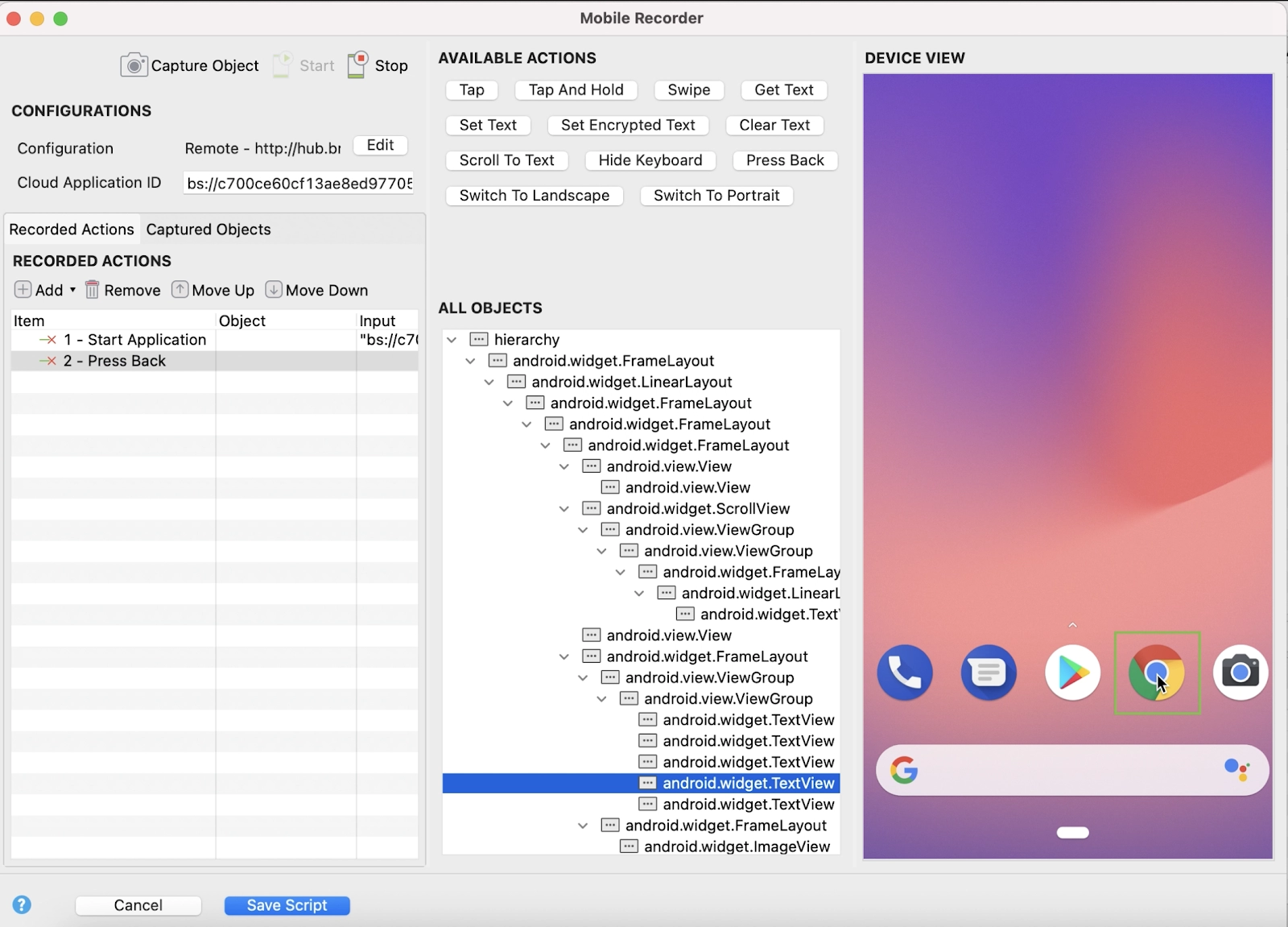
  • Move to Device View > click the Chrome icon. Katalon Studio chooses Chrome in the All Objects section.
device view dialog
  • Once you click on the Chrome icon, Tap is enabled in the Available Actions section. Click Tap. The tap action works as follows:
    • The Device View displays the new page in the Chrome browser.
    • The Tap action is added to the list of steps in the Recorded Actions section.
       
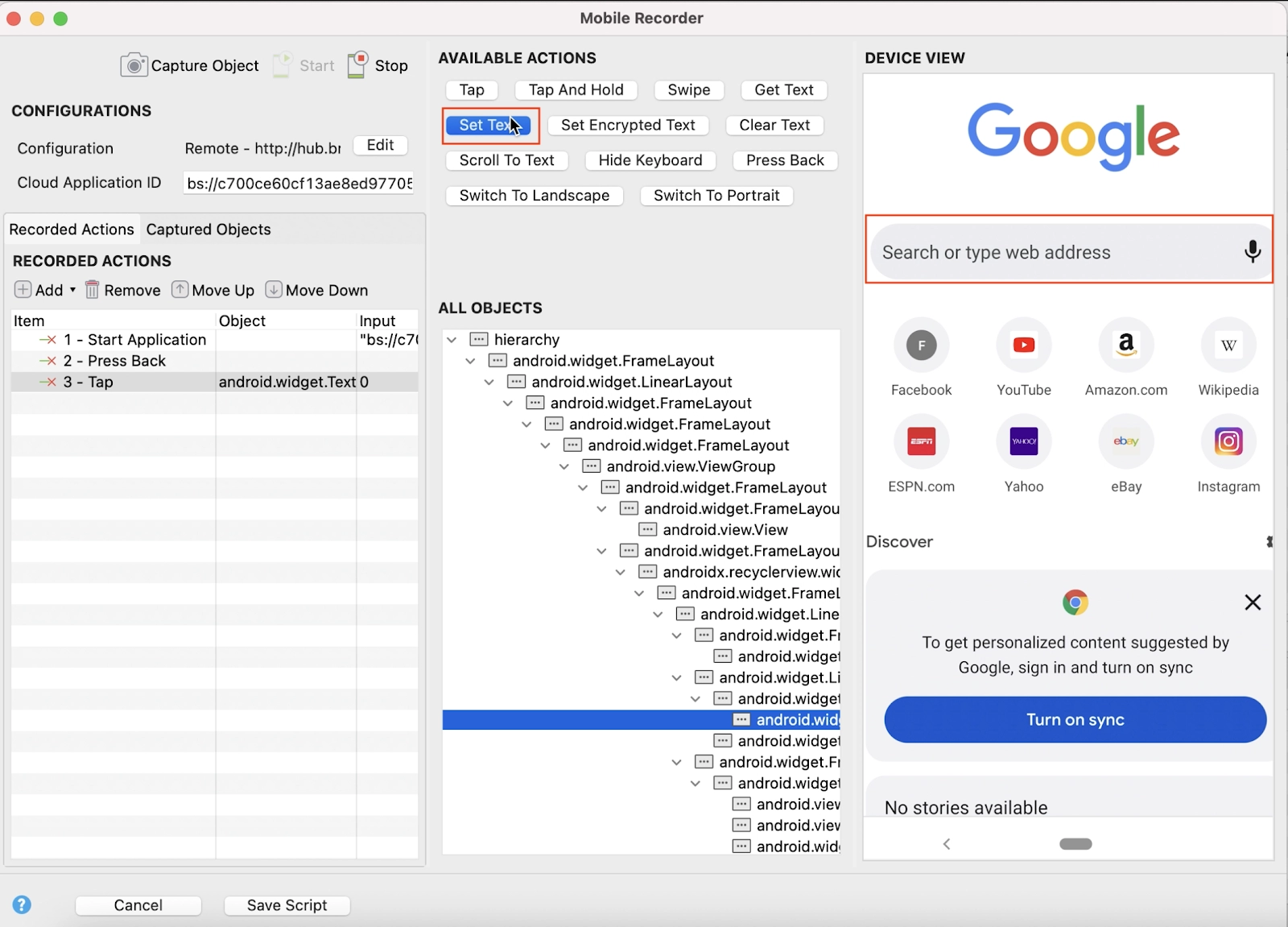
  • Click the Search field in the Chrome browser followed by the Set text tab that is enabled.   
search tab dialog
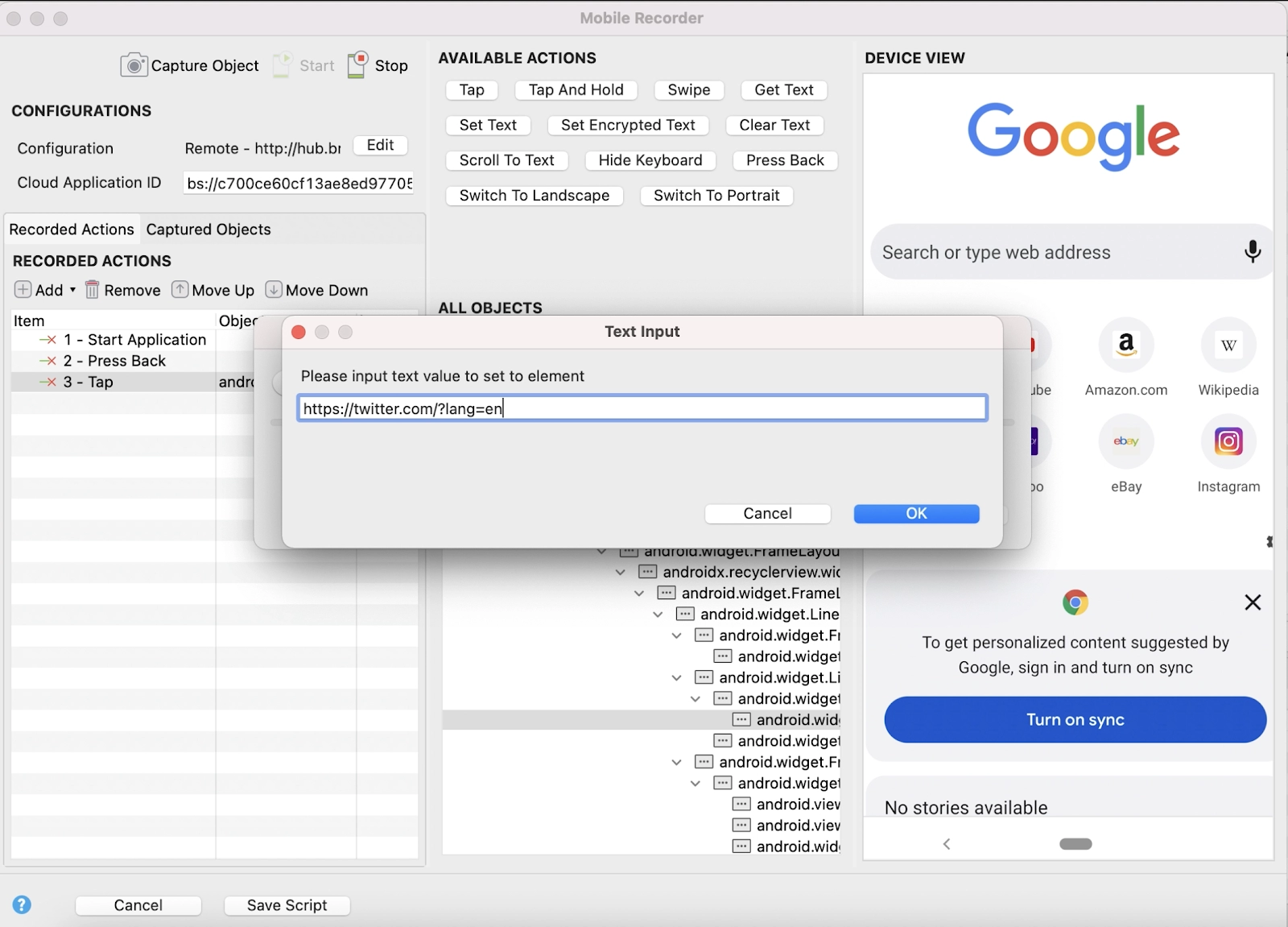
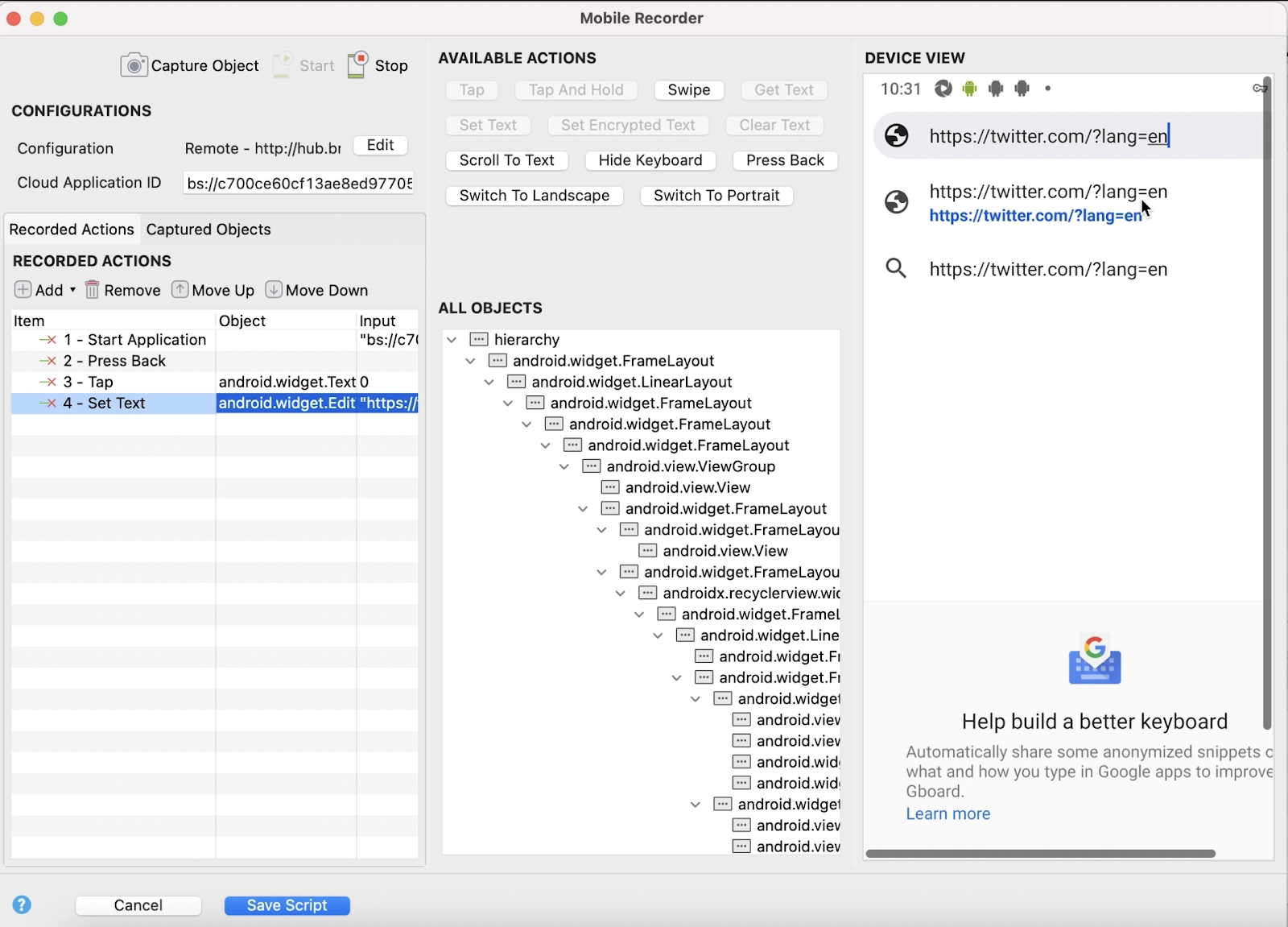
  • The Text Input dialog box opens. Type the Twitter URL inside the dialog box and choose Ok.
text input dialog
  • The Twitter link is included to the Device View section and the Set Text action is included to the list of steps in the Recorded Actions section.
recorded actions screenshot
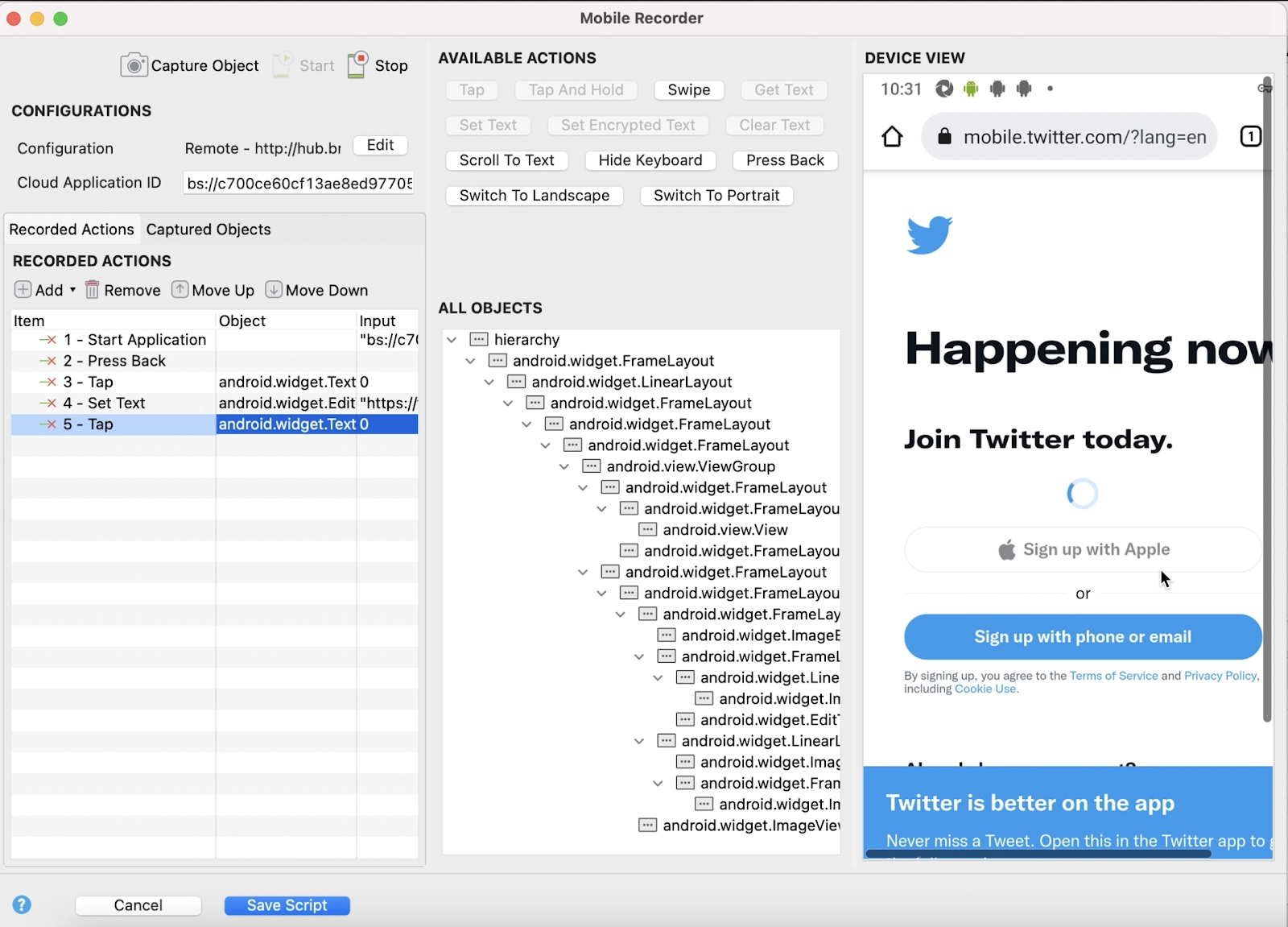
  • Choose the Twitter link in the Device View section then the Tap action that is given in the Available Actions section. The Twitter home page opens in the Device View section, and the Tap action is included to the Recorded Actions section.
mobile recorder screenshot
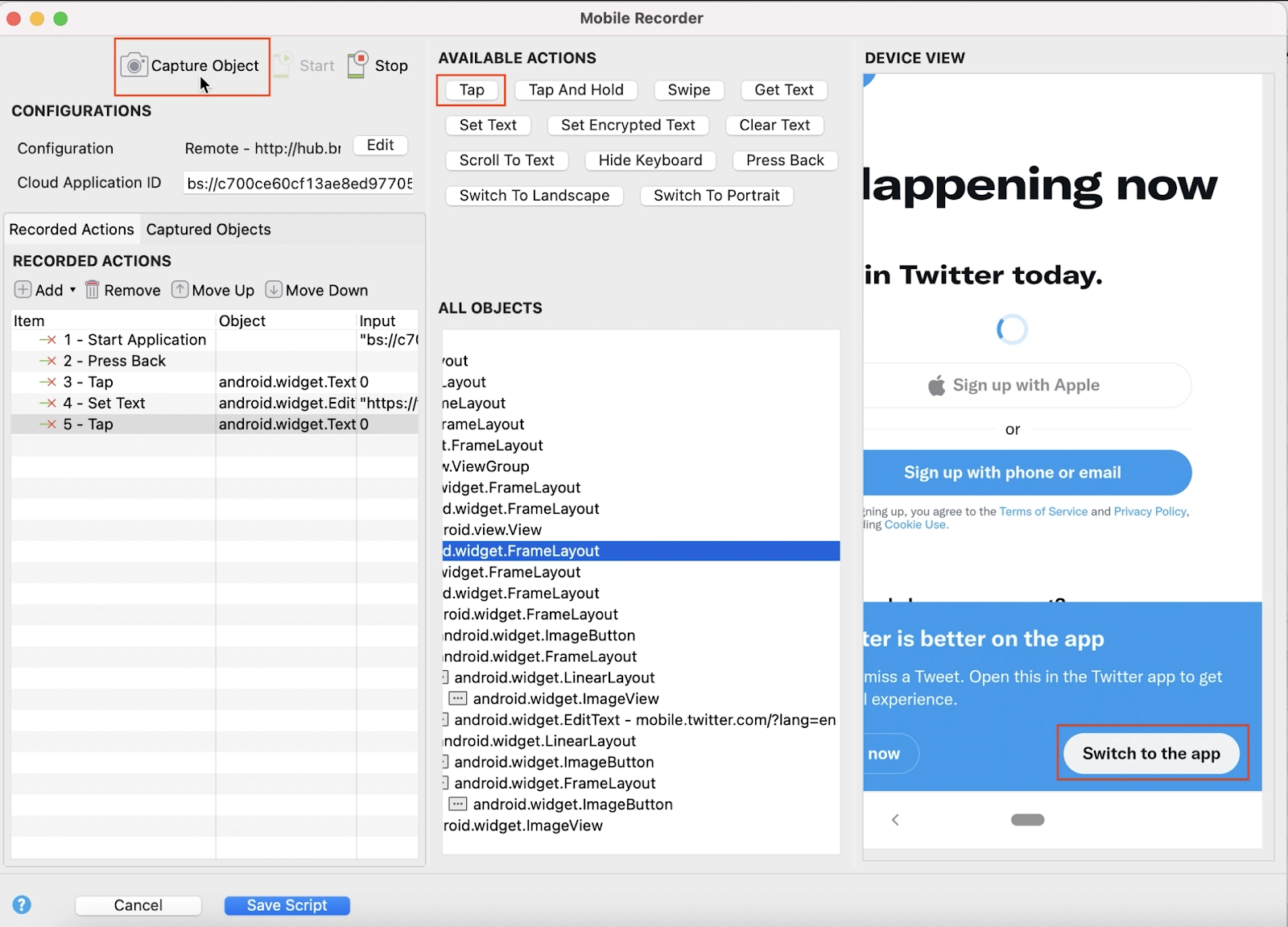
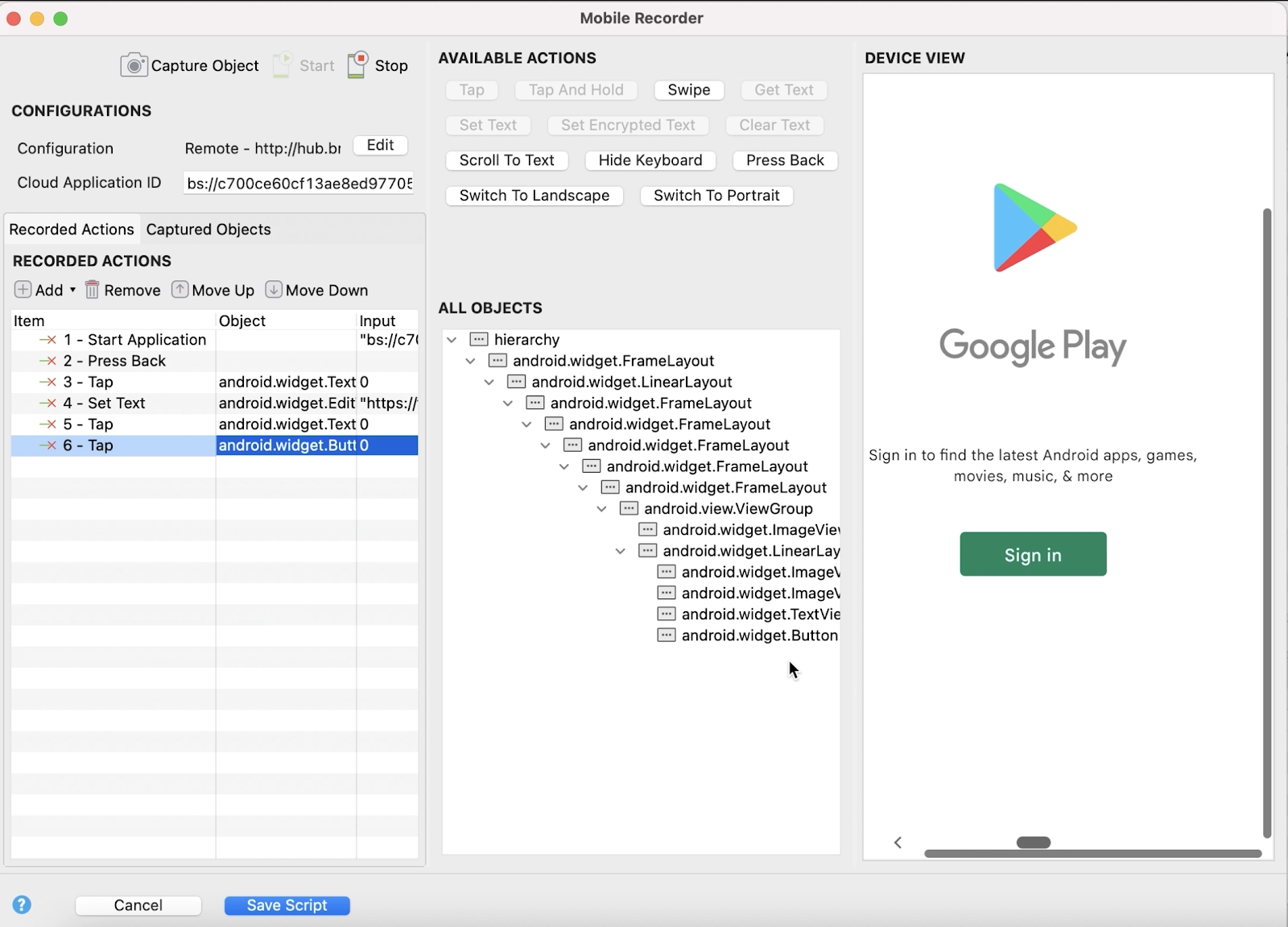
  • In the Device View section,> click on Switch to the app > then choose Capture Object. Wait till every object are captured and then choose Tap in the Available Actions section. All the actions are recorded, the Tap action is included to the Recorded Actions section, the mobile device opens the AUT and the current view of the AUT opens. Choose Save Script to save the test script generated.
output1
output2

Frequently Asked Questions 

What is a JMeter?

Being a versatile tool, JMeter can be utilized for mobile performance testing. It provides handy features to run and prepare our mobile specific performance test-scripts. Jmeter can help to do performance test for both Android and iOS mobile apps.

What is the use of Test Recorder by CloudQA?

Test Recorder is a tool which record and saves given by cloudQA. Its trial version is rich in features and should suffice for basic functional testing. 

What is a Playwright?

The playwright is an open-source testing framework that enables reliable end-to-end testing and automation for modern web applications. It has a built-in Playwright Test Runner for test automation and a Playwright Runner to simplify integration with third-party solutions.

Conclusion

In this article, we have extensively discussed Generating test scripts for a PWA using the mobile recorder. In addition, we also understood the basic definition of PWAs, their features and usage, and the steps of generating test scripts.

For more content, Refer to our guided paths on Coding Ninjas Studio to upskill yourself. If you want to explore more, feel free to see our coursesinterview experiences, problems to solvetest serieslibraries, and resources. Do upvote our blogs if you find them helpful!

Live masterclass