




Introduction
Spy Web Utility provides the ability to capture intelligent objects during web testing. Using the program, you can select various attributes and find techniques to nimbly capture test objects. In this article, we will learn about Generating reliable object selectors using the Spy Web utility in Katalon.

Tutorial for Mobile Object Spy
Except Android Data Matcher, Katalon Studio supports all selection strategies offered by Appium as of version 7.6. You can learn more about utilising Spy Moble Utility to capture Mobile items on an application by reading this blog.
Before capturing Mobile objects on an application, ensure that you have successfully configured the environment for mobile testing.
- Choose the Spy Mobile icon from the main Toolbar and click your device type, for example, Android Devices.

- In the displayed Mobile Object Spy dialog, write the information at the Configurations section:

Here:
-
Device Name: A mobile device wherein Katalon launches the application (All of your connected devices should be displayed in this list.)
-
Start with: In the drop-down list, you can choose either Application ID or Application File
- Application File: Browse your tested application (.ipa file for iOS; .apk file for Android)
-
Application ID: Specify the application ID of your tested application, which is either the bundle identifier of an iOS app or the package name of an Android app.
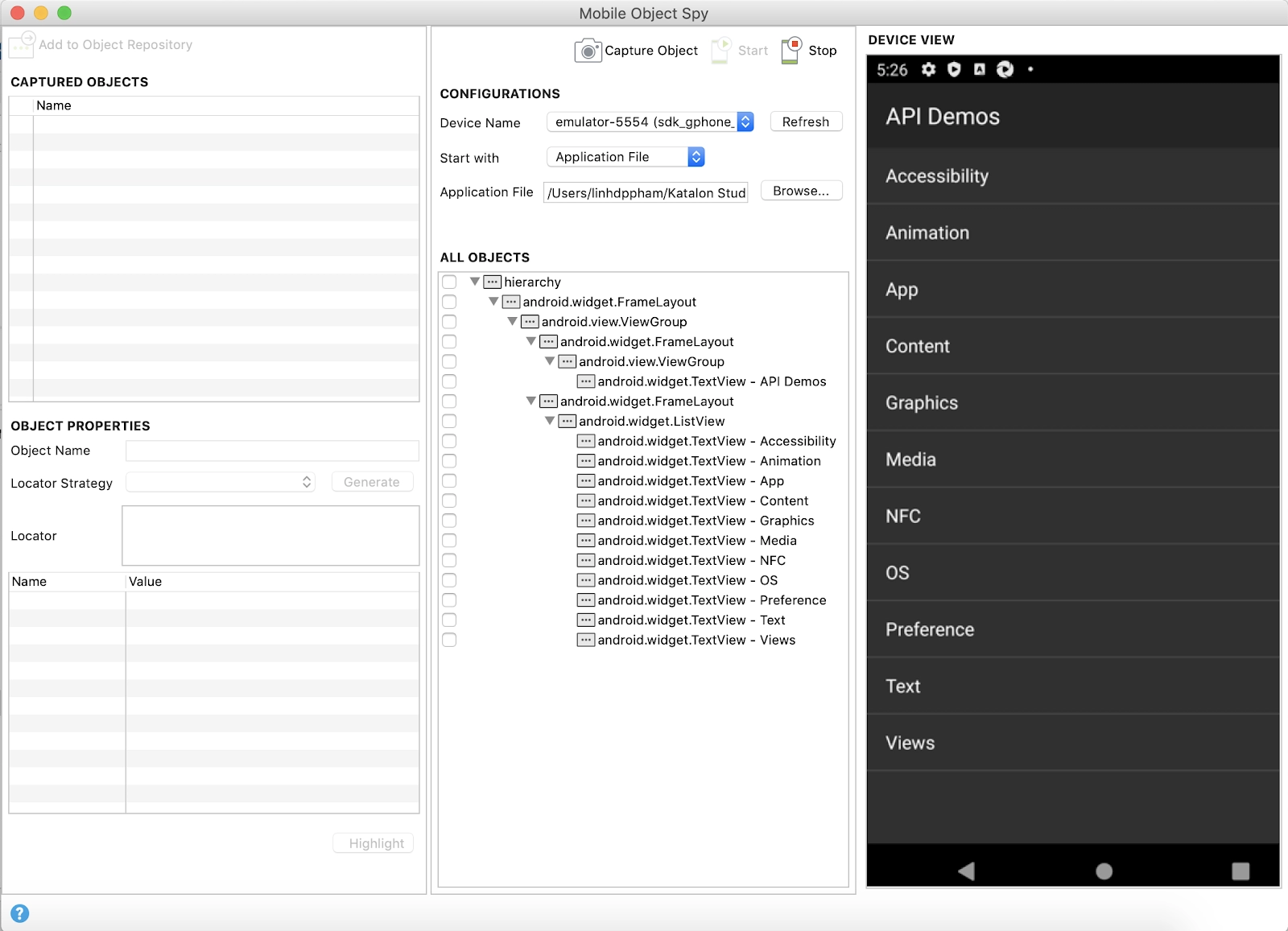
- Click Start to begin spying the application under test (AUT). Wait until the AUT is launched and the All Objects and Device View are ready for you to capture objects of the AUT.
-
You can choose on any object either in the tree of All Objects or in Device View; Katalon highlights their counterpart accordingly for verification.
- Device View is a simulator of the device's screen.
- All Objects captures and organizes all the displayed mobile objects of Device View in a tree.

To ensure the Device View shows the current screen of the AUT on the device, you can click on the Capture Object button to reload Device View and then refresh All Objects.
- Check any objects in All Objects. Katalon Studio captures the selected objects and displays the objects' properties in the Object Properties table.

-
The most essential property of an object is its value and locator strategy. The default locator is a unique value in detecting that object. Katalon Studio 7.6+ supports selector strategies supported by Appium except for Android Data Matche. If you want another locator strategy among the provided option, you can choose it and generate a new locator. Then choose Highlight to check if your newly updated locator can check the target object on its screen correctly.
-
Choose Add to Object Repository to save them to Katalon Studio.

- In the displayed Folder Browser dialog, you can make a decision where to save the captured objects. Select your preferred location, then click OK. The captured objects will be included in Object Repository accordingly.

You can continue with the current mobile screen or navigate to other interfaces. To reload the Device View and All Objects, choose the Capture Object button.




 1+ registered

