Do you think IIT Guwahati certified course can help you in your career?
Introduction
Spy Web Utility provides the ability to capture intelligent objects during web testing. Using the program, you can select a variety of attributes and find techniques to nimbly capture test objects. In this article, we will learn about Generating reliable object selectors using the Spy Web utility in Katalon.
Generating Reliable Object Selectors Using Spy Web Utility
On websites, Spy Web Utility offers an intelligent object-capturing feature. Visit Spy Web Utility to find out more information about this tool.
CSS and XPath are the two most often used selectors. The building blocks for XPath or CSS selectors are called locators. Locators aid in finding and locating specific items on the website being tested.
You can manually add a selection using either an XPath or a CSS selector by editing the Selected Locator, depending on the approach you've chosen.
To identify things on web UI, you can input and change additional XPath or CSS objects using the Selection Method's CSS or XPath mode.
Here are several locators for web elements:
Finding object locators
Spy Web Utility allows you to manually enter XPath or CSS object selectors, receive web element XPath or CSS locators, and capture objects. By automatically identifying and highlighting all elements that match the supplied selector, Spy Web Utility offers immediate feedback.
This section will provide examples of how to locate object locators using the Spy Web Utility.
Launch a project or start a new one. Click the Spy Web icon located on the main toolbar.
The window for Object Spy appears.
Enter the URL of the website you wish to test in the URL section. Here's an example using our demo page: http://demoaut.katalon.com/
Click on the Start button's drop-down menu to select a browser. We pick the most recent version of Chrome as our example.
Select Start. Katalon Studio launches a fresh instance of Chrome and goes to the sample page.
Hover the mouse over the test objects to begin capturing them. The red highlight indicates the focused web object.
The focused object is then captured and added to the Capture Object list by hitting or right-clicking and selecting Capture Object.
All of the objects' accessible characteristics are automatically recorded by Katalon Studio. You can adjust any property's value and alter the folder's name.
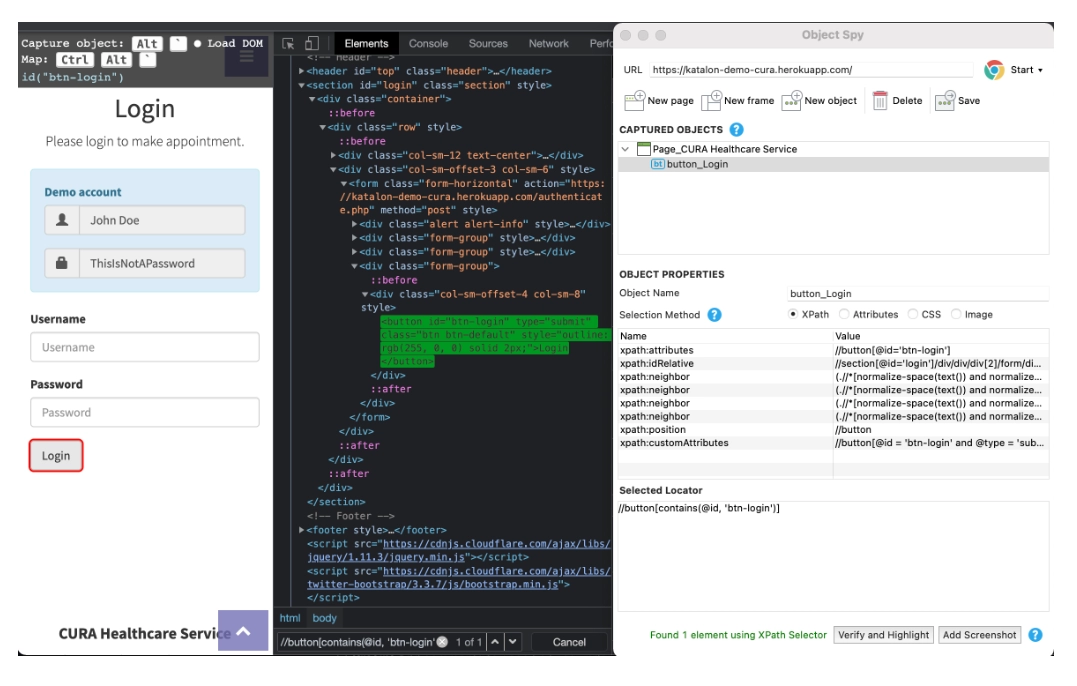
You can choose XPath, Attributes, CSS, or Image in the Selection Method area to find captured objects.
You can manually enter your XPath in the Selected Locator section, after which you should click Verify and Highlight. Your XPath locator matches elements on the page that Katalon discovers and highlights.
Because multiple items on a web page may have the same formats and styles, a single locator may be used to identify a variety of them. You will be shown how to develop original locators to discover complex or dynamic elements in the following section. Look below: utilizing an XPath selector.
Click Save to add objects to the Objects Repository. Next, pick a folder to put the objects that were captured. When finished, click OK.
Working with XPath selector
The following tutorial demonstrates how to use the XPath selector to find web elements using the Katalon Studio Spy Web Utility.
These XPath axis approaches are employed in the search for dynamic or complicated items.
We are using our demo page in the following examples: http://demoaut.katalon.com/.
Checking Multiple Attributes
A unique locator can be created to identify an element using the combination of several properties. When an element has numerous properties, but only one attribute can be used to make a unique locator, this method is helpful.
For instance, you may locate the login button by using numerous properties, such as @id and @type.
XPath:
//*[@id='btn-login'][@type='submit']
Index
Enter a specified tag name in terms of the desired index value. Use this when it becomes challenging to search among multiple elements with similar properties that are present in the DOM.
For instance, you wish to find the page's initial dropdown menu.
XPath:
//div[@class='form-group']//select[1]
Chained XPath
You can chain together different XPath expressions.
Use the chained XPath, for instance, to locate the calendar icon in the appointment area.
The Contains() method can be used to identify dynamic items that include static values.
Example:
To locate the Login button that contains the id: "btn-login," use the Contains() function.
XPath:
//button[contains(@id, 'btn-login')]
Last()
An XPath expression uses the technique last(). To obtain the exact last node, it is employed.
Example:
There are three social media symbol connections, and you want to use Last.fm to retrieve the third thing ().
XPath:
//ul[@class='list-inline']/li[last()]
Start-with()
The element is located via the Start-with method utilizing an attribute's starting text. When the first portion of an attribute value is fixed (static) while the remainder is dynamic, this method can be helpful.
Example: Use the Starts-with() method to locate the line that begins with "We Care About Your Health" in order to find the phrase "We Care About Your Health".
XPath:
//h3[starts-with(text(),'We Care About')]
Frequently Asked Questions
Which framework is used in Katalon Studio?
Groovy is a Java-based language used by Katalon Studio. It requires the loading of numerous libraries in order to parse test data, test objects, and logging.
What is the purpose of Katalon Studio?
Without requiring coding, Katalon enables the creation and reuse of automated UI test scripts.
Is Java supported by Katalon?
To operate a Katalon Studio instance and create test applications. Katalon Studio makes use of the standard embedded Java Runtime Environment (JRE) version 8.










 1+ registered

