Do you think IIT Guwahati certified course can help you in your career?
Introduction to Katalon
Katalon is an automating testing software that lets the users test web, mobile or desktop applications and APIs without coding, to deliver efficient and robust software to the consumers. The software is built over the Selenium and Appium automation frameworks, and makes testing convenient and code-free.
Management In Manual Mode
Create a Test Object
There are two ways to create an object:
Go to File>New>Test Object
Right-click on Object Repository and select New>Test Object
When you’re in the New Test Object dialogue, select and type a name for the object and then click the OK button. This newly made object will be created under the Object Repository of the Katalon Studio.
Creating the Object’s Locator
While multiple locators can be made for an object, one of them needs to be set as the default locator. It is used to identify the object during test execution.
XPath, CSS, Attributes and images are the various selection methods supported by Katalon Studio. You can switch between these multiple selection methods. The details content of each selection method is automatically stored/saved. Given below are the methods of each mode:
Xpath/CSS: Go to Select Locator, and enter the desired XPath.
Attribute: In the Object’s Properties table, select the required Detect Object by, (one or many). This creates a Selected Locator of the attribute type.
Image: To create an image locator of the object, browse an image for the same.
Keep in mind that though multiple properties can be added for an object in the Object’s Properties table, make sure that each property has a different name.
Select Attributes as the default selection method in a Test Object’s view
In the Object’s Properties table, click Add
In the dialogue that opens up, write down the details
In this Add Property dialogue:
Name: Here specify the object property’s name. Either enter a name manually or select one from the following options- class, CSS, id, name, title, XPath
Match Condition: This recognises the target object during execution
Value: the value to complete a match condition
This property is now added to the properties list. The values of the properties can also be changed or edited here.
Manage Parent Object
Many web applications render elements in an iframe now. Hence, the script needs to be informed about how to traverse through a website’s iframes and identify and select the correct iframe where the text and its object are present. So, before interacting with the elements, use the ‘Switch to Frame’ keyword beforehand.
The parent iframe can be defined within the test object view. So execution automatically shifts to the selected parent iframe.
In Script View
Test Objects can be defined programmatically in the Script View. Here is a step-by-step example that demonstrates how to define the Medicare option with the Attributes, CSS and XPath selection methods.
Using the Test Object, create a new object programmatically:
//object creation using code
TestObject myNewObject = new TestObject('ObjectID')
2. Adding an Object Locator
Attributes selection method: add a property to an object by using the addProperty() method as described below:
//Attributes
//Add property to Test Object:
// property name
// condition type
// property value
// a boolean value to indicate if the property will be used to identify the object during execution
myNewObject.setSelectorMethod(SelectorMethod.BASIC)
myNewObject.addProperty('xpath', "//*[@id=\"appointment\"]/div/div/form/div[3]/div/label[1]", true) //Medicare
XPath, CSS selection method: follow the given code. Specify the selection method and set a locator value
myNewObject.setSelectorValue(SelectorMethod.CSS,"#appointment > div > div > form > div:nth-child(3) > div > label:nth-child(1)") //Medicare
myNewObject.setSelectorMethod(SelectorMethod.CSS)
Validate a test object
We can verify the detection of test objects in the application under test, by adding the test objects to the Web Object Spy. To do so, right click on an item to open its context menu, then select Add to Web Object Spy.
Verify and Highlight
Katalon provides a built-in Verify and Highlight feature. It is used to double-check if the web objects can be located. If the object is found, Katalon studio highlights it with a red border.
After finishing, click Save to add the object to the Object Repository.
Visually Recognising an Object
With image locators, you can identify objects with images, and perform image-based testing.
Image-based Recognition
To enable this for web testing execution, go to:
Project > Settings > Self-Healing > Web UI > Test Execution.
For versions below 7.6, image-based recognition is disabled by default. To change that, go to:
Project > Settings > Execution and check Enable Image Recognition.
Capturing and Creating Screenshot Properties
The basic requirements are:
Target screenshots of a web element
Screenshot property of the element
In Tests Explorer, go to Screenshots > Matched Elements. This folder contains objects based on the target images
Now go to Screenshots > Targets. This folder contains images used for locating objects.
Image Comparison Factors
Screen Resolution
The screen resolution of the machines running the execution and taking the screenshots determine the effectiveness of image comparison. To maximise efficiency, prefer to use the same machine for taking the screenshot and executing it.
Capture Tool
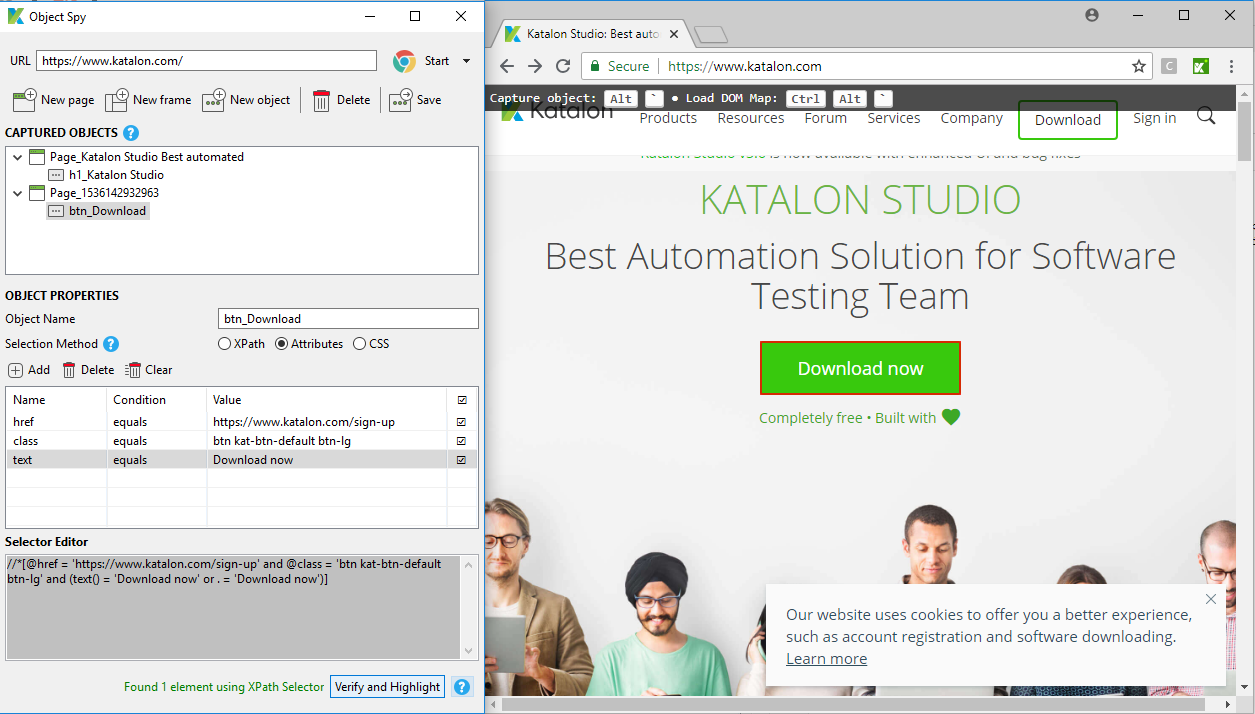
It is always recommended to use the built-in screen-capturing feature in Web Recorder and Spy Tools. After clicking Show Captured Objects, click on the Add Screenshot button.
Working With Shadow DOM Objects
Shadow DOM is often used by Web developers. Shadow DOM is used in encapsulation, to keep the styling code separate from the other code page, to prevent clashing and confusion. This becomes a problem when it comes to automation testing because you can’t find the elements inside the shadow root in the main document, as per its use. Hence, test automation that relies on XPath or querySelector does not work with Shadow DOM.
This problem can be solved with Katalon Studio. For this, you need to use the Spy Web feature that lets you capture the parent objects containing the Shadow DOM elements.
After this, a new object must be created in Katalon Studio. For this, identify the properties of the Shadow DOM element.
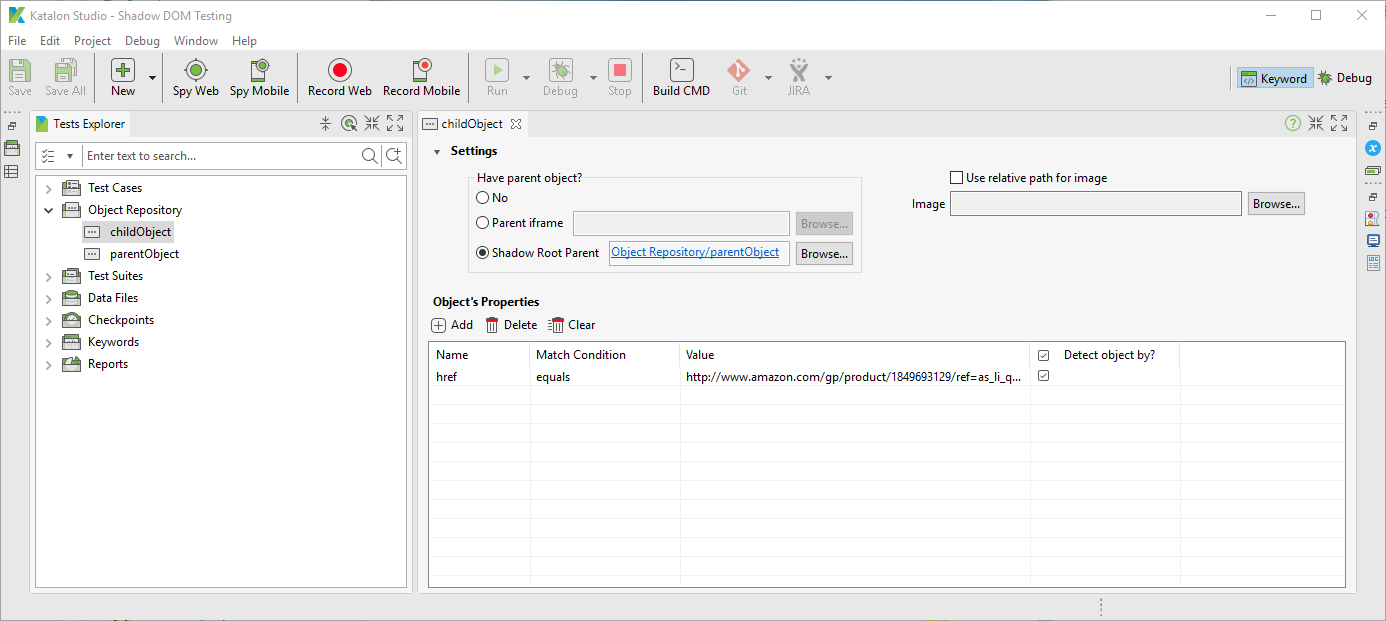
Select Shadow Root Parent in the New Object settings and define it with the parent object from the initial step. Katalon Studio can then traverse through the parent object via generated CSS selector and detect the Shadow DOM object by its properties.
Limitations of Working with Shadow DOM
You can only use Chrome browsers with versions starting from 53.
You can work with only 1 level of nested Shadow DOM parents
As elements do not exist in the DOM, Record and Spy features are unavailable.
Editing Object Properties at Runtime
Instead of writing duplicate steps to interact with multiple objects during test execution, The code can be reduced to interact with the objects to make it neat.
After locating your elements using CSS or XPath, for example, we will change the object IDs.
‘i’ is the loop counter in this code snippet. Instead of this, the code can be put into a loop to read the excel sheet as follows:
for (def i=0; i <= fineTestData('Path to your excel').getRowNumbers(); i++) {}
Creating a Test Object in Memory at Runtime
/**
* Construct a TestObject in memory
* @parameter css (String): The CSS selector used to find the target element.
* @return (TestObject): The TestObject that is constructed
*/
@Keyword
static TestObject makeTO(String css) {
    TestObject to = new TestObject()
    to.addProperty("css", ConditionType.EQUALS, css)
    return to
}
Frequently Asked Questions
What is Katalon Studio?
Katalon is an automating testing software, that lets the users test web, mobile or desktop applications and APIs without coding, to deliver efficient and robust softwares to the consumers.
What is Shadow DOM?
Shadow DOM is used in encapsulation, to keep the styling code separate from the other code page, to prevent clashing and confusion.
Why can’t we use XPath and CSS for automation testing with Shadow DOM?
Automation testing is problematic because you can’t find the elements inside the Shadow root in the main document, as per its use. Hence, test automation that relies on XPath or querySelector does not work with Shadow DOM.
Conclusion
In this blog, we learnt about the management of Web test objects in Katalon Studio. We saw in detail the usage of Katalon to test objects using Shadow DOM and editing objects during runtime. Share this article with your fellow ninjas if you found it helpful. Along with this, visit our platform Coding Ninjas Studio to read informational articles on important computer fundamentals like DBMS, DSA, Competitive Programming, Python, Java, etc. Happy Coding!!










 1+ registered

