




Introduction
This article describes a simple stock exchange app using GWT. GWT helps in the building of rich AJAX applications written purely in Java, which are afterward compiled into pure JavaScript. With this stock exchange app, the user will be able to know and manage stock and can analyze price and changes in stock.
So, now let us design a web application using GWT named Stock Exchange App.
GWT Stock Exchange App
In this Stock Exchange App, we would use all the fundamental widgets, panels, and layouts in GWT to develop a Web application.
With this stock exchange app, the user will be able to know and manage stock and can analyze price and changes in stock, the value changes after a predetermined amount of time.
This GWT Stock Exchange App is divided into the following steps:
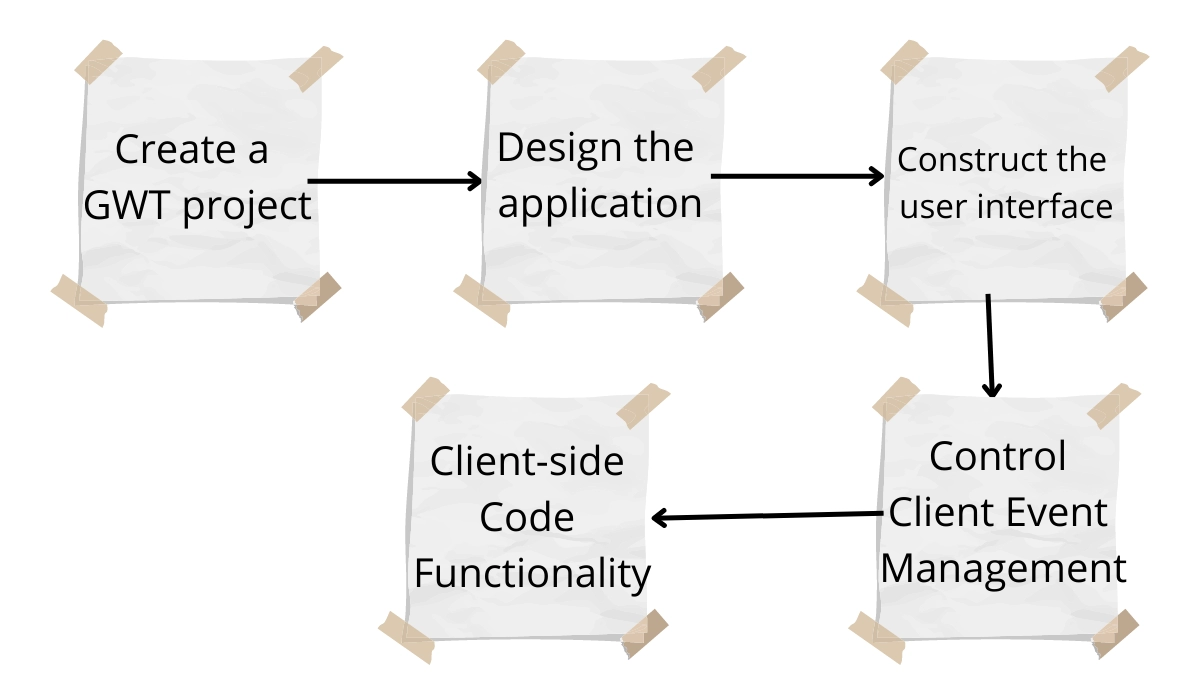
- Create a GWT project - Create the directories and files you need to get going.
- Design the Application - Determine the needs, limitations, and implementation plans.
- Construct the user interface - Create the visual design and include user interface elements.
- Control Client Event Management - handling keyboard and mouse events.
- Client-side Code Functionality - One code base should be maintained for all browser implementations.
StockExchange.html
<!DOCTYPE html>
<html>
 <head>

   <meta http-equiv="content-type" content="text/html; charset=UTF-8">

   <link type="text/css" rel="stylesheet" href="StockExchange.css">

   <title>StockExchange</title>

   <script type="text/javascript" language="javascript" src="stockex/stockex.nocache.js"></script>

 </head>
 <body>

   <h1>Stock Exchange App</h1>

   <div id="stockList"></div>

   <iframe src="javascript:''" id="__gwt_historyFrame" tabIndex='-1' style="position:absolute;width:0.0;height:0.0;border:0.0"></iframe>

   <noscript>
     <div style="width: 22.0em; position: absolute; left: 50.0%; margin-left: -11.0em; color: red; background-color: white; border: 1.0px solid red; padding: 4.0px; font-family: sans-serif">
       JavaScript must be enabled in your web browser for this application to display properly.
     </div>

   </noscript>
 </body>
</html>
StockExchange.css
/* Formatting specific to the StockExchange application */
body {
 padding: 10px;
}
/* stock list header row */
.watchListHeader {
 background-color: #2062B8;
 color: white;
 font-style: italic;
}
/* stock list flex table */
.watchList {
 border: 1px solid silver;
 padding: 2px;
 margin-bottom:6px;
}
/* stock list Price and Change fields */
.watchListNumericColumn {
 text-align: right;
 width:8em;
}
/* stock list Remove column */
.watchListRemoveColumn {
 text-align: center;
}
/* Add Stock panel */
.addPanel {
 margin: 10px 0px 15px 0px;
}
/* stock list, the Remove button */
.gwt-Button-remove {
 width: 50px;
}
/* Dynamic color changes for the Change field */
.noChange {
 color: black;
}
.positiveChange {
 color: green;
}
.negativeChange {
 color: red;
}
StockExchange.java
package com.gwt.sample.stockex.client;
import com.google.gwt.event.dom.client.ClickHandler;
import com.google.gwt.user.client.Random;
import com.google.gwt.i18n.client.DateTimeFormat;
import java.util.ArrayList;
import com.google.gwt.user.client.ui.Label;
import com.google.gwt.user.client.ui.RootPanel;
import com.google.gwt.user.client.Timer;
import com.google.gwt.event.dom.client.KeyCodes;
import com.google.gwt.i18n.client.NumberFormat;
import java.util.Date;
import com.google.gwt.user.client.ui.HorizontalPanel;
import com.google.gwt.user.client.ui.VerticalPanel;
import com.google.gwt.user.client.ui.TextBox;
import com.google.gwt.user.client.ui.Button;
import com.google.gwt.user.client.Window;
import com.google.gwt.event.dom.client.KeyDownEvent;
import com.google.gwt.event.dom.client.ClickEvent;
import com.google.gwt.user.client.ui.FlexTable;
import com.google.gwt.core.client.EntryPoint;
import com.google.gwt.event.dom.client.KeyDownHandler;
/**
* Entry point classes define <code>onModuleLoad()</code>.
*/
public class StockExchange implements EntryPoint {
 private VerticalPanel mainPanel = new VerticalPanel();
 private HorizontalPanel addPanel = new HorizontalPanel();
 private FlexTable stocksFlexTable = new FlexTable();
 private Button addStockButton = new Button("Add");
 private TextBox newSymbolTextBox = new TextBox();
 private ArrayList<String> stocks = new ArrayList<String>();
 private Label lastUpdatedLabel = new Label();
 private static final int REFRESH_INTERVAL = 5000; // m
 /**
  * This is the entry point method.
 */
 public void onModuleLoad() {
   stocksFlexTable.setText(0, 1, "Price");
   stocksFlexTable.setText(0, 0, "Symbol");
   stocksFlexTable.setText(0, 2, "Change");
   // To remove
   stocksFlexTable.setText(0, 3, "Remove");
   // In the stock list table
   // add styles to elements
   stocksFlexTable.getRowFormatter().addStyleName(0, "watchListHeader");
   stocksFlexTable.addStyleName("watchList");
   stocksFlexTable.getCellFormatter().addStyleName(0, 1, "watchListNumericColumn");
   stocksFlexTable.getCellFormatter().addStyleName(0, 2, "watchListNumericColumn");
   stocksFlexTable.getCellFormatter().addStyleName(0, 3, "watchListRemoveColumn");
   stocksFlexTable.setCellPadding(6);
   // Assemble Add Stock panel.
   // Add Symbol TextBox.
   addPanel.add(newSymbolTextBox);
   // Add Stock Button.
   addPanel.add(addStockButton);
   // addPanel.
   addPanel.addStyleName("addPanel");
   // Assemble Main panel.
   mainPanel.add(stocksFlexTable);
   // Assemble Add panel.
   mainPanel.add(addPanel);
   mainPanel.add(lastUpdatedLabel);
   // Associate - Main panel with -> HTML host page.
   RootPanel.get("stockList").add(mainPanel);
   // Move cursor focus to -> input box.
   newSymbolTextBox.setFocus(true);
   // Setup timer to refresh
   //-> list automatically.
   Timer refreshTimer = new Timer() {
     @Override
     public void run() {
       refreshWatchList();
     }
   };
   refreshTimer.scheduleRepeating(REFRESH_INTERVAL)
   // Listen for mouse events
   //-> on the Add button.
   addStockButton.addClickHandler(new ClickHandler() {
     public void onClick(ClickEvent event) {
       addStock();
     }
   });
   // Listen for keyboard events
   //-> in the input box.
   newSymbolTextBox.addKeyDownHandler(new KeyDownHandler() {
     public void onKeyDown(KeyDownEvent event) {
       if (event.getNativeKeyCode() == KeyCodes.KEY_ENTER) {
         addStock();
       }
     }
   });
 }
 /**
 * Add stock to FlexTable.
 * when the user presses enter
 *  in the newSymbolTextBox
 *  or clicks the addStockButton.
 */
 private void addStock() {
   //string symbol
   final String symbol = newSymbolTextBox.getText().toUpperCase().trim();
   //new_symbol_textbox
   newSymbolTextBox.setFocus(true);
   // A stock code must have 1 to 10 characters
   //, either in the form of letters,
   //numbers, or dots.
   //regex
   if (!symbol.matches("^[0-9A-Z\\.]{1,10}$")) {
     //alert
     Window.alert("'" + symbol + "' is not invalid symbol.");
     //Select All -> new_symbol textbox
     newSymbolTextBox.selectAll();
     return;
   }
   // set -> Text
   newSymbolTextBox.setText("");
   // Don't add the stock if
   //it's already in the table.
   if (stocks.contains(symbol)) {
     return;
   }
   // Add the stock --> to the table.
   //row count
   int row = stocksFlexTable.getRowCount();
   //add_symbol
   stocks.add(symbol);
   //set text
   stocksFlexTable.setText(row, 0, symbol);
   //set widget
   stocksFlexTable.setWidget(row, 2, new Label());
   stocksFlexTable.getCellFormatter().addStyleName(row, 1, "watchListNumericColumn");
   stocksFlexTable.getCellFormatter().addStyleName(row, 2, "watchListNumericColumn");
   stocksFlexTable.getCellFormatter().addStyleName(row, 3, "watchListRemoveColumn");
   // Add a button to remove
   //this stock from the table.
   Button removeStockButton = new Button("x");
   removeStockButton.addStyleDependentName("remove");
   removeStockButton.addClickHandler(new ClickHandler() {
     public void onClick(ClickEvent event) {
       int removedIndex = stocks.indexOf(symbol);
       stocks.remove(removedIndex);
       stocksFlexTable.removeRow(removedIndex + 1);
     }
   });
   stocksFlexTable.setWidget(row, 3, removeStockButton);
   // Get the stock price.
   refreshWatchList();
 }
 private void refreshWatchList() {
   final double MAX_PRICE = 100.0;
   // $100.00
   final double MAX_PRICE_CHANGE = 0.02;
   // +/- 2%
   StockPrice[] prices = new StockPrice[stocks.size()];
   // for loop
   for (int j = 0; j < stocks.size(); j++) {
     //price
     double price = Random.nextDouble() * MAX_PRICE;
     //change
     double change = price * MAX_PRICE_CHANGE * (Random.nextDouble() * 2.0 - 1.0);
     prices[j] = new StockPrice(stocks.get(j), price, change);
   }
   //update -> Table
   updateTable(prices);
 }
 private void updateTable(StockPrice[] prices) {
   for (int i = 0; i < prices.length; i++) {
     updateTable(prices[i]);
   }
   // Display timestamp
   //showing last refresh.
   // Date Time Stamp
   DateTimeFormat dateFormat = DateTimeFormat.getFormat(
     DateTimeFormat.PredefinedFormat.DATE_TIME_MEDIUM);
   //Last Updated
   lastUpdatedLabel.setText("Last update : "
     + dateFormat.format(new Date()));
 }
 private void updateTable(StockPrice price) {
 // Verify that the stock is still
 // present in the stock table.
   if (!stocks.contains(price.getSymbol())) {
     return;
   }
   int row = stocks.indexOf(price.getSymbol()) + 1;
   // Format -> data in the
   //Price and Change fields.
   // price -> text
   String priceText = NumberFormat.getFormat("#,##0.00").format(
     price.getPrice());
   // number format
   NumberFormat changeFormat = NumberFormat.getFormat("+#,##0.00;-#,##0.00");
   // change text
   String changeText = changeFormat.format(price.getChange());
   // change percent text
   String changePercentText = changeFormat.format(price.getChangePercent());
   // Add new data to the Price
   // and Change fields.
   stocksFlexTable.setText(row, 1, priceText);
   // Label
   Label changeWidget = (Label)stocksFlexTable.getWidget(row, 2);
   // Changes
   changeWidget.setText(changeText + " (" + changePercentText + "%)");
   // Change the color of text in the
   //Change field based on its value.
   String changeStyleName = "noChange";
   if (price.getChangePercent() < -0.1f) {
     changeStyleName = "negativeChange";
   }
   else if (price.getChangePercent() > 0.1f) {
     changeStyleName = "positiveChange";
   }
   changeWidget.setStyleName(changeStyleName);
 }
}
Code Explanation
Here in this code, at first entry point method is defined. In onModuleLoad() table is defined with 4 columns with Symbol, Price, Change and Remove in the same order. Then we assembled add Stock Panel and Main Panel, later we associated Main Panel with the HTML host page. Then we handled mouse and keyboard events and managed stock-related functions.
StockPrice.java
package com.gwt.sample.stockex.client;
public class StockPrice {
 private double price;
 private String symbol;
 private double change;
 public StockPrice() {
 }
 // Stock Price
 public StockPrice(double price, String symbol, double change) {
   // Stock Symbol, Price and Change
   this.price = price;
   this.symbol = symbol;
   this.change = change;
 }
 public double getPrice() {
   return this.price;
 }
 public String getSymbol() {
   return this.symbol;
 }
 public double getChange() {
   return this.change;
 }
 public double getChangePercent() {
   return 10.0 * this.change / this.price;
 }
 public void setPrice(double price) {
   this.price = price;
 }
 public void setSymbol(String symbol) {
   this.symbol = symbol;
 }
 public void setChange(double change) {
   this.change = change;
 }
}
StockEx.gwt.xml
<?xml version="1.0" encoding="UTF-8"?>
<!-- <module rename>  -->
<module rename-to='stockex'>
 <!-- Inherit the core Web Toolkit stuff.  -->
 <inherits name='com.google.gwt.user.User'/>
 <!-- Adopt default style sheet of GWT. -->
 <inherits name='com.google.gwt.user.theme.standard.Standard'/>
 <!-- Other module inherits   -->
 <!-- Specify - app entry point class.   -->
 <entry-point class='com.gwt.sample.stockex.client.StockEx'/>
 <!-- Specify - paths for translatable code -->
 <source path='client'/>
 <source path='shared'/>
 <!-- allow Super Dev Mode -->
 <add-linker name="xsiframe"/>
</module>
Output
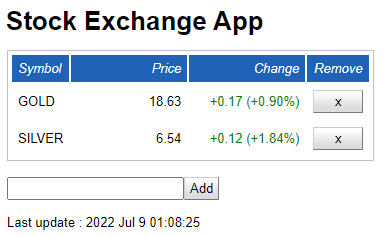
The output shows sample result of the Stock Exchange App



 7+ registered

