Do you think IIT Guwahati certified course can help you in your career?
Introduction
Hello Ninjas! Welcome to another blog on Katalon Studio. This blog will take you through the fundamental concepts of Katalon Studio and the handling of Drop-down menu with Katalon Studio.
So, Before going any further, Let's discuss the word and world of Katalon Studio.
A product that is launched in the market needs to be thoroughly verified & tested. Product testing is done either manually or automatically. The manual testing of API is very time-consuming. Hence, Automated Testing has become very popular these days. Katalon Studio steps in here. Based on Selenium, Katalon is one of the best and most used automated testing software with easy-to-use features.
Features of Katalon Studio
Katalon Studio helps in the automated testing of APIs. It has an inbuilt API testing module for this.
Scripts can be created which are easy and simple to use.
Katalon provides accessible features like snippets, a debugger, and code references.
Katalon Studio is compatible with other third-party testing tools.
Drop-Down
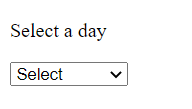
A drop-Down List/Menu is a form of the list allowing the users to choose an option. When inactive, the drop-down shows just one option, and when activated, it shows the whole list of available options.
We have built-in keywords to handle the drop-down menu in Katalon Studio.
Index: It refers to the index of the option that is to be selected/deselected.
Value: It refers to the value in the "value" attribute.
Label: The displayed text of a specific option, for eg. Monday, Tuesday, etc. in this example.
Handling the Drop-Down Menu
Get the number of Selected Options
For finding the number of options that are selected by the user, we can use the inbuilt keyword - getNumberOfTotalOption
Script Mode:
//Launch the browser first
WebUI.openBrowser('(Path to your HTML doc)')

//Maximize the Window
WebUI.maximizeWindow()

//Select All options of the dropdown by Select All option
WebUI.selectAllOption(findTestObject('comboBox_days’))

//Then, count the number of selected Values and store in a variable'
SelectedItems = WebUI.getNumberOfTotalOption(findTestObject('comboBox_days'))
println('Number of Selected Options are ' + SelectedItems)

//To Verify the number of Options selected
WebUI.verifyEqual(SelectedItems, 5)
You can also try this code with Online Java Compiler
To get the number of total options in a drop-down, we use the keyword - getNumberOfTotalOption
Script Mode:
//Launch Browser first
WebUI.openBrowser('(Path to the HTML page)')

//Maximizing the window
WebUI.maximizeWindow()

//Counting the total Number of  Values in the dropdown and storing it in a variable
totalOptions = WebUI.getNumberOfTotalOption(findTestObject('comboBox_days'))
println('No of Days are :' + totalOptions)

//To Verify the number of Options in the dropdown
WebUI.verifyEqual(totalOptions, 7)
You can also try this code with Online Java Compiler
To select all options from the list, we write the following script.
Script;
//Launch Browser first
WebUI.openBrowser('(Path to the HTML page)')

//Maximizing the window
WebUI.maximizeWindow()

//Selecting all Options
WebUI.selectAllOption(findTestObject('comboBox_Days'))

//counting the number of selected Values and storing in a variable'
SelectedOptions = WebUI.getNumberOfSelectedOption(findTestObject('comboBox_Days'))

//To Verify the number of selected options
WebUI.verifyEqual(SelectedOptions, 7)
You can also try this code with Online Java Compiler
It’s important to note that the index always starts with 0, just like in arrays in C++.
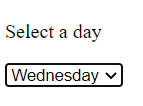
To select the option at a particular index, for example, if we wish to select the option, Wednesday, we pass the input as 3 in value.
Script Mode:
//Launch Browser first
WebUI.openBrowser('(Path to the HTML page)')

//Maximizing the window
WebUI.maximizeWindow()

//Select the dropdown option by Select option By index Method
WebUI.selectOptionByIndex(findTestObject('dropdown_Day'), 3)

//To Verify the Option
WebUI.verifyOptionSelectedByIndex(findTestObject('dropdown_Day'), 3, wed)
You can also try this code with Online Java Compiler
Selecting the option by the label will select the option having the displayed text of a specific option.
If we want to select 'Wednesday' from the drop-down, then we need to pass ‘Wednesday’ only.
Script Mode:
//Launch Browser first
WebUI.openBrowser('(Path to the html page)')

//Maximizing the window
WebUI.maximizeWindow()

//Select the dropdown value by Select option
WebUI.selectOptionByLabel(findTestObject('dropdown_Day'), 'Wednesday', false)

//Verifying the Option is Selected by Label option
WebUI.verifyOptionSelectedByLabel(findTestObject('dropdown_Day'), 'Wednesday', false, 60)
WebUI.closeBrowser()
You can also try this code with Online Java Compiler
This will Select the option having value in the "value" attribute.
E.g. if we want to select 'Tuesday' from the drop-down menu, then we pass the value as ‘tue’ (as given in the Value attribute).
Script Mode:
//Launch Browser first
WebUI.openBrowser('(Path to the HTML page)')

//Maximizing the window
WebUI.maximizeWindow()

//Selecting the Day from Select By value method
WebUI.selectOptionByValue(findTestObject('dropdown_Day'), 'tue,' false)

//To Verify the Option is Selected by Value option
WebUI.verifyOptionSelectedByValue(findTestObject('dropdown_Day'), 'tue', false, 60)
WebUI.closeBrowser()
You can also try this code with Online Java Compiler
We can select multiple options in a combo box by using multiple= ‘true’ .
For deselecting all the options, we use the keyword deselectAllOption. It de-selects the selected items in a combo box.
Script Mode:
//Launch Browser first
WebUI.openBrowser('(Path to the HTML page)')

//Maximizing the window
WebUI.maximizeWindow()

//Selecting all the Options
WebUI.selectAllOption(findTestObject('comboBox_Day'))

//Deselecting all the options
WebUI.deselectAllOption(findTestObject('comboBox_Day'))
You can also try this code with Online Java Compiler















 1+ registered

