




Introduction
Hello Reader!!
Let’s move ahead with Katalon. When we interact with a web application, the most common action that we come across is uploading. Katalon Studio provides us the ability to handle these uploads and verify the downloads. So, today, we will learn to handle file uploads in Katalon Studio. We will also learn to verify the downloaded file using Katalon Studio.

Let us Start!
How to Handle File Uploads
One popular method of connecting with a web application is by uploading a file. Using Katalon Studio, you can manage the file upload process and check the downloaded files.
File Upload in Testing
The widget for uploading files is an input tag with the type attribute set to file. It enables us to upload files in every format (.jpg,.png,.txt, etc.).
Let us see the example of https://the-internet.herokuapp.com/upload by Katalon, to understand the File uploading better.
Here we will first upload the file and then validate whether the file is uploaded or not.
Steps:
- Launch and Navigate to the browser.
- Maximize the window using the maximize window attribute.
- Add the file upload widget to upload a file.
Manual Mode

The script mode is another option. The code to upload a file and validate the uploaded file is in the script below.
Script Mode
import static com.kms.katalon.core.checkpoint.CheckpointFactory.findCheckpoint
import static com.kms.katalon.core.testcase.TestCaseFactory.findTestCase
import static com.kms.katalon.core.testdata.TestDataFactory.findTestData
import static com.kms.katalon.core.testobject.ObjectRepository.findTestObject
import static com.kms.katalon.core.testobject.ObjectRepository.findWindowsObject
import com.kms.katalon.core.checkpoint.Checkpoint as Checkpoint
import com.kms.katalon.core.cucumber.keyword.CucumberBuiltinKeywords as CucumberKW
import com.kms.katalon.core.mobile.keyword.MobileBuiltInKeywords as Mobile
import com.kms.katalon.core.model.FailureHandling as FailureHandling
import com.kms.katalon.core.testcase.TestCase as TestCase
import com.kms.katalon.core.testdata.TestData as TestData
import com.kms.katalon.core.testng.keyword.TestNGBuiltinKeywords as TestNGKW
import com.kms.katalon.core.testobject.TestObject as TestObject
import com.kms.katalon.core.webservice.keyword.WSBuiltInKeywords as WS
import com.kms.katalon.core.webui.keyword.WebUiBuiltInKeywords as WebUI
import com.kms.katalon.core.windows.keyword.WindowsBuiltinKeywords as Windows
import internal.GlobalVariable as GlobalVariable
import org.openqa.selenium.Keys as Keys

WebUI.openBrowser('')

WebUI.navigateToUrl('https://the-internet.herokuapp.com/upload')

WebUI.maximizeWindow()

WebUI.uploadFile(findTestObject('Page_The Internet/input_File Uploader_file-submit'), 'E:\\\\CodingNinjas\\\\Katalon\\\\New file.txt')

FilePath = WebUI.getAttribute(findTestObject('Page_The Internet/input_File Uploader_file-submit'), 'value')

WebUI.verifyMatch(FilePath, 'E:\\\\CodingNinjas\\\\Katalon\\\\New file.txt', false)
File upload using Send Keys
The Send Keys technique may be used to upload files as well. Send Keys functions when the input tag's type is set to file.
Steps:
- Launch and Navigate to the browser.
- Maximize the window using the maximize window attribute.
- Upload the file using the send keys method.
- The send keys accept the file URL as a string.
Manual Mode:

Script Mode:
import static com.kms.katalon.core.checkpoint.CheckpointFactory.findCheckpoint
import static com.kms.katalon.core.testcase.TestCaseFactory.findTestCase
import static com.kms.katalon.core.testdata.TestDataFactory.findTestData
import static com.kms.katalon.core.testobject.ObjectRepository.findTestObject
import static com.kms.katalon.core.testobject.ObjectRepository.findWindowsObject
import com.kms.katalon.core.checkpoint.Checkpoint as Checkpoint
import com.kms.katalon.core.cucumber.keyword.CucumberBuiltinKeywords as CucumberKW
import com.kms.katalon.core.mobile.keyword.MobileBuiltInKeywords as Mobile
import com.kms.katalon.core.model.FailureHandling as FailureHandling
import com.kms.katalon.core.testcase.TestCase as TestCase
import com.kms.katalon.core.testdata.TestData as TestData
import com.kms.katalon.core.testng.keyword.TestNGBuiltinKeywords as TestNGKW
import com.kms.katalon.core.testobject.TestObject as TestObject
import com.kms.katalon.core.webservice.keyword.WSBuiltInKeywords as WS
import com.kms.katalon.core.webui.keyword.WebUiBuiltInKeywords as WebUI
import com.kms.katalon.core.windows.keyword.WindowsBuiltinKeywords as Windows
import internal.GlobalVariable as GlobalVariable
import org.openqa.selenium.Keys as Keys

WebUI.openBrowser('')

WebUI.navigateToUrl('https://the-internet.herokuapp.com/upload')

WebUI.maximizeWindow()


WebUI.sendKeys(findTestObject('Page_The Internet/input_File Uploader_file-submit'), 'E:\\\\CodingNinjas\\\\Katalon\\\\New file.txt')


FilePath = WebUI.getAttribute(findTestObject('Page_The Internet/input_File Uploader_file-submit'), 'value')


WebUI.verifyMatch(FilePath, 'E:\\\\CodingNinjas\\\\Katalon\\\\New file.txt', false)
Verifying a downloaded file
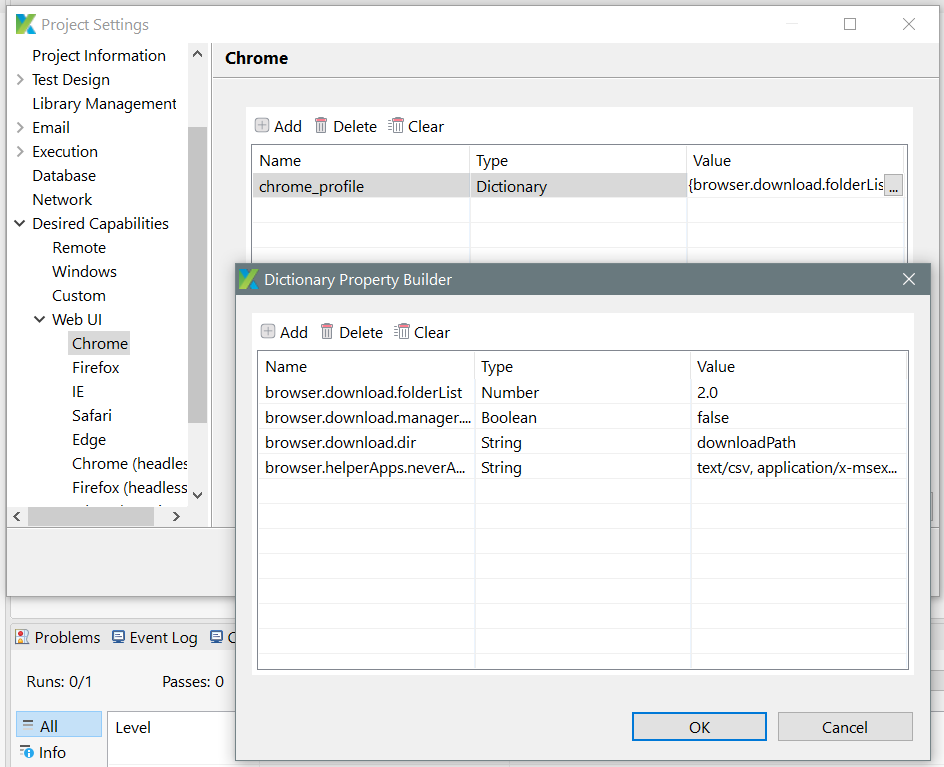
We must check to see if a file was downloaded from the application and saved in the appropriate folder after downloading it.
To do that, we must configure Chrome(or your browser) preferences, as seen in the image below.
Script Mode
import org.openqa.selenium.By as By
import org.openqa.selenium.WebDriver as WebDriver
import org.testng.Assert as Assert
import com.kms.katalon.core.webui.driver.DriverFactory as DriverFactory
import com.kms.katalon.core.webui.keyword.WebUiBuiltInKeywords as WebUI
import internal.GlobalVariable as GlobalVariable

'Defining the Custom Path where file needs to be downloaded'
String Path = 'E:\\CodingNinjas\\Katalon\\CheckDownload'

'Launch a browser and Navigate to the URL'
WebUI.openBrowser(GlobalVariable.CheckDownloadURL)

WebDriver driver = DriverFactory.getWebDriver()

'Clicking on Link text to download a file'
driver.findElement(By.linkText('smilechart.xls')).click()
'Wait for the file to get isDownloaded and Stored in a user-defined path'
WebUI.delay(10)

'Verify whether the file is download in the User defined Path or not'
Assert.assertTrue(isDownloaded(Path, 'smilechart.xls'), 'Could not download the Expected document')

boolean isDownloaded(String Path, String fileName) {

	long timeoutTime = 5 * 60 * 1000
	long startTime = new Date().getTime()
	boolean isDownloaded = false
	File file = new File(Path, fileName)

	while (!isDownloaded) {
		KeywordUtil.logInfo("Checking file exists ${file.absolutePath}")
		isDownloaded = file.exists()
		if (isDownloaded) {
			file.delete()
		} else {
			long now = new Date().getTime()
			if (now - startTime > timeoutTime) {
				break
			}
			Thread.sleep(3000)
		}
	}
	return isDownloaded
}


 5+ registered

