




Introduction
Imagine you have made an awesome mobile app. But you are not sure if it would work seamlessly on all devices or not. At this point, you have to test it to make sure. But you definitely cannot run to different people and ask them to use it for you. So this is where Katalon is here to help. We all know we can do so much exciting stuff using Katalon studio. It is very helpful and easy to use too. Let us take a look at How to test mobile apps in Katalon using custom cloud devices and what remote execution is about mobile testing in the article.
Testing Mobile Apps using Custom Cloud Devices in Katalon Studio
Let us take a look below and find out about Testing Mobile Apps using Custom Cloud Devices in Katalon Studio. We will try to learn about the Execution and Mobile Object Spy and Mobile Recorder options.
With Katalon Studio version 6.3.0 and above, we can test our mobile applications on cloud devices that are even customized. Such as Sauce Labs, BrowserStack, and others. Katalon Studio even lets us run a Mobile script on remote and customized cloud devices.
We should take note that the Remote Server URL and Remote Server Type are not needed in the Generate Command dialogue. Katalon Studio uses the current Remote execution parameters and settings.
Mobile Object Spy and Mobile Recorder
Mobile Object Spy and Mobile Recorder are now available on remote devices rather than custom devices. This thing starts from Katalon Studio version 6.3.0 and later.
Remote Devices
"Remote Devices" is a new tool item. It has been added to the UI of Mobile Object Spy and Mobile Recorder. This is in addition to Android, iOS and Kobiton devices.
Configure a Remote Device
Let us take a look at the steps to configure a remote device.
Step 1: First, we go to Project and click on settings.

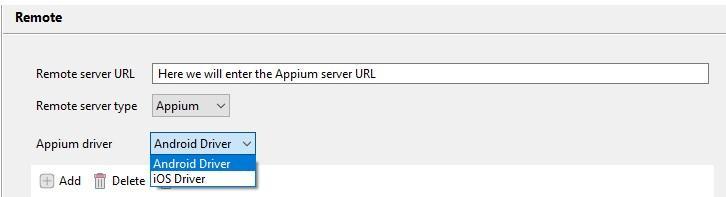
Step 2: There, we select the Remote option in the side panel.

Step 3: We enter the server URL, server type and desired capabilities there.

Cloud Application ID
The Cloud Application ID is the ID that is assigned to the application file. These files are the ones with the extension ".apk" or ".ipa". The ID is assigned when it has been uploaded to the cloud.



 1+ registered

