Do you think IIT Guwahati certified course can help you in your career?
Introduction
Hey Ninja! Testing is one of the most crucial steps the development team follows before making applications available to everyone. Thus our Ninjas should be aware of testing techniques as well. In this article, we will learn about testing Mobile Apps using Katalon Studio and Kobiton cloud-based device farm.
But before that, let’s learn about katalan studio and kobitan cloud device.
What is Katalan Studio?
Katalon Studio is a software tool for automated testing. It can be used for web, mobile, API and desktop application testing. It offers test data and execution results displayed through charts, graphs, and reports.
Test management, planning, and execution are some of its primary aspects. Katalon Jira and other CI/CD technologies can be connected with TestOps.
What is Kobiton Cloud Device?
Kobiton is a tool for testing mobile devices that enable users to design and provide the best possible mobile experiences. Real device testing, device lab administration, script development, and app health checking are some of its capabilities. Thanks to real device testing, users can access physical devices in the cloud with full support for orientation and movements. Users can swipe, tap, and scroll with any gesture on a cloud device. Based on records that include videos, screenshots, gestures, and system data like battery and memory usage, Kobiton provides real-time app analytics.
Create mobile automation test cases using the Katalon Studio recording utility
Katalon Studio provides two tools to speed up the automation process: Mobile Recorder and Mobile Object Spy, which quickly populate the project's object repository.
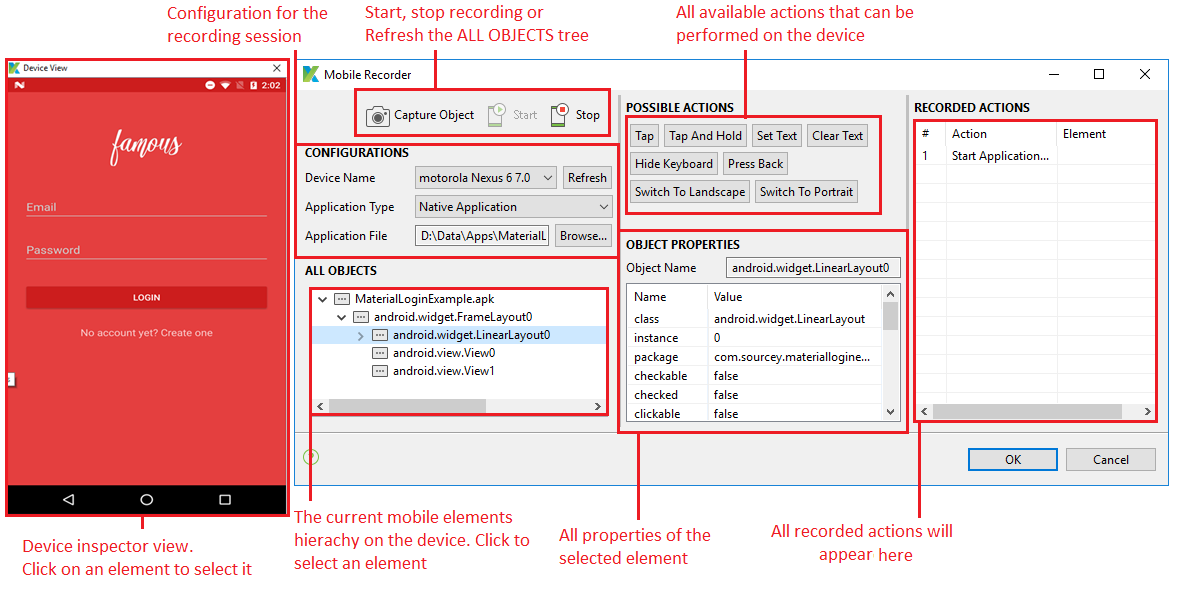
→ Open the sample project, then create a new test case. To access its dialogue, click the Mobile Recorder button, as shown in the figure below:
Credit: katalon.com
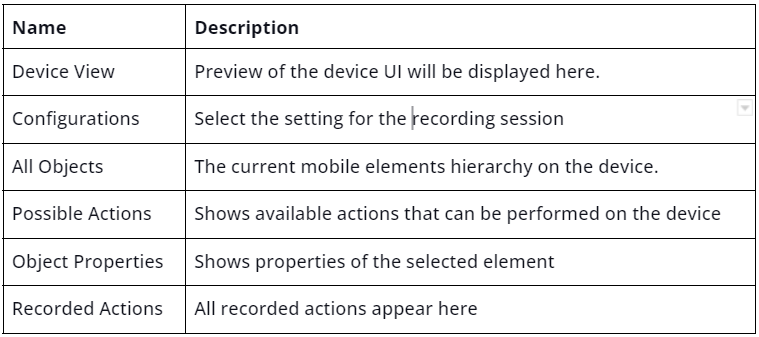
Now, let's understand the above image and the usage of each view:
→When the dialogue is active, take the following actions to set up your recording session:
Select your device from the Device Name combo box after plugging it in or starting your emulator.
To choose the app file from your computer, click Browse.
Once the app has launched on your smartphone, click Start. The app displays a device view when the configuration is complete, as shown in the above image.
→Start recording the test case after your app is prepared and running on your smartphone.
To access the Create Account page, tap "No account yet? Create one." choosing the android.widget.TextView0 object.
To record the action, click the Tap button. This move simulates tapping the application.
You will be redirected to the Create Account Page, where you will fill in the required information.
Select android.widget.EditText0.
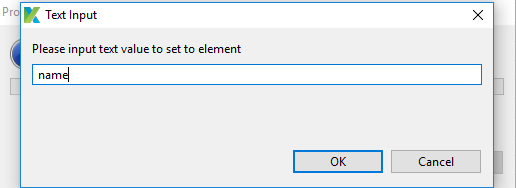
To set text on the Name text field, click Set Text.
Credit: katalon.com
The text is set to the device, and the action is recorded in the Recorded actions table.
Apply the same procedure to the address field to Set Text.
We can make the on-screen keyboard disappear by clicking the Hide Keyboard action button to input the value for the Email field.
Follow the same steps for the other text fields.
Finally, select the Create Account button.
Click Stop from the Mobile Recorder window to stop the recording.
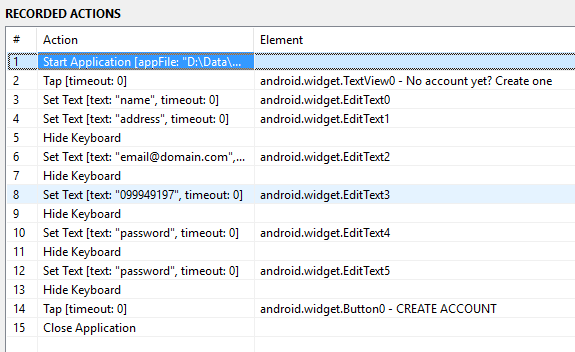
The recorded actions should appear as shown below:
Credit: katalon.com
Click OK to finish the recording and select a folder to keep your recorded items in.
→ To confirm that all recorded steps were taken, replay or view your test case in Manual mode. Now that validation points have been added, we can confirm whether the recorded inputs can correctly set the text fields in this test case.
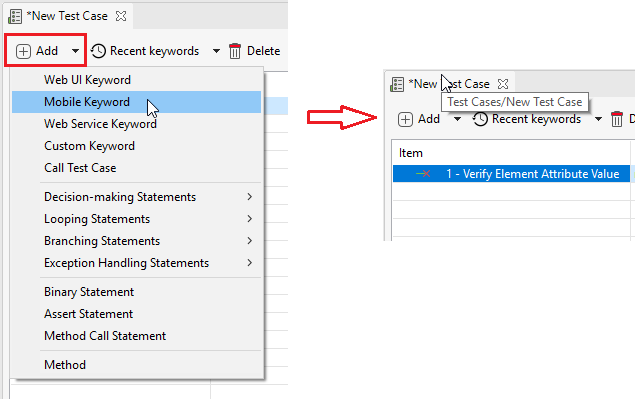
Add a Mobile Keyword step and select the keyword Verify Element Attribute Value after selecting the initial Set Text from the Add toolbar or by selecting Add from the context menu.
Credit: katalon.com
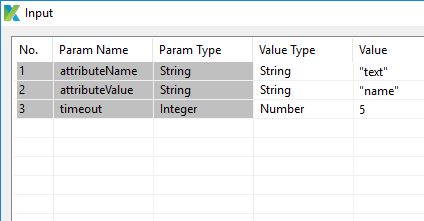
Select the Name text field, android.widget.EditText0, as an object to verify.
Set the following values by double-clicking on the input cell for the test step.
Credit: katalon.com
For more Set Text operations, follow the same steps.
Run your mobile automation test case on Kobiton cloud devices
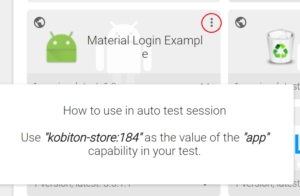
→Kobiton App Repository should be updated with the Material Login Demo app. Choose the Automation snippet by clicking the additional actions button in the Repository view. Copy the app id and save it with you.
Credit: katalon.com
→ Go to the website for Kobiton Devices. Select the device from the list of devices you want to use for your test, then select them as favorites by clicking the star icon.
Credit: katalon.com
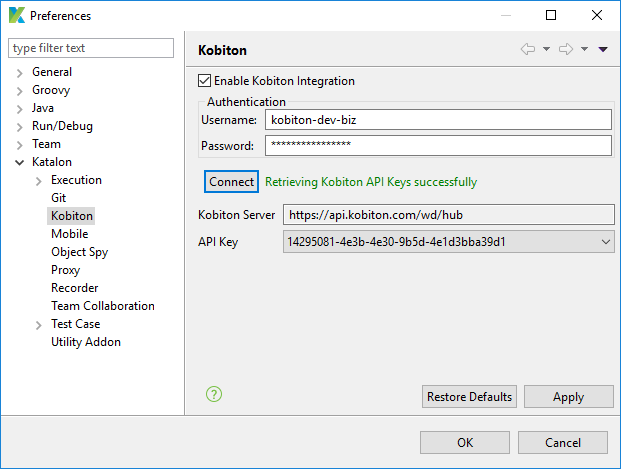
→ Allow Kobiton integration to take effect, as shown in the below diagram.
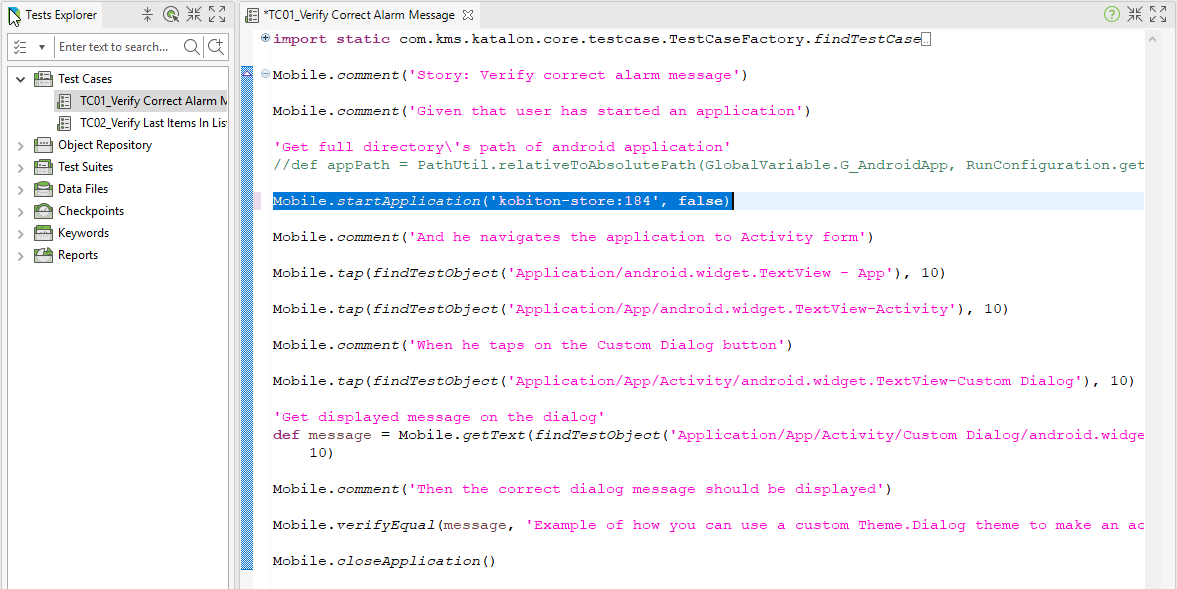
→ Replace the input application path with the app id stored in step 1.
Credit: katalon.com
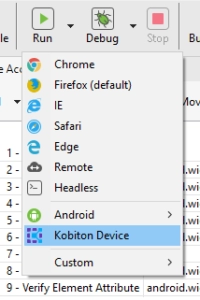
→ As shown below, a new menu option has been added to the Execution toolbar. To access the Kobiton Favorite Device dialogue, click Kobiton Device.
Credit: katalon.com
→ Choose your target device for execution from the list of Kobiton Favorite Devices. To begin execution with that device, click OK. Before the execution, the connection to Kobiton may require some time to be initialized. Once the test run is complete, you should be able to log in to Kobiton sessions to examine the results.
Frequently Asked Questions
What is the framework of Katalon?
A framework called Katalium offers a design for TestNG and Selenium-based test automation projects. Testers and automation developers prefer Katalon Studio regarding Selenium-based testing. Numerous built-in features make it easier for users to create test scenarios.
What is automated testing?
It is a process of double-checking software to ensure they meet strict requirements. Before software is put into production, automated testing is the process that verifies that it is working correctly and the requirements are being met.
How are mobile devices tested?
Mobile testing evaluates mobile apps for consistency, usability, and functioning. Mobile app testing can be carried out either manually or automatically.
What should you keep in mind when testing mobile applications?
The operating system, the hardware offered by a specific smartphone model, and screen size are the most crucial layers or configurations to consider while testing a mobile app. The performance and user experience of an app can be impacted by each layer it encounters.
What is the difference between mobile app testing and web testing?
Web app testing ensures that websites give a flawless user experience across all browsers and platforms. The goal of mobile app testing is to find any defects or compatibility problems for the native or hybrid mobile app across various Android and iOS devices.
Conclusion
The article taught us about Testing Mobile Apps using Katalon Studio and Kobiton cloud-based device farm. Check out our other blogs on Katalan Studio:








 1+ registered

