How to create the JavaFX Layout
To create the layouts, we have to follow these steps:
- Create a layout class, for example, VBox node=new VBox();
- Set up the properties for the layout which we have chosen like node.setTitle("Hello Coders");
- Add the node to the layout object like node.getChildren().add(<Node Objects>);
- All components introduced to the JavaFX Scene Graph start out as Nodes, which is their base class (superclass).
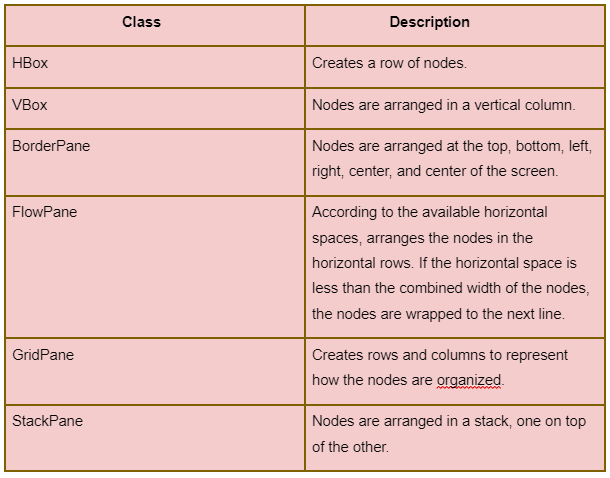
Layout Classes
Also see, Java
Types of JavaFX Layouts
There are many JavaFx Layouts but here we are discussing only five of them which are as below:
1.VBox: The node can be arranged into vertical columns with the use of VBox. In this, the children can be displayed in the content area's default height and default width, which is equal to or more than the width of the children. Although the locations for the children cannot be adjusted because they are computed automatically, they can be somewhat controlled by altering the VBox parameters.
2. HBox: If children may be resized, HBox will resize them to their selected widths and utilizes its fillHeight property to determine whether to resize their heights to match their height or retain them at their preferred level. The alignment attribute, has the default value of Pos.TOP LEFT, determines how the content is aligned.
3.BorderPane: Children are arranged in the top, left, right, bottom, and center locations by BorderPane. The children at the top and bottom will be resized to their ideal heights and will fill the entire border window. The length between the top and bottom nodes will be increased and the left and right children will be resized to their preferred widths.
4.FlowPane: The user can arrange the nodes in a sequential fashion with FlowPane, and the nodes are wrapped at the border. Here, the nodes can either be in a horizontal or vertical direction (columns) (rows).
5. StackPane: All nodes are arranged in this layout within a single stack. In other words, nodes are stacked one on top of the other, much like in a stack.
Let's understand the above types of JavaFX Layout with the help of examples.
Implementation of VBox property
import javafx.application.Application;
import javafx.scene.Scene;
import javafx.scene.control.*;
import javafx.scene.layout.*;
import javafx.stage.Stage;


public class App extends Application {
// This method helps in launching this application program.
    public void start(Stage stage)
    {
        // Setting the Title.
        stage.setTitle("Vbox example");
        // Creating the VBox.
        VBox vb = new VBox(10);
        // Creating the Label.
        Label lb = new Label("WOW! It works. Check out these buttons:");
        // Adding the created label to the Vbox.
        vb.getChildren().add(lb);
        // adding the buttons to the VBox.
        vb.getChildren().add(new Button("Button A"));
        vb.getChildren().add(new Button("Button B"));
        vb.getChildren().add(new Button("Button C"));
        // creating the Scene.
        Scene scene = new Scene(vb, 300, 300);
        // Setting the Scene.
        stage.setScene(scene);
        stage.show();
    }


    public static void main(String args[])
    {
        //method that will help in launching of the JavaFX application program.
        launch(args);
    }
}

You can also try this code with Online Java Compiler
Output

Implementation of HBox
// Program to create an HBox
import javafx.application.Application;
import javafx.scene.Scene;
import javafx.scene.control.*;
import javafx.scene.layout.*;
import javafx.stage.Stage;
public class App extends Application {
// this method helps in launching the application
public void start(Stage stage)
{
// setting up the title
stage.setTitle("HBox Example");
// creating the  HBox
HBox hb = new HBox(10);
// adding the buttons to Hbox
hb.getChildren().add(new Button("Hello"));
hb.getChildren().add(new Button("Ninjas"));
// creating Scene
Scene scene = new Scene(hb, 300, 300);
// Setting up the Scene
stage.setScene(scene);
stage.show();
}


public static void main(String args[])
{
// this method will launch the JavaFX application
launch(args);
}
}
You can also try this code with Online Java Compiler
Output

Implementation of BorderPane
// Java Program to create an BorderPane
import javafx.application.Application;
import javafx.scene.Scene;
import javafx.scene.control.*;
import javafx.scene.layout.*;
import javafx.stage.Stage;
public class App extends Application {
// main method which helps in launching the application
public void start(Stage stage)
{
BorderPane border = new BorderPane();
border.setTop(new TextField("CODE"));
border.setBottom(new TextField("LIFE"));
border.setLeft(new TextField("CODING "));
border.setRight(new TextField("STUDENTS"));
border.setCenter(new TextField("NINJAS"));
//  Creating Scene
Scene scene = new Scene(border);
// setting up the Title
stage.setTitle("BorderPane example");
//setting up the scene
stage.setScene(scene);
stage.show();
}
// Main Method
public static void main(String args[])
{
// this method will launch the JavaFX application
launch(args);
}
}
You can also try this code with Online Java Compiler
Output

Implementation of FlowPane
// Java Program to create a flowpane
import javafx.application.Application;
import javafx.collections.ObservableList;
import javafx.geometry.Insets;
import javafx.scene.Scene;
import javafx.scene.control.Button;
import javafx.scene.layout.FlowPane;
import javafx.scene.shape.Sphere;
import javafx.stage.Stage;
public class App extends Application {
// this method helps in launching the application
public void start(Stage stage)
{
//creating buttons
Button button1 = new Button("Hello");
Button button2 = new Button("Coding");
Button button3 = new Button("Ninjas");
// creating Flow Pane
FlowPane fp = new FlowPane();
//Setting horizontal gap
fp.setHgap(50);
//Setting margin
fp.setMargin(button1, new Insets(30, 0, 30, 30));
ObservableList list = fp.getChildren();
//Adding nodes to the flow pane
list.addAll(button1, button2, button3);
//  creating Scene
Scene scene = new Scene(fp);
// Setting up the Title
stage.setTitle("BorderPane Example");
//  setting up the Scene
stage.setScene(scene);
stage.show();
}


public static void main(String args[])
{
// this method launch the JavaFX application
launch(args);
}
}
You can also try this code with Online Java Compiler
Output

Implementation of StackPane
// Java Program to create a flowpane
import javafx.application.Application;
import javafx.scene.shape.Sphere;
import javafx.scene.shape.TriangleMesh;
import javafx.collections.ObservableList;
import javafx.scene.text.Font;
import javafx.geometry.Insets;
import javafx.scene.text.FontWeight;
import javafx.scene.Scene;
import javafx.scene.layout.StackPane;
import javafx.scene.shape.Circle;
import javafx.scene.shape.Rectangle;
import javafx.scene.text.Text;
import javafx.stage.Stage;
import javafx.scene.paint.Color;
public class App extends Application {
@Override
public void start(Stage stage) {
//draw a rectangle
Rectangle rect = new Rectangle(100,100);
// creating text
Text t = new Text(" HELLO NINJAS");
//Setting up the  font of the text
t.setFont(Font.font(null, FontWeight.LIGHT, 13));
//Setting up the color of the text
t.setFill(Color.WHITE);
//setting up the position of the text
t.setX(50);
t.setY(100);
//Creating a Stackpane
StackPane sha = new StackPane();
ObservableList list = sha.getChildren();
//Adding nodes to the pane
list.addAll( rect, t);
//  creating Scene
Scene scene = new Scene(sha);
// setting up the title
stage.setTitle("Example for StackPane");
//  setting up the Scene
stage.setScene(scene);
stage.show();
}


public static void main(String args[])
{
//this method will launch the JavaFX application
launch(args);
}
}
You can also try this code with Online Java Compiler
Output

Frequently Asked Questions
What does the JavaFX group mean?
A group is a component that acts as a container in JavaFX but does not apply any specific layout to the children. Every child node or component, in this case, will remain at position 0,0. This group component is typically used to combine or group changes or effects on a control set.
What is a stage in JavaFx?
A Scene, which is made up of visual components, is hosted by a Stage in JavaFX. A stage in a JavaFX application is represented by the Stage class in the javafx. stage package. The start(Stage s) method of the Application class receives the platform created for the primary stage as a parameter.
What does JavaFX's controller mean?
Based on MVC, JavaFX controllers operate (Model-View-Controller) FXML which can be used to implement JavaFX MVC (EFF-ects eXtended Markup Language). As with HTML, JavaFX applications' graphical user interfaces are created using the XML-based language FXML.
Conclusion
In this article, we have extensively discussed the introduction to JavaFX Layouts, Layout Classes, Steps to create Layouts, and types of JavaFX Layouts.
After reading about Introduction to JavaFX Layouts, are you not feeling excited to read/explore more articles on the topic of file systems? Don't worry; Coding Ninjas has you covered. To learn, see Overloading and Overriding static Methods in java, Understanding Association, Aggregation, and Composition in Java, java interview questions, Multiple Inheritance in Java, Multilevel Inheritance in java.
If you want to level up your skills then you should follow our Guided Path on Coding Ninjas Studio in various fields like Data Structures and Algorithms, Competitive Programming, JavaScript, System Design, and many more! If you want to test your competency in coding, you may check out the mock test series and participate in the contests hosted on Coding Ninjas Studio! But suppose you have just started your learning process and are looking for questions asked by tech giants like Amazon, Microsoft, Uber, etc. In that case, you must look at the problems, interview experiences, and interview bundle for placement preparations.
Nevertheless, you may consider our paid courses to give your career an edge over others!
Do upvote our blogs if you find them helpful and engaging!
Happy Learning!





 7+ registered

