Do you think IIT Guwahati certified course can help you in your career?
Introduction 📃
Hello there! Welcome to yet another article on Puppet. When an application is developed and deployed, it undergoes many changes. Many developers are also required to make these changes. Have you wondered how this works? Then you are at the right place. Coding Ninjas have got you covered.
This article will discuss LDAP authentication in Puppet. But before getting started, let's first understand Puppet and LDAP(Lightweight Directory Access Protocol).
What is Puppet?
Puppet is a software configuration management tool. It is a platform to configure the system and software settings. Puppet has its declarative language to manage the settings. You do not need much knowledge of programming to use Puppet. Puppet Enterprise is built on top of the Puppet platform. It is a commercial version of Puppet. To get started with Puppet Enterprise, visit Installing and Configuring Puppet Enterprise.
This article will refer to Puppet Enterprise as PE for convenience. Now, let's discuss LDAP.
What is LDAP?
LDAP stands for Lightweight Directory Access Protocol. It is an open, industry-standard, vendor-neutral application protocol. It governs rules for accessing and managing distributed directory information services over the IP protocol. It is a lightweight version of DAP(Directory Access Protocol), a standard protocol for directory services in a network. DAP is an access control protocol designed for directory services based on X.500 recommendations. The X.500 recommendations are the global directory service that has a worldwide scope.
One of the significant uses of LDAP is to store usernames and passwords for authentication. It is used by various applications to validate users with the help of plugins.
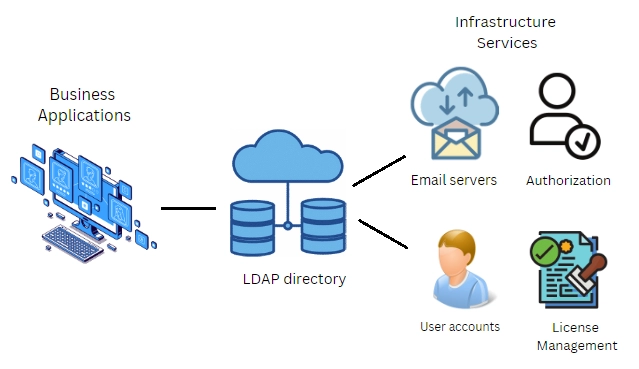
The below image explains how the LDAP works.
As you can see in the above picture, the business applications use LDAP protocol to access and manage directory information services. The LDAP links the infrastructure services to business applications. The various infrastructure services could be to authenticate the user accounts, perform license management, manage email servers, or perform authorization.
Connecting LDAP external directory services to PE
Puppet Enterprise connects to LDAP(Lightweight Directory Access Protocol) through its RBAC(role-based access control) service. Puppet enterprise connects with Cloud LDAP. You can use the existing users or user groups from an external directory service.
In PE, using the external directory service, you can perform the following functions:
You can authenticate external directory users to PE. This adds the external directory users to PE by establishing a connection via LDAP. After authentication, users get access to PE when assigned at least one user role.
Authorize users from an external directory with RBAC permissions.
You can store or retrieve information regarding the groups or group memberships to and from your external directory.
Puppet Enterprise also supports Active Directory and OpenLDAP. You can import the predefined groups from Active Directory or OpenLDAP. You can also assign user roles to the imported groups. All the users in the groups are provided with the permissions associated with the assigned roles. If a user is added to the group, then that user gets all the permissions associated with the group.
Note: The connection of Active Directory and OpenLDAP with PE is read-only. You cannot add or update a remote user in the external directory from the PE. You have to explicitly edit the user in the external directory.
Connect to an External Directory Service
PE supports connection with Active Directory and OpenLDAP. PE connects with one of the mentioned directories when a user logs in or when user groups are inherited.
You can connect to an external directory service with PE by following the steps given below.
Click on the LDAP tab on the Access Control Page in the console.
Mention all the directory Information. The Login help, Lookup user, Lookup password, User relative distinguished name,and Group relative distinguished name fields are optional. Rest all the fields are required.
Click Test Connection. It will test the connection settings. Save the settings after successfully testing the connection.
Note: Only the connection is tested and not the LDAP queries.
External Directory Settings
While connecting external directory services, you are asked to fill in some information. The settings information has to be filled in correctly for both OpenLDAP and Active Directory.
There are 22 fields, out of which 6 are optional. Following are the display names and system names of all external directory settings
Display Name
System Name
Directory name
display_name
Login help (optional)
help-link
Hostname
hostname
Port
port
Lookup user (optional)
login
Lookup password (required if the lookup user is specified)
password
Connection timeout (seconds)
connect_timeout
Connect using:
ssl, start_tls
Validate the hostname?
ssl_hostname_validation
Allow wildcards in SSL certificate?
ssl_wildcard_validation
Base distinguished name
base_dn
User login attribute
user_lookup_attr
User email address
user_email_attr
User full name
user_display_name_attr
User relative distinguished name (optional)
user_rdn
Group object class
group_object_class
Group membership field
group_member_attr
Group name attribute
group_name_attr
Group lookup attribute
group_lookup_attr
Group relative distinguished name (optional)
group_rdn
Turn off LDAP_MATCHING_RULE_IN_CHAIN?
disable_ldap_matching_rule_in_chain
Search nested groups?
search_nested_groups
Verify Directory Server Certificates
It is crucial to ensure that RBAC isn't under Man-in-the-Middle(MITM) attack. When establishing a connection, you need to use a security protocol. The connection is encrypted if you use SSL or StartTLS to connect with your external directory. It is good to configure the ds-trust-chain to point to a public key copy for the directory service to ensure that it identifies appropriately.
The directory server certificates are verified by the RBAC service using a trust store file. The trust store file contains a chain of trust to certify the directory server certificates. This file should be present in the location accessible by the user.
Follow the below steps to turn on verification.
Click on Node Groups in the console window.
Open PE Infrastructure Node group. From the options, select PE Console node group.
Click on Classes. Find the puppet_enterprise::profile::console class.
Select rbac_ds_trust_chain in the Parameter field.
Set the value of the absolute path to the trust store file in the Value field.
Click on Add parameters.
Run Puppet to view the changes. It will restart pe-console-services.
After the changes are made, the RBAC verifies the directory server certificates each time a connection is established under SSL or StartTLS protocol.
Enable Custom Password Policies through LDAP
In Puppet Enterprise, the password policies are not configured. You can allow LDAP to configure custom password policies in PE. You can create more complex password policies. This can be done by providing administrative privileges to LDAP. With an administrative user, revoke the admin user in the console to enable LDAP to customize the password policies.
Note: Ensure you have enabled LDAP and logged in as an administrative user.
You can revoke an admin user in the console by performing the following steps.
Click on the Users Tab on the Access Control Page in the Console.
Select Administrator.
Click on Revoke user access on the User details page.
The admin user will be revoked. Your LDAP will now be able to manage password policies. You can create complex password policies through LDAP administrative user account.
To enable the admin user again, click on Reinstate user access on the User details page.
Working with User Groups from an LDAP External Directory
Remote users are not added implicitly to Puppet Enterprise. After setting up the external directory, users have to log in explicitly to add their user record in PE.
If a remote user is a member of a user group imported into PE and assigned a role. The user acquires all the permissions associated with the user role. If more than one role is assigned, then the permissions of all the roles are granted to the user.
Import a User Group from an External Directory Service
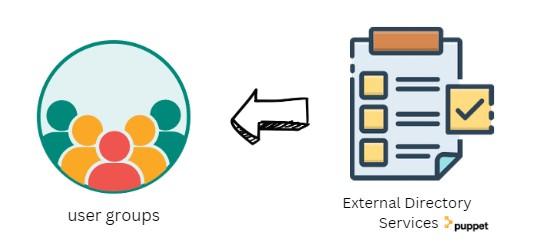
You have to explicitly import a user group from an external directory service. You have to provide the name of the group you want to import. All the users in the user group are imported to PE and can be assigned different user roles.
Follow the below steps to import a user group from an external directory service.
Click on the Users groups tab on the Access Control Page in the Console.
Enter the name of the user group you want to import in the Login field.
Click on Add group.
Your user group will be imported from the external directory service to PE. No user role is assigned to the group implicitly. A user has to log into PE to be listed in the users' list.
Troubleshooting: If both the PE user and external service user have the same name.
PE throws an error when trying to import a user group or log into a group with the same name as a PE user. You can solve this problem by changing the RDN settings. Change the settings to use different RDNs for groups and users. You must have all the groups and users in separate RDNs for this solution to work.
Assign a User Group to a User Role
No user roles are assigned to a user group implicitly after importing. You have to assign the user roles to user groups. All the permissions associated with the user role are granted to all users in the user group. If more than one user role is assigned, then the permissions of all the user roles are granted to the users. You can assign the default or custom roles to the user group. You can also create new roles and assign them to the user groups.
Follow the below steps to assign a user group to a user role.
Click on the User roles tab on the Access Control Page in the Console.
Select the user role.
Click on Member groups. Select the user group you want to assign the user role in the Group name field.
Click on Add group.
The selected user roles will be assigned to the selected user groups.
Delete a User Group
You can also delete a user group you want in the console. The users that are members of a deleted user group lose all the permissions associated with the user group.
Note: It only deletes a user group in the Puppet Enterprise. The user group is not deleted from the external directory service. You have to explicitly delete the user group from the external directory service to remove it from there.
Follow the below steps to delete a user group in the PE.
Click on the Users groups tab on the Access Control Page in the Console.
Locate the desired user group.
Click on Remove.
The selected user group will be deleted in the PE.
Removing a Remote User’s Access to PE
You must remove the user from the external directory service to entirely revoke the user’s access to PE. Even if you delete a user in PE, it will not automatically revoke the user’s access to PE in the future. As long as the remote user is present in the user group of the external directory service, the user can log into PE.
Frequently Asked Questions
What is Puppet?
Puppet is a software configuration management tool. It is a platform to configure the system and software settings. Puppet has its declarative language to manage the settings. You do not need much knowledge of programming to use Puppet.
What are user roles in PE?
The user roles are a set of permissions or privileges. These roles can be assigned to a group of users. The users or user groups assigned a role get all the permissions associated with the user role.
What happens if more than one user role is assigned to a user?
Each user role has some permissions associated with them. If more than one user role is assigned to a user, then the user gets the permissions of all the roles.
Can you revoke user access in PE?
Yes, you can revoke user access in Puppet Enterprise. If you do not want to permanently delete the user, you can revoke access to the PE console. The user access can be reinstated to a user.
What happens if you delete a user role in PE?
When a user role is deleted, the role is revoked from all the assigned users. The assigned users lose the permissions associated with the deleted user role. They can lose access to the PE console if not assigned any other role.
Conclusion🔚
This article discussed LDAP Authentication in Puppet. We also discussed importing user groups from the external directory service to PE.










 1+ registered

