Hough transform algorithm
All lines in a plane can be represented in two systems:
-
In cartesian coordinate system:
y = mx+b
-
In polar coordinate systems:
r = xcosθ + ysinθ
For Hough Transforms, we represent the lines in the polar system. In the polar system, there are two parameters, r, and θ, where r is the perpendicular distance of the line from the origin and θ is the angle made by the line from the x-axis.

representing a line in polar coordinate system
The image space is quantized (broken down into cells). This quantized space is known as accumulator cells. Accumulator holds the parameters(r, θ). Rows represent r, and columns represent θ. The value of accumulator cells is set to 0 initially.
Hough transform checks the image's x and y coordinates and calculates the corresponding r, θ pair. For a calculated (r, θ), the value of that particular accumulator cell is increased. Lines are found at the peaks of the accumulator space.

Link
Implementation of Hough transform
Below is an image of the coding ninjas office at Pitampura, New Delhi. We will detect the lines in this image using Hough transform.

Source: Google images
Importing the libraries:
import cv2
import numpy as np
import math

You can also try this code with Online Python Compiler
Function to get the accumulator:
def hough_line(edge):
    # Theta 0 - 180 degree
    # Calculate 'cos' and 'sin' value ahead to improve running time
    theta = np.arange(0, 180, 1)
    cos = np.cos(np.deg2rad(theta))
    sin = np.sin(np.deg2rad(theta))

    # Generate a accumulator matrix to store the values
    rho_range = round(math.sqrt(edge.shape[0]**2 + edge.shape[1]**2))
    accumulator = np.zeros((2 * rho_range, len(theta)), dtype=np.uint8)

    # Threshold to get edges pixel location (x,y)
    edge_pixels = np.where(edge == 255)
    coordinates = list(zip(edge_pixels[0], edge_pixels[1]))

    # Calculate rho value for each edge location (x,y) with all the theta range
    for p in range(len(coordinates)):
        for t in range(len(theta)):
            rho = int(round(coordinates[p][1] * cos[t] + coordinates[p][0] * sin[t]))
            accumulator[rho, t] += 1
    return accumulator
You can also try this code with Online Python Compiler
Reading the image and doing canny edge detection and finding the accumulator values.
#reading the image
img = cv2.imread("C:\\Users\\mdyaw\\Downloads\\cn.jpg")

#using canny edge detection, Hough transform will be applied on the output #of cv2.Canny()
edges = cv2.Canny(img, 75, 150)

accumulator = hough_line(edges)
You can also try this code with Online Python Compiler
Setting a threshold value for the accumulator and drawing the lines through those points.
edge_pixels = np.where(accumulator > 120)
coordinates = list(zip(edge_pixels[0], edge_pixels[1]))

    # Use line equation to draw detected line on an original image
for i in range(0, len(coordinates)):
    a = np.cos(np.deg2rad(coordinates[i][1]))
    b = np.sin(np.deg2rad(coordinates[i][1]))
    x0 = a*coordinates[i][0]
    y0 = b*coordinates[i][0]
    x1 = int(x0 + 1000*(-b))
    y1 = int(y0 + 1000*(a))
    x2 = int(x0 - 1000*(-b))
    y2 = int(y0 - 1000*(a))

    cv2.line(img,(x1,y1),(x2,y2),(0,255,0),1)

cv2.imshow('result',img)
cv2.waitKey(0)
You can also try this code with Online Python Compiler
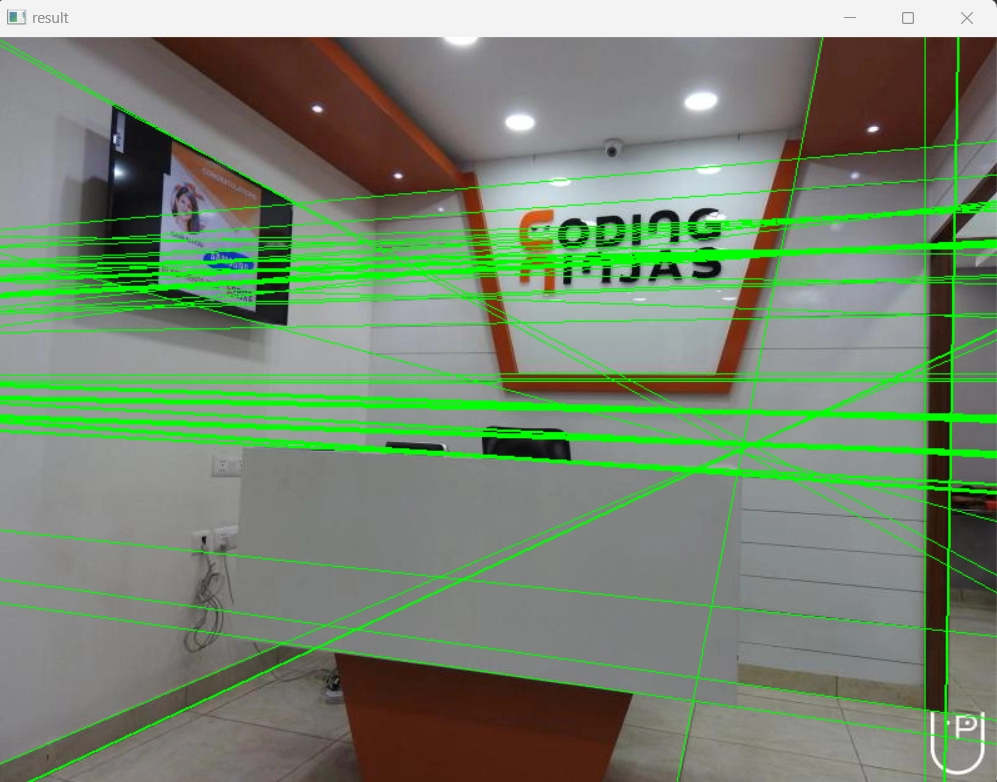
Output
Implementation of Hough transform using OpenCV:
cv2.HoughLines() is used to perform Hough transform to detect the lines in our image. cv2Houghlines() give us a vector of the pair (r,θ).
There is a more efficient way to perform Hough line transform in our image. It is known as Probabilistic Hough Line Transform. It gives us the extremes of the detected lines in the form of the coordinates (x0,y0,x1,y1). It is implemented by using cv2.HoughlinesP().
#importing the libraries
import cv2
import numpy as np

#reading the image
img = cv2.imread("imagepath\CodingNinjas.jpg")

#using canny edge detection, Hough transform will be applied on the output #of cv2.Canny()
cannyedges = cv2.Canny(img, 75, 150)

#applying cv2.HoughlinesP(), the coordinates of the endpoints of the #detected lines are stored
detectedlines = cv2.HoughLinesP(cannyedges, 1, np.pi/180, 60,maxLineGap=30)

#iterating over the points and drawing lines on the image by using the #coordinates that we got from HoughLinesP()
for line in detectedlines:
  x0, y0, x1, y1 = line[0]
  cv2.line(img, (x0, y0), (x1, y1), (0, 0, 250), 1)

#getting the output
cv2.imshow("linesDetectedusingHoughTransform", img)
cv2.waitKey(0)
cv2.destroyAllWindows()
You can also try this code with Online Python Compiler
Output

Both our method and cv2.HoughlinesP() method detects lines in the image. We can safely say that both of them give us good results. But cv2.HoughlinesP() gives us the extremities of the lines. We can say that it draws line segments over the image. While our function draws lines over the image. The lines drawn are produced to the image boundary. We can get better results by tweaking some values but in this case cv2.HoughlinesP() does a better job at detecting the lines.
Applications of Hough Transform
- Used in computer vision to detect the features in an image.
- Commonly used in astronomical data analysis.
- Used to develop auto-adaptive algorithms for arc detection
- Used in medical visualization
-
Detection of cumuliform clouds.
Also read, Sampling and Quantization
Frequently Asked Questions
Are there more methods to detect lines in our image?
There are more methods provided by OpenCV to detect lines. For example, LSD (Line Segment Detector).
Can Hough transform be used to find more shapes other than lines and circles?
Yes, we can find any parametric curve in our image by using Hough transform as long as we know the curve's equation.
What are the disadvantages of Hough transform?
It can give us wrong results if the size of the accumulator cells is not right.
Conclusion
This article talked about Hough Transform. We saw it’s working and learned that it could detect any parametric curve in our image as long as we have its equation. We also implemented it using OpenCV and detected lines in our image.
Refer to our Guided Path on Coding Ninjas Studio to upskill yourself in Data Structures and Algorithms, Competitive Programming, JavaScript, System Design, Machine learning and many more! If you want to test your competency in coding, you may check out the mock test series and participate in the contests hosted on Coding Ninjas Studio! But if you have just started your learning process and are looking for questions asked by tech giants like Amazon, Microsoft, Uber, etc; you must look at the problems, interview experiences, and interview bundle for placement preparations.
Nevertheless, you may consider our paid courses to give your career an edge over others!
Do upvote our blogs if you find them helpful and engaging!
Happy Learning!!






 8+ registered

