Do you think IIT Guwahati certified course can help you in your career?
Introduction
You can carry out operations on target machines using puppet tasks. An executable file that you use to perform a single operation on the target is known as a "task." Do you wish to restart a certain service or upgrade a package, for instance? Create a Puppet task run to compel you to make such modifications whenever you want. In this article, we will be learning about Managing Code with Code Manager in Puppet. We will also discuss how code manager works, understand file sync and the staging directory, and Environment isolation metadata and Code Manager.
Managing code with Code Manager
Your Puppet code management and deployment are automated using Code Manager. Code Manager syncs the code to your main server and compilers when you push updates to your source control repository. This enables the updated code to be performed as quickly as feasible across all of your servers without affecting the current agent execution.
How Code Manager works
Code Manager stages commit and sync your code using r10k and the file sync service to automatically manage your environments and modules.
Set up Code Manager
To utilize Code Manager as your code management tool, you must first configure it.
Configure Code Manager
Code Manager must be enabled in Puppet Enterprise (PE), authentication must be set up. And the connection between the control repository and Code Manager must be tested before you can configure it.
Lockless code deploys
Puppet Server stalls requests during code deployment, such as catalog compilation, until file sync, has finished updating the Puppet code directory. To deploy code without obstructing requests to Puppet Server, you can activate lockless code deploys. Instead of obstructing requests and overwriting the live code directory. Lockless code deploys allow the file sync client to update code into versioned code directories.
Customize Code Manager configuration in Hiera
To personalize your Code Manager settings, set parameters in Hiera.
Triggering Code Manager on the command line
To launch Code Manager from the command line and deploy your environments, use the puppet-code command.
Triggering Code Manager with a webhook
You can use a web endpoint to launch Code Manager and deploy your code by calling it with a custom script or webhook. The simplest approach to activate Code Manager is using webhooks.
Triggering Code Manager with custom scripts
If you can't utilize webhooks to start deployments, custom scripts are a good alternative. For instance, if you already use continuous integration solutions (like Continuous Delivery for Puppet Enterprise (PE)), custom notifications, or privately hosted Git repositories.
Troubleshooting Code Manager
Source control, r10k, and the file sync service are a few of the components that must work together in harmony for Code Manager to function. Check that these parts are working if Code Manager is giving you trouble.
Code Manager API
Without having direct shell access, you can utilize the Code Manager API to deploy code and monitor the progress of deployments on your main server and compilers.
About file sync
File synchronization aids Code Manager in maintaining the synchronization of your Puppet code between your main server and compilers.
Code Manager works
Code Manager stages commits and sync your code using r10k and the file sync service to automatically manage your environments and modules.
Managing environments with a control repository is necessary for Code Manager. For each environment you wish to construct, a control repository with branches must be created (such as production, development, or testing). Every branch needs a Puppetfile that details precisely which modules should be installed in each environment. The Puppet documentation contains more information about Environments.
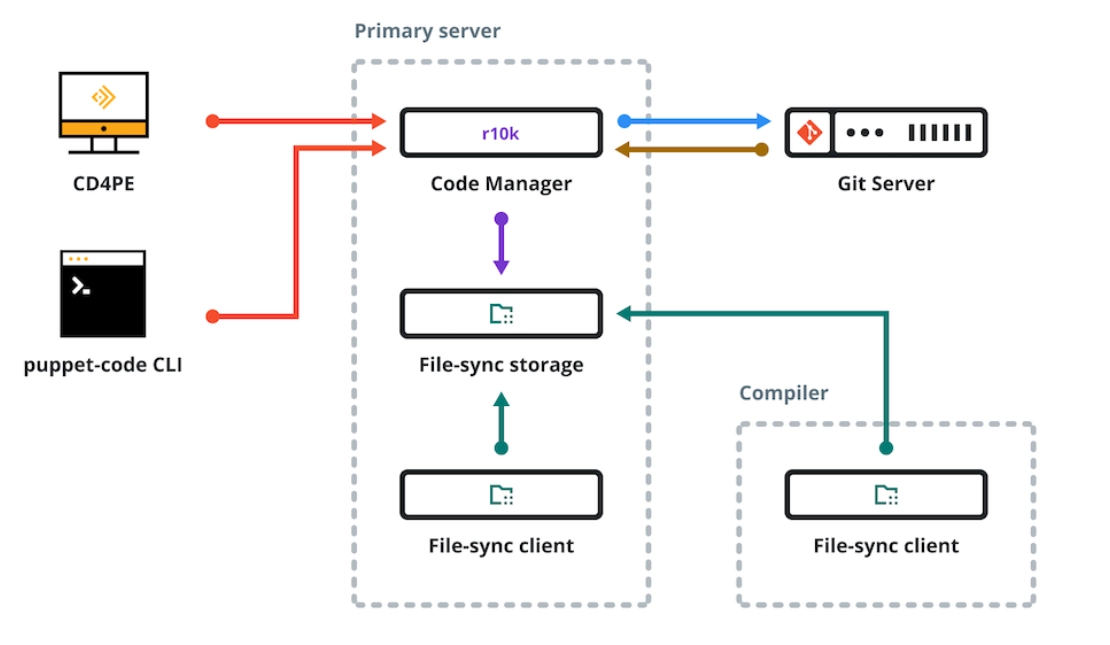
Based on the branches you've set up, Code Manager produces directory environments. You push the code that you want Code Manager to deploy from your control repository onto a Git server.
Code Manager can begin a code deployment in one of three ways:
When you submit code to the control repository, your Git server instantly initiates the code deployment.
Code Manager receives a deploy request from Continuous Delivery for Puppet Enterprise.
To manually launch Code Manager from the command line or with a custom script, use the puppet-code command.
The primary server's staging directory (located at /etc/puppetlabs/code-staging). It is where Code Manager stores the code after it has been triggered and fetched from the Git server using r10k. The file sync clients then halt Puppet Server to prevent conflicts during synchronization after the file sync storage service on the primary server notices the change in the staging directory. The new code is then synchronized to the live code directories on the main server and compilers (often located at /etc/puppetlabs/code) through the file sync clients. This code deployment procedure is depicted in the following diagram.
Understanding file sync and the staging directory
Code Manager uses file synchronization and two distinct code directories—the staging directory and the live code directory—to keep your code consistent throughout your principal server and compilers.
The live code directory, or codedir, located at /etc/puppetlabs/code, is where Puppet code resides in the absence of Code Manager or file sync.
The primary server's staged code directory (located at /etc/puppetlabs/code-staging) is where the file sync client service for Code Manager and file sync continuously monitors for changes to staged code files. If a change is found, the file sync client service downloads the updated files and syncs them to the primary server's (at /etc/puppetlabs/code) and each compiler's live codedir. The file sync client service uses JGit to collect changes and HTTPS to poll for updates.
You no longer write code in the codedir because Code Manager transfers new code from source control into the staging directory and file sync moves it into the live code directory. If you manually alter the codedir, Code Manager will overwrite your modifications the next time it publishes code from source control.
Environment isolation metadata and Code Manager
The metadata files produced by file sync can be found in the live code and staging code directories, and they offer environment separation for your resource types.
The.pp-extended metadata files make ensuring that each environment uses the correct resource type version.
When Code Manager delivers new code in your environments, these files are created. These files are created when you first deploy your environments, in case you are new to Code Manager. The files are created as you make and deploy changes to your current environments if you already utilize Code Manager.
Moving from r10k to Code Manager
Your code management and deployments can be more automated if you switch from r10k to Code Manager.
Despite the fact that we always advise utilizing Code Manager, there are a few reasons you might not want to switch from r10k to Code Manager, including:
You cannot manually deploy code using r10k using Code Manager. We advise sticking with r10k if you rely on the ability to deploy modules directly from r10k (using the r10k deploy module command).
All control repositories must be deployed by Code Manager to the same directory. We advise sticking with r10k if you use it to deploy control repositories to various directories.
The shellgit provider is supported by Code Manager, but only through HTTPS. It is not system-compatible. SSH settings or additional shellgit options.
Post-deploy scripts are not supported by Code Manager.
Consider carefully whether Code Manager can serve your objectives if you depend on any of the configurations listed above that Code Manager does not support or if you are using a custom script to distribute code.
Set up Code Manager
To utilize Code Manager as your code management tool, you must first configure it.
After downloading Code Manager, you must:
Get ready to manage environments using a control repository. To do this, a Git control repository with a Puppetfile must be created.
Use Git to create a control repository for your code.
Your Puppet code and data are maintained and distributed by Code Manager using the control repository. In your Puppet infrastructure, you may also establish distinct deployment environments by generating branches in your control repository (such as a development branch for a development environment). As you make changes to your control repository, Code Manager keeps track of your environments and updates them accordingly.
Code Manager configuration.
Customize Code Manager settings in Hiera, if desired.
Environments can be deployed via the command line or a deployment trigger (preferred). You could want to use the command line for the initial settings before setting up an automated trigger.
An open-source tool for managing and deploying software configuration is called Puppet. The most popular operating systems for controlling numerous application servers at once are Linux and Windows.
What is the most fundamental puppet modeling unit?
Resources serve as the fundamental building block for modeling system setups.
What are the functions of a puppet?
Infrastructure automation, automated provisioning, task management, code management, visualization, and reporting are just a few of Puppet's features.
What does a puppet node mean?
A section of Puppet code known as a node definition, also called a node statement, is only present in the catalogs of matching nodes.
Conclusion
In this article, we have extensively discussed Managing Code with Code Manager in Puppet.








 1+ registered

