Do you think IIT Guwahati certified course can help you in your career?
Introduction
Hello Friends!
Do you need help with using the Microsoft SQL Databases as Data Sources in Ready API? Don’t worry, we got you covered!
This blog will guide you intricately about the steps to be followed in order to use Microsoft SQL Databases as data sources in Ready API (Application Programming Interface). But before moving into the technical part, let us first have some discussion about what Microsoft SQL Databases are about and what Ready API is.
Microsoft SQL Server
Microsoft SQL Server is basically a relational database management system (RDBMS) used in corporate IT environments to handle a wide range of transaction processing, business intelligence, and analytics applications.
MSSQL Server restricts processes from accessing or altering binaries or database files. It can be executed on the same computer or on another machine across a network.
REST API
A REST API (also known as RESTful API) is a type of application programming interface (API or web API) that adheres to the REST architectural style and allows interaction with RESTful web services. Roy Fielding, a computer scientist, invented REST, which stands for representational state transfer.
A REST API is a method for two computer systems to communicate, utilizing HTTP utilizing(Hypertext Transfer Protocol) technologies such as those available in web browsers and servers. Data sharing between two or more systems has always been a need for software development. Consider purchasing automobile insurance.
One of the most significant advantages of REST APIs is their flexibility. Since data is not linked to resources or methods, REST can support many sorts of calls, return diverse data formats, and even change architecturally with proper hypermedia implementation.
Ready API
Ready API is a no-code API testing platform aimed at simplifying your testing procedures. End-to-end tests can be automated and scaled across many API types. Run load tests that are compatible with your functional tests. Allow virtualization to ensure that your development teams have fast and dependable integrations.
Ready API is a centralized, automated testing platform that allows teams to build, manage, and execute performance tests.
Using Microsoft SQL Database for Data Sources
Now, it’s time to learn about using Microsoft SQL Database for Data Sources in Ready API. This whole process has been broadly classified into two steps, which further include several steps that we will discuss in detail below. So the two steps are:
Preparation
Implementation
Let’s know more about them one by one.
Preparation
This section involves an explanation of the steps to be followed to prepare to use the Microsoft SQL databases as a Data Source in Ready API.
Install MS SQL Server
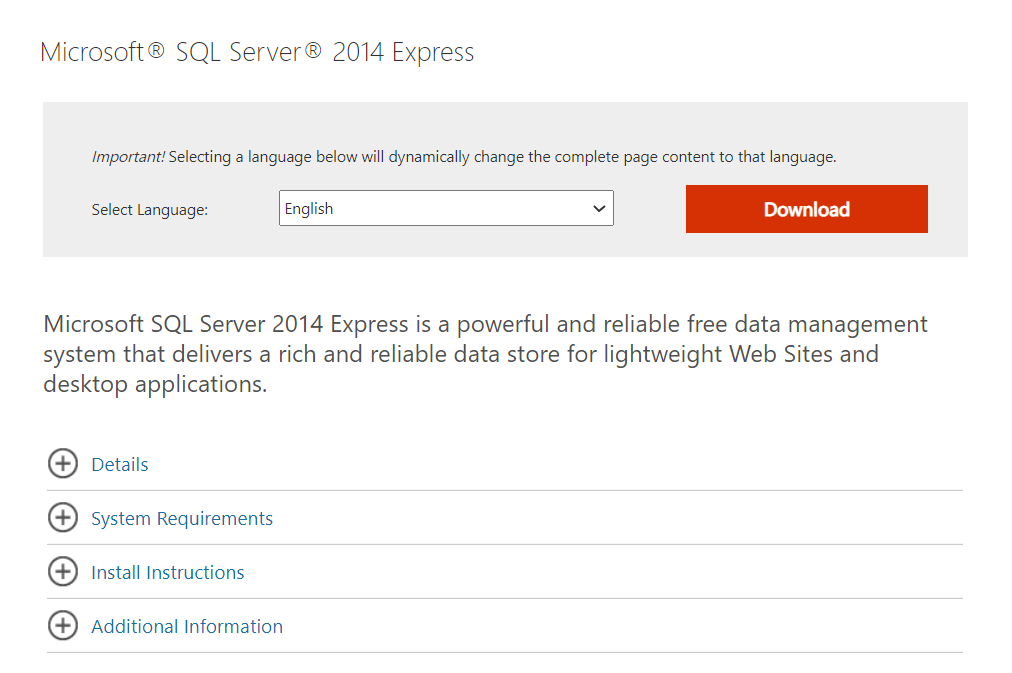
1. The first step is downloading the MS SQL Express Installer from the official website.
2. Upon the completion of the download, you have to run the installer.
3. Now, select the “New SQL Server Stand-Alone” installation.
4. Accept the license terms and then proceed to click “Next.”
5. Ensure that you uncheck the LocalDB option when you encounter the Feature Selection step. Click “Next”.
6. When you encounter the Feature Rules step, you just have to click Next.
7. Click Next for the Instance Configuration step as well.
8. You need not make any changes on the Server Configuration step.
9. Upon reaching the Database Engine Configuration step, choose the Authentication Mode and enter and confirm the password for the server administrator.
10. Upon clicking Next, the server will be installed.
Configure the Server Port
Before moving further, remember to use the SQL ConfigurationManager administration tool. MS SQL Management Studio is not to be used.
Enable TCP-IP
SQL Server Configuration Manager should be launched (in Configuration tools).
Select SQL Server Network Configuration > Protocols for <servername> and double-click TCP\IP in the right-side box.
The Protocol Properties dialogue box is displayed.
Set Enabled to Yes on the Protocol tab.
Set the Port
Select the IP Addresses tab in the Protocol Properties window, scroll down to the IPAll section, and enter the port number (1433, for example) in the TCP Port box. Select OK.
A prompt will display to remind you to restart the server. Select OK.
Restart the Server
Go to SQL Server Services, right-click the SQL Server, and select Restart.
Upon doing this, the server stops and then restarts.
Install the Sample Database
If you are using MS SQL Express, the sample database will not be available after the setup. You must download and install the database separately.
Install the JDBC Driver
Download the jTDS.zip archive for the given link: Download Link.
Then extract the zip file.
Copy the jar file to the bin directory of your ReadyAPI installation.
Now restart the ReadyAPI after installing the .jar file. This is required to be done every time you install the .jar files.
Install the Authorization DLL
When you have a named instance of an MS SQL Server Express server that you want to use for testing, you must perform some additional configuration. The DLL(dynamically linked library) must be available to ReadyAPI if the jTDS driver is to work with NTLM (New Technology LAN Manager) authorization.
Implementation
This section will tell you about the implementation and actually how to use Microsoft SQL Databases as Data sources in Ready API.
Import the Virtual API
To follow this step, you must download the ReadyAPI project containing the Virtual API.
Download the packed ReadyAPI project such that it contains the virtual API.
Select File > Import Packed Project and select the downloaded project in the box that appears.
Indicate where the project will be unpacked and saved.
The virtual API in the project runs on port 8092 by default. Change the virtual API port if this port is already in use on your machine. Modify the virtual API port.
Choose the virtual API in the Navigator and click Start to execute it.
Create a Test Case
Follow the following steps to create a new functional test case:
On the next page of the wizard, choose whether to establish a new project for the URL you supplied or to add it to an existing project.
To proceed, click Next.
You can add assertions to new requests on the wizard's next page. We will not utilize the proposed assertions in this lesson, so uncheck them and click Next.
ReadyAPI will generate a project and show a confirmation dialogue. This window provides the option to Add Data from an Excel file. Close the dialogue for the time being because you will be using a database as the data source.
You can now configure the data source.
Create a Data Source
After following the last step, you will have a project with a test case. Now you can add data sources to it.
Select the Generate Values button in the request editor.
2. Select the request parameters which will be configured automatically in the Create Data-Driven Loop dialogue.
3. Navigate to the Data Source test step. ReadyAPI will configure the data source automatically.
Configure the JDBC connection
After performing the above-mentioned steps in chronological order, you will have a project with a test case and a default data source test step. Now you can change it and have a JDBC connection to the Database.
Limit the Data Retrieval
In this step, you must specify how much data can be accessed from the database. Basically, you have to set a limit.
In the data source test step options, you can limit the number of rows that can be retrieved at one time. The data source loop will eventually use this value to determine how many times to repeat.
Use the Query Wizard
Now that the Data source has a limit, you can create queries with the query wizard.To obtain database data, you must first prepare the query. You can do it by manually or with a Query Builder Wizard Pro.
Run the Test
You now have a test case with a data source, a test step that uses it, and a data source loop that runs during the test run.
Your test case is complete. To execute the test, click the start button on the test case toolbar. Examine the Transaction Log to discover the details of the test run. Click Transaction Log on the test case toolbar to view the log.
Now let us see some frequently asked questions on Microsoft SQL databases as data sources in Ready API
Frequently Asked Questions
What is the need for ReadyAPI?
Ready API is a tool that helps in the functional and load testing of web services.
What are some of ReadyAPI's key features?
ReadyAPI is a tool for developing and running API tests. It has tools for designing test cases, running tests, and providing reports. It also includes a mimicking service tool that can be used to simulate API replies during testing.
What is the architecture of the ReadyAPI?
ReadyAPI is an API testing tool developed on top of SoapUI. SoapUI is used for functional testing, whereas ReadyAPI adds functionality such as load testing, security testing, and virtualization.
Is data-driven testing supported by ReadyAPI? If so, what data sources can be used?
Yes, data-driven testing is supported by ReadyAPI. Excel, CSV, and XML files are among the data sources that can be used.
What is the purpose of MS SQL?
Microsoft SQL Server is basically a relational database management system (RDBMS) that is used in corporate IT environments to handle a wide range of transaction processing, business intelligence, and analytics applications.
Conclusion
We hope that you clearly understand using Microsoft SQL Databases as data sources in Ready API. This blog started with an introduction to the MS SQL server. We also discussed the REST API and the Ready API. After that, we moved to the Preparation and Implementation of the process to use Microsoft SQL Databases as data sources in Ready API. These two steps include further steps which have been mentioned in this article. We then had a look at some frequently asked questions on Ready API and MS SQL databases.
If you want to learn more about Ready API and MS SQL Databases, follow the given links:










 1+ registered

